








'Finger print sensor is not responding, please try again later'. Hello, anyone getting this issue and know how to to fix it. It just started today and I've cleared the cache partition with no luck. I can't even go on the finger print settings as it says it's not working to remove the fingerprints added. Got the s22 ultra 1tb version and it's upto date."
——From Reddit
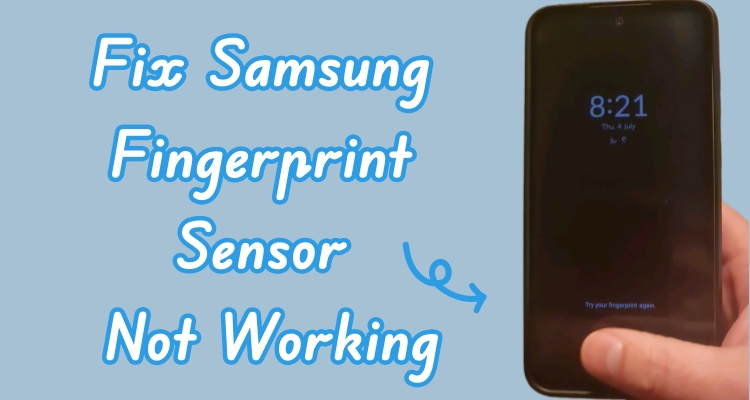
Modern convenience often rests right at our fingertips—until it doesn't. A malfunctioning fingerprint sensor can disrupt daily use, leaving you locked out of your device at the most inconvenient times. From recent software updates to a poorly placed screen protector, various factors may prevent your fingerprint from being read accurately. This guide explains why your Samsung fingerprint sensor not working and offers practical solutions to get it back in action.
- Part 1. Why Is My Fingerprint Sensor Not Working Samsung?
- Part 2. How to Fix Samsung Fingerprint Sensor Not Working
- Part 3. How to Unlock Samsung Without Fingerprint Sensor
- Part 4. Tips to Avoid Samsung Fingerprint Sensor Lockouts
- Part 5. Conclusion
Part 1. Why Is My Fingerprint Sensor Not Working Samsung?
Samsung devices are equipped with advanced in-display fingerprint technology, but several common issues can prevent them from functioning properly. Before diving into fixes, it's important to understand why your phone might fail to recognize your fingerprint. Some typical reasons include:
Dirty or greasy fingers – Oils, sweat, or lotion can interfere with the sensor.
Screen protector interference – Certain thick or textured protectors block the scanner.
Software glitches – Updates can occasionally disrupt fingerprint recognition.
Wireless charging – Electromagnetic interference may affect the sensor.
Hardware damage – Physical defects in the sensor may prevent operation.
Part 2. How to Fix Samsung Fingerprint Sensor Not Working
If the fingerprint scanner on your Samsung phone has stopped responding, don't worry. There are several ways to restore its functionality. Let's go over how to fix a Samsung fingerprint sensor that isn't working, including on the Samsung S22.
Method 1. Clean Finger and Screen
A malfunctioning fingerprint sensor is often caused by dirt or moisture on the screen or fingers. Cleaning both usually restores functionality. Also, slightly moistening overly dry fingers—by breathing on them—can improve recognition, since dry skin may prevent the sensor reading.
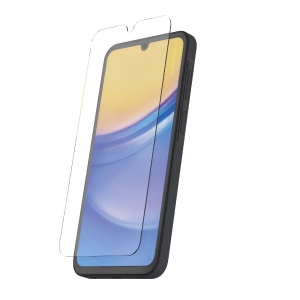
Method 2. Take Off Screen Protector
If your Samsung fingerprint sensor isn't working after screen protector replacement, a bad tempered glass or patterned screen protector may be the cause. Carefully remove the protector covering the sensor, then gently clean the area to remove any residue. Afterward, test the fingerprint unlock to see if performance improves.
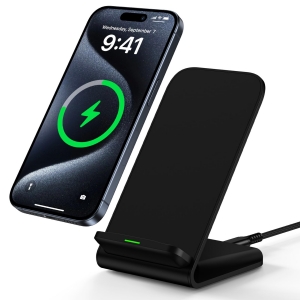
Method 3. Stop Wireless Charging
Wireless charging can create electromagnetic interference that affects a fingerprint sensor's accuracy. To restore proper function, disconnect your Samsung device from the wireless charging pad, wait briefly, and then place your finger on the sensor.
Method 4. Restart Your Samsung
Sometimes the issue is a temporary software glitch. Restarting your Samsung device can refresh the system and restore the fingerprint scanner.
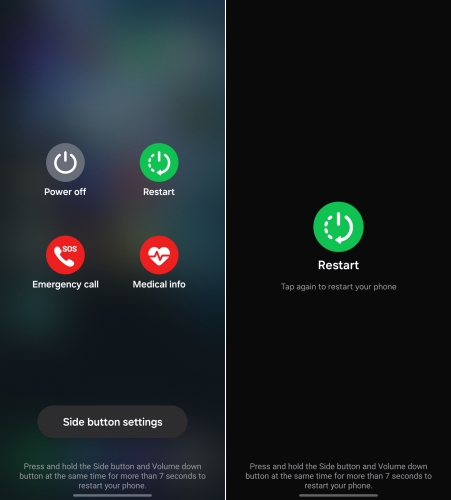
Step 1. Touch and hold the Power button along with the Volume Down key.
Step 2. Select Restart from the menu that appears.
Step 3. After reboots, test the fingerprint sensor to see if it works correctly now.
Method 5. Repair Fingerprint Sensor
If software troubleshooting doesn't solve the problem, the cause could be hardware-related. Damage to internal components or a malfunctioning sensor may stop the fingerprint reader from functioning properly. In these situations, visiting an authorized Samsung service center is recommended, where trained technicians can inspect the device and repair or replace the sensor as needed to restore accurate performance.
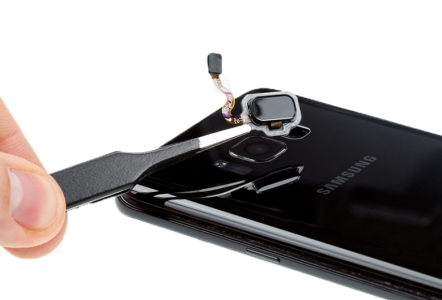
Part 3. How to Unlock Samsung Without Fingerprint Sensor
If your Samsung device's fingerprint sensor isn't working after update or you've forgotten your screen password, MagFone Android Unlocker can help. It's especially useful when you need to bypass a fingerprint lock, PIN, or pattern lock. Reliable and safe, this tool provides a straightforward way to regain access to your Samsung phone with just three steps. If you've been struggling with a locked device, why not give it a try and unlock your Samsung easily?

MagFone Android Unlocker
Remove multiple kinds of screen locks on over 5000 Android devices and delete Google FRP lock without a password.
Step 1 Connect Your Samsung Phone to MagFone
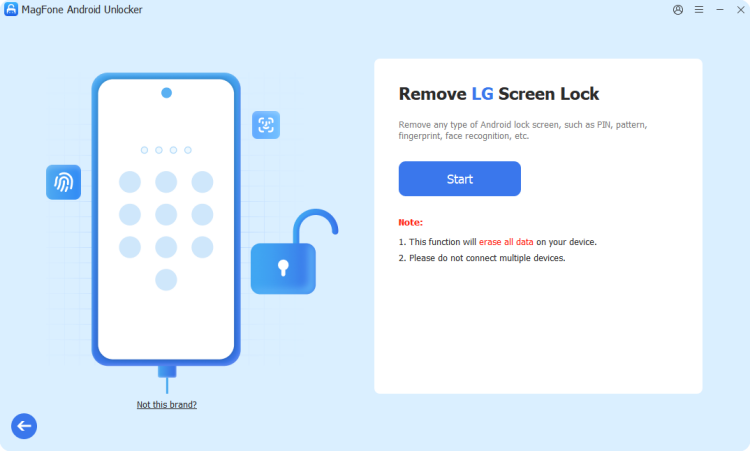
Get the MagFone Android Unlocker on your PC and link your Samsung phone. Then select Remove Screen Lock from the main interface.
Step 2 Force Samsung Phone into Recovery Mode
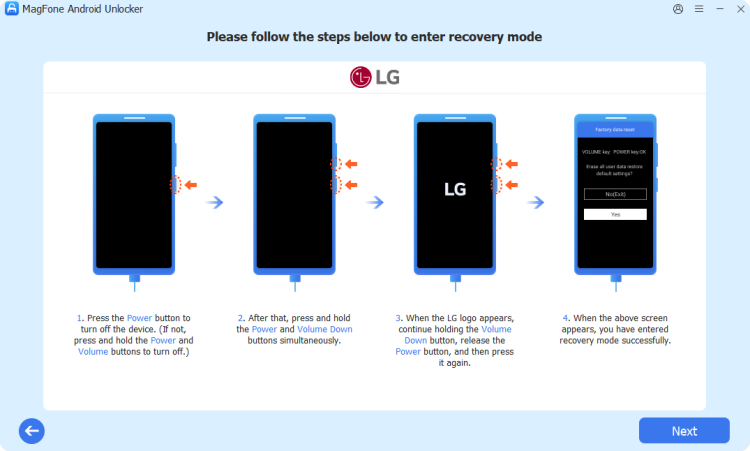
Boot your Samsung into Recovery Mode based on the onscreen guide. Once in Recovery Mode, pick Next and Continue on the screen.
Step 3 Unlock Samsung Without Fingerprint Sensor

MagFone will guide you through the final steps to remove the screen lock. Click Next to begin the process, and your device will be unlocked without requiring a fingerprint.
Part 4. Tips to Avoid Samsung Fingerprint Sensor Lockouts
Preventing future fingerprint sensor issues is just as important as fixing current ones. Regular maintenance and smart practices can keep your sensor functioning smoothly.
Tip 1. Enable Other Unlock Methods
Having alternative unlock methods ensures you aren't locked out if the sensor fails. Options like PIN, pattern, or facial recognition act as backups, providing peace of mind.
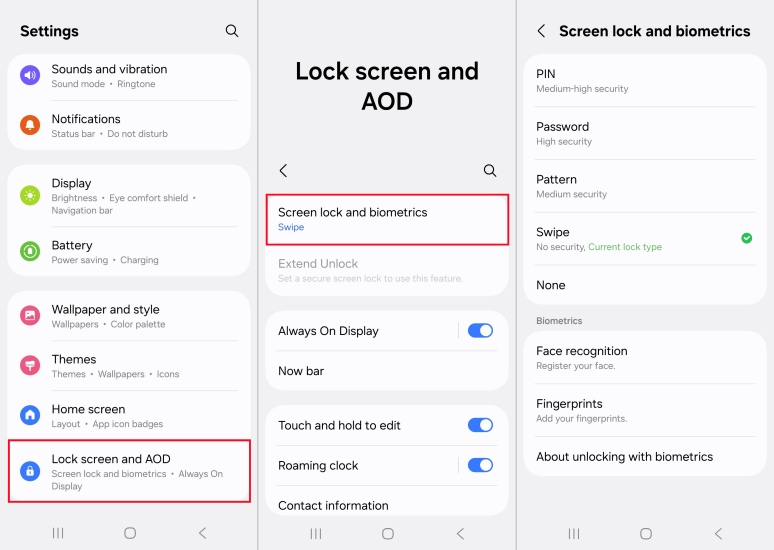
Step 1. Go to Settings, then tap Lock Screen and AOD > Screen lock and biometrics.
Step 2. Select the screen lock type and set up PIN, pattern, or password.
Tip 2. Delete Suspicious Apps
Certain apps may conflict with system functions, including fingerprint recognition. Removing potentially harmful applications improves overall stability and reduces the chance of sensor issues.
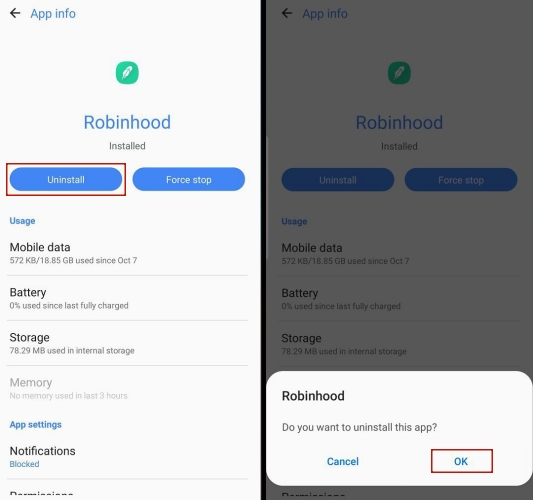
Step 1. Navigate to Settings > Apps. Then identify and select the suspicious apps.
Step 2. After that, select Uninstall and tap OK to confirm.
Tip 3. Clear Cached Data
Accumulated cache can cause system slowdowns and interfere with fingerprint scanning. Regularly clearing the cache helps maintain optimal device performance.
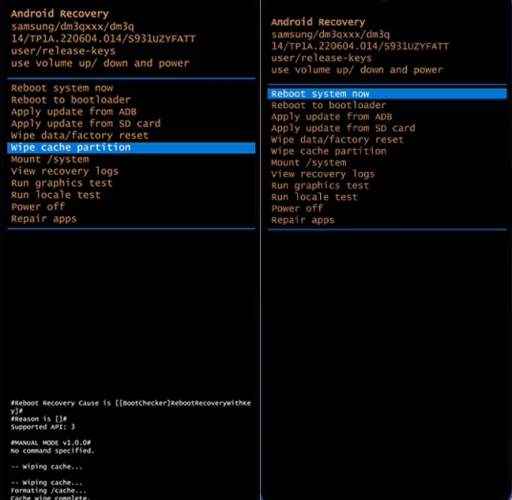
Step 1. Turn off your Samsung device.
Step 2. Press and hold the Power + Volume Up keys until the logo appears.
Step 3. Press the volume keys to highlight Wipe cache partition.
Step 4. Then press Power to confirm and highlight Yes and confirm.
Step 5. Once completed, select Reboot system now.
Part 5. Conclusion
Fingerprint sensors are a convenient security feature on Samsung devices, but occasional malfunctions are normal due to software, hardware, or environmental factors. Most issues can be resolved with simple maintenance, careful handling, and adjusting settings to ensure optimal performance. By taking proactive steps, you can enjoy reliable fingerprint recognition and reduce the likelihood of future sensor problems.

Dylan Jones
Editor in chief





