








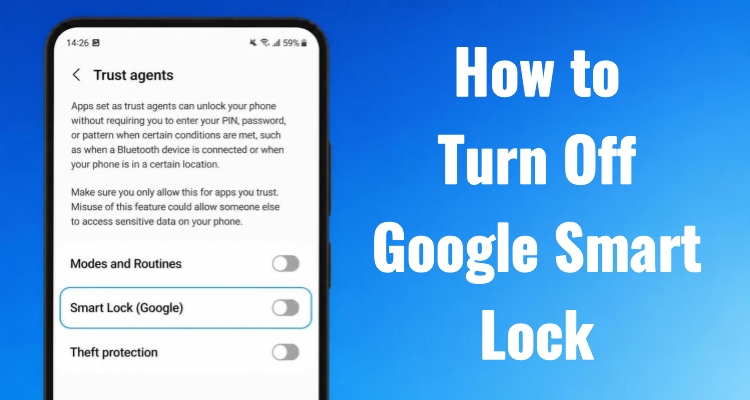
Google Smart Lock makes accessing devices and accounts more convenient, but it may not suit everyone. Concerns about saved passwords, automatic sign-ins, or shared device privacy can lead users to disable this feature. Whether you want to turn off Google Smart Lock on Android, Chrome, or remove stored credentials, the process is straightforward. This guide covers simple ways to turn off Google Smart Lock and manage your security settings with greater control.
- Part 1. What Is a Google Smart Lock?
- Part 2. How to Turn Off Google Smart Lock on Android
- Part 3. How to Turn Off Google Smart Lock on Chrome
- Part 4. Extra Tip: How to Disable Google FRP Lock Without Password
- Part 5. Conclusion
Part 1. What Is a Google Smart Lock?
Google Smart Lock is a security and convenience feature developed by Google that helps users access devices, apps, and websites more easily. It was introduced in 2015 as part of Google's effort to improve authentication and password management across its ecosystem. Google Smart Lock works mainly with Android devices, Chrome browsers, and Chromebooks. Its core functions include:
- Automatic password: saving and autofill for apps and websites tied to your Google account.
- Trusted places detection: keeping your phone unlocked at recognized locations like home.
- Trusted device recognition: bypassing the lock screen when paired with devices such as smartwatches or Bluetooth headsets.
- On-body detection: which keeps the phone unlocked while it senses continuous carrying motion.
- Cross-device syncing: so saved credentials appear wherever you're signed into your Google account.
Part 2. How to Turn Off Google Smart Lock on Android
Android offers three separate entry points for disabling Smart Lock, depending on which part of the feature you want to control. Each method targets a different function, so the outcome after disabling varies. Let's start with a brief overview before exploring the detailed steps
| Method | What It Disables | What Happens After Disabling |
|---|---|---|
| Lock Screen Settings | Trusted unlocking features such as trusted places | Your phone will require a normal unlock method every time instead of staying unlocked automatically |
| Trust Agents Settings | Android's Extend Unlock or Smart Lock unlocking service | Your device will stop using trusted conditions to bypass the lock screen |
| Google Services Settings | Saved passwords, autofill, and automatic sign-in features | Websites and apps will no longer fill in stored credentials automatically |
Method 1. Disable Google Smart Lock in Lock Screen
This setting governs whether your phone can skip the lock screen under certain conditions, such as being at home or connected to a paired device. It's convenient for frequent unlocking but leaves your phone vulnerable if someone else is present in a "trusted" location or carries a recognized device. Before turning it off, keep in mind you'll need to manually enter your PIN, pattern, or biometric each time going forward.
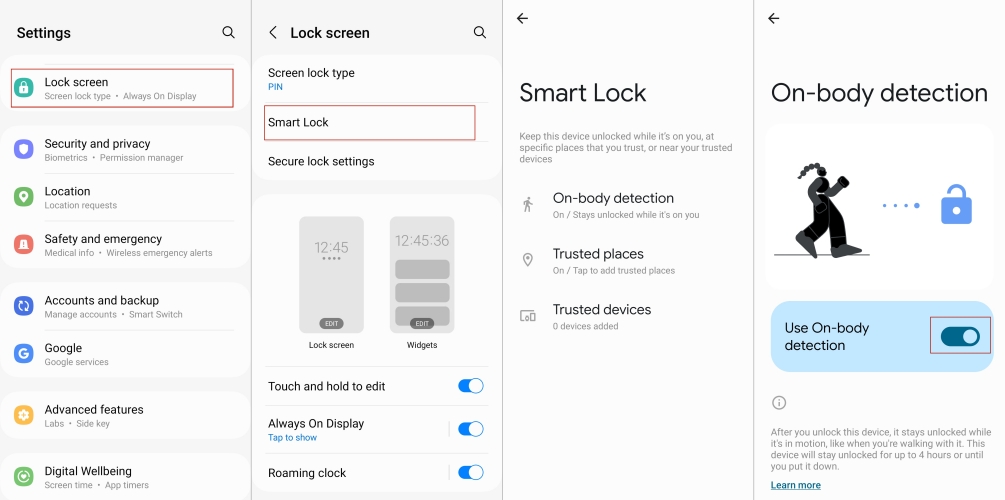
Step 1. Open the "Settings" app and tap "Security" or "Security and privacy," depending on your device.
Step 2. Find the "Smart Lock" or "Extend Unlock" option in the settings menu and select it.
Step 3. Verify your identity by entering your device's PIN, pattern, or password.
Step 4. Toggle off the trusted places and trusted devices options, or select "Off" if a single switch is shown.
Method 2. Disable Google Smart Lock in Trust Agents
Trust Agents is the underlying system that powers all Smart Lock bypass conditions on Android. Disabling it here shuts down the feature at its source rather than adjusting individual settings. This is a good option if you want a single, complete switch-off rather than managing trusted places and devices separately. Depending on the device brand, you might find this option listed with a slightly different title.
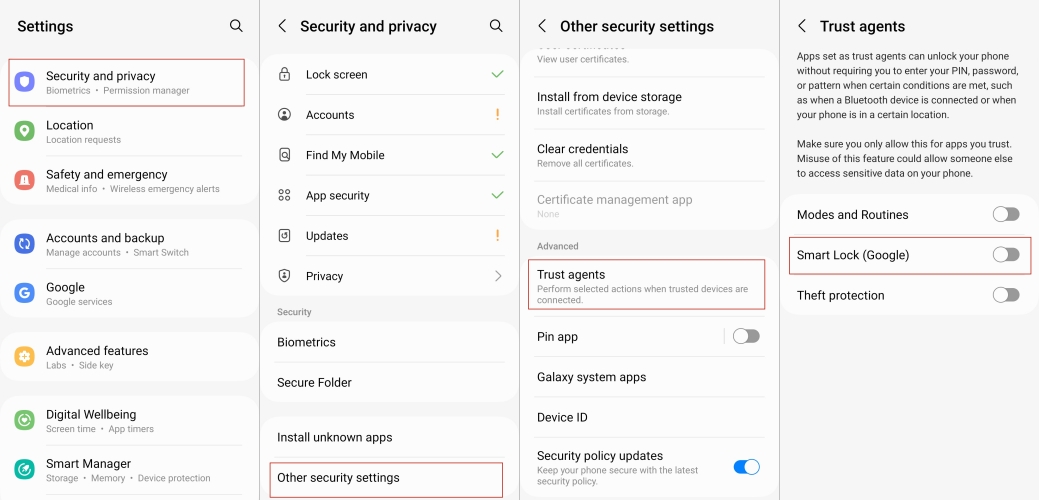
Step 1. Navigate to "Settings," then choose the "Security and privacy" option.
Step 2. Select "Other security settings" from the list of options.
Step 3. Tap "Trust agents" to view the available agents on your device.
Step 4. Tap the toggle next to "Smart Lock (Google)" to disable it entirely.
Method 3. Disable Google Smart Lock in Google Services
This method targets the password-saving side of Smart Lock rather than the lock-screen bypass. It controls whether Google automatically stores your login credentials and signs you into apps and websites without prompting. Turning this off means you'll need to enter your username and password manually going forward, so make sure you have another way to track your credentials first.
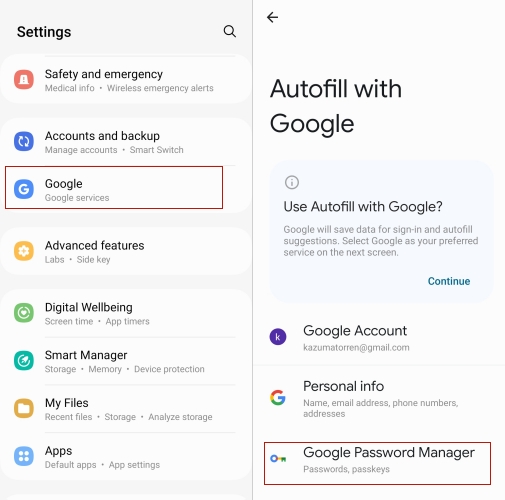
Step 1. Open "Settings," scroll down, and tap "Google."
Step 2. Select the "Google Password Manager" tab.
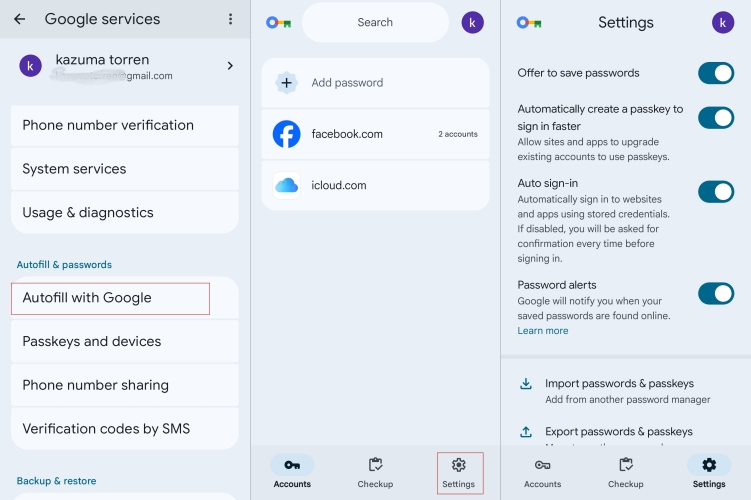
Step 3. Find the Autofill and passwords section, then open its options.
Step 4. Disable the "Offer to save passwords" and "Auto sign-in" features by switching off their toggles.
Part 3. How to Turn Off Google Smart Lock on Chrome
If you primarily use a desktop or laptop, you can disable Google Smart Lock directly from Chrome's settings menu without touching your phone at all. This approach is ideal for anyone who wants to switch to a different password manager or simply prefers entering credentials manually on their computer.
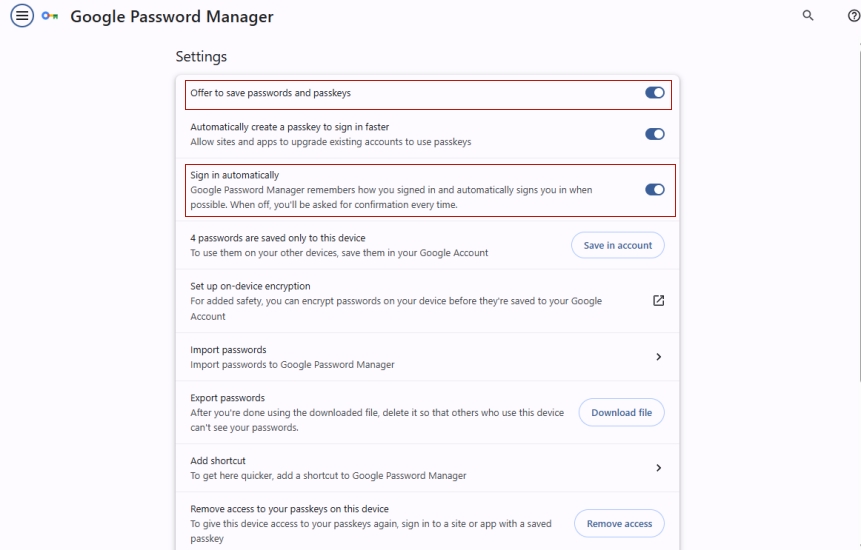
Step 1. Open Google Chrome and click the three-dot menu icon in the top-right corner, then select "Settings."
Step 2. Click "Autofill and passwords" from the left-hand menu, then choose "Google Password Manager."
Step 3. Select "Settings" from the sidebar within the Password Manager page.
Step 4. Toggle off "Offer to save passwords and passkeys" and "Sign in automatically" to complete the process.
Part 4. Extra Tip: How to Disable Google FRP Lock Without Password
Factory Reset Protection (FRP) is a security layer that requires your Google account credentials after a factory reset, preventing unauthorized access if your phone is lost or stolen. However, this same protection becomes a problem if you've forgotten your own login details. In that case, MagFone Android Unlocker offers a practical workaround, letting you bypass the FRP lock and regain access to your device without needing the original password.

MagFone Android Unlocker
Remove multiple kinds of screen locks on over 5000 Android devices and delete Google FRP lock without a password.
Step 1 Link Your Android Phone to MagFone
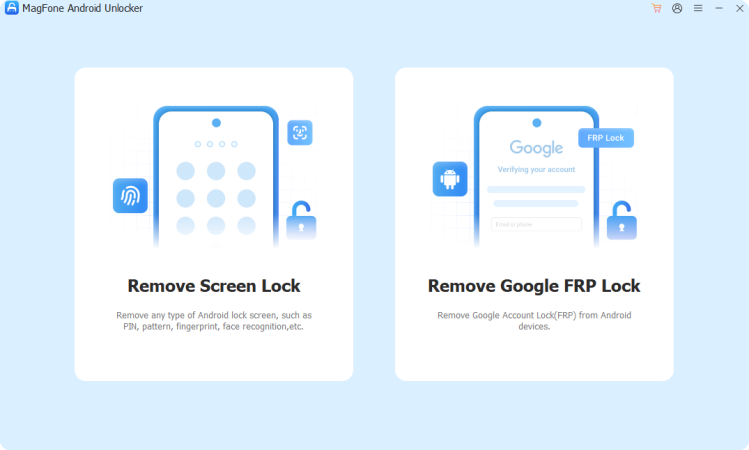
Install MagFone Android Unlocker on your computer, launch it, and choose the Remove FRP Lock option from the main screen. Then connect your Android phone using a USB cable.
Step 2 Let the Program Detect Your Device
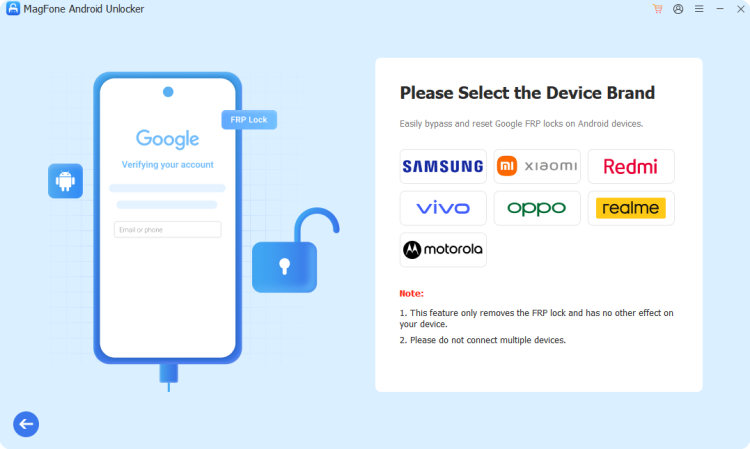
Allow the software a moment to identify your phone. If detection doesn't happen automatically, manually select your device's brand and pick "All Android Versions" from the available choices.
Step 3 Complete FRP Removal on Your Device
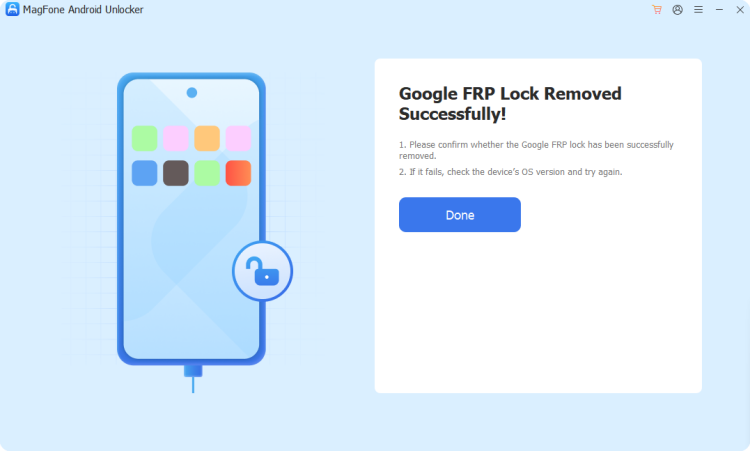
Follow the prompts displayed on your phone's screen, then return to the software and click "Next." During this process, tap "Allow" on your device to grant USB debugging permissions.
Part 5. Conclusion
Google Smart Lock offers convenience, but disabling it gives you tighter control over your device and account security. Whether through lock screen settings, trust agents, Google services, or Chrome, you now have multiple ways to switch it off. And if you're ever locked out due to a forgotten FRP password, MagFone Android Unlocker provides a reliable, straightforward solution.

Teresa Miller
Editor in chief





