








How do i get rid of these ads on my dads phone? Does it have a virus? How to remove Ads on lock screen?"
—— From Reddit
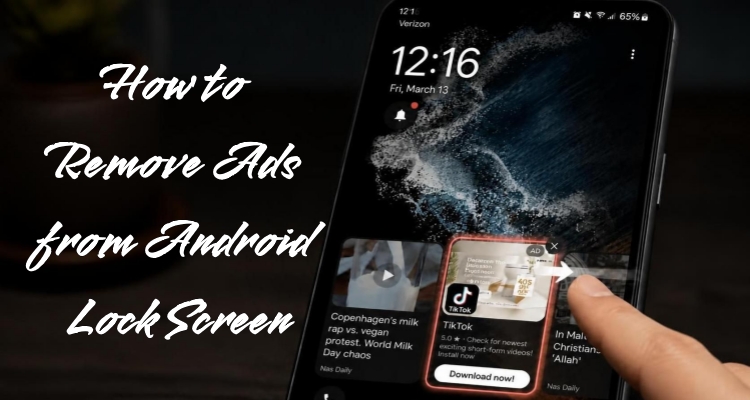
Few things spoil a phone like a banner of unwanted promotions greeting you every time you wake the screen. You only want to check the time or read a message, yet an ad pops up first, and it feels like an intrusion into your personal space. If you frequently experience this issue on your device, you're certainly not the only one facing it. Read this guide and learn how to remove ads from your Android lock screen for good.
- Part 1. Why Will You See Ads on Android Lock Screen?
- Part 2. How to Remove Ads from Android Lock Screen
- Part 3. Bonus Tip: How to Unlock Android Lock Screen
- Part 4. Conclusion
Part 1. Why Will You See Ads on Android Lock Screen?
Lock screen ads usually come from apps, websites, or built-in phone services. Many free apps display ads to generate revenue, while some send promotional notifications that appear on your lock screen. Websites you've allowed to send notifications can also show ads there. Additionally, certain smartphone brands offer built-in wallpaper or news features that show promotional content directly on the lock screen.
Part 2. How to Remove Ads from Android Lock Screen
Once you know where the ads come from, getting rid of them is much easier. The four methods below go from the quickest checks to the most thorough fix. Start with the first one, test your lock screen after each method, and only move on if the ads are still showing up on your phone.
Method 1. Uninstall Suspicious Apps
Apps you've recently installed or seldom use may be responsible for displaying unwanted ads on your lock screen. Removing them cuts off the ad source entirely, leaving the pop-ups with nothing to display. Reviewing your app list is a quick way to catch unfamiliar or untrustworthy programs that you may have forgotten about.
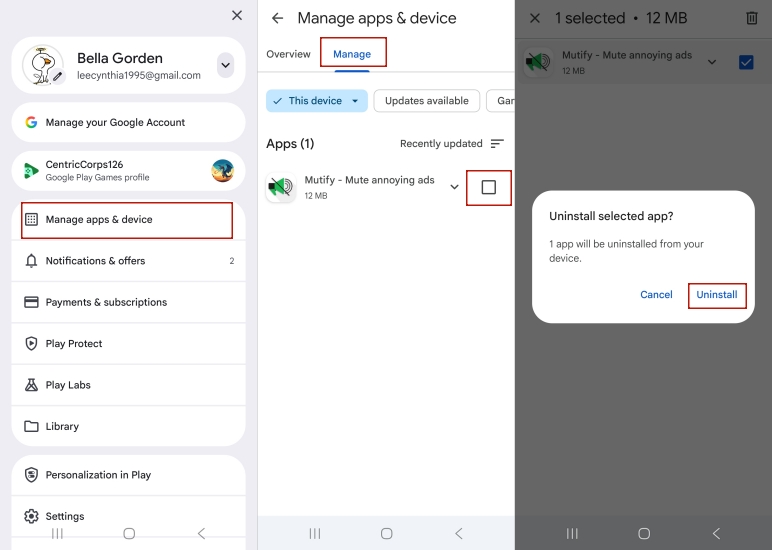
Step 1. Launch the Google Play Store and select your profile icon in the upper-right corner.
Step 2. Select the Manage apps & device section, then tap the Manage tab.
Step 3. Pick any app you don't recognize or no longer need, then tap Uninstall.
Step 4. Lock your phone and wake it again to check whether the ads are gone.
Method 2. Turn Off App Notifications
Some apps display promotions through notifications, and those alerts can appear directly on your lock screen. Switching off notification access for the guilty app stops it from sending anything while your phone is locked. This keeps the app installed, which is handy if you still need it but want it to stay quiet.
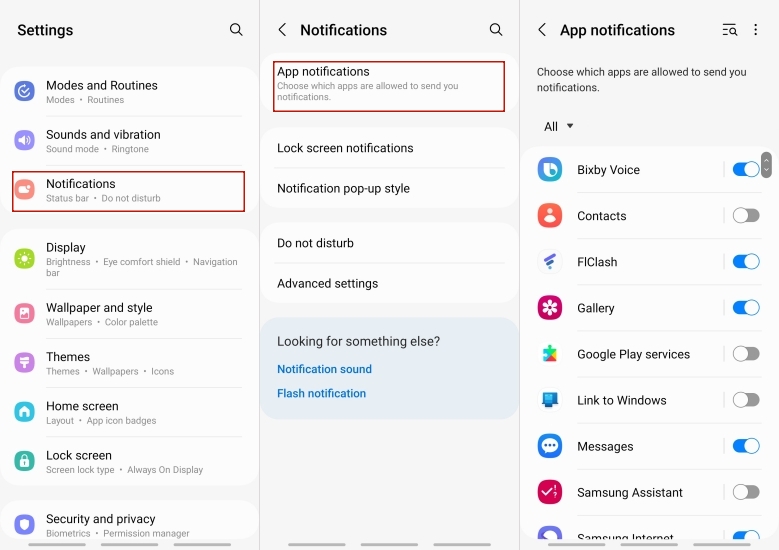
Step 1. Go to Settings. Then hit the Notifications section.
Step 2. Select App notifications to see every app allowed to send alerts.
Step 3. Find the app that you think is sending the ads and toggle its notification off.
Note:
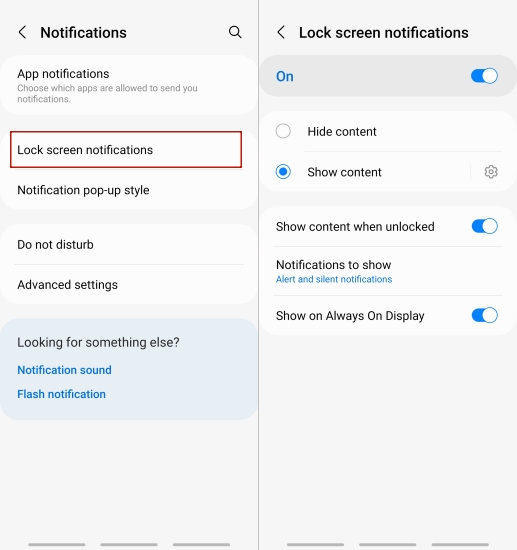
You can also disable lock screen notifications in the notification settings. However, keep in mind that this will turn off lock screen notifications for all apps, not just a specific one.
Method 3. Block Website Ads in Chrome
Websites can ask permission to send you alerts, and one accidental tap on Allow is enough to let them in. Those messages will still appear even when you're not actively browsing. Blocking site notifications and intrusive ads in Chrome shuts that door, which often removes lock screen promotions that seem to appear from nowhere.
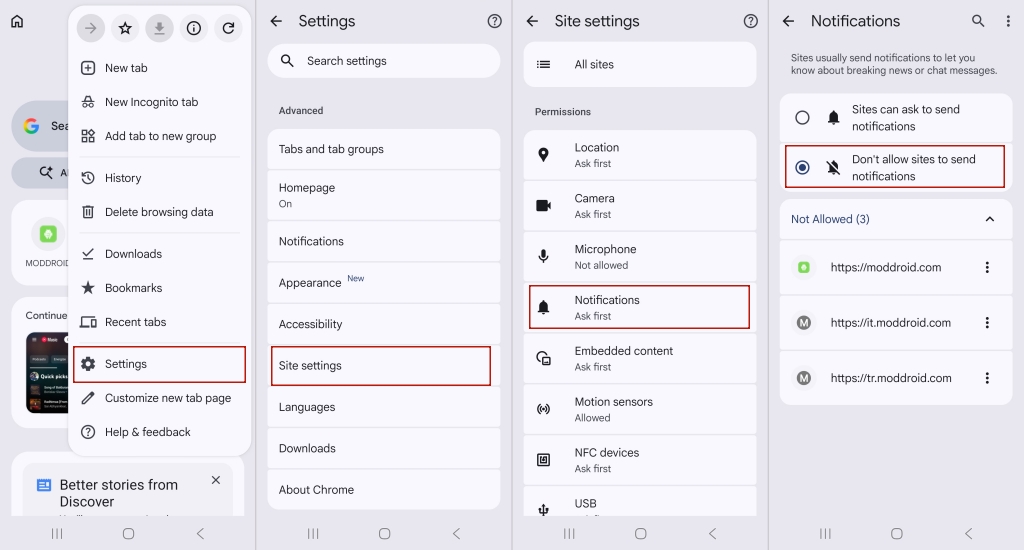
Step 1. Launch Chrome on your mobile device, then select the three-dot icon in the upper-right corner to access the menu.
Step 2. Tap Settings, then choose Site settings.
Step 3. Select Notifications and turn off the option that lets sites ask to send alerts.
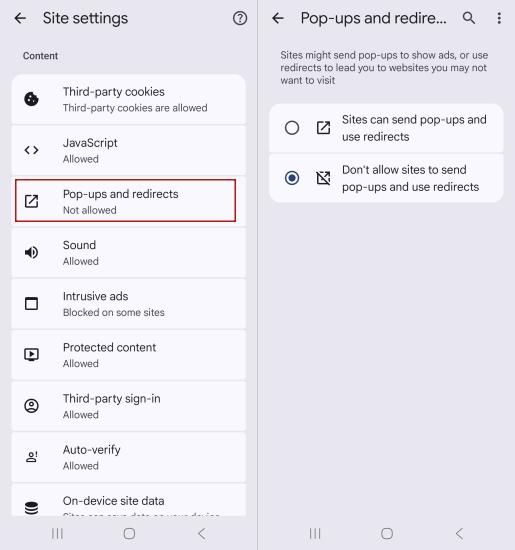
Step 4. Go back to Site settings, tap Pop-ups and redirects, and make sure they are blocked.
Method 4. Factory Reset Your Device
If the ads keep coming back after the earlier fixes, a hidden app or stubborn system setting may be to blame. A factory reset wipes the phone and returns it to its original state, which clears out nearly every ad source. Because it deletes your data, treat it as a last resort and back up first.
Step 1. Back up your photos, contacts, and other important files to your Google account or a computer.
Step 2. Open Settings and search for factory reset to perform it.
Part 3. Bonus Tip: How to Unlock Android Lock Screen
Whether your Android phone is stuck behind a screen lock or an FRP lock, MagFone Android Unlocker can help you get out of trouble. This tool works smoothly on both Windows PCs and Macs, making it easy to unlock your device. If you've forgotten your PIN, pattern, or password, the software can remove the lock and help you regain access. Here's how to bypass the Android lock screen on a PC using MagFone Android Unlocker.

MagFone Android Unlocker
Remove multiple kinds of screen locks on over 5000 Android devices and delete Google FRP lock without a password.
Step 1 Select the Screen Lock Removal Option
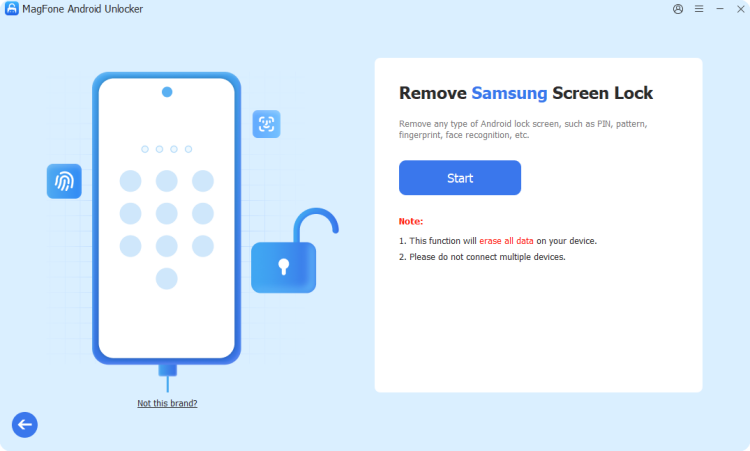
Install and launch MagFone Android Unlocker on your computer, then connect your phone with a USB cable. Choose the screen lock removal feature on the main page, select your phone's brand and model from the list, and click Continue.
Step 2 Put Your Phone into Recovery Mode
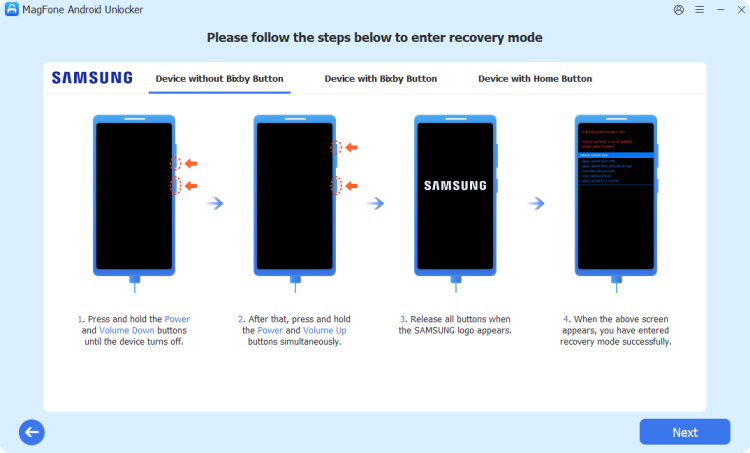
After the program recognizes your device information, click Start. A notice will tell you that some data may be erased during this process. Then follow the on-screen button instructions exactly so your phone enters Recovery Mode.
Step 3 Finish Unlocking Without a Password
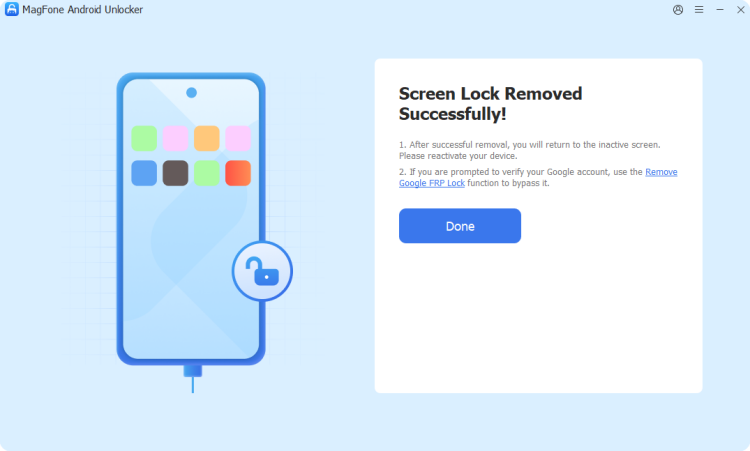
Keep following the prompts until the phone and the software are properly connected, then click Next. MagFone takes care of the rest automatically. When it finishes, the old lock screen code is removed, and you can open your phone again.
Part 4. Conclusion
Ads on your lock screen are annoying, but they are rarely impossible to fix. Start by removing suspicious apps, then turn off unnecessary notifications and tighten Chrome's site settings. If nothing works, a factory reset is the final option. And if you ever get locked out of your own phone, MagFone Android Unlocker offers a straightforward way back in.

Dylan Jones
Editor in chief





