








Changing your region in the Google Play Store can unlock apps, games, and content that aren't available in your current country. If you've moved abroad or want access to region-specific features, it's essential to learn how to change your country in Google Play Store. This guide aims to show you two ways to change your Google Play Store country and region. Let's dive in.
- Part 1. Pre-Read: Changing Location on Google Play
- Part 2. How to Change Country in Google Play Store Android
- Part 3. Bonus Tip: How to Change Location in Different Apps
- Part 4. Conclusion
Part 1. Pre-Read: Changing Location on Google Play
Google ties your Play Store region to your account activity, especially your payment profile and IP location. This means switching countries isn't always instant or flexible. Being aware of requirements and restrictions helps avoid unnecessary frustration during the process.
You can change your Play Store country only once a year.
A valid local payment method is usually required.
Existing subscriptions may not transfer automatically.
Some apps may become unavailable after switching regions.
Part 2. How to Change Country in Google Play Store Android
If you're using an Android device, updating your region is relatively straightforward when you meet the requirements. Below are two common methods to help you change country in Google Play Store Android effectively.
01Change Country in Google Play Store by Switching Play Store Region
This method focuses on directly updating your Play Store country setting when Google recognizes your new location. It is the most common way to change region in Play Store and works best for users who have physically relocated to another country. Once eligible, you'll see a prompt to switch regions inside your account settings. This approach depends heavily on your IP address and GPS signals, meaning you must be present in the new country for the option to appear.
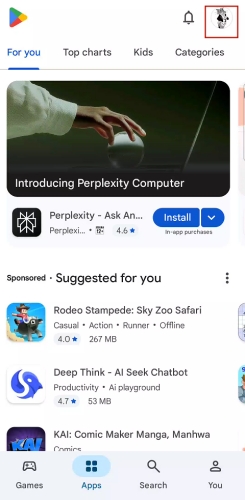
Step 1. Open the Google Play Store on your Android phone and tap your profile icon.
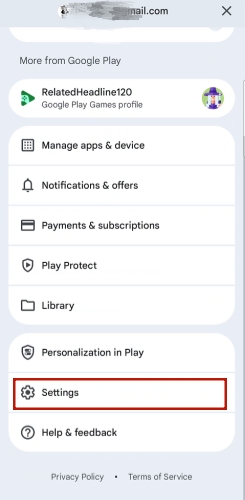
Step 2. From the profile menu, scroll down and select Settings.
Step 3. Head to the General section, then Account and device preferences.
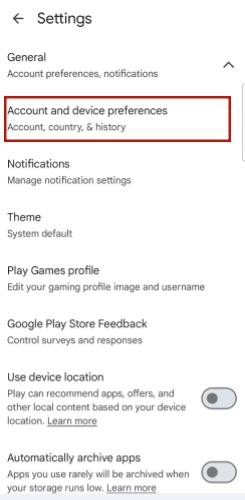
Step 4. Here, you'll see the Switch to the [Country] Play Store option. Tap on it.
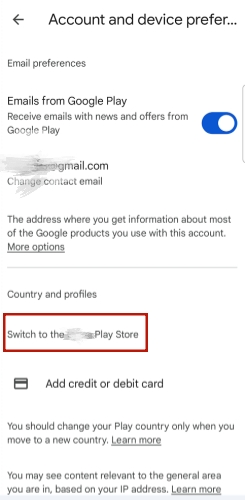
Step 5. Select Continue to confirm your action, and your Play Store location will be successfully changed.
02Change Country in Google Play Store by Updating Payment Location
Another effective way to change your country in Google Play Store is by updating your payment profile. Google links your account region to your billing address, so modifying your payment details can trigger a region update. By adding a new payment method issued in your target country, you signal to Google that your location has changed. Once verified, the Play Store may update accordingly. Here's how to do that step by step.
Step 1. Launch the Google Play Store app on Android, then tap your profile picture.
Step 2. Find and choose the Payments & subscriptions option from the menu.
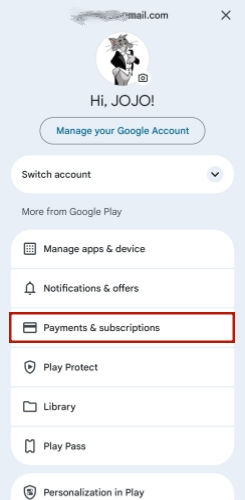
Step 3. Tap Payment methods, then choose More payment settings.
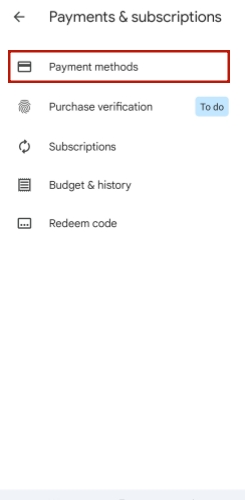
For New Users:
Step 4. A new page will appear prompting you to Add a payment method.
Step 5. Enter your payment details, including the billing address (country), then Save the information.
For Existing Users:
Step 4. Tap the More icon at the top of the screen and go to Payment center Settings.
Step 5. Under the Payments profile section, tap Create new profile in the COUNTRY/REGION area.
Step 6. Select your desired country, then tap Continue and Submit your updated payment profile.
Part 3. Bonus Tip: How to Change Location in Different Apps
Beyond the Play Store, adjusting your location can enhance apps. Tools like MagFone Location Changer simulate GPS movement. On the one hand, it works with apps like Tinder, family tracking apps such as Find My, and games like Pokémon GO or Monster Hunter Now. On the other hand, it supports both iOS and Android with simple steps to modify location and unlock features. Here's how to use MagFone Location Changer for location spoofing.

MagFone Location Changer
Easily change your GPS location on iOS and Android devices to anywhere with one click, while not requiring root or jailbreaking!
Step 1 Install and Set Up the Location Tool

Begin by downloading the MagFone Location Changer software from its official site onto your computer. After installation, connect your smartphone and open the program. Then follow the setup instructions, including enabling developer settings if required. Choose the appropriate mode depending on the app you want to use.
Step 2 Modify Your Virtual Location Easily

Once inside the map interface, you can either search for a destination or manually place a pin on your desired location. Confirm your selection to instantly update your device's GPS coordinates. This allows access to region-specific features such as exclusive game events, location-based matches, or restricted content from anywhere in the world.
Part 4. Conclusion
Understanding how to change country in Google Play Store can open the door to a wider digital experience. While the process has restrictions, using the right method makes it manageable. Additionally, location-changing tools expand possibilities across other apps, giving you greater control over your digital environment wherever you are.

Olivia Wood
Editor in chief





