








Locked out of a Samsung device because you can't remember which Google account is tied to it after a reset? Or maybe you just want a fast, no-frills way to grab official Samsung firmware without digging through forums. Either way, chances are you've stumbled across SamFirm AIO in your search for a fix. This review breaks down what the tool actually does, where it shines, where it falls short, how to get it, and what to consider before you rely on it.
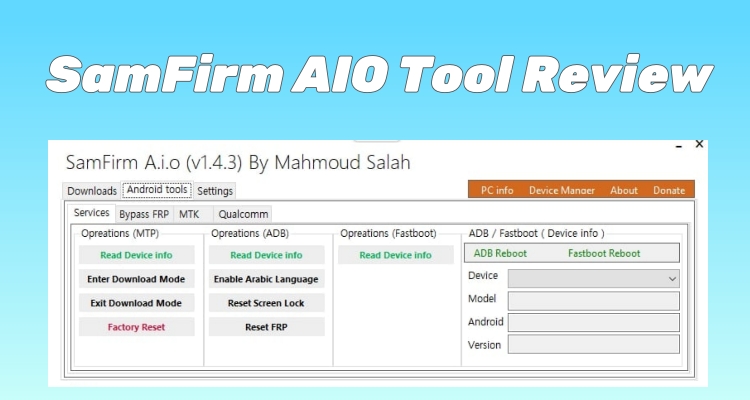
- Part 1. SamFirm AIO Tool: Main Features
- Part 2. SamFirm AIO Tool: Pros and Cons
- Part 3. How to Use SamFirm AIO for FRP Bypass
- Part 4. Best FRP Bypass Alternative to SamFirm
- Part 5. Conclusion
Part 1. SamFirm AIO Tool: Main Features
SamFirm AIO started life as a firmware-downloading utility and has since grown into a more complete toolkit for Samsung device management. Below is a rundown of what it brings to the table.

1. Official Firmware Downloads
SamFirm AIO pulls firmware directly from Samsung's servers based on your device's model, PDA, and CSC region code, so you don't have to hunt for a matching build on third-party sites.
2. One-Click FRP Removal
The tool includes a streamlined process for clearing the Google verification screen on FRP-locked Samsung devices, aimed at owners who've forgotten the account credentials tied to their phone.
3. Custom ROM Flashing
The latest SamFirm Tool can flash custom ROMs along with official firmware downloads, offering more flexibility for users looking to customize their devices. This includes the ability to bring an old device up to date, or just give your phone a whole new look.
4. Broad Device Coverage
From older Galaxy models to newer entries running Android 12 and 13, the tool aims to keep pace with Samsung's lineup, including the S, Note, and A series.
5. Lightweight Operation
SamFirm AIO is built to run without hogging system resources, which makes it usable even on older or lower-spec Windows machines.
6. Straightforward Interface
The layout keeps core functions — firmware grabs, FRP removal, driver access — within a click or two, without a steep learning curve for anyone familiar with basic PC tools.
Part 2. SamFirm AIO Tool: Pros and Cons
Like most free utilities in this space, SamFirm AIO has real strengths alongside some notable trade-offs. Built on the original SamFirm project, it bundles extra features that make everyday use more convenient, which is why it has become a go-to choice for many Samsung device owners. However, no tool is perfect. Here's a quick breakdown of its pros and cons.
 Pros
Pros- Free to download and use
- Strong option for grabbing genuine firmware
- Includes several device utilities
- Supports many Samsung models

- Windows-only software
- Newer devices may be unsupported
- Unofficial downloads pose security risks
- Incorrect use can cause problems
Part 3. How to Use SamFirm AIO for FRP Bypass
SamFirm AIO does not currently have a clearly established official website, so the tool is generally obtained from third-party sources. After downloading SamFirm AIO from a trusted source on your PC, you can move on to the FRP process using the steps below. In this guide, we use SamFirm AIO v1.4.3 as the example version.
Step 1. Dial *#0* to access Samsung's built-in hardware testing and diagnostic screen.
Step 2. Then launch SamFirm AIO on your PC and connect your Samsung device using a USB cable.
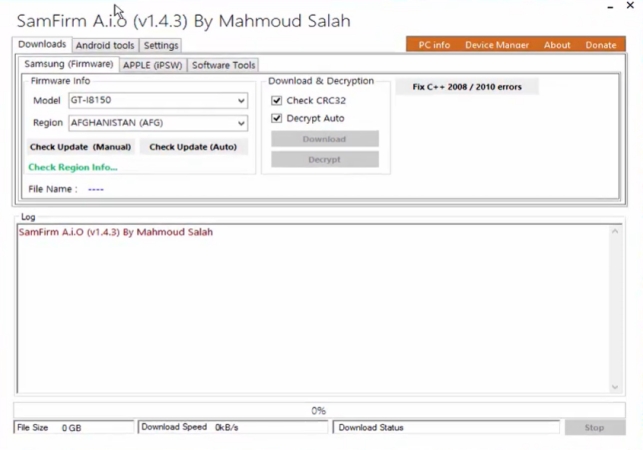
Step 3. Wait for the software to detect the device and navigate to the Android tools section.
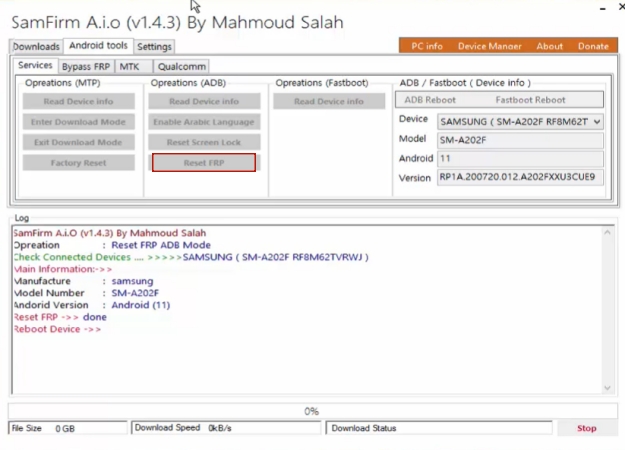
Step 4. Then choose the Reset FRP option in the operation list, and let the software finish the FRP removal process.
Part 4. Best FRP Bypass Alternative to SamFirm
If SamFirm AIO feels too technical, too finicky with newer Android versions, or you'd simply rather not deal with unofficial download sources, MagFone Android Unlocker is a strong alternative worth considering. It's built specifically for FRP removal rather than as a firmware tool with FRP tacked on, which means a more guided, beginner-friendly process, broader compatibility with recent Android releases, and official distribution that sidesteps the security concerns tied to SamFirm's unofficial hosting.

MagFone Android Unlocker
Remove multiple kinds of screen locks on over 5000 Android devices and delete Google FRP lock without a password.
Step 1 Run MagFone Program
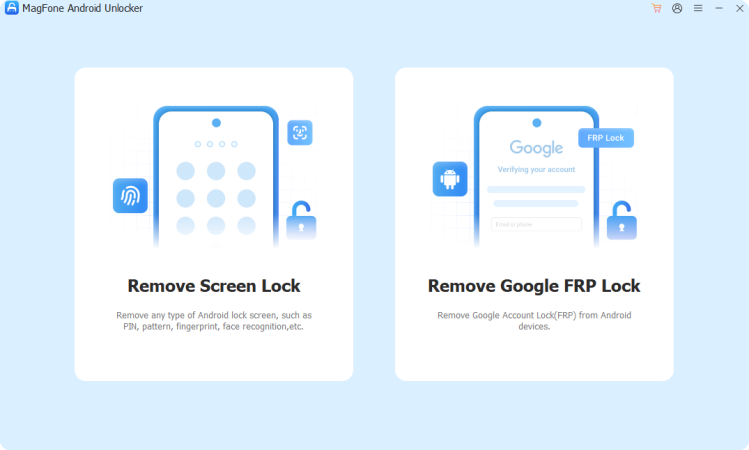
Get Magfone Android Unlocker installed and running on your computer. Attach your Google-locked Android device to the machine with a working USB cable, then choose the Remove Google FRP Lock option from the home screen to begin.
Step 2 Let It Read Your Device
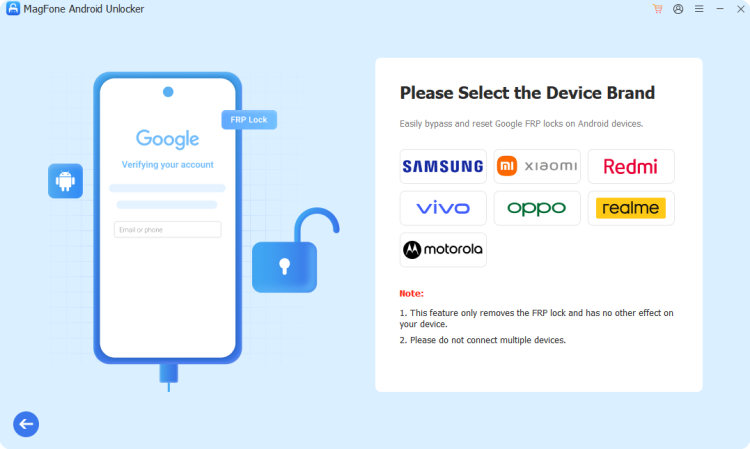
Give the software a moment to pick up your device's details on its own. If it doesn't identify things correctly, pick your device's brand and Android version manually from the dropdown menus. Once everything checks out, hit Start.
Step 3 Complete the Walkthrough
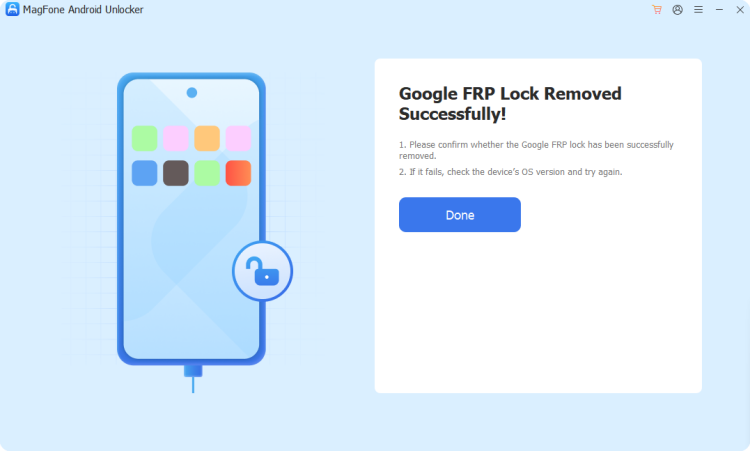
The program will lay out a tailored set of prompts based on your exact model and Android build. Work through each instruction as it appears on your PC and phone screens. When the sequence wraps up, you'll get a confirmation that the FRP lock has been cleared.
Part 5. Conclusion
SamFirm AIO remains a capable, no-cost option for grabbing Samsung firmware and clearing FRP locks, particularly for users comfortable navigating unofficial software sources and a less polished interface. That said, its Windows-only limits, setup quirks, and download-source risks mean it isn't the right fit for everyone. For a smoother, more guided experience, Magfone Android Unlocker is worth trying instead.

Dylan Jones
Editor in chief





