








Locked out of your Android phone because you forgot your Google account? You're not alone. Countless repair shops and everyday users turn to the HalabTech FRP Tool for a quick solution. But does it really live up to the hype, or are there better options available? In this guide, we'll take a closer look at what HalabTech FRP Tool offers, how it works, and whether it's the right choice for you.
- Part 1. What Is HalabTech FRP Tool Used for?
- Part 2. Pros and Cons of HalabTech FRP Tool
- Part 3. HalabTech FRP Tool Free Download and Usage Guide
- Part 4. HalabTech FRP Tool vs. MagFone Android Unlocker: Which Is Better?
- Part 5. FAQs about HalabTech FRP Tool
- Part 6. Conclusion
Part 1. What Is HalabTech FRP Tool Used for?
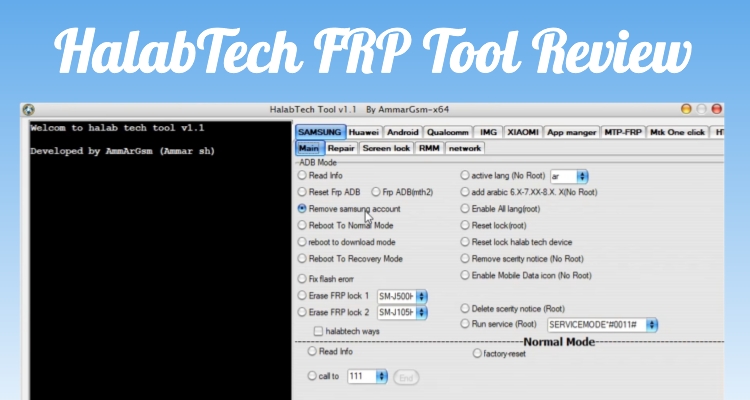
HalabTech FRP Tool is a Windows-based utility built mainly for mobile repair professionals who need to service, unlock, and troubleshoot Android handsets. Rather than a single-purpose app, it bundles several diagnostic and unlocking features into a single package. Here's what it can do:
- Removes Google's FRP lock and screen locks on supported phones.
- Repairs corrupted or missing IMEI numbers for network issues.
- Flashes stock or modified firmware through EDL and Fastboot modes.
- Reads and writes device partitions, including EFS data.
- Unlocks carrier restrictions on select Android brands.
Part 2. Pros and Cons of HalabTech FRP Tool
Like most repair-grade software, HalabTech FRP Tool has strong points that appeal to technicians as well as drawbacks that can frustrate casual users. Weighing both sides helps you decide whether it fits your situation before you commit.
 Pros
Pros- Free to download and run.
- Handles multiple Android brands.
- Bundles many repair functions.
- Familiar layout for technicians.

- Steep learning curve for beginners.
- Inconsistent results on newer models.
- Sparse official customer support.
- Risk of unofficial, unsafe download links.
Part 3. HalabTech FRP Tool Free Download and Usage Guide
Getting HalabTech FRP Tool running requires some preparation, as it depends on the right drivers and the correct boot mode for your phone. Below is a straightforward walkthrough to help you download, install, and use it correctly.
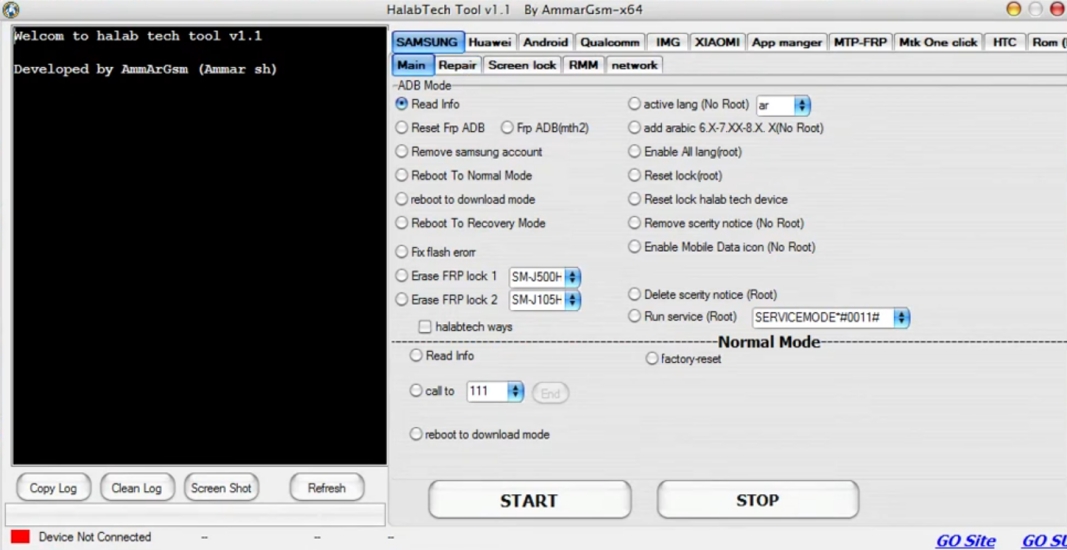
Step 1. Grab the compressed package from the developer's official page and unzip it into a folder on your PC.
Step 2. Right-click the extracted executable file and choose "Run as Administrator" to launch the program.
Step 3. Shut down your Android phone, then boot it into the mode your chipset requires (Download mode for Samsung, EDL or Fastboot for Qualcomm chips, or Preloader mode for MediaTek).
Step 4. Plug the device into your computer with a USB cable and give the software a moment to recognize it.
Step 5. Pick your phone's brand from the tool's menu, then choose the Erase FRP option.
Step 6. Hit the START button and let the process run without unplugging the cable.
Step 7. When the tool confirms success, restart your phone and skip past the Google verification screen during setup.
Part 4. HalabTech FRP Tool vs. MagFone Android Unlocker: Which Is Better?
While HalabTech FRP Tool caters to technicians who don't mind a manual, driver-heavy setup, MagFone Android Unlocker is a strong alternative built for everyday users who want a faster, guided way to clear a Google FRP lock. Here's how the two stack up side by side.
| Feature | HalabTech FRP Tool | MagFone Android Unlocker |
|---|---|---|
| Main Features | FRP bypass, IMEI repair, firmware flash | FRP bypass and screen lock removal |
| Supported Devices | Samsung, Huawei, Xiaomi, Oppo, Tecno, Realme, Vivo | Samsung, Huawei, Xiaomi, LG, Motorola, and more |
| Supported Platform | Windows only | Windows and Mac |
| Official Website | None | MagFone official site |
| Difficulty | Medium | Easy |
Compared to the HalabTech FRP Tool, the best thing about MagFone Android Unlocker is that it has an official website with full support and safer downloads. It also offers manual driver installation and on-screen instructions, making it a simpler route. With just a few clicks, you can download the program and remove the FRP lock on your device without needing repair-shop expertise. Here's how to use the MagFone program.

MagFone Android Unlocker
Remove multiple kinds of screen locks on over 5000 Android devices and delete Google FRP lock without a password.
Step 1 Connect Device and Launch Software
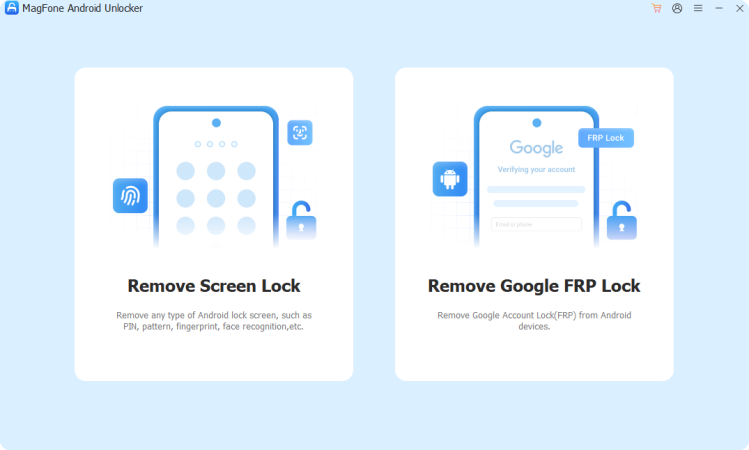
Install the unlock tool on your computer and open it. Use a USB cable to connect your Android phone. From the main screen, select the option for FRP removal to begin the process and prepare your device for detection.
Step 2 Detect and Confirm Device Information
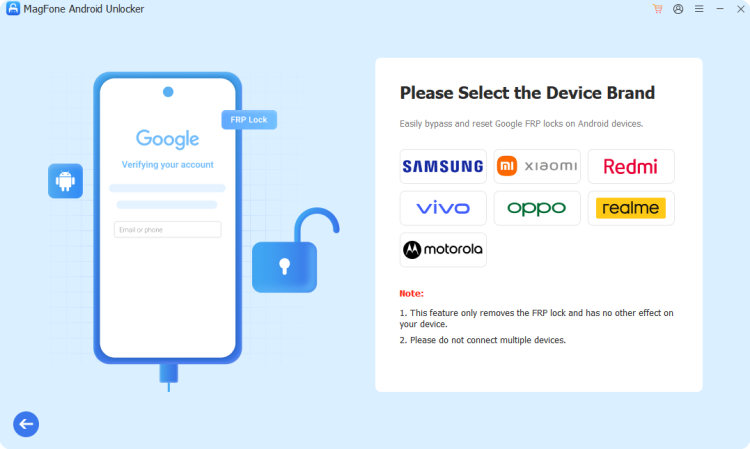
Once connected, the software will try to identify your phone automatically. If it fails, manually choose the correct manufacturer and Android version. Confirm the details to ensure the tool applies the right unlocking method for your specific device model.
Step 3 Finish FRP Bypass on Android Devices
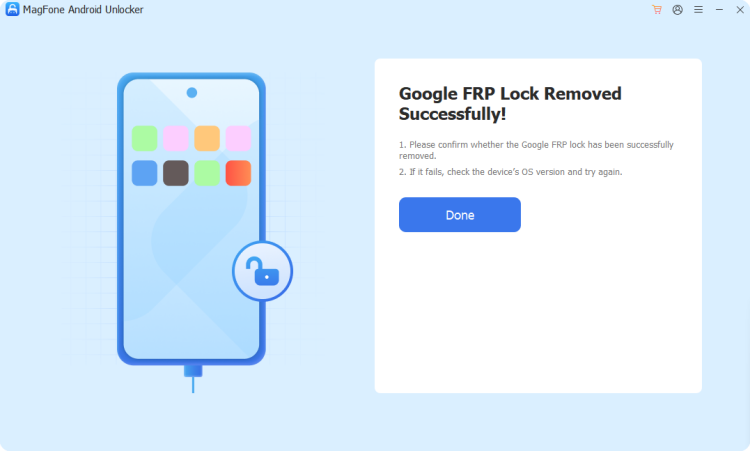
After confirmation, the program will guide you through step-by-step prompts. Follow both computer instructions and phone notifications carefully. The tool will complete the process and remove FRP protection, allowing you to finish setup and access your device normally.
Part 5. FAQs about HalabTech FRP Tool
Is HalabTech FRP Tool free to use?
Yes, the core version is free. It covers basic FRP removal and repair tasks without a license fee, though some community-shared builds claim extra features that aren't officially confirmed.
Is HalabTech FRP Tool safe for FRP removal?
It can be, but only if downloaded from a trusted source. Because so many copies circulate on third-party sites, grabbing one from an unverified mirror raises the risk of malware or a corrupted flash.
Is HalabTech FRP Tool easy for beginners to use?
Not particularly. The interface assumes some familiarity with boot modes, drivers, and chipset differences, so newcomers may find the learning curve steeper than expected.
Part 6. Conclusion
HalabTech FRP Tool remains a capable, budget-friendly option for technicians comfortable with drivers and boot modes, offering FRP removal, IMEI repair, and firmware flashing in one package. However, its technical demands and reliance on third-party downloads can trip up casual users. For those wanting a simpler, safer experience, MagFone Android Unlocker is worth trying instead.

Dylan Jones
Editor in chief




