








Do Android phones have facial recognition? Yes, most modern models do, and it's meant to make unlocking effortless. But that convenience quickly turns frustrating when your Android phone suddenly refuses to recognize you. If you've been stuck staring at a stubborn lock screen, you're not alone. This guide breaks down why Android Face Unlock stops working and how to get it back on track.
- Part 1. How Does Face Unlock Work in Android?
- Part 2. Why Is Android Face Unlock Not Working?
- Part 3. How to Fix Android Face Unlock Not Working
- Part 4. How to Bypass Face Lock on Android Devices
- Part 5. FAQs about Android Face Unlock
- Part 6. Conclusion
Part 1. How Does Face Unlock Work in Android?
Android Face Unlock uses AI facial recognition, computer vision, and biometric authentication to scan facial features and compare them with a stored face template. The security depends on the hardware: 2D camera-based Face Unlock is common but less secure, while 3D face recognition uses infrared and depth sensors to create a more accurate face map.
Part 2. Why Is Android Face Unlock Not Working?
Face Unlock can fail for all sorts of reasons, from something as small as a smudged lens to deeper software glitches. Before assuming the worst, it helps to understand the common culprits behind this frustrating hiccup. Here are the most frequent reasons this feature stops cooperating:
- Reason 1: A dirty or obstructed front camera lens.
- Reason 2: Poor lighting or overly dim surroundings.
- Reason 3: Wearing a mask, sunglasses, or scarf.
- Reason 4: Holding the phone too far or at an angle.
- Reason 5: Outdated software or a buggy system update.
- Reason 6: Corrupted facial data stored on the device.
- Reason 7: Significant changes in your appearance.
Part 3. How to Fix Android Face Unlock Not Working
Most Face Unlock problems can be solved without professional help, since they usually stem from simple, fixable causes. Try the following methods in order, starting with the easiest ones first.
Method 1. Clean Camera Lens
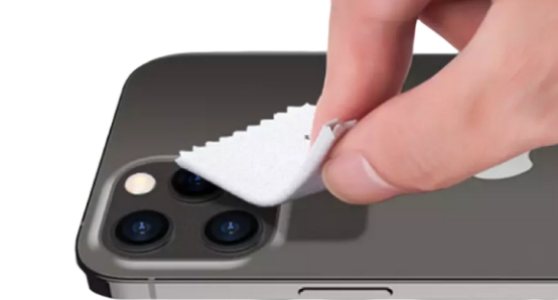
The front camera is the heart of Face Unlock, so even a thin layer of dust, fingerprint smudge, or a scratched screen protector can distort what it sees. You can wipe the lens gently with a soft, lint-free cloth, and check that no case or protective film is partially covering the camera.
Method 2. Move to Light Areas
Facial recognition sensors need enough visible light to capture the contours and details of your face accurately. Step toward a window, turn on a lamp, or simply move somewhere brighter before attempting to unlock your phone. Just as importantly, avoid situations where a bright light source sits directly behind you, since strong backlighting can wash out your features and confuse the system just as much as darkness does.
Method 3. Take Off Face Coverings
Masks, scarves, sunglasses, and even thick winter hats can hide the very features your phone relies on to identify you. Removing these items before scanning greatly increases the odds of a successful unlock.
Method 4. Disable and Enable Face Lock
Sometimes the feature simply needs a fresh start. Toggling Face Unlock off and back on in Settings clears out minor software hiccups that may be preventing the sensor from working correctly.
Method 5. Check for Software Updates
Facial recognition is powered by software, and like any software, it can develop bugs after an update or, conversely, get fixed by one. Manufacturers regularly release patches that improve camera performance, sensor calibration, and biometric accuracy. You can go to Settings to see if a newer version is available. Installing the latest update ensures your phone has the most current fixes for known Face Unlock issues.
Part 4. How to Bypass Face Lock on Android Devices
Every so often, Face Unlock simply won't cooperate, and you may also forget your backup PIN or password at the same time. When you're completely locked out with no way in, a dedicated bypass tool can help. MagFone Android Unlocker is designed specifically to remove screen lockouts and Google FRP restrictions on Android devices. Confirm the compatibility, then follow the steps below to regain access.

MagFone Android Unlocker
Remove multiple kinds of screen locks on over 5000 Android devices and delete Google FRP lock without a password.
Step 1 Connect Device and Launch MagFone
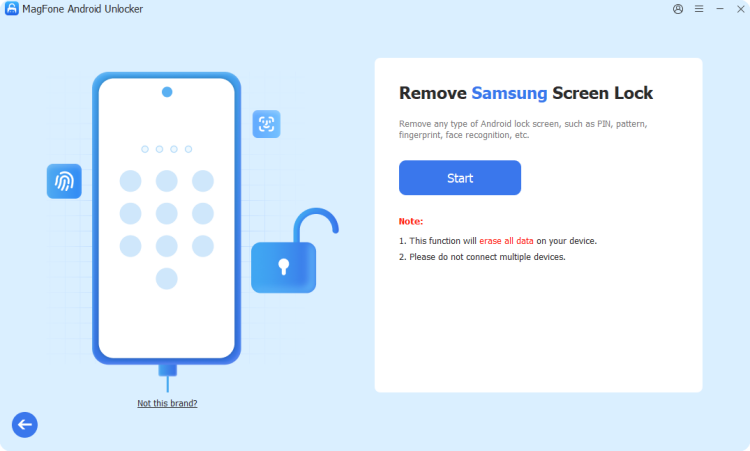
Install MagFone Android Unlocker on your computer and open the program. From the main menu, select the option to remove your screen lock, then plug your Samsung phone into the computer using a USB cable.
Step 2 Put the Device into Recovery Mode
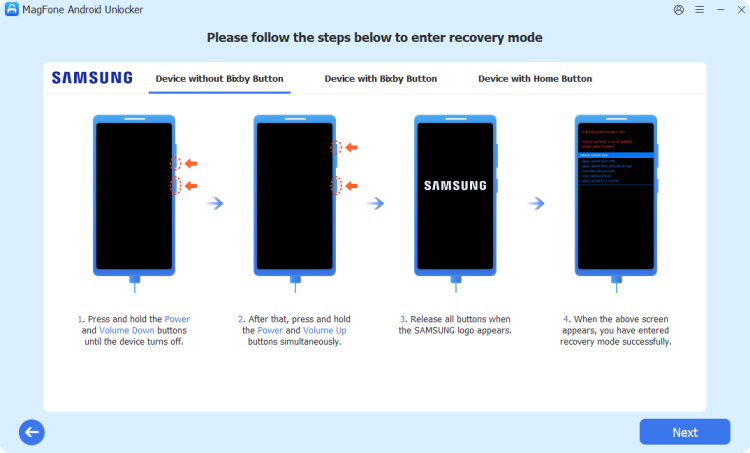
Once the software recognizes your phone, it will walk you through booting the device into recovery mode. Follow each on-screen prompt carefully, then select Next and Continue to proceed.
Step 3 Remove the Lock Without a Password
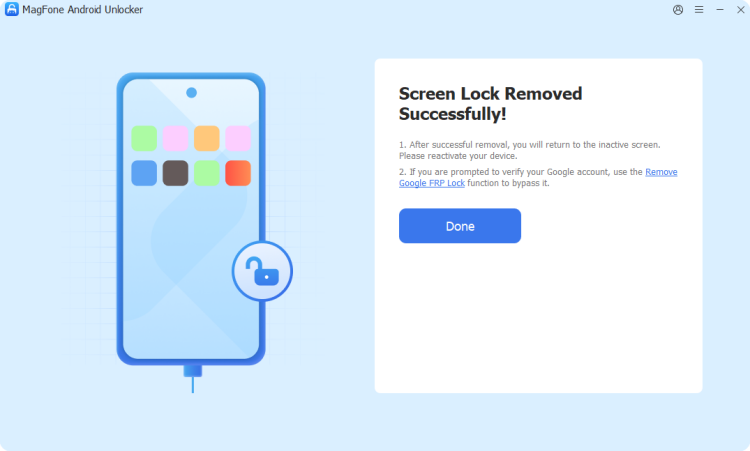
Keep following the guided instructions until the lock screen is cleared from your device. Return to the computer, click Start Unlock, and let the tool finish removing the lock automatically.
Part 5. FAQs about Android Face Unlock
Is Android Face Unlock secure?
Android Face Unlock security depends on the technology used. 2D Face Unlock is convenient but less secure, while 3D Face Unlock with depth sensors offers stronger protection. For sensitive information, fingerprints or PINs may still be safer.
How to unlock Face ID with a picture Android?
Most modern Android phones are built to detect photo-based spoofing attempts and will reject a flat image, since they analyze subtle depth and motion cues that a static picture can't replicate. Basic or older models with weaker security may occasionally be fooled, but this is inconsistent and not a reliable method.
Can you unlock Android Face ID with mask?
Typically, no. Standard Face Unlock needs a clear view of key facial landmarks, including your nose and mouth, so a mask usually blocks recognition. Some newer devices offer a specific "unlock with mask" setting that adjusts the scan to focus on the visible upper portion of your face, but this feature isn't available on every phone.
Part 6. Conclusion
Face Unlock is a handy feature, but it's not immune to occasional glitches. Whether the issue comes from a dirty lens, poor lighting, or outdated software, most problems have a straightforward fix. And if you ever find yourself completely locked out, tools like MagFone Android Unlocker offer a reliable way back into your device.

Dylan Jones
Editor in chief




