








Couldn't verify Mi Acoount ID. Wiped my phone and now it's locked! I'm the true owner and I know the password, but it keeps saying "Couldn't verify Mi Account ID. Can't connect to network". Psl help!"
—— From Reddit
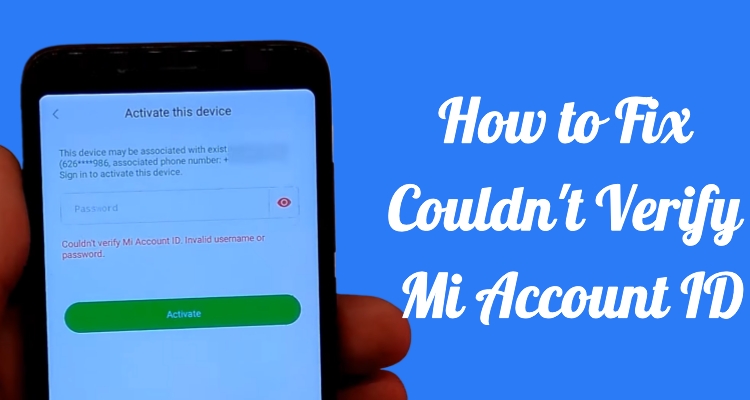
If you encounter the This Device Is Locked screen on your Xiaomi or Redmi phone and try to activate the device, you may notice the message Couldn't verify Mi Account ID. This issue can stop you from accessing your phone even after entering your credentials. Whether the cause is what it is, we've got the solutions. In this article, we introduced several effective ways to fix the Couldn't verify Mi Account ID problem quickly and regain access to your device.
- Part 1. What Does Couldn't Verify Mi Account ID Mean?
- Part 2. How to Fix Couldn't Verify Mi Account ID with Ease
- Part 3. Bonus Tip: How to Unlock XiaoMi/Redmi Screen Lock
- Part 4. Conclusion
Part 1. What Does Couldn't Verify Mi Account ID Mean?
This Couldn't Verify Mi Account ID error commonly happens during device activation after a factory reset or system update. The error usaully display messages like Couldn't verify Mi Account ID invalid username or password or Couldn't verify Mi Account ID cannot connect to network.
1.1 What Does Couldn't Verify Mi Account ID Mean?
The Couldn't Verify Mi Account ID message indicates that Xiaomi's security system failed to validate your Mi account information. Since Xiaomi devices use Mi Cloud protection to prevent unauthorized access, the system requires account verification before activation can continue.
1.2 Why Does Couldn't Verify Mi Account ID Occur?
There are several reasons why this issue occurs. You may have entered the wrong password, forgotten the account credentials, connected to an unstable network, or experienced temporary Xiaomi server issues.
Part 2. How to Fix Couldn't Verify Mi Account ID with Ease
Fixing the Couldn't verify Mi Account ID error does not have to be complicated. The following methods can help solve the issue effectively.
| Methods | Best For | Requirements |
|---|---|---|
| Recover Mi Account Password | Forgotten password or invalid login details | Email address, phone number, or Mi account ID |
| Delete Device in Xiaomi Cloud | Device still linked to old account | Email address, phone number, or Mi account ID Password |
| Check Network Connection | Network-related verification problems | None |
| Contact Xiaomi Support | Server or account-related issues | Related Credentails |
Method 1. Recover Mi Account Password
If you see the message Couldn't verify Mi Account ID invalid username or password, there is a high chance your login details are incorrect. Resetting the Mi account password can help restore access and allow Xiaomi to verify your identity successfully. This method is simple and effective for forgotten passwords.
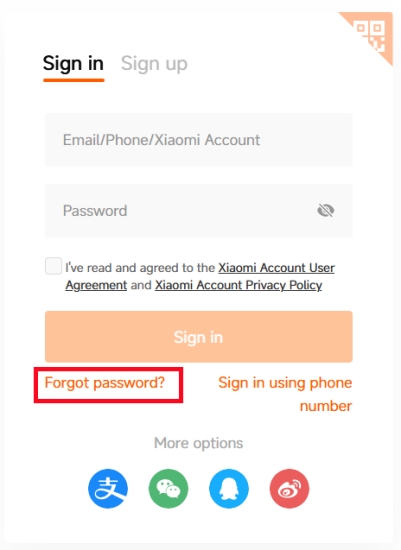
Step 1. Open a browser on your pc or another mobile device and visit the Mi Account page.
Step 2. Click the Forgot Password? option on the sign-in page.
Step 3. Enter your email address, phone number, or Mi account ID linked to the Xiaomi device.
Step 4. Complete the verification process using the code and create a new secure password.
Step 5. Return to the locked Xiaomi device and sign in using the updated account credentials.
Method 2. Delete Device in Xiaomi Cloud
Sometimes Xiaomi Cloud still stores the device information linked to your account, which can interfere with account verification. Removing the old device from Xiaomi Cloud may refresh the connection and help fix the Couldn't verify Mi Account ID problem during activation.
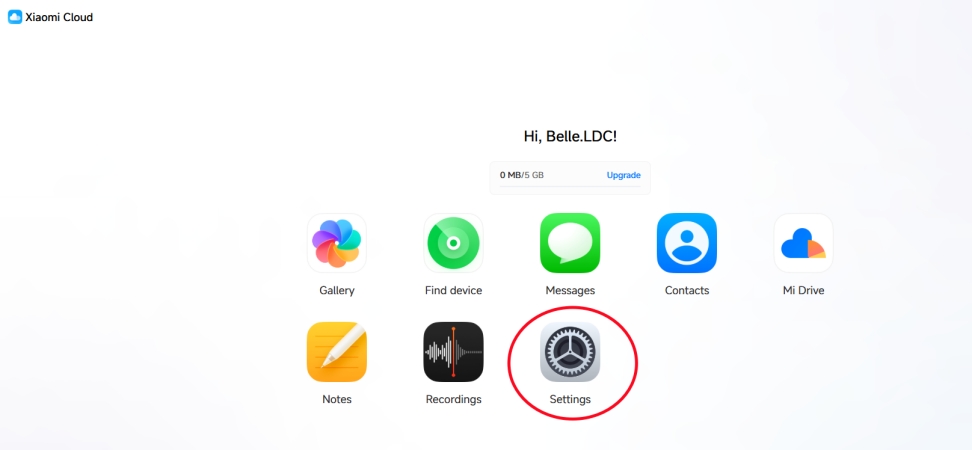
Step 1. Go to the Xiaomi Cloud website on a browser and sign in with your Mi account.
Step 2. Navigate to the Settings part in your Mi Cloud account dashboard.
Step 3. Locate your Xiaomi or Redmi device in the My devices section.
Step 4. Select the device and choose the Delete Device option.
Step 5. Try activating the device again using your Mi account information.
Method 3. Check Network Connection
The Couldn't verify Mi Account ID cannot connect to network error often appears when the device cannot communicate with Xiaomi servers. A weak Wi-Fi signal, unstable mobile data, or restricted network settings may interrupt the verification process. Ensuring a stable connection can solve the issue quickly.
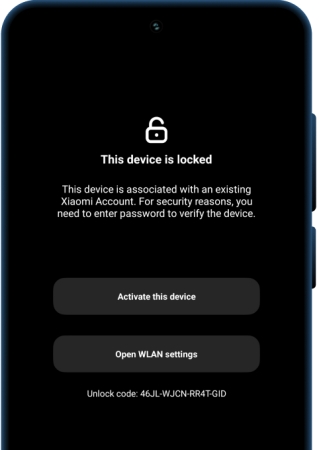
Step 1. Restart your Xiaomi or Redmi phone to refresh the network connection.
Step 2. Select Open WLAN settings in the This device is locked screen.
Step 3. Switch on the Wi-Fi button and connect the device to a stable Wi-Fi network.
Step 4. If Wi-Fi is not working properly, switch to mobile data and test again.
Method 4. Contact Xiaomi Support
The issue may also be related to Xiaomi servers or account restrictions. Xiaomi support can help verify account ownership and provide official solutions. Therefore, if the device remains locked despite using the correct account details, you should contact Xiaomi's official support website for assistance.
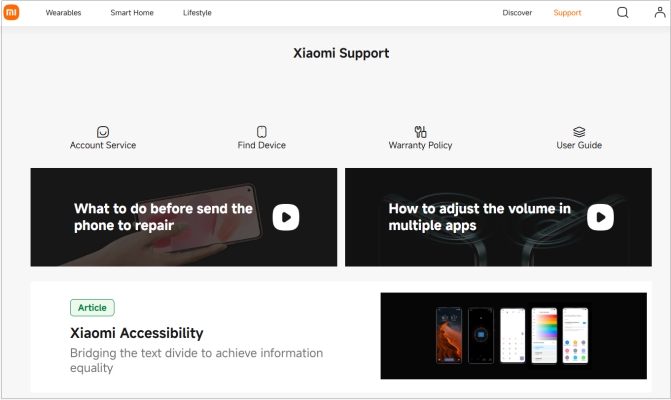
Step 1. Visit the official Xiaomi support page using a browser.
Step 2. Sign in with your Mi account if possible.
Step 3. Choose the customer support option or contact Xiaomi support by phone, then clearly explain the issue.
Step 4. Provide proof of purchase or device ownership if requested to resolve the verification issue.
Part 3. Bonus Tip: How to Unlock Xiaomi/Redmi Screen Lock
In many situations, users not only face the Mi account verification issue but also get locked out of the screen lock on Xiaomi or Redmi devices. Forgetting the PIN, password, pattern, or fingerprint can make the device inaccessible. In this case, MagFone Android Unlocker can be a practical solution. It helps remove both screen locks and FRP locks on Xiaomi and Redmi devices without complicated operations. Below is how to bypass the screen lock on Xiaomi using MagFone Android Unlocker.

MagFone Android Unlocker
Remove multiple kinds of screen locks on over 5000 Android devices and delete Google FRP lock without a password.
Step 1 Connect Xiaomi Device to MagFone
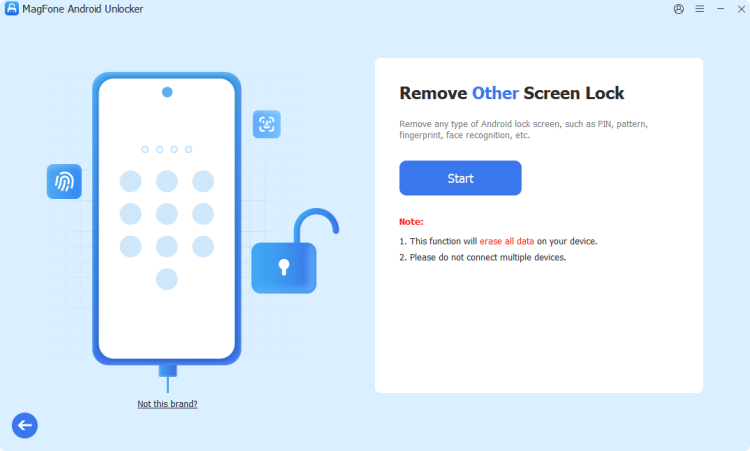
Start by installing and opening MagFone Android Unlocker on your computer. Use a compatible USB cable to connect your Xiaomi or Redmi phone to the computer. Once the software recognizes the device, choose the Remove Screen Lock feature from the home screen and click Other.
Step 2 Bypass Xiaomi Screen Lock Successfully

Carefully follow the remaining onscreen instructions to enter your Xiaomi device into recovery mode. Then click Next > Continue. The software will complete the unlocking process automatically. Once finished, click Next to regain full access to your phone without any password.
Part 4. Conclusion
The Couldn't verify Mi Account ID issue can prevent you from activating and using your Xiaomi or Redmi device properly. Fortunately, the solutions in this full guide can resolve the problem effectively. If you are also locked out by the screen password, tools like MagFone Android Unlocker can help remove screen locks and regain access to your device quickly and easily.

Dylan Jones
Editor in chief





