








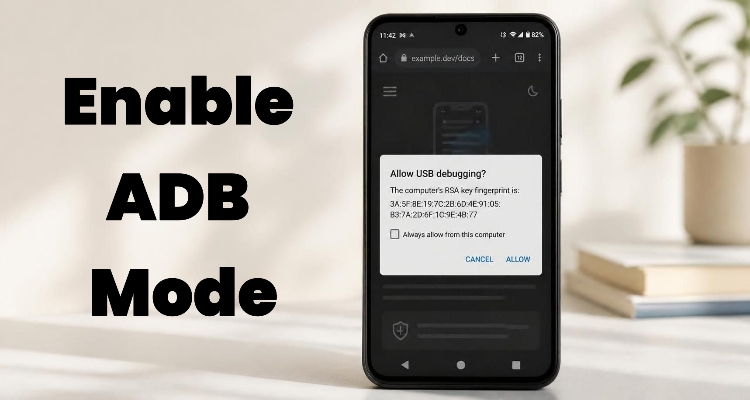
Android Debug Bridge, better known as ADB, lets your computer send commands directly to your phone. Whether you want to sideload an update, rescue data, or fix a stubborn system problem, turning ADB on is the first hurdle. This guide walks through five practical ways to enable ADB mode: system settings, stock recovery, custom recovery, and two methods for FRP-locked phones. Let's dive into more details.
- Part 1. What Is ADB Mode?
- Part 2. How to Enable ADB in Settings
- Part 3. How to Enable ADB in Recovery Mode
- Part 4. How to Enable ADB Mode in FRP Locked Phones
- Part 5. Bonus Tip: How to Unlock FRP Locked Phones
- Part 6. Conclusion
Part 1. What Is ADB Mode?
ADB mode is a communication channel between an Android device and a computer. It is part of the Android SDK Platform Tools and works through a client-server setup. A small background service on the phone, called the ADB daemon, listens for instructions sent from your PC over USB or Wi-Fi.
Once the link is active, you can install or remove apps, copy files, view system logs, open a shell, and flash update packages. Developers use it for testing, while everyday users rely on it for troubleshooting, backups, and repairs. Because it grants deep control, ADB remains disabled by default, and the phone asks you to approve each computer you connect to.
Part 2. How to Enable ADB in Settings
The simplest way to enable ADB is through your phone's settings. You don't need to dig through menus, as the built-in search box can take you straight to the right option. Here, we'll show you how to find and enable ADB debugging in Developer options quickly.
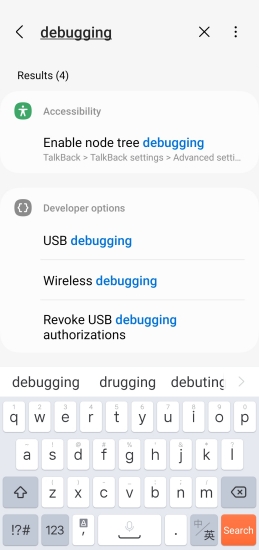
Step 1. Unlock your phone and open the Settings app.
Step 2. Tap the search box at the top of the screen.
Step 3. Type "USB debugging" or "ADB" and tap on it.
Step 4. Turn on the USB debugging switch and confirm the warning.
Part 3. How to Enable ADB in Recovery Mode
Recovery mode is a separate environment that runs outside Android, and it handles ADB differently from the normal system. What you can do depends on whether your phone uses the manufacturer's stock recovery or a custom one such as TWRP or OrangeFox. Both options are covered below.
01Stock Recovery
Stock recovery is the default, official environment on most phones. Its ADB support is limited and is mainly meant for sideloading official update packages or running factory resets. You won't get a full shell or be able to pull personal files from it, but the sideload function is enough for updates and repairs.
Step 1. Power off the phone, then boot into recovery by holding the Power button together with Volume Up or Volume Down, depending on your model.
Step 2. Use the volume keys to highlight "Apply update from ADB" (sometimes labeled Sideload) and press Power to select it.
Step 3. Connect the phone to your computer through USB.
Step 4. Open a command prompt or terminal in your platform-tools folder and type adb devices to confirm the phone appears.
Step 5. To flash a package, run adb sideload filename.zip, replacing the name with your file.
02Custom Recovery
Custom recoveries like TWRP and OrangeFox include a full ADB daemon. That gives you shell access and file transfers, provided the data partition is decrypted and mounted. In most cases, ADB starts automatically as soon as the recovery interface loads, so there is little to configure.
Step 1. Boot your phone into the custom recovery using its key combination.
Step 2. Wait for the main screen to load, since ADB normally activates in the background.
Step 3. If you need access to storage, open the Mount menu and make sure Data and System are checked.
Step 4. Connect the phone to your PC with a USB cable and run adb devices.
Step 5. Type adb shell to open a command line directly inside recovery.
Part 4. How to Enable ADB Mode in FRP Locked Phones
Factory Reset Protection blocks setup until the previous Google account is verified, which also keeps USB debugging off. Samsung phones, however, offer a few workarounds. Use these methods only on a device you own, since they are meant for owners who are locked out.
01Use the Samsung Test Menu
Many Samsung Galaxy phones include a hidden diagnostic menu that can be reached from the emergency dialer, even on the welcome screen. Opening it lets a compatible PC utility switch on ADB without passing the setup wizard. The steps below show how this works from the lock screen.
Step 1. Turn on the FRP-locked phone and stay on the initial welcome screen.
Step 2. Tap Emergency Call at the bottom.
Step 3. Dial *#0*# to open the hidden Test Mode menu.
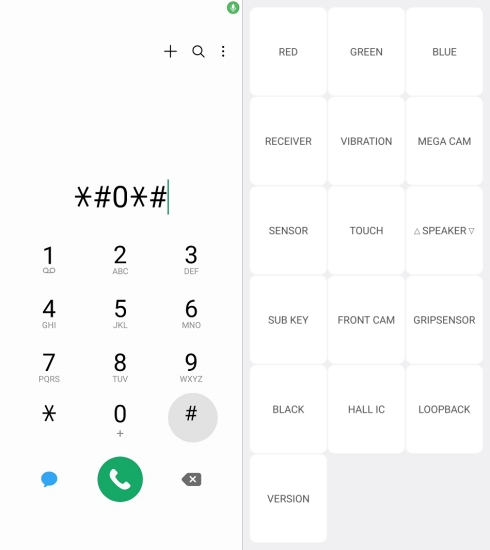
Step 4. Connect the phone to your computer with a USB cable.
Step 5. Launch an FRP utility on the PC, such as SamFw FRP Tool or Unlock Tool, and click its Enable ADB button.
Step 6. Watch the phone and tap Allow when the USB debugging prompt appears.
02Use PC Software via Download Mode
If the test menu doesn't work, you can use Download Mode instead. Here, the PC software talks to the phone at the bootloader level, so it can force USB debugging on without needing access to Android itself. This approach suits devices where the dialer trick has been blocked.
Step 1. Power off the Samsung phone completely.
Step 2. Hold the Download Mode key combination, usually Volume Up and Volume Down, and plug the phone into your PC.
Step 3. Open a partition-level tool such as Unlock Tool.
Step 4. Choose your chipset, for example, Exynos or MediaTek.
Step 5. Click Enable ADB so the software activates USB debugging through the bootloader interface.
Once ADB is active and authorized, download the Android SDK Platform Tools, open a command window in that folder, and run adb devices to verify the connection.
Part 5. Bonus Tip: How to Unlock FRP Locked Phones
If your Android phone is stuck on the Google FRP lock and you can't remember your account password, there's a faster way to regain access without enabling ADB mode. You can try MagFone Android Unlocker, a desktop tool designed to remove FRP locks without requiring a password. It offers a simple process, even if you're not familiar with technical steps. Below, we'll show you how to bypass the Google FRP lock using this tool step by step.

MagFone Android Unlocker
Remove multiple kinds of screen locks on over 5000 Android devices and delete Google FRP lock without a password.
Step 1 Connect Device and Launch Software
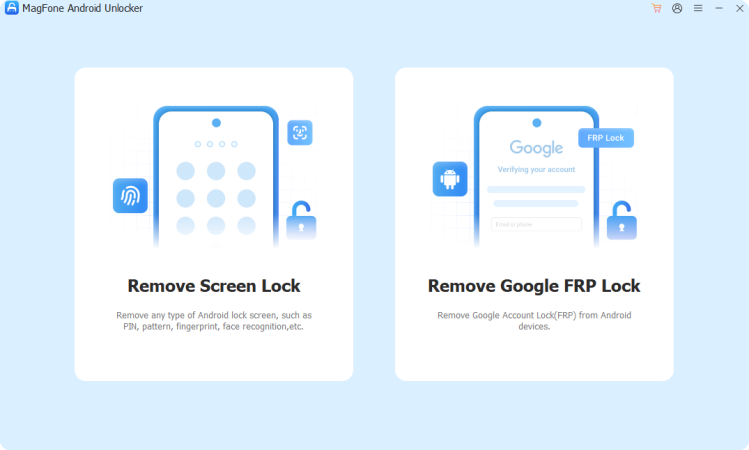
Install and open MagFone Android Unlocker on your computer. Then link your FRP-locked Android phone to the computer with a USB cable. On the main screen, pick the Remove Google FRP Lock option to get started.
Step 2 Detect Device and Confirm Details
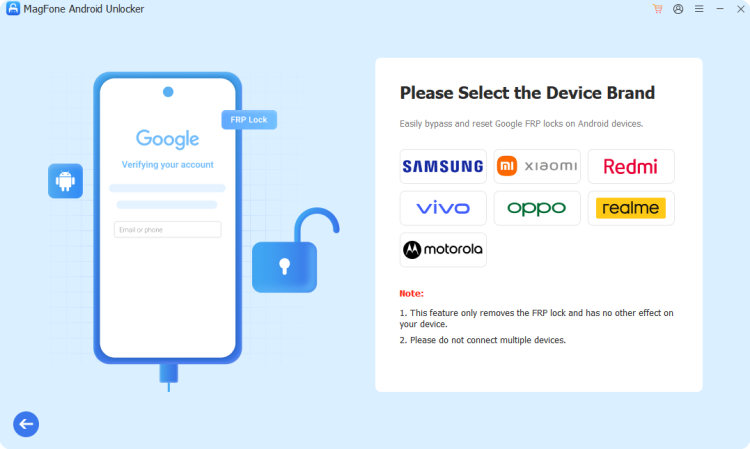
Give the program a moment to identify your phone automatically. If it fails to detect the device correctly, choose your phone brand and Android version from the list yourself. After you confirm the details, click Start to move on.
Step 3 Follow Instructions and Unlock FRP
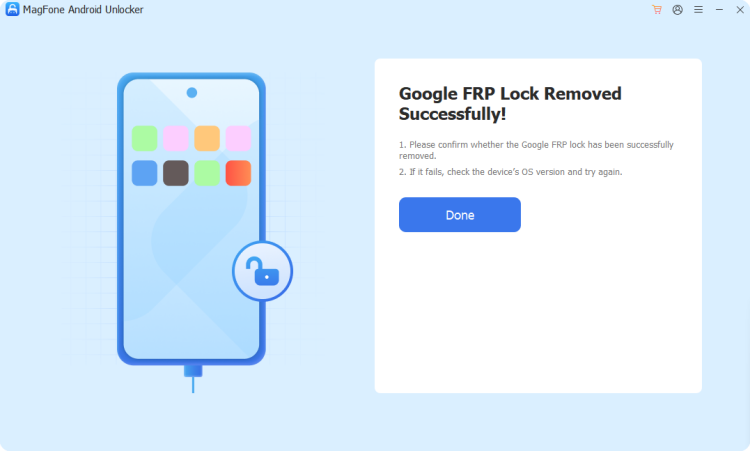
The software then shows guided steps matched to your Android device. Follow the prompts on both the phone and the computer screen carefully. Once the process finishes, the tool tells you that the FRP lock has been removed.
Part 6. Conclusion
Enabling ADB mode depends on your situation. Settings offers the easiest path, stock recovery supports sideloading, custom recovery gives full shell access, and FRP-locked Samsung phones can use the test menu or Download Mode tools. If the lock itself is the real problem, MagFone Android Unlocker can remove it without a password. Choose the method that matches your device and always back up your data first.

Teresa Miller
Editor in chief




