








Android devices often come with security features that protect user data, and Factory Reset Protection is one of the strongest. However, it can become an obstacle when users forget their Google credentials. One technical method often discussed is using ADB FRP bypass commands. In this guide, we will explore what ADB FRP bypass is, how to use ADB FRP bypass command, and alternative solutions in detail.
- Part 1. What Is ADB FRP Bypass Command?
- Part 2. How to Bypass FRP with ADB at Commands
- Part 3. What to Do If ADB Command Not Found
- Part 4. How to Bypass FRP without ADB Commands
- Part 5. Conclusion
Part 1. What Is ADB FRP Bypass Command?
ADB, short for Android Debug Bridge, is a command-line utility that creates communication between a computer and an Android device. It allows users and developers to execute commands remotely and perform advanced device management tasks.
What Can ADB Be Used For?
- Install and uninstall applications
- Transfer files between devices
- Access Android system shell
- Debug Android applications
- Reboot devices remotely
- Update system settings
- Capture device logs
- Perform software testing
- Execute maintenance commands
The principle behind ADB FRP bypass is relatively simple. When USB debugging is enabled, ADB can access certain Android system functions. By executing specific commands, users can modify system settings, including setup-related parameters. As a result, the ADB commands can bypass portions of the initial activation process, including the Google account verification screen.
The method can be used only if USB debugging was activated prior to the issue, and the computer was previously authorized by the device. Moreover, ADB does not directly remove the Google account stored on the device; it only modifies certain system settings related to the Android Setup Wizard.
Part 2. How to Bypass FRP with ADB at Commands
If you're ready to bypass the FRP lock, you can proceed with the full instructions on how to correctly use ADB commands to bypass it.
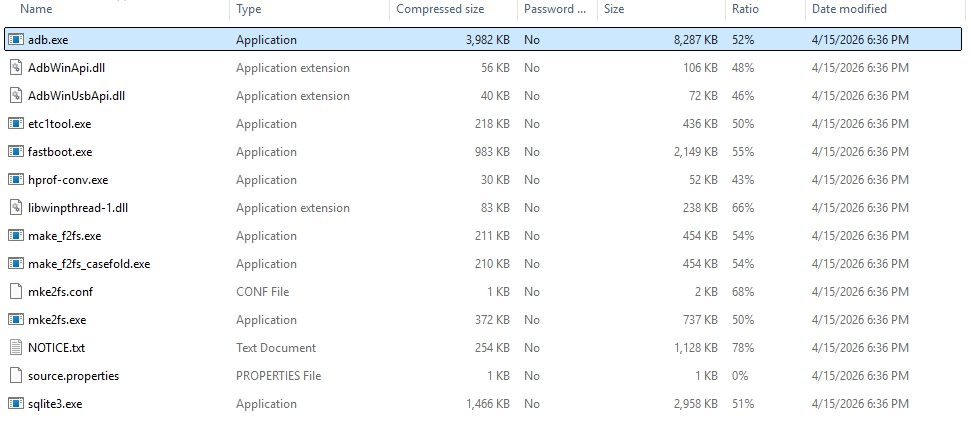
Step 1. Download the newest ADB Platform Tools from a reliable source online, then extract the downloaded files into a folder on your computer for easy access.
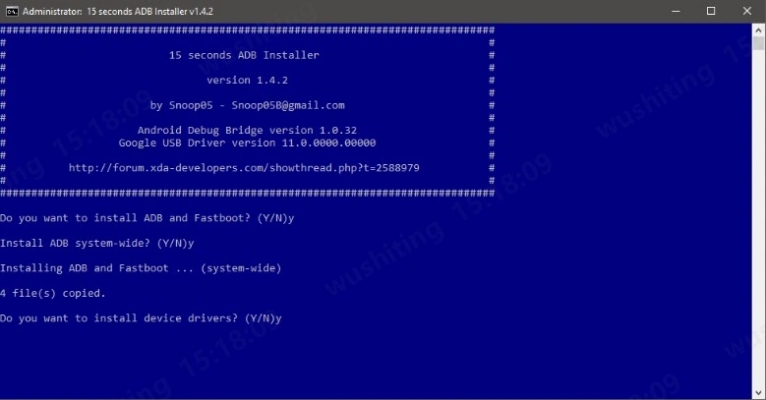
Step 2. Launch the adb-setup.exe file and press "Y" when prompted. Follow the installation prompts carefully until the ADB and Fastboot drivers are fully installed on your system.
Step 3. Power on your Android device normally and connect it to your computer using a USB cable. Wait until the system recognizes the device connection.
Step 4. Open File Explorer and locate the directory where the ADB tools were installed, which is commonly found in the main system drive such as C:.
Step 5. Hold the Shift key, right-click on an empty space inside the ADB folder, and choose "Open command window here" or "Open PowerShell window here" to proceed.
Step 6. For Samsung phones, type and run the following ADB commands one at a time, pressing Enter after every command:

Step 7. For other Android brands such as MTK or SPD devices, input this command and press Enter:
Step 8. After all commands are executed successfully, restart your device. The FRP lock should now be removed, allowing you to proceed with the normal setup process.
Part 3. What to Do If ADB Command Not Found
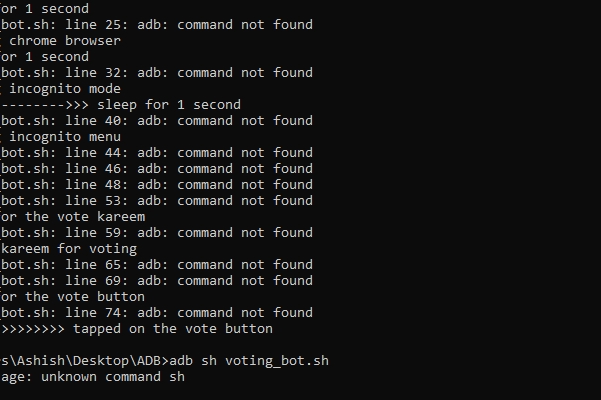
At times, the system may not recognize ADB, leading to failed or unresponsive commands. This usually happens due to missing drivers, incorrect installation, or disabled USB debugging.
Method 1. Reinstall ADB Platform Tools
Download latest Android Platform Tools and reinstall them to replace corrupted files causing ADB or device connection issues and restoring functionality.
Method 2. Check USB Debugging Settings
Enable Developer Options and confirm USB debugging is turned on with proper authorization permissions allowing computer connection to Android device access.
How to: Tap Settings > Developer options > USB debugging to check if it's enabled.
Method 3. Erase Vortex Phone via Find Hub Site
Use Find Hub app or visit Find Hub website to remotely factory reset Vortex phone when both devices are online and signed into same Google account.
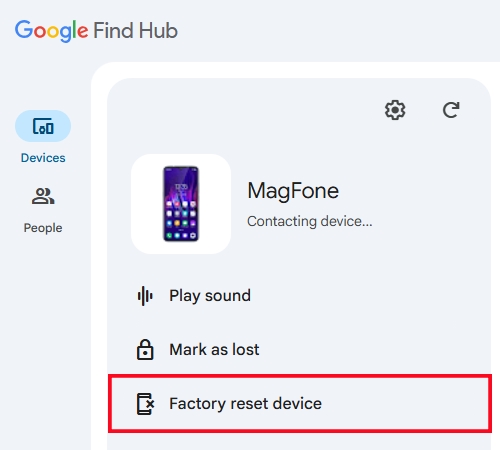
How to: Go to Find Hub site > Devices > Select your device (Vortex phone) > Factory reset device.
Method 4. Update or Reinstall USB Drivers
Refresh or reinstall the USB drivers to restore device recognition when corrupted or obsolete drivers interfere with connectivity on Windows or macOS.
Part 4. How to Bypass FRP without ADB Commands
If ADB commands are not working or seem too complex, users can choose a simpler alternative solution. A practical solution is to use specialized FRP removal software. MagFone Android Unlocker can help users remove Factory Reset Protection (FRP) locks on various Android devices, including Samsung, Xiaomi, Redmi, Vivo, Motorola, Oppo, and Realme models. It provides a guided process that does not require manual command input, making it suitable for beginners. Here's how to.

MagFone Android Unlocker
Remove multiple kinds of screen locks on over 5000 Android devices and delete Google FRP lock without a password.
Step 1 Connect Device and Launch Software
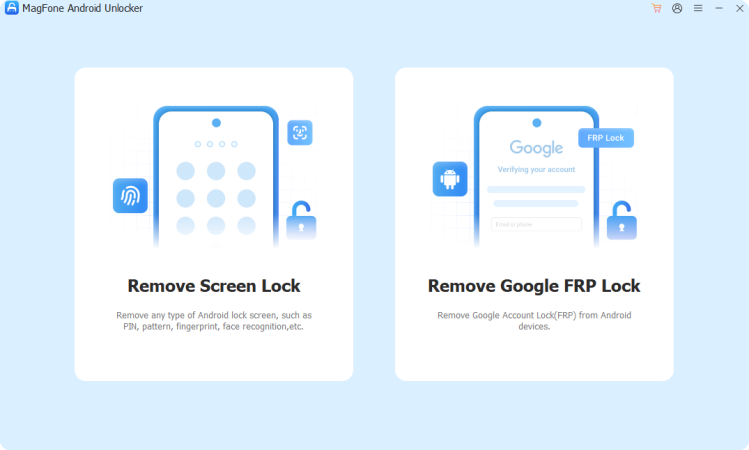
Install MagFone Android Unlocker on your computer and connect your Samsung or other Android device via USB. Select the FRP removal option from the main interface.
Step 2 Detect and Confirm Device Information
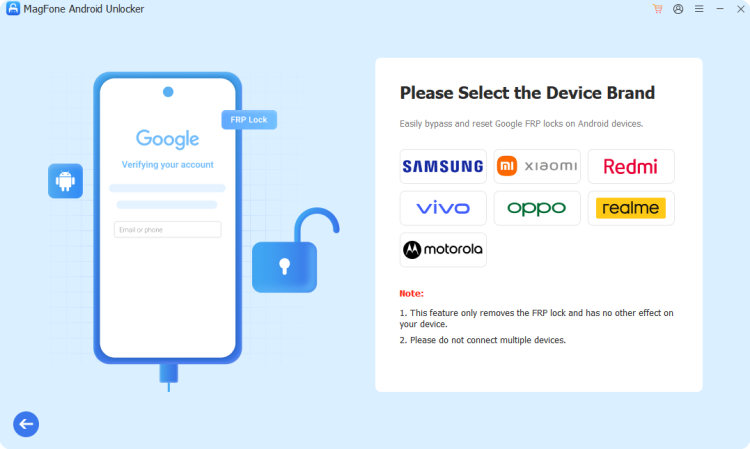
Allow the program to automatically recognize your phone. If it fails, manually choose the correct brand and Android version before continuing.
Step 3 Follow On-Screen Unlock Instructions
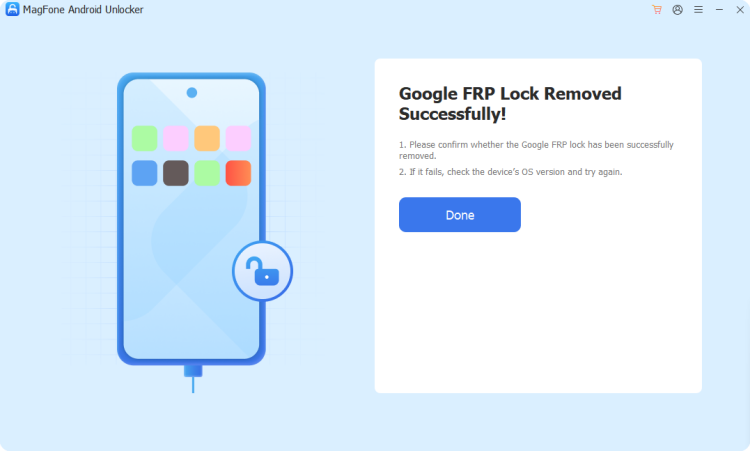
The software will guide you step by step. Follow both computer and phone prompts carefully until the process completes.
Part 5. Conclusion
ADB FRP bypass commands provide a technical method to remove Google verification using computer-based instructions. While effective in certain cases, it requires USB debugging, proper drivers, and technical knowledge. Errors can cause failure or system issues. When ADB methods are not suitable, alternative tools like professional unlockers offer a simpler solution. Understanding both approaches helps users choose the most efficient and safe FRP removal method.

Teresa Miller
Editor in chief




