








Getting stuck on the Google verification screen after resetting a BLU phone is a common issue for many users. It often happens after buying a used device, forgetting an old Google account password, or performing a factory reset too quickly. Since FRP security is meant to protect Android phones from unauthorized access, removing the lock can feel confusing for beginners. The good news is that there are still several BLU FRP bypass Tools available, whether or not you have a computer.
- Part 1. Overview of BLU FRP Bypass Tools
- Part 2. Blu FRP Bypass Tools with PC
- Part 3. Blu FRP Bypass without PC
- Part 4. Bonus Tip: FRP Bypass on Other Android Phones
- Part 5. Conclusion
Part 1. Overview of BLU FRP Bypass Tools
Searching online for a working BLU FRP bypass tool can honestly waste a lot of time. To make things easier, we tested and reviewed several commonly used methods, including PC tools and a no-computer APK solution. The comparison below can help you quickly decide which option fits your situation best.
| Tool Name | Requirements | Easy to Use | Free or Not |
|---|---|---|---|
| TFT Unlock Tool | PC, USB cable, account login | Moderate | Paid |
| UnlockTool | PC, USB cable, registered account | Easy | Paid |
| Mediatek Universal Tools | PC,USB cable | Easy | Free |
| FRP Bypass APK Method | Wi-Fi connection only | Moderate | Free |
Part 2. Blu FRP Bypass Tools with PC
Using a computer-based FRP bypass utility usually provides higher success rates and smoother unlocking performance for BLU smartphones with security restrictions.
01TFT Unlock Tool
TFT Unlock Tool is widely recognized for handling FRP removal on many Android devices, including BLU smartphones powered by Spreadtrum chipsets. The software includes multiple unlocking methods and advanced repair features. With the correct setup and proper USB connection, users can efficiently remove Google verification locks.
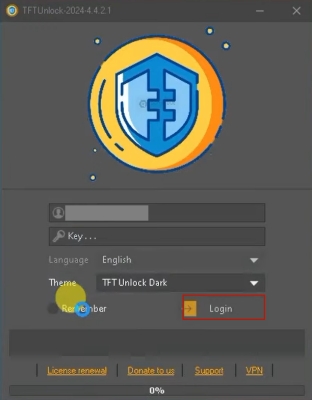
Step 1. Open the TFT Unlock Tool login interface and enter your account credentials. Link your phone and pc.
Step 2. Click the Login button, then select SPREADTRUM at the top of the screen.
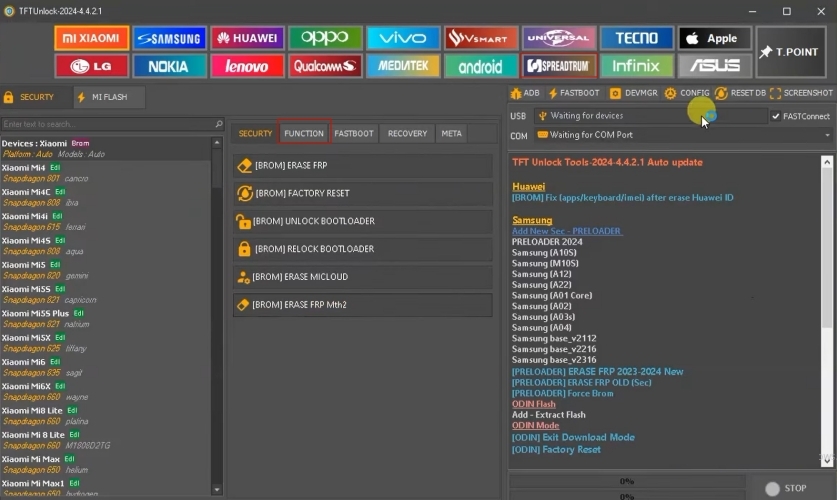
Step 3. In the middle section of the tool page, select FUNCTION.
Step 4. Find and click the Remove FRP option. Choose Method 4, open Emergency Call, and enter the code #0#.
Step 5. After the operation is complete, choose Method 2. The software will then remove the FRP lock from your BLU phone.
Step 6. Confirm the pop-up window by selecting Yes on the screen.
Step 7. Allow USB debugging on your phone and wait for the process to continue. Then allow data access.
Step 8. Select ADB from the right sidebar and choose (GENERIC) Remove FRP.
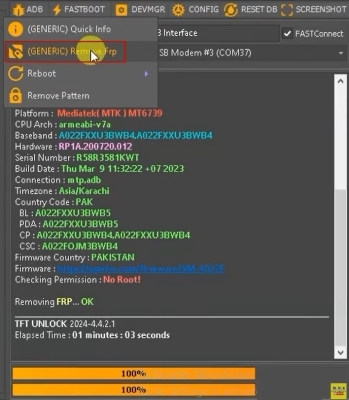
Step 9. Wait for the process to finish, then select Yes to confirm the device restart.
02UnlockTool
UnlockTool is another reliable software package for removing FRP locks from BLU devices. Similar to the TFT Unlock Tool, it supports many Android brands and offers a straightforward interface suitable for beginners. The program can erase Google account verification by detecting the device in special boot mode, making the unlocking process quicker and easier for users.
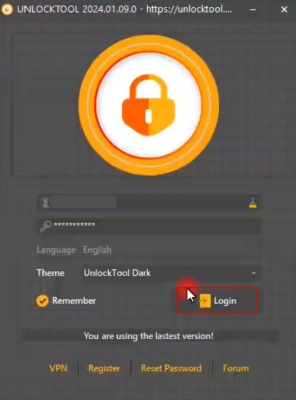
Step 1. Download and run UNLOCKTOOL on your PC. Then log in with your account and password. Link your phone and pc.
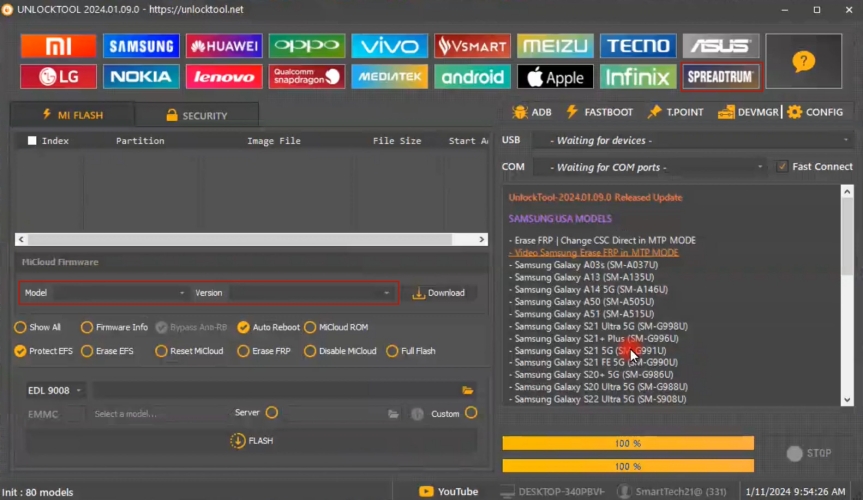
Step 2. From the top brand images, select SPREADTRUM. Then click the BLU option from the model list.
Step 3. After that, select the ERASE FRP option from the interface.
Step 4. When the right-side loading page shows "waiting for device…", power off your device and hold Volume Down.
Step 5. When the screen shows the preceding steps, release the buttons.
Step 6. Your BLU phone will restart, and you can skip the WLAN setup screen.
Step 7. Continue by clicking Next > Set up offline. Tap More and skip the screen lock setup.
Step 8. Click Next and then Yes. Untick "Sign me up" and select Next. You should now reach the home screen of your BLU phone.
03Mediatek Universal Tools
Mediatek Universal Tools is a lightweight utility developed for Android phones using MediaTek chipsets. The software streamlines FRP unlocking by automatically detecting devices and offering simple, user-friendly controls. Because of its simple design and free availability, many users prefer this tool when they need a quick solution for FRP bypass.
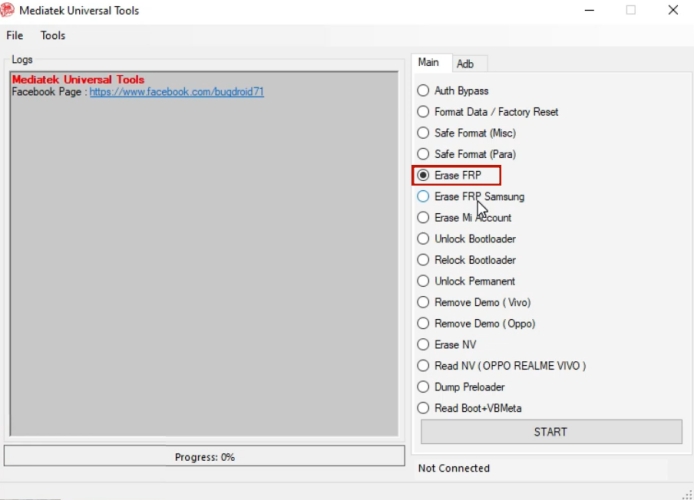
Step 1. Extract the Mediatek Universal Tools ZIP file and run the program.
Step 2. Select Erase FRP from the list on the right side and click Start.
Step 3. Follow the onscreen instructions to power off your BLU phone, then press and hold the Volume Up and Volume Down buttons
Step 4. Insert the USB cable to connect both the PC and the phone.
Step 5. Once the device is detected, the process will proceed automatically.
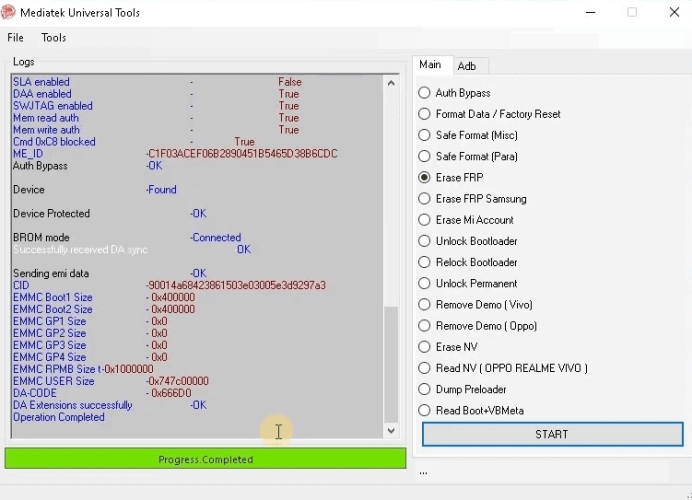
Step 6. After the process is completed, power on your phone and finish the setup without the FRP lock.
Part 3. Blu FRP Bypass without PC
Users who do not have access to a computer can still remove FRP locks on BLU devices through alternative methods. This approach relies on built-in Android functions and internet access to install a bypass APK directly from the phone during setup.
Step 1. From the "Hi there" screen on your BLU phone, tap Start > NEXT, then connect to a Wi-Fi network.
Step 2. Eject the SIM tray and reinsert it. Then you'll be asked to enter the SIM PIN.
Step 3. Enter the PIN and tap the photo icon at the bottom of the screen.
Step 4. Take a photo and review the picture you've taken.
Step 5. Select Lens from the bottom of the screen. Open the menu in the upper-right corner and select the More button.
Step 6. Select Privacy Policy, then tap Use without an account.
Step 7. Tap the Share icon at the top of the screen and choose App info.
Step 8. Choose Google at the bottom to enter the search screen.
Step 9. Search for FRP Bypass APK. If it doesn't load, refresh the page twice.
Step 10. Choose FRP Bypass APK from the list, then set a pattern lock for your device.
Step 11. Go back to the original setup screen and continue setting up your device without the FRP lock.
Part 4. Bonus Tip: FRP Bypass on Other Android Phones
If you are searching for FRP unlocking solutions not only for BLU phones but also for brands like Xiaomi, Motorola, or Samsung, you can consider using MagFone Android Unlocker. Unlike many complicated FRP bypass utilities, this software offers a beginner-friendly interface, detailed onscreen guidance, and a strong unlocking success rate. The program works on both Windows and Mac computers, making it convenient for users across different systems and Android devices.

MagFone Android Unlocker
Remove multiple kinds of screen locks on over 5000 Android devices and delete Google FRP lock without a password.
Step 1 Launch MagFone Android Unlocker
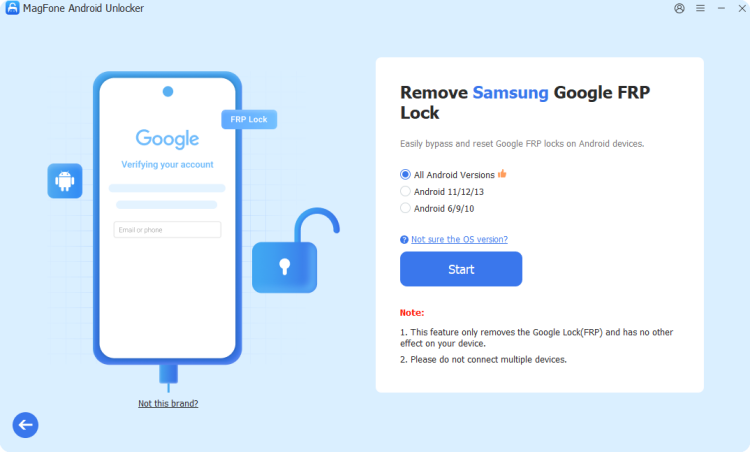
Download and install MagFone Android Unlocker on your Windows PC or Mac computer. Open the software and attach your Android phone using a compatible USB cable. From the main dashboard, choose the option designed for removing Google FRP locks.
Step 2 Verify the Device Information
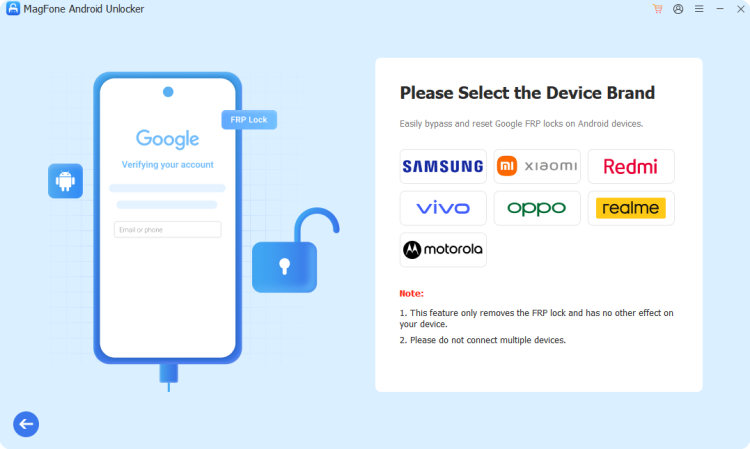
Allow the software to identify your smartphone automatically. If automatic detection does not work properly, manually choose the correct phone brand and Android version from the provided options. After confirming the information, click the button to continue.
Step 3 Remove the FRP Lock Successfully
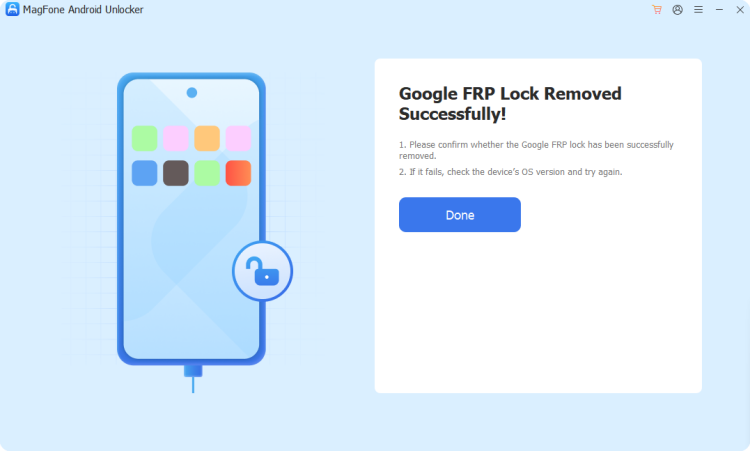
The program will display customized instructions according to your phone model. Carefully follow the guidance shown on both the phone and the computer screen. Once the operation finishes, the software will notify you that the FRP verification has been removed successfully from your Android device.
Part 5. Conclusion
FRP locks are useful for protecting Android phones, but they can become frustrating when you cannot remember the original Google account details. Thankfully, there are several practical ways to unlock a BLU phone again, whether you prefer using a computer tool or a direct APK method. By choosing the right solution for your device and following the steps carefully, you can regain access to your phone without too much trouble.

Dylan Jones
Editor in chief





