








Getting locked out of your own Android phone after a factory reset is frustrating, especially when you can't remember the Google account tied to the device. This is why so many users search for FRP bypass software: tools that promise a quick fix without visiting a repair shop. Bader Tool is one name that frequently comes up in these searches. For more details, continue reading this full Bader Tool review guide.
- Part 1. What Is Bader Tool?
- Part 2. Bader Tool V2.2/V2.6 Free Download
- Part 3. Bader Tool V2.2/V2.6 FRP Bypass Guide
- Part 4. Pros and Cons of Bader Tool FRP Bypass
- Part 5. Bader Tool vs. MagFone: Which Is Better for FRP Bypass?
- Part 6. Conclusion
Part 1. What Is Bader Tool?
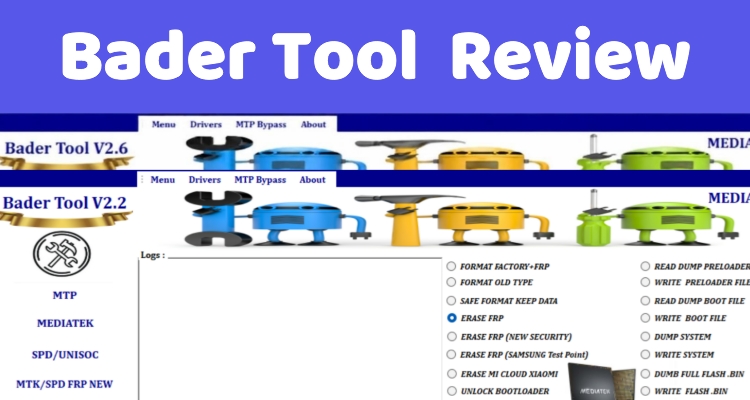
Bader Tool is a free and lightweight Windows-based utility, mainly used for Android phone servicing, unlocking, and troubleshooting. Beyond FRP removal, it also advertises features like IMEI repair, bootloader unlocking, and basic flashing support for select chipsets.
Part 2. Bader Tool V2.2/V2.6 Free Download
Among the various releases, Bader Tool v2.2 remains the version most long-time users are familiar with, while v2.6 is the newest build currently circulating online. Neither version has an official, dedicated homepage — both are typically shared through third-party file hosts, with MediaFire being the most commonly referenced source for downloading the executable files.
Note:
Bader Tool only supports Windows 7, 8, 10, and 11, not Mac. Mac users can try MagFone Android Unlocker instead.
Compared with the older v2.2 build, v2.6 markets broader device support, claiming compatibility with Android 12, 13, and 14. It also lists brand-specific additions such as a Samsung authentication bypass module and a dedicated Xiaomi Mi Cloud removal function.
Part 3. Bader Tool V2.2/V2.6 FRP Bypass Guide
Although V2.6 expands device compatibility over V2.2, the core FRP removal workflow inside the software hasn't really changed between builds. If you're comfortable with basic driver installation and ADB connections, the process is fairly similar across both versions. Below is a general walkthrough for using Bader Tool V2.6 to clear an FRP lock.
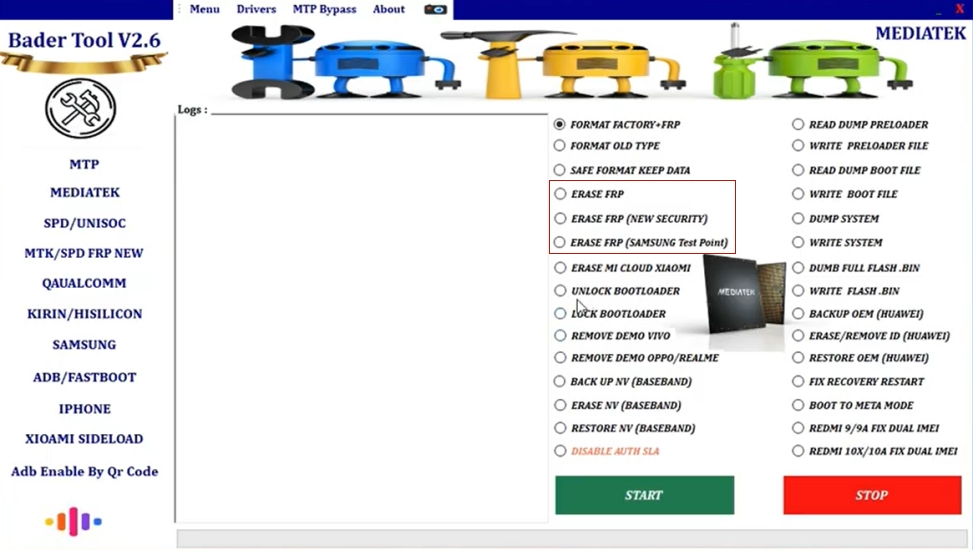
Step 1. Install the required USB drivers for your phone's chipset (Qualcomm, MediaTek, or Spreadtrum, depending on your device), then launch Bader Tool V2.6 as an administrator.
Step 2. Power off your Android phone, then boot it into download or diagnostic mode using the correct key combination for your model.
Step 3. Connect the phone to your PC via a USB cable and wait for Bader Tool to recognize the connected device port.
Step 4. Select the MEDIATEK section from the tool's left menu, then choose the ERASE FRP option from the function list.
Step 5. Follow the onscreen instructions to continue the process, and avoid disconnecting the cable until the tool reports completion.
Step 6. Restart the phone manually and go through the initial setup screen, which should now skip the Google verification step.
Part 4. Pros and Cons of Bader Tool FRP Bypass
Like most free unlocking utilities of its kind, Bader Tool comes with real trade-offs. Before relying on it as your go-to fix, it helps to weigh what it does well against where it tends to fall short, especially given its unofficial distribution.
 Pros
Pros- Completely free to use
- Supports several device brands
- Works without paid license
- Includes extra IMEI functions

- No official support channel
- Only supports Windows PC
- Risk of bundled malware
- Inconsistent success across models
Part 5. Bader Tool vs. MagFone: Which Is Better for FRP Bypass?
Unlike Bader Tool, MagFone Android Unlocker operates through an official website with genuine customer support behind it. It's built to run on both Windows and Mac systems, and the program itself walks users through every step with clear on-screen prompts rather than relying on scattered forum instructions. Before downloading, it's worth confirming your device is listed as compatible; once verified, you can follow the instructions below to finish FRP bypass.

MagFone Android Unlocker
Remove multiple kinds of screen locks on over 5000 Android devices and delete Google FRP lock without a password.
Step 1 Get Your Phone Connected
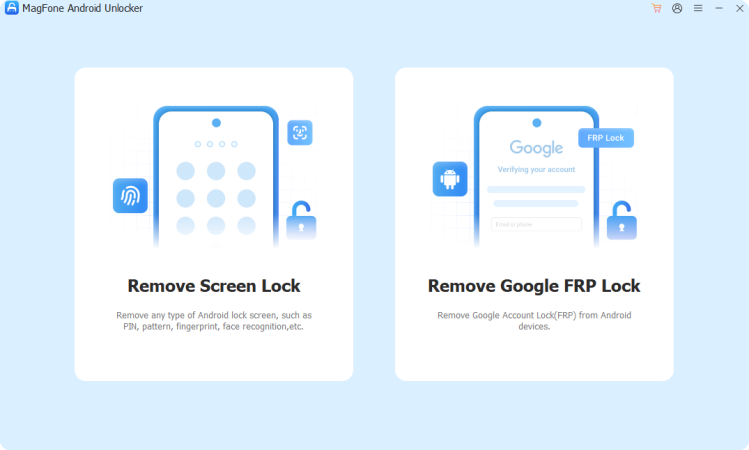
After installing MagFone Android Unlocker on your computer, open the program and choose the FRP removal option from its main dashboard. Plug your Android device into the computer using a standard USB cable.
Step 2 Let the Software Identify Your Device
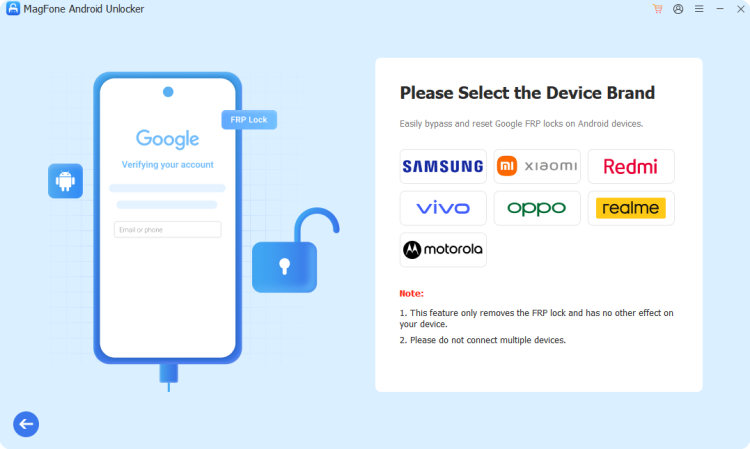
Give the program a moment to detect your phone automatically. If it doesn't pick up the device on its own, manually pick your phone's manufacturer from the list, then select the generic "All Android Versions" entry among the given choices.
Step 3 Clear the Google Lock
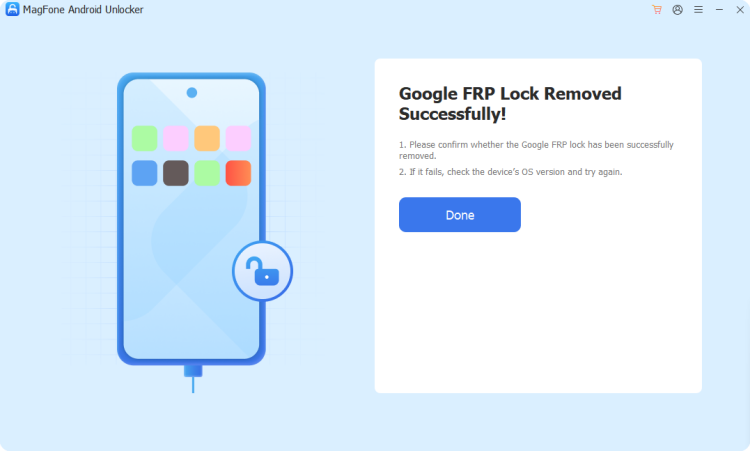
Follow the prompts that appear directly on your phone's screen, then return to the desktop app and hit Next to continue. When prompted mid-process, tap the on-screen permission to allow USB debugging so the removal can finish.
Part 6. Conclusion
Bader Tool offers a free, no-cost route to bypassing FRP locks, but its lack of an official source and inconsistent reliability make it a riskier choice. MagFone Android Unlocker, backed by a real website and structured support, provides a safer, more consistent alternative.

Dylan Jones
Editor in chief




