








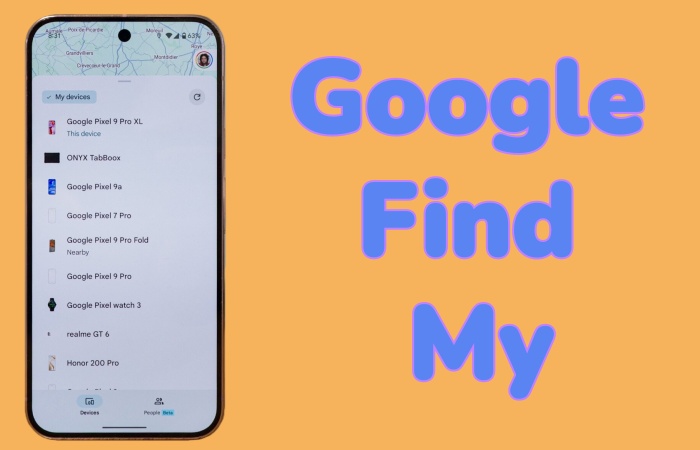
Have you ever heard of Android Device Manager? Actually, Android Device Manager was Google's original name for its phone finding service, but it was officially renamed as Google Find Hub around the middle of 2025. So what is the difference between Android Device Manager and Google Find Hub? This complete review will provide a clear introduction to Google Find Hub, including updated features. Also, you'll learn how to unlock an Android phone with Google's Find Hub and an Android unlocking tool when you cannot get into your device.
- Part 1. What Is Google Find Hub (Android Device Manager)?
- Part 2. How to Use Google Find Hub to Unlock Android Phones
- Part 3. Alternative Way to Unlock Android Phones without Password
- Part 4. Conclusion
Part 1. What Is Google Find Hub (Android Device Manager)?
Google's Find Hub is more official than Android Device Manager, integrating more deeply into Google Play Services and Android ecosystem. It has been updated with more useful functions that offer more professional service to Android users. Have a deep understanding of Google's Find Hub now.
1.1 Key Features of Google Find Hub
Google's Find Hub allows users to locate, ring, lock, or wipe their lost device remotely by using their Google account. By logging into the official Google Find Hub website or Google Find Hub app with your Google account, you can control your Android devices, even not at hand. Here are the main features of Google Find Hub:
- Track Android devices
- Lock or erase Android devices remotely
- Locate Android device even offline or powered off
- Share location with others
- Alert to prevent unknown trackers
- Play a loud sound to find lost devices even on silent
1.2 Google Find Hub VS Android Device Manager
In simple terms, Google Find Hub is an updated and more powerful version of Android Device Manager. After viewing the comparison table, you will be clear of the difference between the Google Find Hub and Android Device Manager.
| Features | Android Device Manager (original) | Google Find Hub (current) |
|---|---|---|
| Occurrence Time | 2013 | 2025 |
| Functions | Find, ring, lock, and erase lost Android devices remotely | Find, ring, lock, erase lost Android devices remotely; support tracker; share location |
| Supported Devices | Phones, tablets | Phones, tablets, Wear OS, earbuds, third-party Bluetooth trackers |
| Google Account | ✔️ | ✔️ |
| Platform | Official website and app | Official website and app |
1.3 Pros and Cons of Google Find Hub
Although Google Find Hub has updated many functions, none of the tools is perfect. There are also some limitations of the Google Find Hub. Here lists the advantages and disadvantages of Google Find Hub.
 Pros
Pros- Support a wide range of Android devices
- Locates offline services
- Multiple functions

- Require Google account
- Inconsistent performance
- Some features still rolling out
Part 2. How to Use Google Find Hub to Unlock Android Phones
No direct support for unlocking an Android device is offered by Google's Find Hub. But with Google's Find Hub, you can remotely wipe a locked Android device, including screen locks. You can then regain access to your Android phone. Provided that your Android phone is linked to a Google account and has Find My Device enabled, you can unlock your device using the Factory Reset feature. With Google's Find Hub is available from the web and the app, choose an acceptable one to start unlocking your Android phone.
On the Google Find Hub Website:
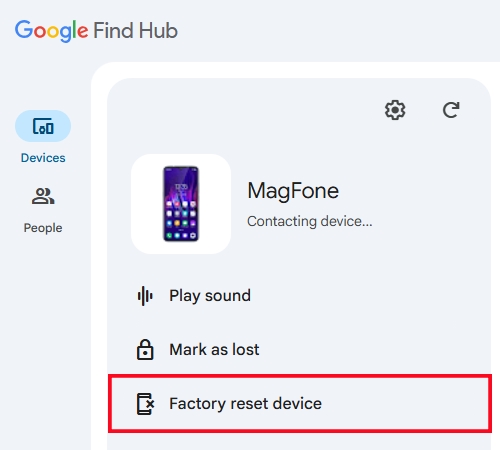
Step 1. Log into Google Find Hub site in a browser.
Step 2. From Devices, choose your locked Android phone.
Step 3. Click Factory reset device > Next.
Step 4. After entering your Google password click Reset.
In the Google Find My App:
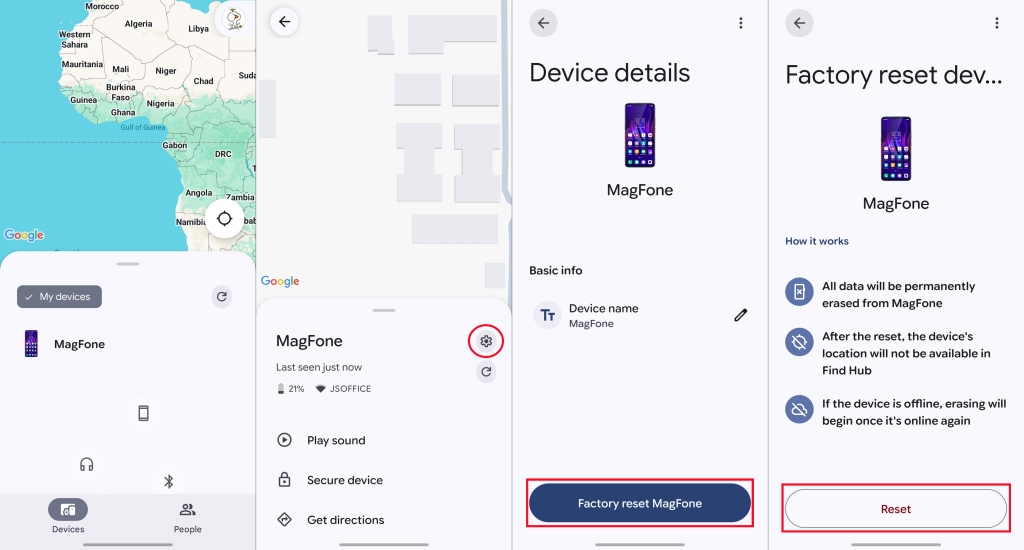
Step 1. Go to the Find Hub app on another Android device.
Step 2. Sign in with the same Google account on your locked Android device.
Step 3. Choose your Android phone from the list of Devices.
Step 4. Tap the Settings icon in the upper-right corner.
Step 5. Tap Factory reset device > Next.
Step 6. Confirm with your Google password and choose Reset to factory reset your Android phone.
Part 3. Alternative Way to Unlock Android Phones without Password
If you forget your Google account credentials or didn't enable Find My Device on your device before, you are unable to use Google's Find Hub to unlock your Android phone. When you encounter this condition, what can you do? Fortunately, you can find a professional and safe unlocking tool like MagFone Android Unlocker to unlock your Android phone successfully.
3.1 Comparison of MagFone Android Unlocker and Google Find Hub
Unlike the essential conditions of Google Find Hub, you can unlock Android phones via MagFone Android Unlocker without your Google account and password. You just need to follow clear steps to set up your Android phone and wait for MagFone Android Unlocker to unlock it. The comparative table below is prepared for your reference.
| Features | Google Find Hub | MagFone Android Unlocker |
|---|---|---|
| Device Compatibility | Android 9 to 16 | Android 4 to 16 |
| Google Account Required | ✔️ | ❌ |
| Enabled Find My Before | ✔️ | ❌ |
| Success Rate | Medium | High |
| Bypass Google FRP Lock | ❌ | ✔️ |
3.2 How to Unlock Android Phones without Password via MagFone
Whether your Android phone is locked by any kind of screen lock, including PIN, password, pattern, fingerprint, or face lock, MagFone Android Unlocker will provide a smooth unlocking process with easy steps. Now, follow the operating steps to unlock your Android phone with MagFone Android Unlocker.

MagFone Android Unlocker
Remove multiple kinds of screen locks on over 5000 Android devices and delete Google FRP lock without a password.
Step 1 Choose Remove Screen Lock
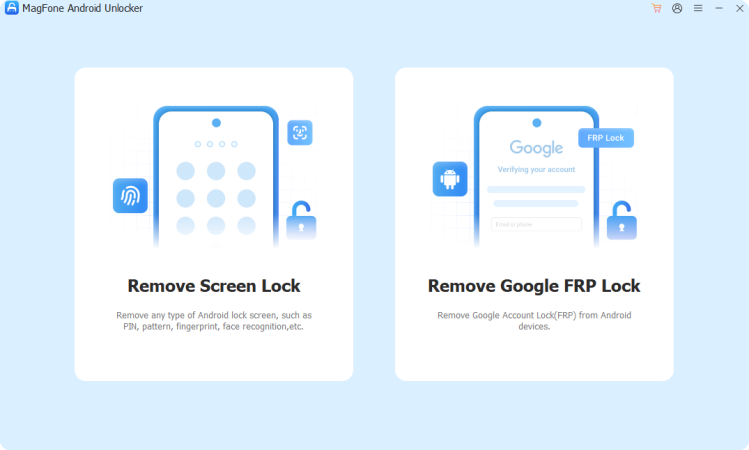
After downloading and installing MagFone Android Unlocker, connect your Android phone to a computer through a USB cable. When you enter the interface, choose Remove Screen Lock. Your Android phone will be detected quickly and you can click Continue.
Step 2 Put Your Android Phone into Recovery Mode
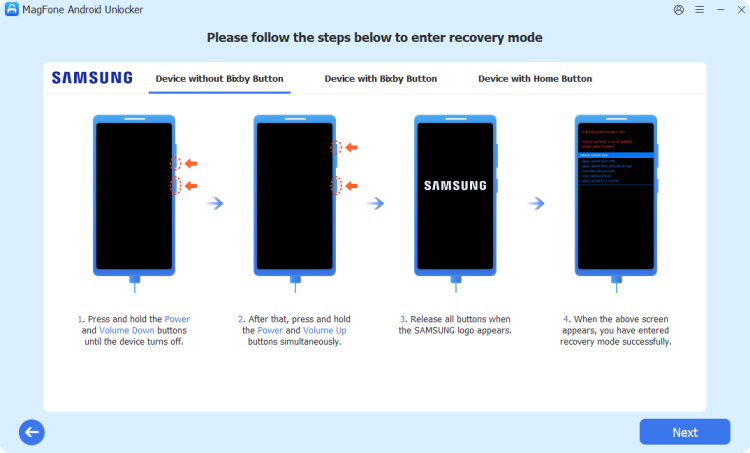
According to the on-screen instructions, put your Android phone into Recovery Mode by pressing the corresponding buttons. When finished, click Next and confirm with Continue.
Step 3 Remove Screen Lock Smoothly

Continue to set up your Android phone by following the steps. When you complete the operation, click Next. MagFone Android Unlocker will unlock your Android phone in a while.
Part 4. Conclusion
In short, Android Device Manager was replaced by Google's Find Hub in 2025. Not only has the tool changed its name, but it has also upgraded with more useful functions. If you can remember your Google account and password, you can unlock your locked Android phone using the Wipe feature remotely. But for a direct phone unlocking, you can also choose MagFone Android Unlocker that can help you unlock your Android phone safely and successfully in several minutes.

Dylan Jones
Editor in chief





