








WhatsApp has provided us with great convenience in both work and social life, which is used not only for communicating but for sharing some important documents. Different types of documents like PDFs, Word files, spreadsheets and ZIP archives are allowed to be shared in WhatsApp. Looking for how to download documents from WhatsApp? In this guide, we'll show you everything about WhatsApp documents download.
- Part 1. What Are WhatsApp Documents?
- Part 2. How to Make WhatsApp Documents Download
- Part 3. How to Fix Documents Not Opening in WhatsApp
- Part 4. FAQs about WhatsApp Documents
- Part 5. Conclusion
Part 1. What Are WhatsApp Documents?
Before diving into the steps of WhatsApp documents download, it's important to understand what qualifies as document on WhatsApp. WhatsApp allows you to share many file formats, including:
- PDF (.pdf)
- Word documents (.doc, .docx)
- Excel files (.xls, .xlsx)
- PowerPoint files (.ppt, .pptx)
- ZIP or RAR archives
- Text files (.text)
Currently, WhatsApp supports document sharing up to 2 GB per file. In addition to directly sending documents in WhatsApp, you can send a photo or video as a document. But what should be noted is that when a photo or video is sent as a document in WhatsApp, you won't see the thumbnail as you do when it is sent via the Photo feature.
| WhatsApp Photo/Video | WhatsApp Photo/Video Document | |
|---|---|---|
| Format | JPG/MP4 | PNG/MOV |
| Thumbnail | Yes | No |
Beyond that, WhatsApp has added built-in support for scanning documents on iPhone and Android. WhatsApp users can scan paper documents and convert them to electronic documents. This is super convenient when you need to transfer some important files.
Part 2. How to Make WhatsApp Documents Download
The methods to download WhatsApp documents vary a lot due to different devices. Here we will introduce how to download WhatsApp documents on all devices, whether you are using WhatsApp on mobile phones or on computers. You can choose one that suits your situation.
How to Download WhatsApp Documents on Android
On Android devices, WhatsApp documents will be downloaded by default. But you are unable to view the documents in WhatsApp directly, unless you use a third-party application. Follow the steps below to find where WhatsApp documents are stored in Android devices.
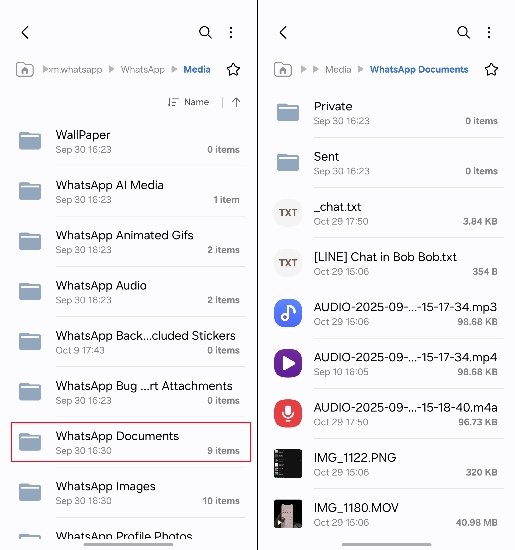
Step 1. Open File Manager and enter Internal storage.
Step 2. Go to Android > media > com.whatsapp > WhatsApp > Media > WhatsApp Documents.
Step 3. In the WhatsApp Documents file, you can see all your WhatsApp documents.
How to Download WhatsApp Documents on iPhone
Due to the iPhone's flexible media operation, iPhone users can view document content in WhatsApp directly. With the built-in Files app, iPhone users can store and manage WhatsApp documents effectively. Learn how to download WhatsApp documents on iPhone.
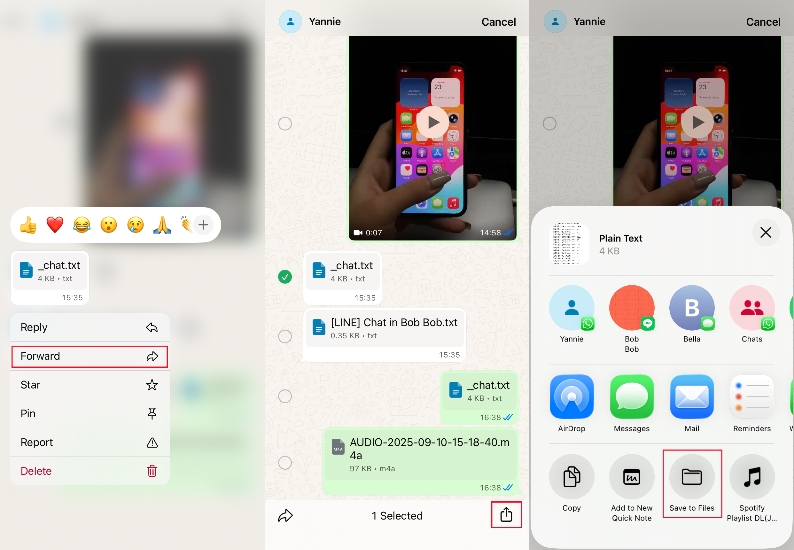
Step 1. Open a certain WhatsApp chat and long-press one document.
Step 2. Tap Forward and select the documents you want to download.
Step 3. Press the share icon in the bottom right corner and tap Save to Files.
If the document is a phont or a video, you can also download it to your iPhone Photos.
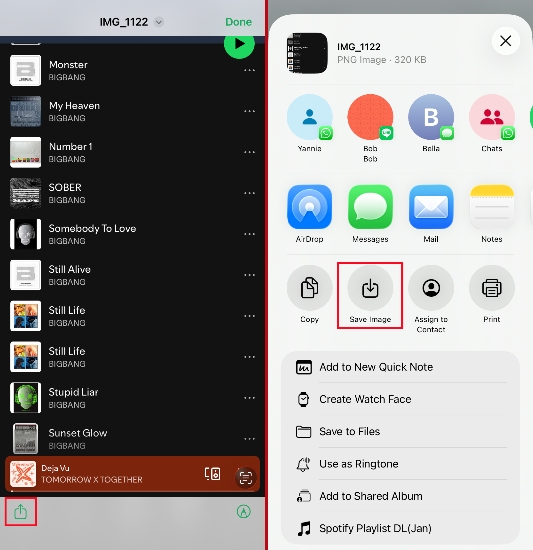
Step 1. Open the photo or video document.
Step 2. Tap the photo and tap the share icon in the bottom left corner.
Step 3. Tap Save Image to download them to iPhone Photos.
If the document is a phont or a video, you can also download it to your iPhone Photos.
Where are WhatsApp documents stored in iPhone?
You can go to iPhone Files to check the downloaded WhatsApp documents. Simply open the Files app on your iPhone, then go to iCloud Drive or On My iPhone to check.
How to Download Documents from WhatsApp Web/PC
If you want to download documents from WhatsApp web or desktop, the operation is pretty easy. Just make sure that you have logged in to the same account on the web or desktop.
01How to Download Documents from WhatsApp Web
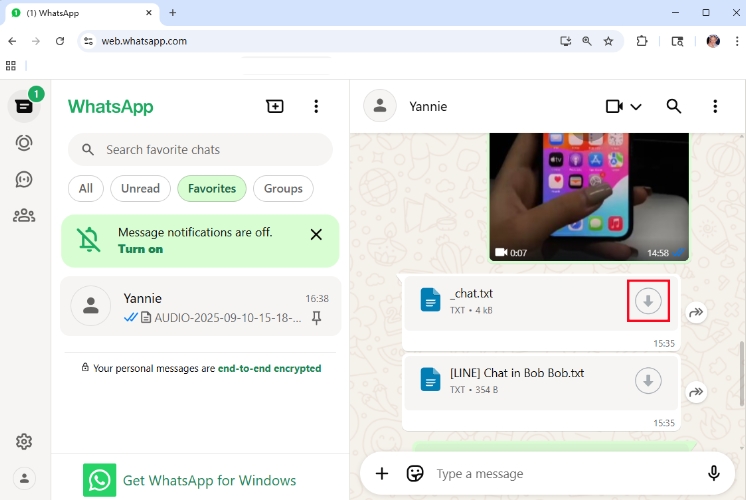
Step 1. Enter a WhatsApp chat, and you will see a download icon on the right of the document message.
Step 2. Click the download icon, and the document will be added to the download list in your browser.
Where is WhatsApp web document download location?
On the web, WhatsApp documents will be downloaded in the download list, and you can check the documents there.
02How to Download WhatsApp Documents in PC
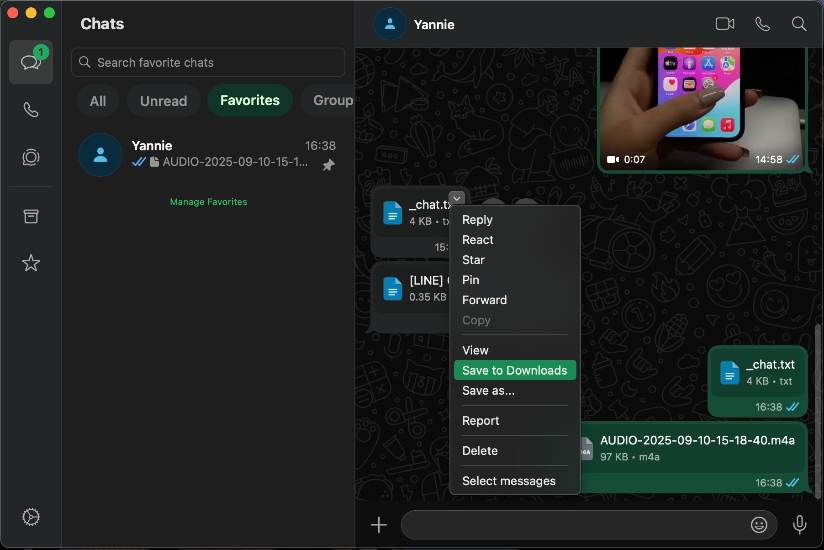
Step 1. Open a WhatsApp chat and locate your mouse on the document message.
Step 2. Right-click your mouse and choose Save to Downloads or Save as to download the WhatsApp document to your computer.
Where are WhatsApp documents stored in PC?
To check where the downloaded WhatsApp document is located, just open the File Manager or Finder on your computer and find the location where you store it.
How to Copy WhatsApp Documents from iPhone/Android to PC
Besides downloading documents on your computer directly, there is another effective method to help WhatsApp users download documents from their phones to a computer. Android users can directly copy WhatsApp documents from the device internal storage to a PC, while iPhone users need to utilize a third-party tool like MagFone WhatsApp Transfer to achieve it. Here are the details.
On iPhone:
MagFone WhatsApp Transfer is an effective tool for managing WhatsApp data. With MagFone WhatsApp Transfer, you can copy all your WhatsApp documents from your iPhone to your computer. Besides the documents, you can also copy photos, videos, contacts, and any WhatsApp data to a computer.

MagFone Chats Transfer
Efficiently back up your all types of WhatsApp content without loss or hassle — everything moves with you, just as it was.
Step 1 Connect iPhone to Computer

Download MagFone Chats Transfer on your computer and run it after installation. Connect your iPhone to the computer via a data cable.
Step 2 Back Up WhatsApp Data
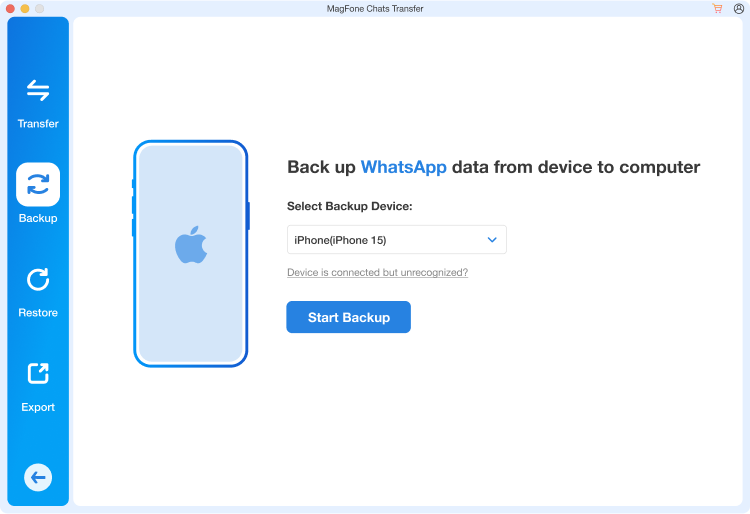
Click WhatsApp and then click the Backup feature. When your iPhone is detected by the program, click Start Backup to back up your WhatsApp data.
Step 3 Copy WhatsApp Documents from iPhone to Computer
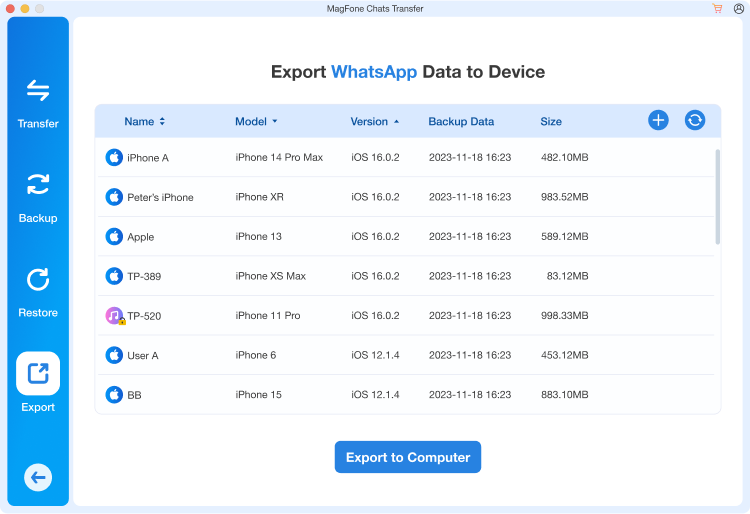
After backup, click the Export feature. You can click the view icon to view the details of your WhatsApp documents. Here, select WhatsApp documents and click Export to Computer to make a copy.
On Android:
Unlike the iPhone, Android devices automatically store WhatsApp documents to the internal storage. With the File Manager app on the computer, you can find and export all WhatsApp documents stored in the device internal storage.
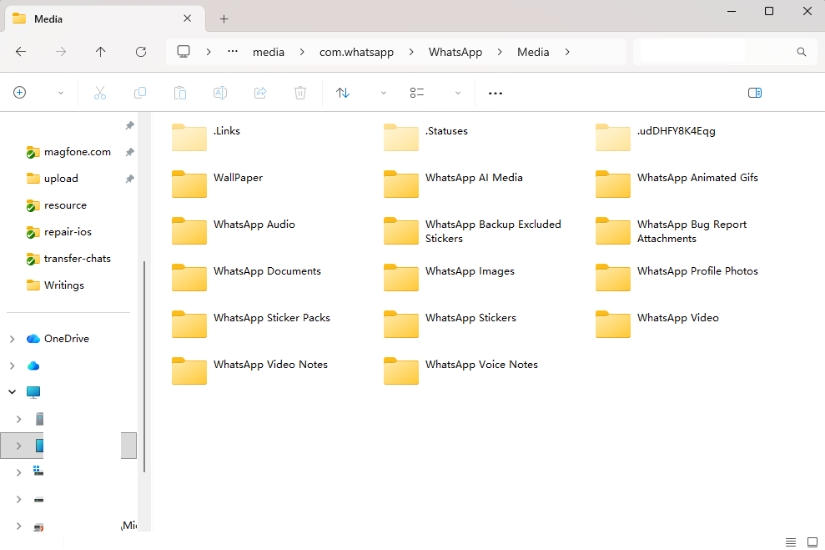
Step 1. Connect your device to your computer.
Step 2. Open the File Manager and go to the path: Internal storage > Android > media > com.whatsapp > WhatsApp > Media > WhatsApp Documents.
Step 3. Copy and paste the WhatsApp Documents file to your computer.
Part 3. How to Fix Documents Not Opening in WhatsApp
Some WhatsApp users may see the "This file format is not supported" message when they are about to open and check a WhatsApp document. This error message is usually related to the network connection, app compatibility, or temporary bugs. You can try these quick methods to fix the error.
- Connect to a stable Wi-Fi or cellular data.
- Restart WhatsApp and your phone.
- Update WhatsApp and your phone.
- Use a third-party app for viewing documents on WhatsApp.
Part 4. FAQs about WhatsApp Documents
How to send photos as document in WhatsApp?
WhatsApp allows users to send photos or videos as documents with the built-in feature. Here's how to send photos as documents in WhatsApp on iPhone and Android devices.
- On iPhone:
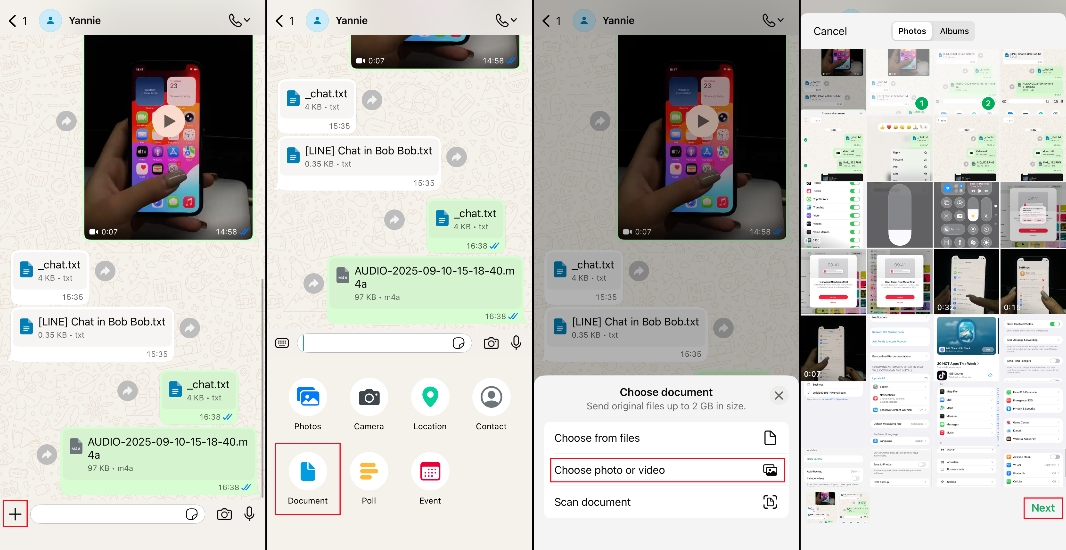
Step 1. Enter a WhatsApp chat and tap the + icon in the bottom left corner.
Step 2. Tap Document and then select Choose photo or video.
Step 3. Select a photo or video from iPhone Photos and tap Next.
Step 4. Tap Send to send photos or videos as documents.
- On Android:
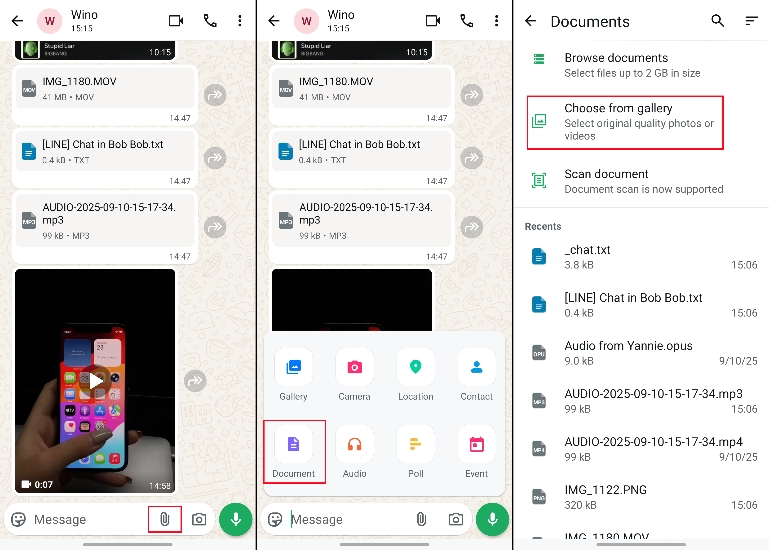
Step 1. Enter a WhatsApp chat and tap the clip icon.
Step 2. Choose Document and tap Choose from gallery to select documents.
Step 3. Select and tap the send icon to send documents to your contact.
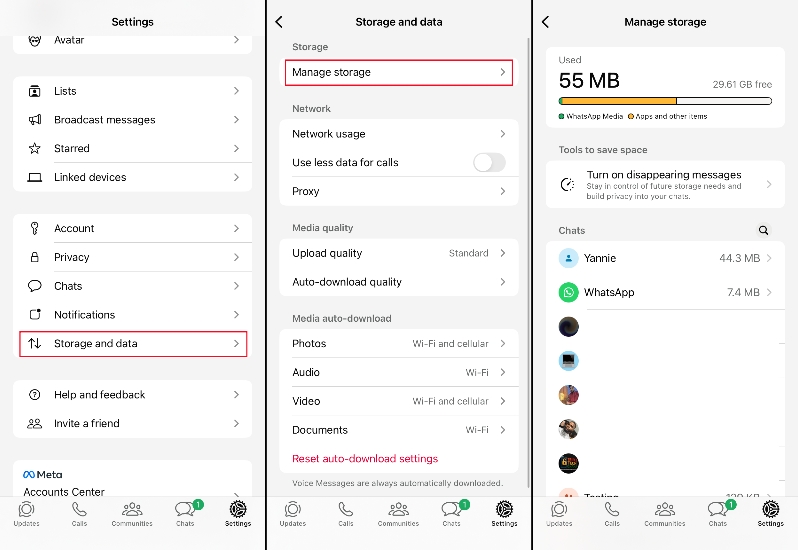
How to delete WhatsApp documents and data on iPhone?
How to print a document from WhatsApp?
If you want to print a document from WhatsApp, the most convenient method is to print it on your computer. You can follow the method in Part 2 to copy it to your computer first. And then open the document on your computer and use the print function to print it.
How to recover deleted documents from WhatsApp?
If the documents are deleted after the last backup time, you can recover them from the WhatsApp backup. But the data after the last backup time will disappear. If you are an Android user, you can also go to the File Manager and find the WhatsApp Documents file to check if the deleted documents are there.
Part 5. Conclusion
Downloading and managing documents from WhatsApp is pretty convenient. After reading this guide, you must have mastered everything about WhatsApp documents download. To have better management of your WhatsApp documents, copying WhatsApp documents from your phone to a computer is highly recommended. Both Android internal storage and MagFone Chats Transfer can help you manage your data more efficiently.

Olivia Wood
Editor in chief





