








WhatsApp makes it easy to share videos with friends and family, but all that media can quietly eat up your phone's storage before you realize it. That's where transferring WhatsApp videos to PC comes in. Transferring WhatsApp videos to your computer doesn't have to be complicated. Whether you're using an iPhone or an Android device, there are several ways to get it done. In this guide, we will walk you through how to transfer WhatsApp videos from Web, iPhone, and Android to PC.

- Part 1. How to Download Videos from WhatsApp Web to PC
- Part 2. How to Transfer WhatsApp Videos from iPhone to PC
- Part 3. How to Transfer WhatsApp Videos from Android to PC
- Part 4. Conclusion
Part 1. How to Download Videos from WhatsApp Web to PC
You can log in to your WhatsApp account on Web to sync your WhatsApp videos on a computer. Then you can download your WhatsApp videos from the web to your PC.
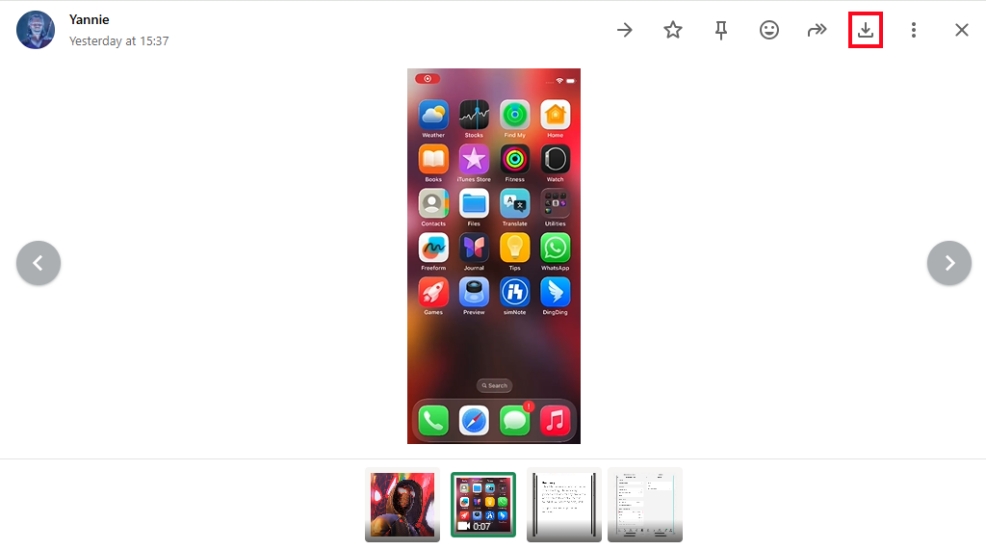
Step 1. Open WhatsApp Web on your computer and follow the onscreen instructions to log in to your WhatsApp.
Step 2. Open the video you want to transfer to your computer, then click the Download icon.
 Pros
Pros- Directly download videos from WhatsApp Web

- Require manual download
Part 2. How to Transfer WhatsApp Videos from iPhone to PC
As an iPhone user, you have several options for moving WhatsApp videos over to your computer. Depending on your preferences, you can transfer videos directly from your iPhone's Photos app, export and send them through cloud or email services, or rely on a dedicated WhatsApp transfer tool for a more streamlined experience. Below, we'll walk through three practical methods so you can choose the one that best fits your needs.
Method 1. Transfer WhatsApp Videos from iPhone Storage
If you have turned on video Auto download in WhatsApp, all videos from WhatsApp will be saved to your iPhone Photos automatically. This allows you to transfer WhatsApp videos from an iPhone to a PC using a data cable. But all WhatsApp videos will be separately located in iPhone Photos, so you need to manually choose and transfer them to the computer.
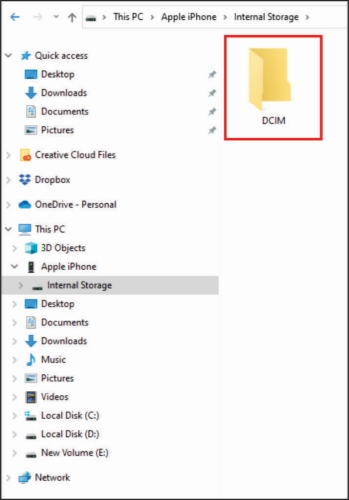
Step 1. Connect your iPhone to a computer using a data cable.
Step 2. Open the File Manager and click the iPhone in the left directory.
Step 3. Head for the location: Internal Storage > DCIM. Choose WhatsApp videos and copy them to your computer.
Pros- Free access to WhatsApp videos
- WhatsApp videos separated in iPhone Photos
- Need manual videos browsing
Method 2. Transfer WhatsApp Videos by Exporting Chat
To transfer WhatsApp videos from iPhone to PC, you can also export WhatsApp chats that contain the videos you want and send them via email or cloud storage.
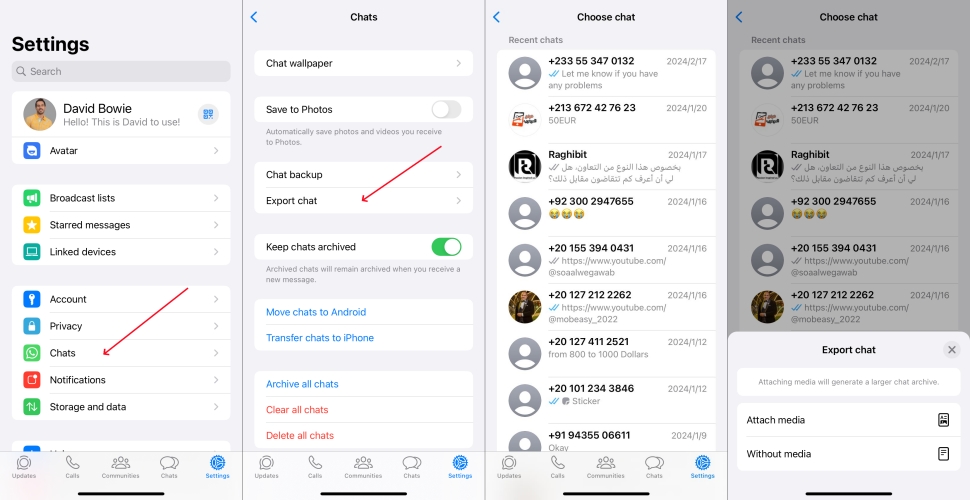
Step 1. Open WhatsApp and tap Settings at the bottom.
Step 2. Access Chats > Export chat. Choose a WhatsApp chat, and choose Attach media.
Step 3. Choose an online platform, like Gmail, to store the exported chat.
Step 4. Log in to Gmail on a computer and find the exported chat. Then download and unzip the exported WhatsApp chat to access WhatsApp videos.
Pros- Transfer videos from specific WhatsApp chat at once
- A little bit complex
- Can't transfer WhatsApp videos selectively
- Depend on cloud or email limits
Method 3. Transfer WhatsApp Videos Using WhatsApp Transfer
If you prefer a more intuitive method to copy WhatsApp videos from iPhone to PC, an effective WhatsApp data management tool is recommended. MagFone WhatsApp Transfer provides a more comprehensive solution, whether you want to transfer WhatsApp videos from one contact, transfer videos from different contacts, or transfer all WhatsApp videos at once. It allows you to view and selectively transfer WhatsApp videos to a computer based on your needs. Follow the three simple steps below to transfer WhatsApp videos from iPhone to PC:

MagFone Chats Transfer
Easily backup and export all your important WhatsApp videos from iPhone to PC without loss or hassle — everything moves with you, just as it was.
Step 1 Open MagFone WhatsApp Transfer

First, download and install MagFone WhatsApp Transfer on your computer. Then launch it after installation.
Step 2 Back Up WhatsApp Videos
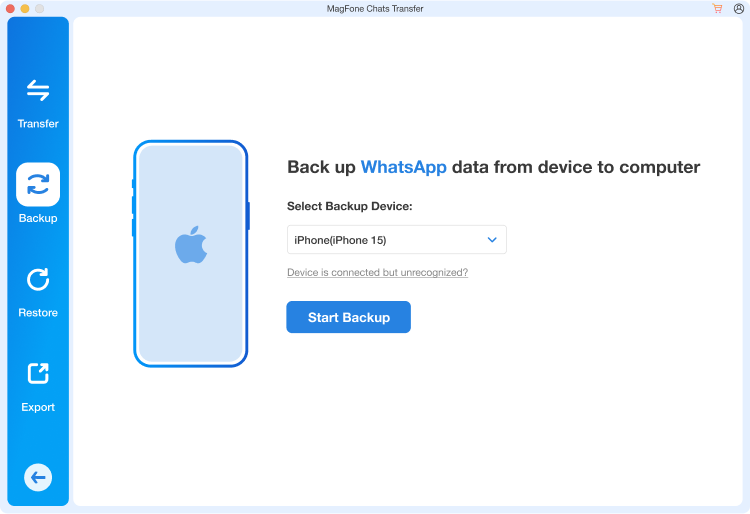
Connect the iPhone to the computer using a data cable. Then click WhatsApp > Start Backup to back up your WhatsApp data.
Step 3 Transfer WhatsApp Videos from iPhone to PC
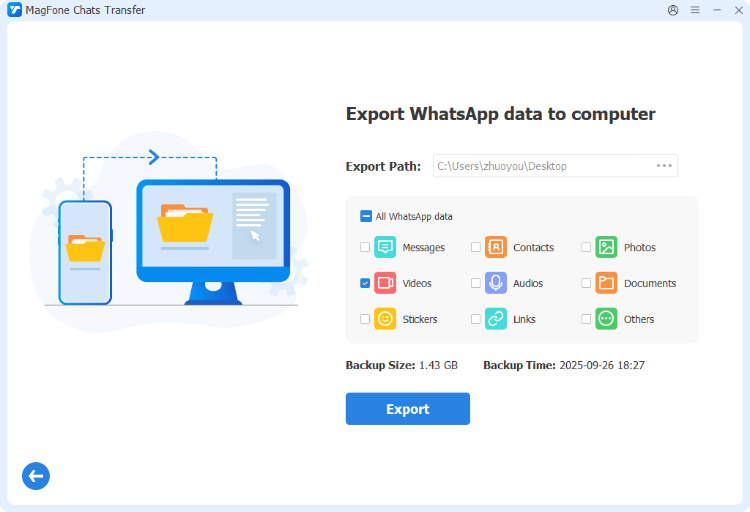
Once the backup is completed, click Export. Then you can tick WhatsApp Videos in the left directory and click Export to Computer to save your WhatsApp videos to your PC.
Pros- Selectively transfer WhatsApp videos to PC
- Transfers not only WhatsApp videos
- Fast and safe
- Require installing software
Part 3. How to Transfer WhatsApp Videos from Android to PC
Transferring WhatsApp videos from Android to PC is more convenient. You can directly transfer the WhatsApp videos from the device storage, or you can export WhatsApp chats and access attached media through email or a cloud platform.
Method 1. Transfer WhatsApp Videos Using USB Cable
On Android phones, there's a specific folder that stores WhatsApp data in Files. In this folder, you can find various WhatsApp data stored by categories. So you can directly copy the WhatsApp Videos folder to a computer using a data cable.
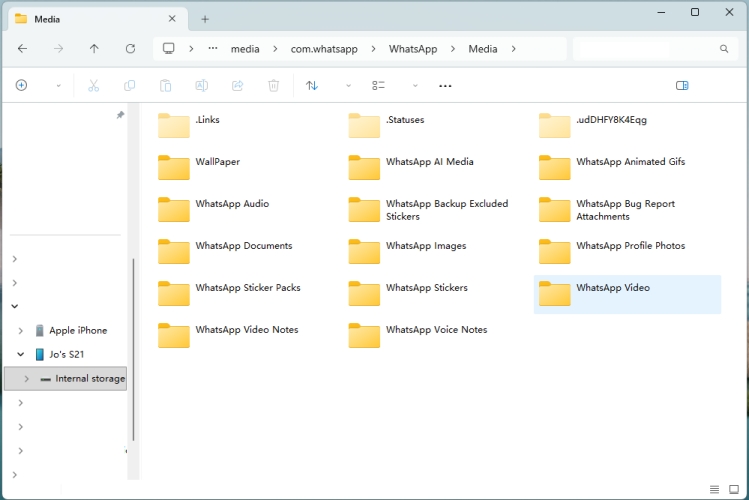
Step 1. Connect your phone to the computer using a data cable.
Step 2. Open the File Manager and click the phone name in the left location.
Step 3. Find the location: Internal storage > Android > media > com.whatsapp > WhatsApp > Media.
Step 4. Copy the WhatsApp Video folder to your computer.
Pros- Access WhatsApp Videos folder easily
- Need a usb cable
Method 2. Transfer WhatsApp Videos by Exporting Chat
You can also utilize WhatsApp's Export chat feature to export WhatsApp chat as well as videos in the chat, then upload the exported chat to email or a cloud platform. Then download WhatsApp videos in the exported file to your computer.
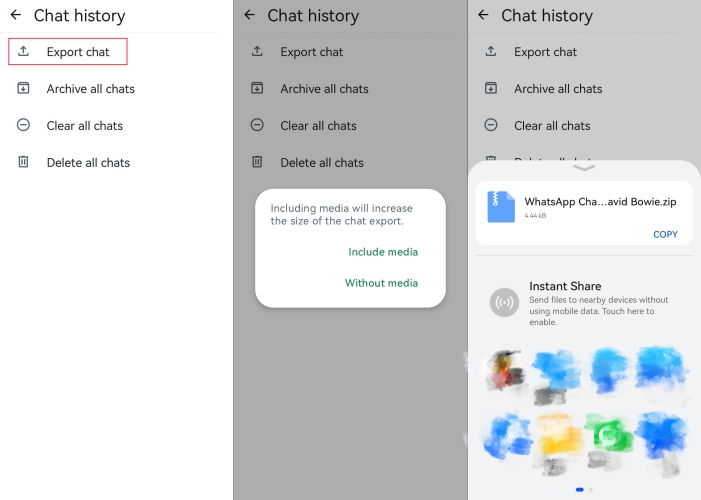
Step 1. Open WhatsApp and tap the triple-dot icon.
Step 2. Go to Settings > Chats > Chat history > Export chat.
Step 3. Choose one WhatsApp chat and choose Include media to export WhatsApp videos.
Step 4. Save the exported file to a location like Gmail or Google Drive. Then access Gmail or Google Drive on your computer.
Step 5. Download and unzip the zip file and check the WhatsApp videos in it.
Pros- Transfer WhatsApp videos from specific chat
- A little bit complex
- Can't transfer videos more selectively
- Rely on internet and service limits
Part 4. Conclusion
Transferring videos from WhatsApp to your PC not only helps free up valuable storage space on your device but also creates an extra backup for your important WhatsApp data. Follow the methods in this guide, and you can transfer your WhatsApp videos to a computer safely and easily. If you want a more efficient way to manage and transfer WhatsApp videos, MagFone WhatsApp Transfer is a tool you shouldn't miss.

Edgar Davis
Editor in chief





