







It's easy to lose WhatsApp messages by accident, whether you delete a chat, change phones, or run into a data transfer problem. When that happens, the main concern is usually whether the messages can still be recovered. This guide walks you through the possible recovery methods for iPhone and Android, so you can quickly find the one that fits your situation.

- Part 1. Can I Recover Lost WhatsApp Messages?
- Part 2. How to Recover Lost WhatsApp Messages [iPhone]
- Part 3. How to Retrieve Lost WhatsApp Messages [Android]
- Part 4. Conclusion
Part 1. Can I Recover Lost WhatsApp Messages?
This depends on how you identify lost WhatsApp messages. If it's a disappearing message, it can't be recovered. If it's an accidentally deleted WhatsApp chat, then you have a chance to recover it.
| Lost WhatsApp Messages | Can Be Recovered? | Recovery Option |
|---|---|---|
| Disappearing WhatsApp Messages | ❌ | ❌ |
| Accidentally Deleted WhatsApp Messages | ✔️ | Recover from backup or use a recovery tool |
Note:
Before recovering lost WhatsApp messages, you can first check if the chat is archived so you consider it was lost. Just check if there is an Archive entry at the top of your WhatsApp Chat page. If you have Archived chats, check the chat list and unarchive the one if you need to.
In the following sections, we'll explain how to recover lost WhatsApp messages on iPhone and Android step by step.
Part 2. How to Recover Lost WhatsApp Messages [iPhone]
If you use an iPhone, there are two common ways to recover lost WhatsApp messages. One is to use a dedicated data recovery tool when you do not have a backup and don't want any data loss, and the other is to restore your chats from an existing iCloud backup. Among the two options, the first one is more recommended.
Option 1. Use MagFone iPhone Data Recovery
MagFone iPhone Data Recovery is a practical option for users who want to recover lost WhatsApp messages without depending on an existing backup and without data loss. As a comprehensive iOS data management tool, it can scan your device for recoverable WhatsApp data and help you restore the messages you need without causing data loss. In addition to recovery, it also allows you to back up your iPhone, including WhatsApp data, to a computer so you can review the content later and restore it selectively when needed. Just follow the steps below to recover your lost WhatsApp messages.

MagFone iPhone Data Recovery
Recover data from iPhone and iPad in three recovery modes without data overwritting and device reset.
Step 1 Install MagFone iPhone Data Recovery
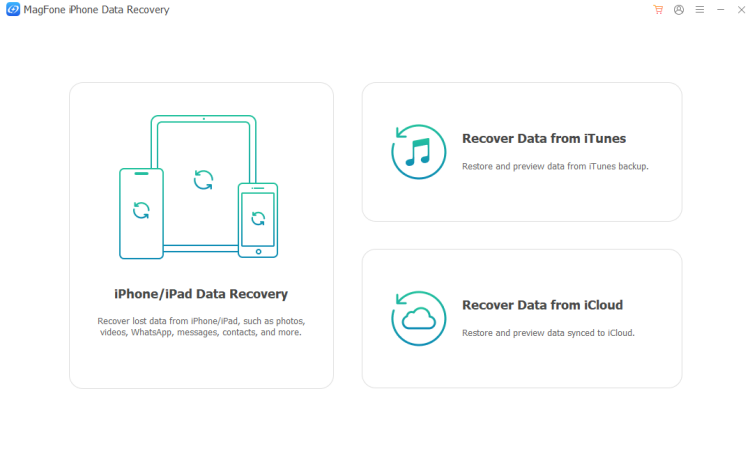
Download and install the MagFone iPhone Data Recovery tool on your computer. Then use a data cable to link your iPhone to your computer. When the installation is completed, launch this tool to start.
Step 2 Scan for Lost WhatsApp Messages
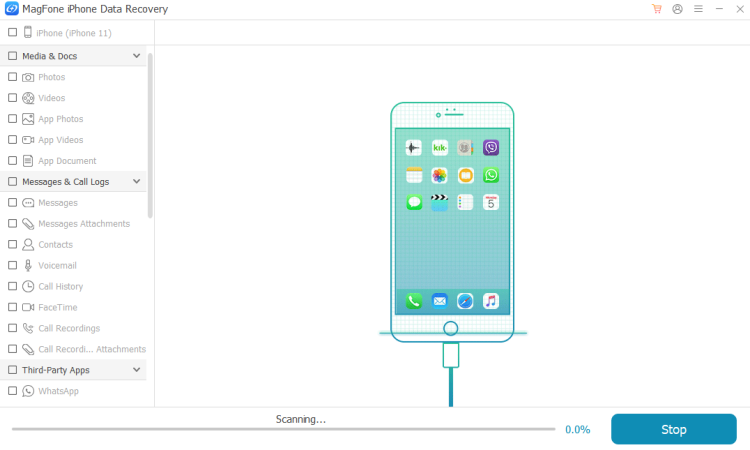
Choose iPhone/iPad Data Recovery from the main screen, select WhatsApp from the data list, and click Scan. If you are prompted to enter your iPhone passcode on your iPhone, enter it to continue scanning.
Step 3 Restore Lost WhatsApp Messages
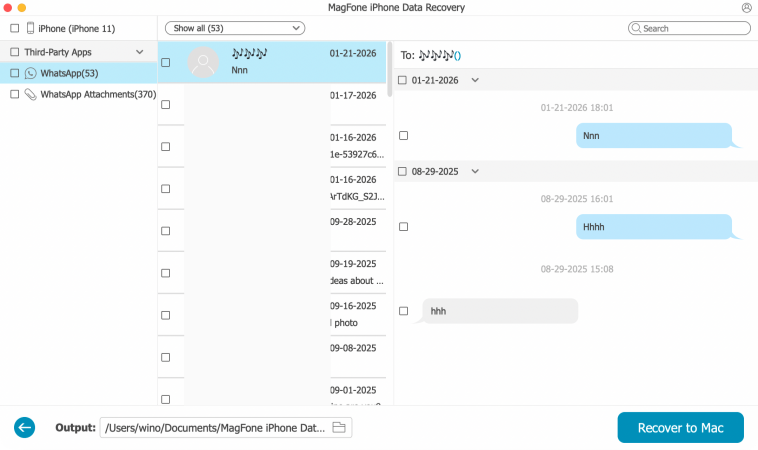
When scanning is done, check your WhatsApp chats. Then choose the chat and click Recover to PC or Recover to Mac to recover your lost WhatsApp messages.
Option 2. Recover Lost WhatsApp Messages from iCloud Backup
If you already backed up your WhatsApp data to iCloud, this is usually a simple recovery method for lost WhatsApp messages. By reinstalling WhatsApp and restoring from the available backup, you may be able to bring back your chats and attachments to your iPhone.
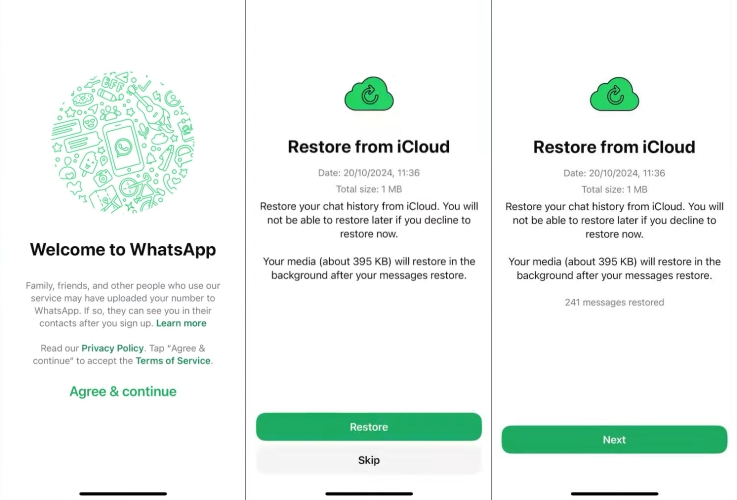
Step 1. Make sure you are signing in with the correct Apple ID on the iPhone where you used to back up your WhatsApp.
Step 2. Reinstall WhatsApp on the iPhone, and open it after installation.
Step 3. Click Agree & continue, and verify your phone number.
Step 4. When there is a WhatsApp backup from iCloud is detected, choose Restore to restore the WhatsApp data on your iPhone.
Option 3. Recover from iTunes Backup
If you have previously backed up your iPhone with iTunes, you may be able to restore your lost WhatsApp messages from that backup. This will restore WhatsApp data along with other content stored on your device at the time of the backup.
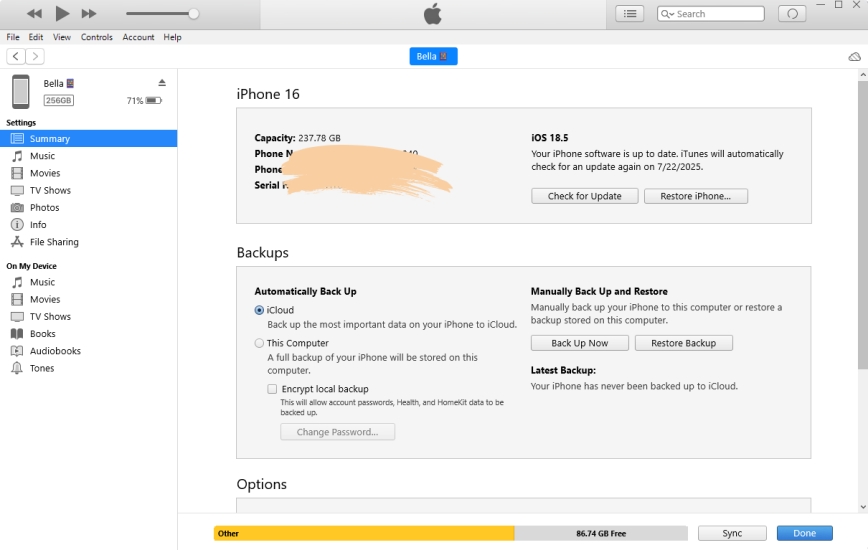
Step 1. Connect your iPhone to the computer you used for the iTunes backup.
Step 2. Open iTunes and select your device when it appears.
Step 3. Click Summary, then choose Restore Backup.
Step 4. Select the most relevant backup file from the list.
Step 5. Click Restore and wait for the process to finish.

MagFone Chats Transfer
Efficiently back up your WhatsApp content without loss or hassle — everything moves with you, just as it was.
Part 3. How to Recover Lost WhatsApp Messages [Android]
There are cases where your WhatsApp data is lost during data migration or data transfer. If you have encountered an error when transferring your WhatsApp data to a new device and have found all WhatsApp messages to be lost. You may recover the lost WhatsApp messages from a backup.
Option 1. Recover from Google Drive
If your WhatsApp chats were previously backed up to Google Drive, this is an available option to recover lost WhatsApp messages. After reinstalling WhatsApp and verifying your number, you can restore the backup and get your messages back on the new device.
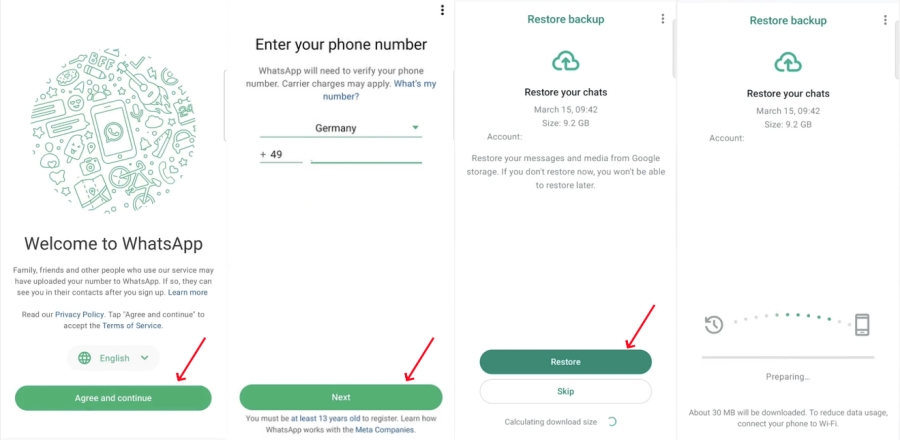
Step 1. Sign in to your Google account in Google Drive on your new phone.
Step 2. Uninstall WhatsApp and reinstall it from the Google Play Store.
Step 3. Open WhatsApp and tap Agree and continue, then choose the preferred language and verify your WhatsApp number.
Step 4. After verifying your identity, WhatsApp will detect if there is an available backup. If a Google backup is detected, choose Restore to restore your WhatsApp data.
Option 2. Recover from Internal Storage
Besides cloud backup, you may still have a local WhatsApp backup saved in your phone's internal storage. If such a backup is available, you can use it to restore lost messages after a migration or transfer issue.
On old phone:
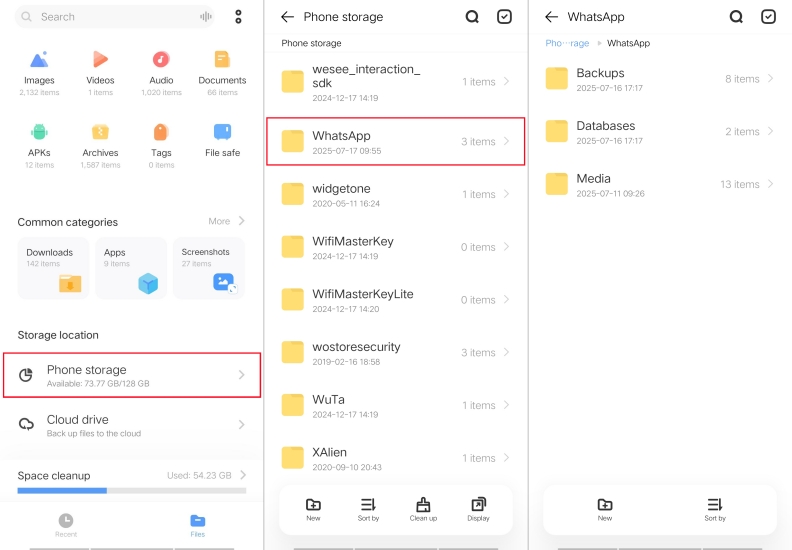
Step 1. Open File Manager on your phone and tap Internal storage.
Step 2. Find the path: Android > media > WhatsApp > com.whatsapp > Databases.
Step 3. You will see files named "msgstore-YYYY-MM-DD.db.crypt12" or "msgstore-YYYY-MM-DD.db.crypt". Copy the file you need and save it.
On target phone:
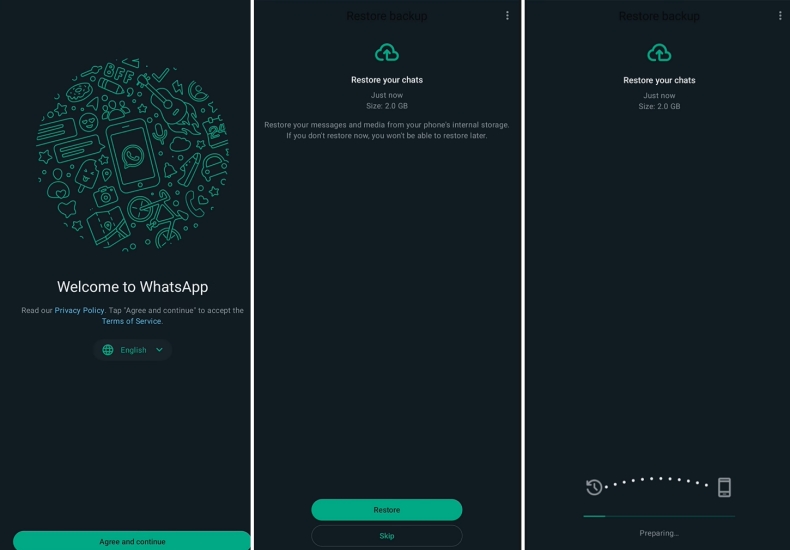
Step 1. Install WhatsApp and open it.
Step 2. Open the File Manager and paste the copied file to the same location in Databases. And renamed this backup file to "msgstore.db.crypt12".
Step 3. Back to WhatsApp and verify your phone number, then wait for WhatsApp to scan for a backup from internal storage.
Step 4. If the backup file is detected, choose Restore to restore it to your phone.
Part 4. Conclusion
In many cases, lost WhatsApp messages can still be recovered if you choose the right method and act in time. Whether you rely on a recovery tool, iCloud, Google Drive, or a local backup, the best option depends on how your messages were lost and what backup files are available. By following the steps above, you can improve your chances of getting your important chats back quickly and safely.

Olivia Wood
Editor in chief




