








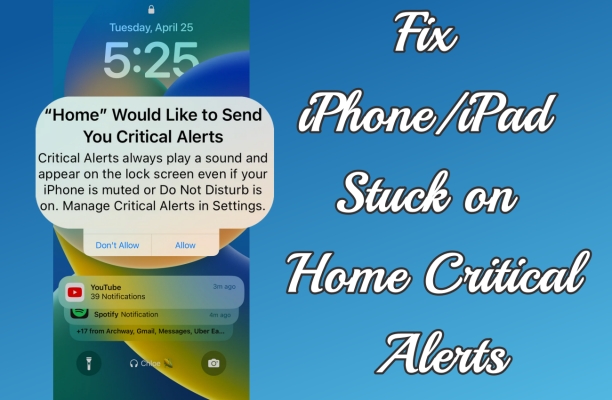
Lately, legions of iPhone users have been complaining about that iPhone stuck on 'Home Would Like to Send You Critical Alert' in the Apple Community. You are not alone if you have the issue of iPhone stuck on Home Critical Alerts. This issue has always occurred with a range of iPhones, including iPhone 17, iPhone 16, iPhone 15, iPhone 14, and iPhone 13. This annoying Home Critical Alerts notification prevents you from accessing your iPhone as it keeps popping up and freezing your device. However, there is no need to panic. In this guide, we will tell you how to fix Home Would Like to Send Your Critical Alerts frozen iPhone. Let's move on.
- Part 1. Why Is My iPhone Stuck on Home Critical Alerts?
- Part 2. How to Get Rid of Home Critical Alerts on iPhone
- Part 3. How to Fix iPhone Stuck on Home Critical Alerts
- Solution 1. Reboot Your iPhone
- Solution 2. Force Restart Your iPhone
- Solution 3. Adjust Zoom and Text Settings
- Solution 4. Update iPhone to the Latest iOS Version
- Solution 5. Put iPhone into Recovery Mode
- Solution 6. Restore iPhone in Recovery Mode
- Solution 7. Repair iPhone in DFU Mode
- Solution 8. Use a Specialized iOS Repair Tool
- Solution 9. Contact Apple Support
- Part 4. How to Manage HomeKit Alerts to Avoid Future Freezes
- Part 5. Conclusion
Part 1. Why Is My iPhone Stuck on Home Critical Alerts?
Are you puzzled by why the notification - Home Would Like to Send You Critical Alerts - appears on your iPhone's screen? The notification generally from apps, such as emergency alerts, health-related notifications, or smart home devices, is designed to grab your immediate attention, even if your device is in Silent mode or Do Not Disturb is enabled.
The purpose of Critical Alerts is to ensure that you don't miss vital information. However, sometimes, your iPhone might get stuck on these alerts, preventing you from using your phone normally. Understanding why this happens is the first step to fixing the issue. Several factors could contribute to this issue. This includes:

Cause 1. HomeKit Sync Issues
A glitch in your iCloud Home data can cause the prompt to hang while trying to verify permissions across your other Apple devices.
Cause 2. System Software Conflict
A software conflict between the Home app and the interface can cause the notification to stop accepting touch input.
Cause 3. Invisible Button Bug
If you have Display Zoom or Large Text enabled in your settings, the Allow or Don't Allow buttons can sometimes be pushed off the bottom of the screen.
Part 2. How to Get Rid of Home Critical Alerts on iPhone
The iPhone stuck on Home Critical Alerts can disrupt normal functionality. But there are still straightforward ways to get rid of Home Critical Alerts on the iPhone. If you encounter the issue of Home Would Like to Send Your Critical Alerts frozen iPhone, try the following steps to bypass.
Method 1. Force Quit the Home App
When the Home app won't respond and your iPhone freezes up on the Home Critical Alerts notification, you can try to force quit the Home app or close the Home app running in the background on your device.
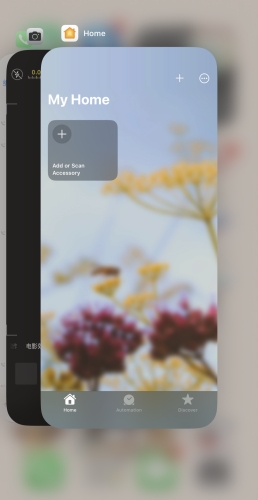
On iPhone X and Later:
Step 1. From the Home Screen, swipe up from the bottom of the screen and pause in the middle of the screen.
Step 2. Swipe right to find the Home app to close.
Step 3. Swipe up on the Home app's preview to close the app.
On iPhone 8 and Earlier:
Step 1. Press the Home button to show the apps running in the background.
Step 2. Swipe right to find the Home app to close.
Step 3. Swipe up on the Home app's preview to close the app.
Method 2. Use Siri Command
If closing the Home app doesn't remove the alerts, you can use Siri to bypass the interface. When your iPhone is connected to the internet, Siri might be able to open a different part of the system, which often forces the stuck notification to dismiss itself.
Step 1. Say "Hey Siri, open Settings."
Step 2. If Settings opens, the app layer might break through the frozen alert.
Step 3. Once in Settings, navigate to Notifications > Home and toggle off Critical Alerts.
Method 3. Control Notification Center
Sometimes, the center of the screen is frozen, but the touch screen isn't fully dead. It's just the pop-up buttons that are unresponsive. Swiping from the Notification Center can sometimes clear the prompt without a restart.
Step 1. Swipe down from the top-left corner of the screen to bring down the Notification Center.
Step 2. Find the Home alert in the list.
Step 3. Swipe left on the notification itself and tap Clear or Options.
Method 4. Reset HomeKit Configuration
If you have more than one Apple device where you use the same Apple ID as your iPhone or iPad, you can reset the HomeKit configuration on your device, which probably fixes the iPhone 'Home Would Like to Send You Critical Alerts'.
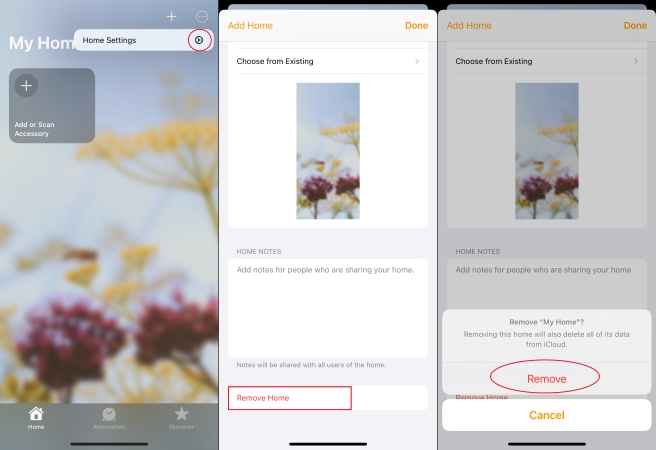
Step 1. Open the Home app on your other Apple device and tap the Home icon.
Step 2. Tap the three-dot icon at the top right corner and select Home Settings.
Step 3. Scroll down to the bottom and tap Remove Home.
Step 4. Tap Remove Home > Continue, then follow the prompts to confirm.
Part 3. How to Fix iPhone Stuck on Home Critical Alerts
By following the above steps, you might be able to bypass Home Critical Alerts on the iPhone. But when your iPhone is still stuck on Home Critical Alerts, you can try several other methods. The following methods are available for taking off Home Critical Alerts on the iPhone.
Solution 1. Reboot Your iPhone
Sometimes, when your iPhone or iPad is stuck on 'Home Would Like to Send You Critical Alert', you can do nothing. In this case, you can restart your device, and then check if the Home Critical Alerts stuck issue still exists on your device.
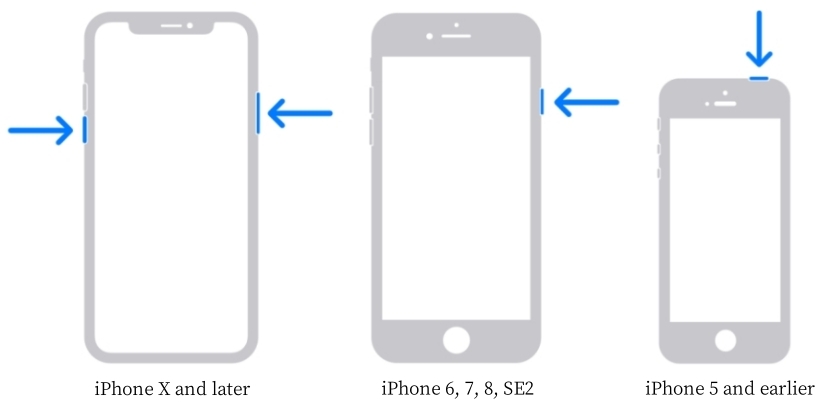
On iPhone X and Later:
Step 1. Press and hold either the Volume Down button or the Power button until the power-off slider appears.
Step 2. Drag the slider, then wait 30 seconds for your device to turn off.
Step 3. Press and hold the Power button to turn your device back on.
On iPhone 8 and Earlier:
Step 1. Press and hold the Power button until the power-off slider appears.
Step 2. Drag the slider, then wait 30 seconds for your device to turn off.
Step 3. Press and hold the Power button to power your device on.
Solution 2. Force Restart Your iPhone
Once the 'Home Would Like to Send You Critical Alert' notification appears on your iPhone or iPad, you will find that your device is frozen or unresponsive. If restarting your iPhone won't respond, then you can force restart your iPhone.
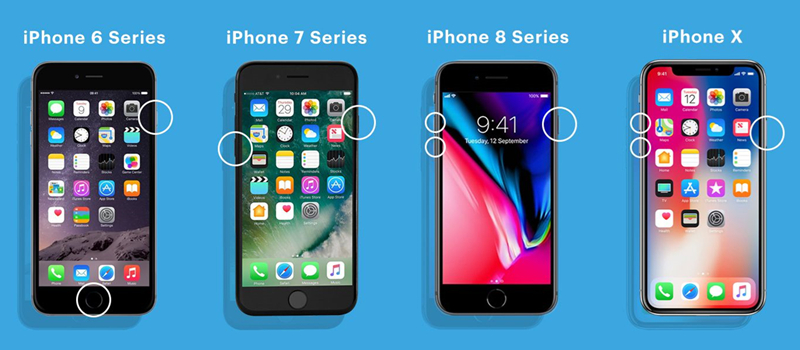
On iPhone 8 and Later:
Step 1. Press and quickly release the Volume Up button.
Step 2. Press and quickly release the Volume Down button.
Step 3. Press and hold the Power button until the Apple logo appears.
On iPhone 7 or iPhone 7 Plus:
Step 1. Press and hold both the Volume Down and Power button simultaneously.
Step 2. When the Apple logo appears, release both buttons.
On iPhone 6 and Earlier:
Step 1. Press and hold the Power button and the Home button at the same time.
Step 2. When the Apple logo appears, release both buttons.
Solution 3. Adjust Zoom and Text Settings
A common reason for the iPhone being stuck on Home Critical Alerts is that the Allow buttons are actually off-screen due to high Zoom or Large Text settings. If you have a computer, you can try to reset the view to fix the issue.
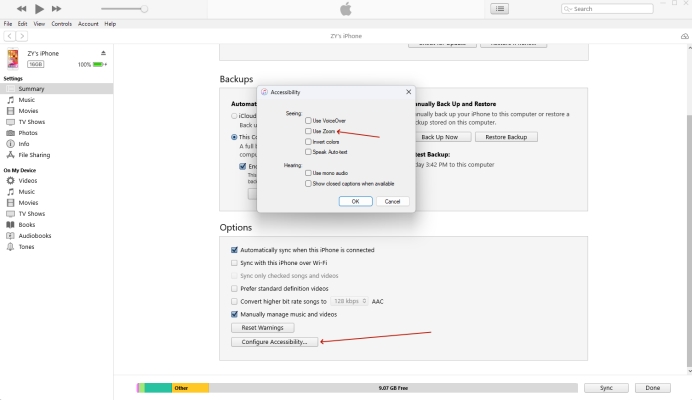
Step 1. Connect your iPhone to a computer using a USB cable.
Step 2. Open the Finder on a Mac or iTunes on a Windows PC.
Step 3. Locate the Configure Accessibility button in the General/Summary tab.
Step 4. Turn off Use Zoom. This may shrink the pop-up enough for the buttons to appear on your iPhone screen so you can tap them.
Solution 4. Update to the Latest iOS Version
Updating your device to the latest version of iOS can also fix system bugs causing this issue. When your iPad or iPhone is stuck on Home Critical Alerts and you cannot update your device in Settings directly, try using iTunes or Finder to update your device.
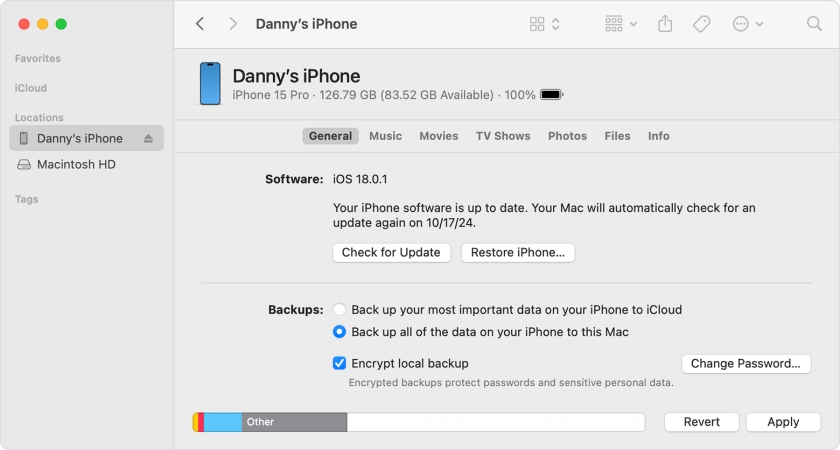
On a Mac:
Step 1. Connect your iPhone to your computer via a USB cable, then open a Finder window.
Step 2. In the Finder window, select your device in the left sidebar.
Step 3. Click General, then click Check for Update > Download and Update.
Step 4. Enter your passcode to confirm that you want to update your device.
On a PC:
Step 1. Connect your iPhone to your computer through a USB cable, then launch iTunes.
Step 2. Click the device button in iTunes toolbar.
Step 3. In the Summary tab, click Check for Update, then click Download and Update.
Step 4. Enter your passcode to confirm that you want to update your device.
Solution 5. Put iPhone into Recovery Mode
A recovery mode helps to address most software-related issues on your device. When your iPhone or iPad cannot function correctly, you can try putting it into recovery mode. Then the issue of iPad or iPhone stuck on Home Critical Alerts can be fixed with ease. Here MagFone iOS System Recovery can enable your iPhone or iPad to get into recovery mode with one click for free. Here's how to.
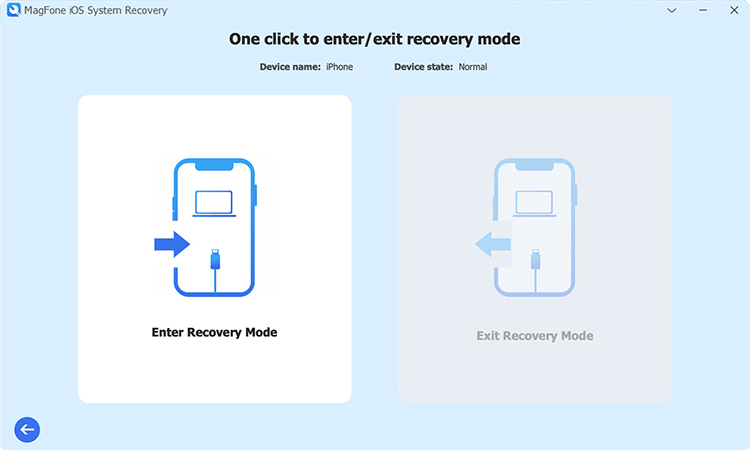
Step 1. Launch MagFone iOS System Recovery on your computer, then connect your iPhone to the computer using a USB cable.
Step 2. On the main interface of the software, select Enter/Exit Recovery Mode.
Step 3. Click the Enter Recovery Mode button and wait to enter into recovery mode.
Solution 6. Restore iPhone in Recovery Mode
If putting your iPhone into recovery mode cannot fix the issue, you can use iTunes or Finder to restore your iPhone when your device is in recovery mode. This can fix the issue by resetting your device to the factory default settings, but all the content and settings on your device will be erased completely.
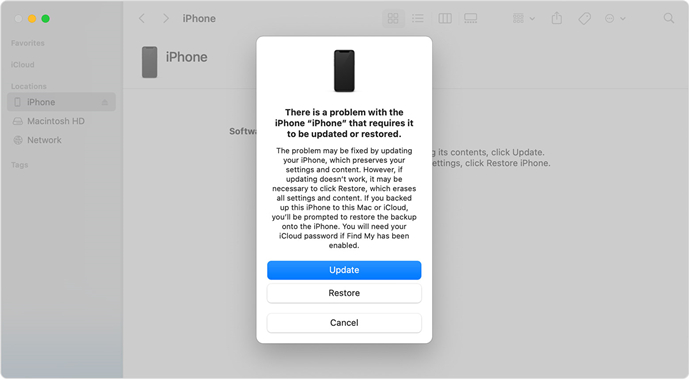
Step 1. Power off your iPhone, then connect it to your computer with a USB cable.
Step 2. Open the Finder on your Mac, or open the iTunes app on your PC.
Step 3. Put your device into Recovery Mode, then locate your device on your computer.
Step 4. In the pop-up window, click the Restore button to fix the issue.
Solution 7. Repair iPhone in DFU Mode
DFU mode, referring to Device Firmware Update Mode, is the most thorough type of restore, often used as a last resort. This method reloads the software and firmware on your device, which can fix even the most severe issues, including the iPad or iPhone stuck on Home Critical Alerts. However, it will erase all data, so make sure to back up your device first.
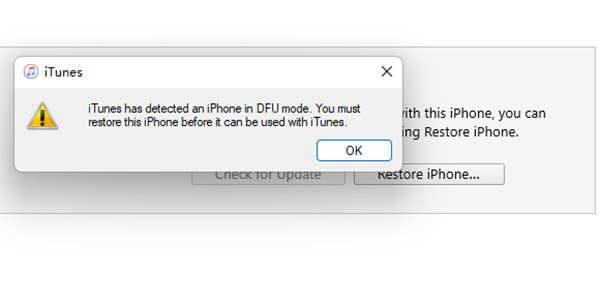
Step 1. Turn off your iPhone, then connect it to your computer by using a USB cable.
Step 2. Proceed to put your device into DFU mode.
Step 3. Launch iTunes and click the Restore button in a pop-up window.
Step 4. Confirm the command and start restoring your device.
Solution 8. Use a Specialized iOS Repair Tool
When your iPhone is stuck on Home Critical Alerts, this means that your device doesn't respond to any actions. If manual button combinations aren't working or the standard Recovery Mode feels too technical, a dedicated repair utility like MagFone iOS System Recovery is a viable alternative. As this issue can be greatly caused by the system glitch, using an iOS system repairing tool can help you fix the issue as soon as possible.
MagFone iOS System Recovery, a powerful tool for iPhone, iPad, and iPod touch, can thoroughly repair over 150 kinds of iOS issues while not erasing any data. If you want a permanent fix for the "Home Would Like to Send You Critical Alerts" problem on your iPhone and iPad, consider using MagFone iOS System Recovery. It can also resolve other common issues, such as being stuck in a boot loop or stuck on the Apple logo. If you're interested, follow the steps below to get rid of the Home Critical Alerts on your iPhone.

MagFone iOS System Recovery
Fix various iOS and iPadOS system issues, such as black screen, boot loop, frozen screen, or stuck on Apple logo, without data loss.
Step 1 Open MagFone Software and Connect iPhone
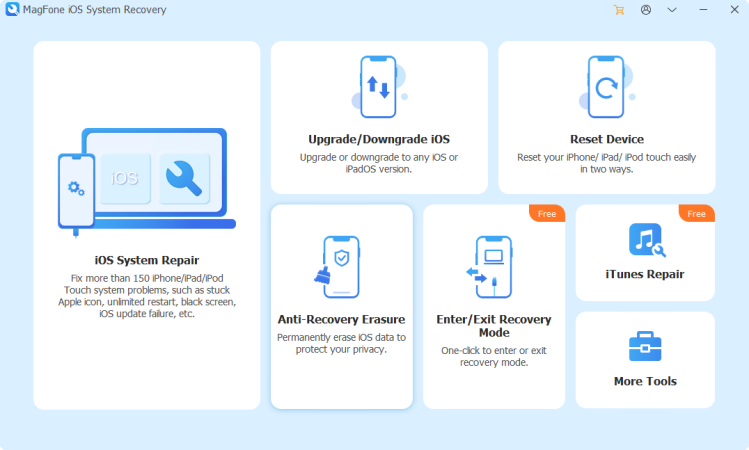
Start by connecting your iPhone to your computer with a USB cable, then open MagFone iOS System Recovery on the computer. On the main interface of the MagFone software, select iOS System Repair and click the Start button.
Step 2 Select Standard Repair to Fix Home Critical Alerts
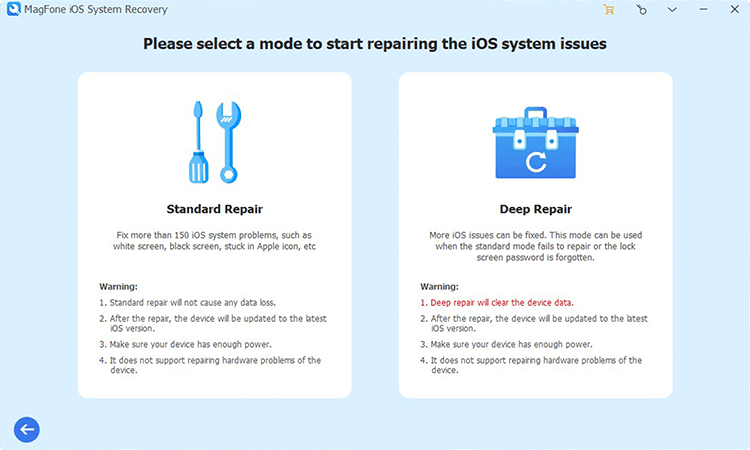
There are two modes to fix the issue on your iPhone. Here click the Standard Repair button, then your device will be detected by the MagFone software. Proceed to put your iPhone into Recovery Mode by following the onscreen instruction.
Step 3 Download and Verify the Firmware Package for iPhone
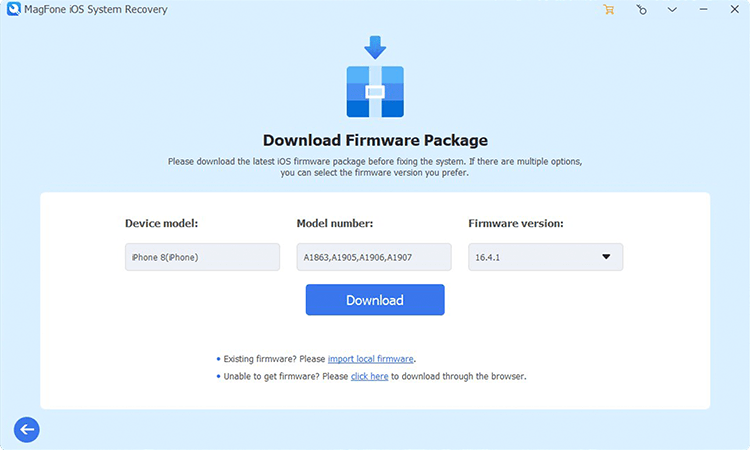
Go to check the device information shown on the screen of the MagFone software. Make sure the device information, or you need to manually correct it. Then you can click the Download button to download the iOS firmware package.
Step 4 Start to Repair iPhone Stuck on Home Critical Alerts
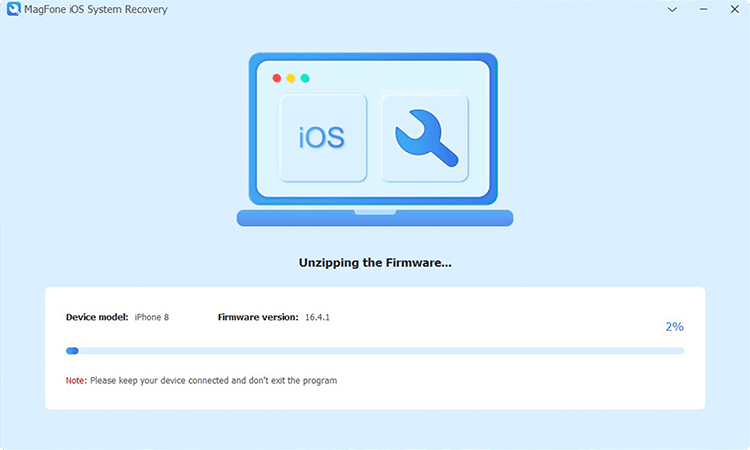
After the firmware package has been downloaded to the computer, you can click the Start Standard Repair button, then MagFone software will unzip the firmware and start fixing the iPhone stuck on Home Critical Alerts issue.
Solution 9. Contact Apple Support
If none of the above methods work, it's time to contact Apple Support. They can help diagnose any hardware issues or provide further assistance with software problems.
Part 4. How to Manage HomeKit Alerts to Avoid Future Freezes
Once you have bypassed the frozen screen and regained access to your iPhone, you should take these steps to ensure the Home Critical Alerts error doesn't return. To avoid the iPhone stuck on Home Critical Alerts issue, you can adjust your display settings or manage Home app permissions.
01Adjust Display Settings
If the buttons were missing or off-screen, your scaling settings likely caused the conflict.
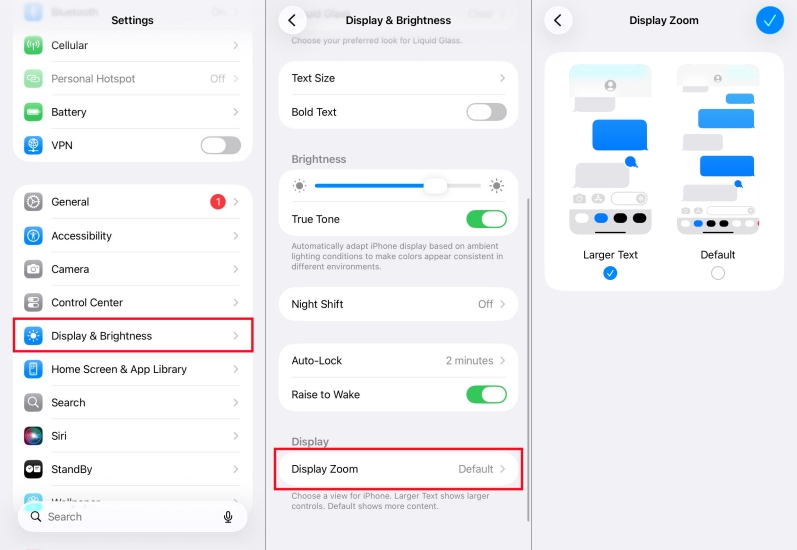
Step 1. Go to Settings > Display & Brightness > Display Zoom.
Step 2. Scroll to Display Zoom and ensure it is set to Standard rather than Larger Text.
02Manage Home App Permissions
You can decide which apps are allowed to send these high-priority interruptions.
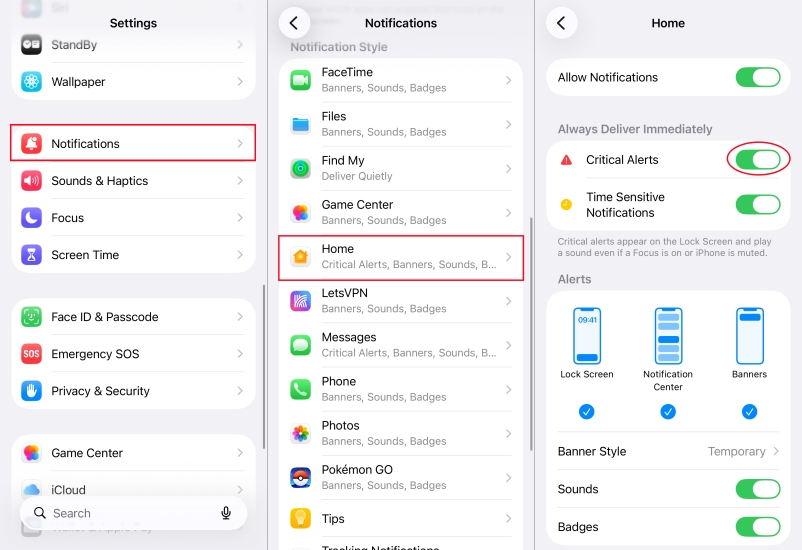
Step 1. Open Settings and go to Notifications > Home.
Step 2. Toggle Critical Alerts to Off.
Note:
If you use HomeKit for home security like smart locks or smoke detectors, turning this off means you won't get emergency sounds when your phone is on silent. Use this setting with caution.
Part 6. Conclusion
Encountering home would like to send Critical Alerts frozen iPhone or iPad can be frustrating, but it's a solvable issue with the right approach. After figuring out potential causes and implementing troubleshooting steps, you can regain control of your device and restore normal functionality. If you want to seek a hassle-free solution, just try using MagFone iOS System Recovery. With it, you can completely resolve any stuck issues on your iPhone and iPad, including Home Critical Alerts stuck.

Dylan Jones
Editor in chief




