








Apple officially kicked off its annual WWDC 2026 keynote, revealing the highly anticipated iOS 27. Packed with groundbreaking features like Siri AI, a sleek Liquid Glass UI evolution, and massive performance boosts across the system, tech enthusiasts around the globe are eager to test driving this update.
The best news? Apple has continued its user-friendly policy of allowing anyone to download the iOS 27 beta completely free. You no longer need to pay for a $99 annual developer account to get your hands on the absolute newest software. And it is easy to enroll your Apple Account into the Apple Developer Program on your device.
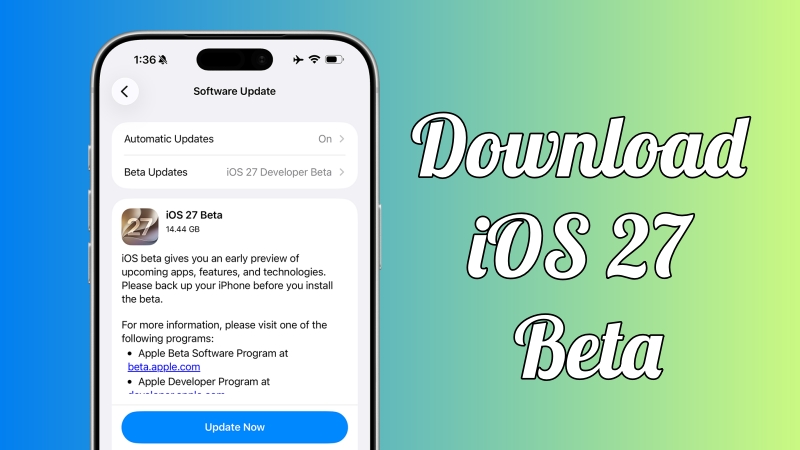
If you are wondering how to safely make iOS 27 beta download on your personal device, this comprehensive guide will walk you through the entire process step-by-step. As well, an alternative way to install iOS 27 beta will be shared in this guide.
- Part 1. All You Want to Know about iOS 27 Beta
- Part 2. What Should You Do for iOS Beta Download?
- Part 3. How to Download and Install iOS 27 Beta [Free]
- Part 4. Quick Way to Download iOS 27 Beta [Safe & Easy]
- Part 5. More Tips about iOS 27 Beta Download
- Part 6. Conclusion
Part 1. All You Want to Know about iOS 27 Beta
What's new in iOS 27 Beta?
Following its official unveiling at WWDC on June 8, 2026, the first developer beta of iOS 27 is now available. Apple's primary focus for this release centers heavily on performance optimization, stability, and deep artificial intelligence integration. The major new features and changes discovered in the initial beta build include Siri AI, Camera customization, photo editing tools, Write with Siri, layout adaptations for foldables, and more.
When is iOS 27 Beta coming out?
The iOS 27 Beta is expected to follow Apple's traditional release schedule, with an announcement at WWDC 2026 and subsequent beta releases throughout the summer. For now, you can access the first iOS 27 Developer Beta as it was released right after the conclusion of WWDC 2026 on June 8. If you are interested in iOS 27 Beta, you can look at the timeline below for release dates.
📅 iOS 27 Developer Beta -- released at WWDC 2026 on June 8.
📅 iOS 27 Public Beta -- expected between the end of June and mid-July.
📅 iOS 27 Public Version -- expected in mid to late September.
How long does iOS 27 Beta take to install?
On average, installing the iOS 27 Developer takes anywhere from 30 minutes to over an hour, depending on your internet connection. Because major system upgrades require massive file transfers and heavy background processing, the timeline is split into three distinct phases, including the download phase (15-45 minutes), the preparation phase (10-20 minutes), and the installation phase (10-15 minutes).
Is it safe to download iOS 27 Beta?
Beta software is inherently unstable and might contain bugs that could affect your device's performance. There's a possibility of data loss, and some apps may not function correctly. It's crucial to weigh these factors and decide if the potential benefits outweigh the risks for you.
What's the difference between developer beta and public beta?
Developer beta is mainly released for app developers to adapt their apps to the new system, so it usually comes out earlier. It may contain more unknown bugs and stability issues, and is not recommended to install on your main daily device. Public beta is released for ordinary enthusiasts, after the first few rounds of developer beta fixes, it is much more stable than the early developer beta, and is more suitable for non-developer users to experience new features.
Part 2. What Should You Do for iOS Beta Download?
Downloading the iOS 27 Beta gives you early access to new features that can enhance your daily device use. It's not just about being the first to experience these changes; it's also about helping Apple refine the software. But before downloading and installing iOS 27 Beta, you need to make some preparations. Here's what you should do before iOS beta download.
Step 1 Check Your iPhone's Compatibility
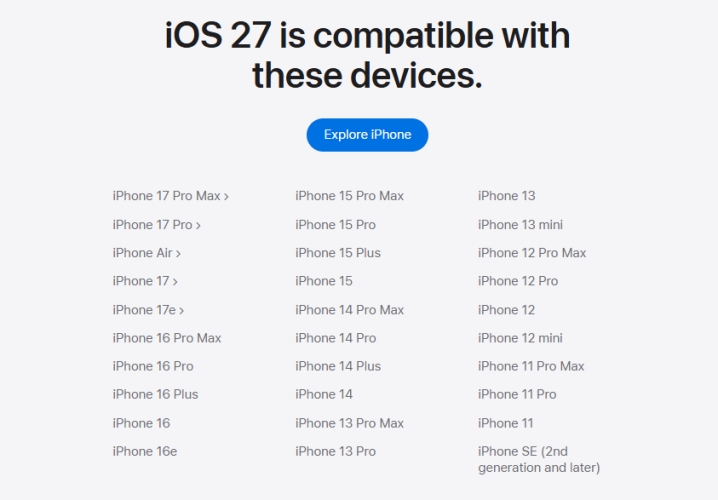
Not all devices are compatible with iOS 27 Beta. Make sure that your iPhone is in the Apple's official list of supported devices to ensure your iPhone can run the iOS 27 Beta. The following is the Apple's official list of iOS 27 supported devices.
Step 2 Back up iPhone via iCloud or iTunes
Backing up your iPhone is a critical step before installing any beta software. This ensure you can restore your device if something goes wrong. There are two options for you to back up your iPhone, respectively using iCloud or iTunes.
Option 1. Back up iPhone via iCloud
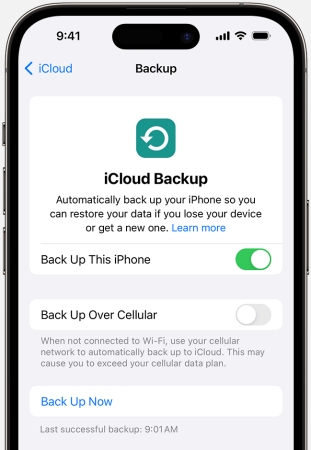
Step 1. Connect your iPhone to a WiFi network, then go to Settings.
Step 2. Tap your Apple ID name > iCloud and select iCloud Backup.
Step 3. Tap Back Up Now. Keep your device connected to your WiFi network until the process ends.
Option 2. Back up iPhone via iTunes
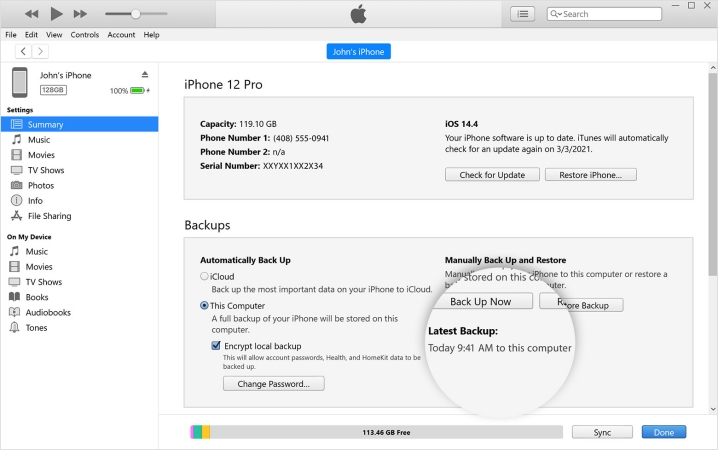
Step 1. Connect your iPhone to your computer with a USB cable, then open iTunes.
Step 2. Click the iPhone button near the top left of the iTunes window.
Step 3. Click Summary > Back Up Now. Stay your device connected to the computer until the backup ends.
Step 3 Sign in to Apple Beta Software Program
To download iOS 27 Beta, you need to be part of the Apple Beta Software Program. It's free and allows you to access and install beta versions of Apple's software. After joining the Apple Beta Software Program, you can install iOS 27 Beta on your iPhone directly. Also, you can choose to enroll in the Apple Developer Program to access iOS 27 Developer Beta early. By using a third-party tool to get iOS 18 Beta download, you can skip this step and directly head to Part 4.
Option 1. Sign in to Apple Beta Software Program
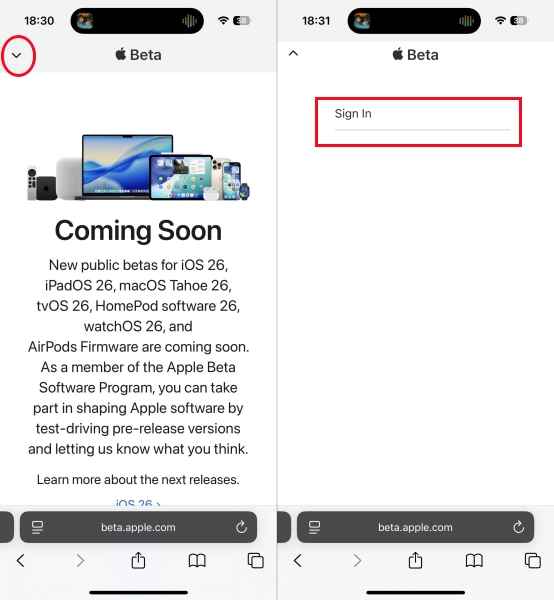
Step 1. Navigate to the Apple Beta Software Program on your iPhone.
Step 2. Tap Sign In, then log in with your Apple ID.
Step 3. Tap Accept to agree with the terms and conditions.
Option 2. Sign in to Apple Developer
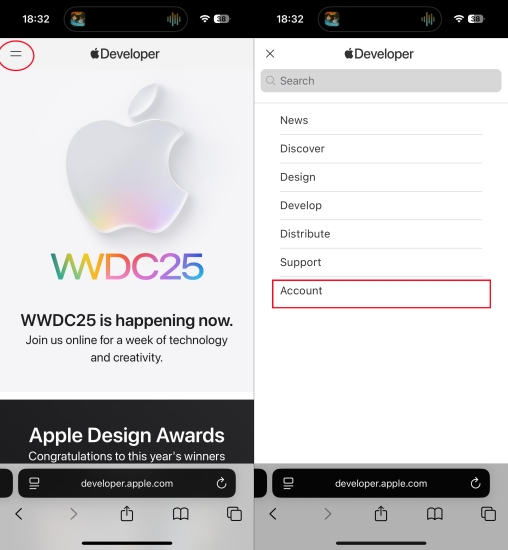
Step 1. Open the Apple Developer website on your iPhone.
Step 2. Tap the two-dash menu in the top-right and select Get Started.
Step 3. Tap Apple Developer Program, then scroll down to Become an Apple developer.
Step 4. Tap Create your account to sign in with your Apple ID.
Step 5. Carefully read the Apple Developer Agreement and check all the boxes.
Step 6. Tap the Submit button to enroll in the Apple Developer program.
Part 3. How to Download and Install iOS 27 Beta [Free]
There are several methods available for you to download and install iOS 27 Beta on your iPhone. Before downloading and installing iOS 27 Beta, you need to do the things introduced in Part 2. Then try the following steps to get iOS 27 Beta on your iPhone. Now let's cut to the chase.
Method 1. Install iOS 27 Beta in Settings
The direct and quick method to download and install iOS 27 Beta is to get it in Settings with a developer account. When enabling Developer Mode on your iPhone, you can choose to upgrade iOS 27 Developer Beta with your developer account in Settings directly. Or you can download and install iOS 27 Public Beta by signing in to the Apple Beta Software Program.
📝Prerequisites:
An iPhone SE or later
A developer account
A stable WiFi network
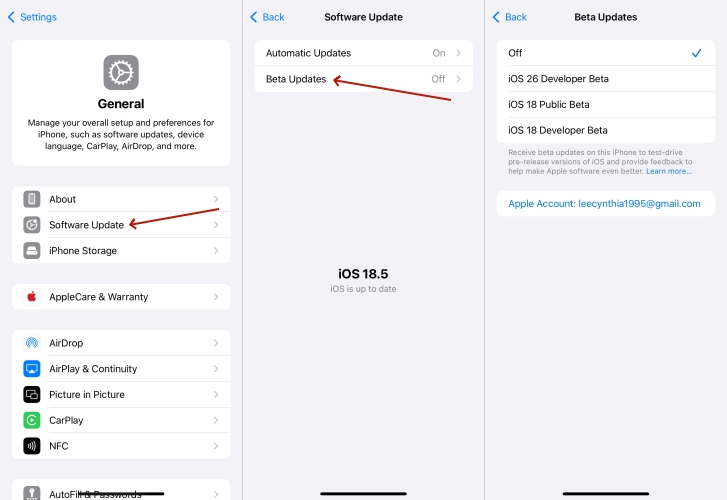
Step 1. On your iPhone, open the Settings app and tap General.
Step 2. Tap Software Update, then tap Beta Updates.
Step 3. Choose iOS 27 Developer Beta and tap Back.
Step 4. Tap Update Now to download and install iOS 27 Beta.
Method 2. Download iOS 27 Beta via iTunes/Finder
When you are unable to download and install iOS 27 Beta in Developer Mode on your iPhone, you can choose another method - using Beta IPSW files to get iOS 27 Beta. You can download the .ipsw file for your iPhone from IPSWbeta.dev website on your computer, then you can install iOS 27 Beta to your device through Finder or iTunes.
📝Prerequisites:
An iPhone SE or later
A computer installed with iTunes
A stable WiFi network
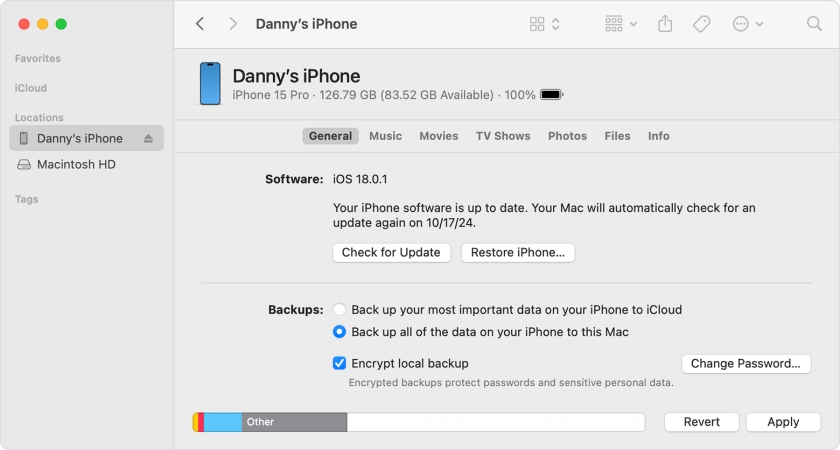
Step 1. Go to download IPSW beta file from IPSWbeta.dev website on your computer.
Step 2. Connect your iPhone to the computer through a USB cable, then open the Finder.
Step 3. Tap Trust on your device and click your iPhone when it appears in the Finder sidebar.
Step 4. Click the Summary panel, hold the Option key, and click the Check for Update button.
Step 5. Select the IPSW beta file on the computer and click the Open button to install iOS 27 Beta.
Method 3. Download iOS 27 Beta via Apple Configurator
On a Windows laptop or PC, you can only use iTunes to install IPSW file for getting iOS 27 Beta on your iPhone. If you are a Mac owner, you can use both the Finder and Apple Configurator to install IPSW beta file on your iPhone. With Apple Configurator, you can install IPSW file to get iOS 27 Beta with several clicks. Here's how to.
📝Prerequisites:
An iPhone SE or later
A Mac installed with Apple Configurator
A stable WiFi network
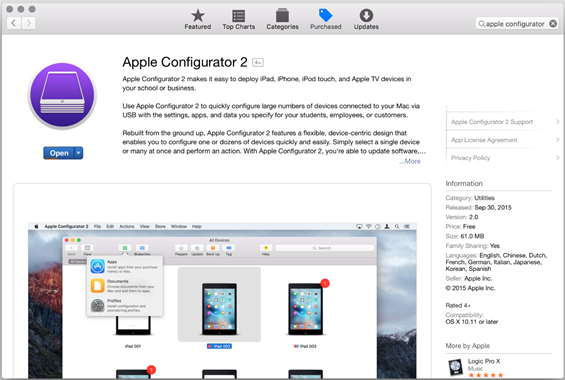
Step 1. Download and install Apple Configurator from the App Store.
Step 2. Connect your iPhone to your computer with a USB cable.
Step 3. Open Apple Configurator and select your device in the device list.
Step 4. Drag the .ipsw file onto the device image, then click the Update button.
Part 4. Quick Way to Download iOS 27 Beta (Safe & Easy)
It is easy to download and install iOS 27 Beta in Settings on your iPhone directly. However, it is required that you have a developer account. In the Apple community, many users complained that they cannot see Developer Mode on iPhone, thus not able to download and install iOS 27 Beta. Fortunately, here's a faster and safer way to help you download iOS beta. That is to use MagFone iOS System Recovery.
MagFone iOS System Recovery is a multifunctional tool, designed for both iOS and iPadOS users to test iOS beta software. By using MagFone, you don't need a developer account for iOS beta download. What's more, MagFone software can fix various iOS and iPadOS system issues without any data loss. Let's look at how to download iOS 27 Beta on your iPhone through MagFone iOS System Recovery with one-click.

MagFone iOS System Recovery
Support exploring iOS beta without a developer account and downgrading iOS version without iTunes easily.
Step 1 Run MagFone iOS System Recovery
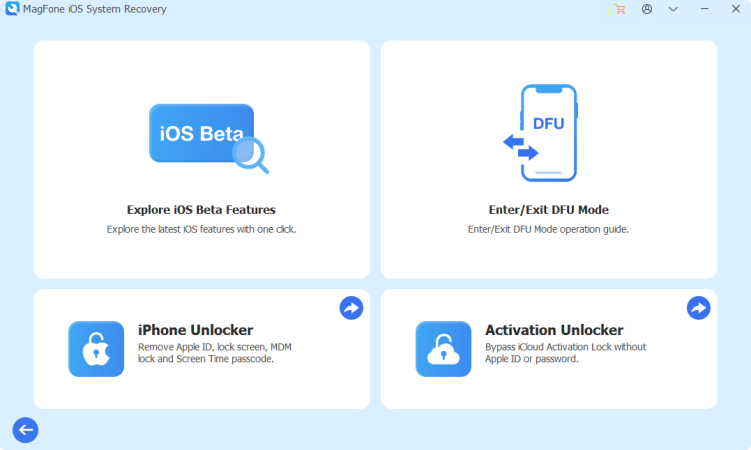
First of all, connect your iPhone and computer with a USB cable, then launch MagFone iOS System Recovery. On the main interface, click the More Tools button, then select the Explore iOS Beta Features option.
Step 2 Download the Firmware Package
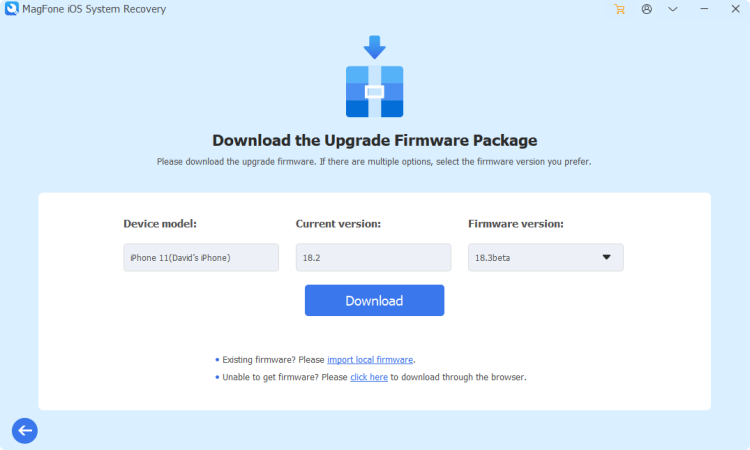
Once your iPhone is detected, go to download the upgrade firmware. Before downloading iOS 27 Beta, check the device information shown on the screen. If there is nothing wrong, you can click the Download button to get iOS 27 Beta.
Step 3 Start to Download iOS 27 Beta
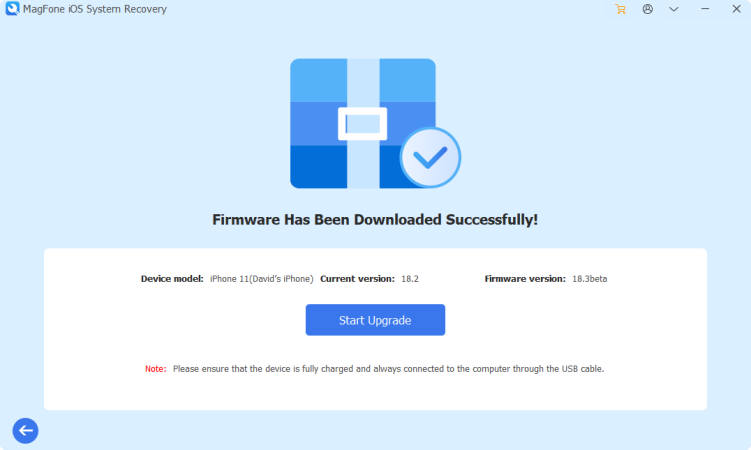
Once the firmware has been downloaded successfully, you can prepare to install iOS 27 Beta on your device. Here you can only need to click the Start Upgrade button. Then MagFone iOS System Recovery will complete the task as soon as possible.
Part 5. More Tips about iOS 27 Beta Download
With the above methods, you can download and install iOS 27 Beta on your iPhone. During or after installation, you would encounter some issues. Here we will provide you with more tips about iOS 27 Beta download. Continue to read, and you'll get some useful tips.
Tip 1. How to Downgrade from iOS 27 Beta
If you find the beta software too unstable, you can revert to the latest stable iOS version. Reasons might include critical bugs, poor performance, or app compatibility issues. Here's how to remove iOS 27 Beta from iPhone.

Step 1. Power off your iPhone and put it into recovery mode.
Get an iPad, iPhone, or iPod touch into recovery mode with one click for free.
Step 2. Open the Finder on a Mac or iTunes on a Windows PC, then click your device icon.
Step 3. Click the Restore button to remove iOS 27 Beta from your iPhone.
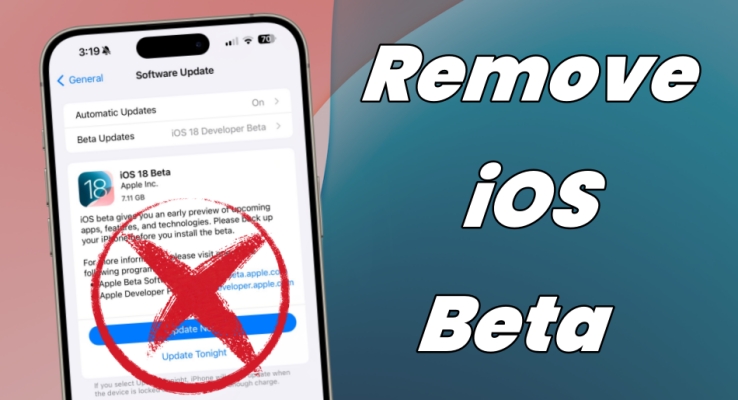
How to Remove & Uninstall iOS 27/26 Beta [Latest]
Looking for a hassle-free and secure way to remove iOS 27 Beta from your iPhone? This guide is here to help. You'll find several ways to uninstall iOS 27 Beta.
Read More >>Tip 2. How to Enable Developer Mode on iPhone
If you choose to install iOS 27 Developer Beta, you need to sign in to the Apple Developer, then put Developer Mode on your iPhone. Some users don't know how to turn on Developer Mode. Follow the steps below to get it done.
Step 1. Install the build on your iPhone, then run it and tap OK.
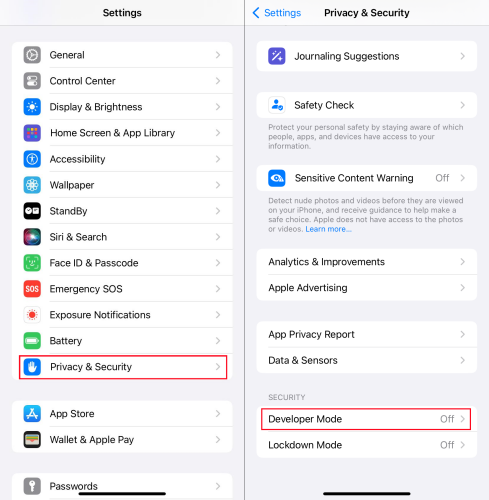
Step 2. Head to Settings > Privacy & Security > Developer Mode.
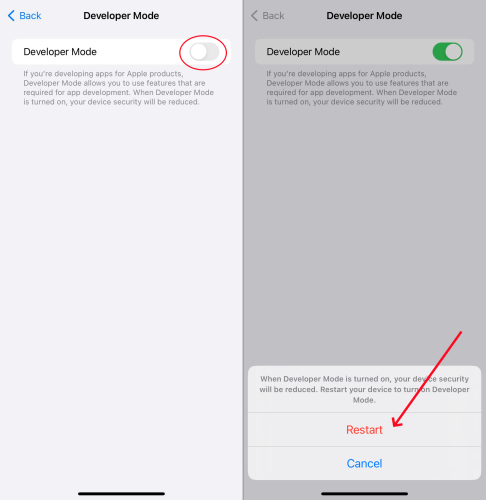
Step 3. Tap Restart to reboot your device, then wait your device to restart.
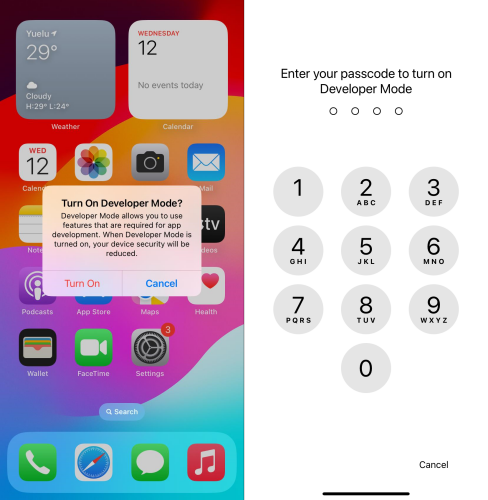
Step 4. Tap Turn On and enter your screen lock passcode.
Part 6. Conclusion
Downloading and installing iOS 27 Beta can be an exciting adventure for those eager to explore new features and contribute to Apple's software development. By reading the whole article, you can follow the steps outlined above to get iOS 27 Beta on your iPhone. Then you can enjoy a smooth and rewarding beta experience. Happy testing!

Dylan Jones
Editor in chief





