








So, I had a bit of a panic moment yesterday. I was cleaning up storage on my iPhone and accidentally deleted a bunch of old photos. I thought I'd backed them up, but apparently not. 😬 I went into the Recently Deleted album and cleared it out without realizing some of those photos weren't saved anywhere else."
——From Reddit
Have you ever deleted photos on your iPhone, emptied the Recently Deleted album, and then realized there was no backup? You might be wondering: where do deleted photos actually go on iPhone, and is it still possible to recover photos that have been permanently removed? Go through this article, we'll explain where deleted and permanently deleted photos go, show you how to find and recover them if possible, and share tips on how to avoid future photo loss.
- Part 1. Where Do Deleted Photos Go on iPhone?
- Part 2. How to Find Deleted iPhone Photos
- Part 3. How to Prevent Photo Loss on iPhone
- Part 4. Conclusion
Part 1. Where Do Deleted Photos Go on iPhone?
When accidentally deleting photos on iPhone, what comes to your mind first is what happens to them and where they go.
Recently deleted photos will go to the Recently Deleted album and are kept there for 30 days. Within the period, you can access the Recently Deleted album and recover recently deleted photos or videos at any time. This feature gives users peace of mind, knowing that accidental deletions can be undone quickly and easily.
But once the photos or videos have reached the retention time, they will be permanently deleted from your device, and they will no longer be accessible directly from the Photos app. However, with some proven methods, you can still access them, which we will cover in Part 2.
Part 2. How to Find Deleted iPhone Photos
Whether the photos are recently deleted or permanently deleted from iPhone, there's a way to find them. Follow the steps below to access deleted iPhone photos.
How to Access Recently Deleted Photos on iPhone
Thanks to the Recently Deleted album in the Photos app, it's quite easy and straightforward to access recently deleted photos. You can:
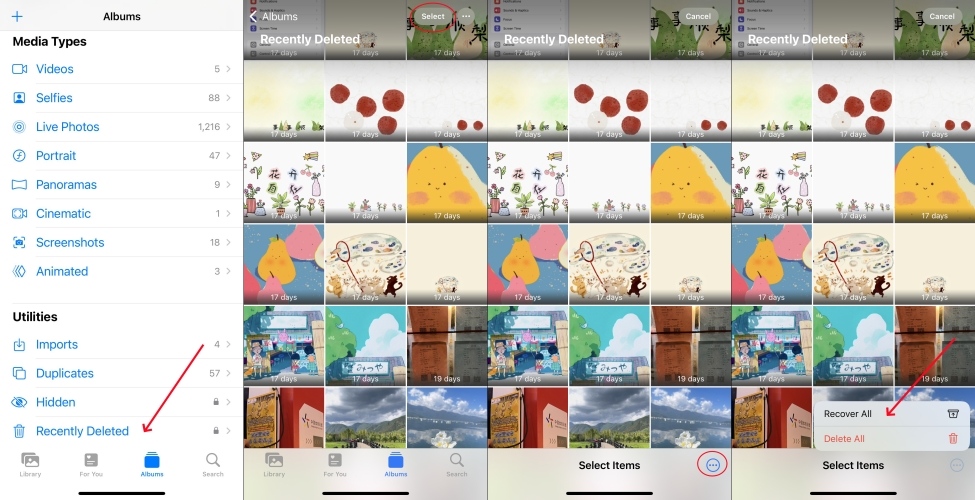
Step 1. Open Photos and tap Collections or Albums.
Step 2. Find the Recently Deleted album under Utilities. You can access your recently deleted photos here.
If you can't find recently deleted photos on iPhone:
On iOS 18, the Photos layout may cause the user to be unable to find the Recently Deleted folder. If you can't find the Recently Deleted album in Photos, try this:
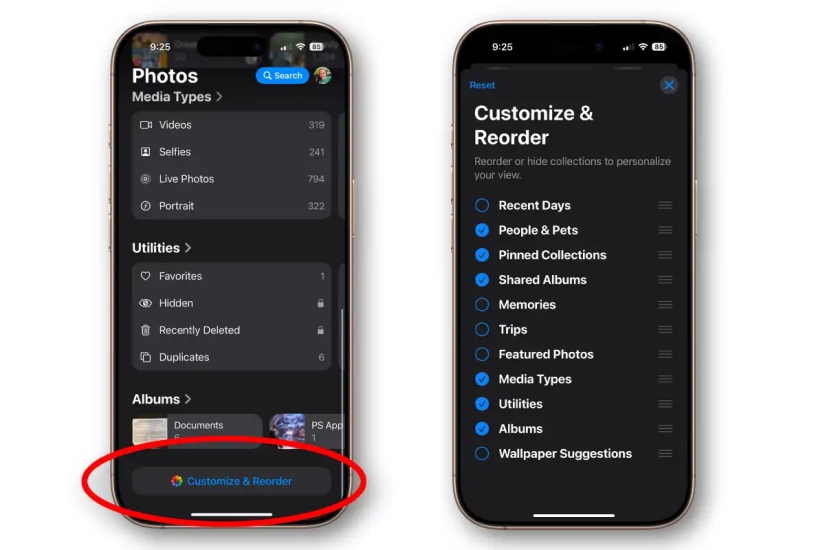
Step 1. Open the Photos app and tap Customize & Reorder at the bottom.
Step 2. Make sure the Utilities collection is marked, and then you can view the Recently Deleted entry under this collection.
How to Access Permanently Deleted Photos on iPhone
Believe that many iPhone users may empty the Recently Deleted album at once for more free space on their iPhone. This led to photos being gone permanently. What if you want to access these permanently deleted photos? MagFone Photos Data Recovery comes to help. As a useful data recovery tool, MagFone can help scan permanently deleted data from your iPhone, iPad, and iPod touch. After that, you can preview the permanently deleted data from iPhone, then recover it without restoring your device and overwriting data on your device.

MagFone iPhone Data Recovery
Recover data from iPhone and iPad in three recovery modes without data overwritting and device reset.
Step 1 Run MagFone iPhone Data Recovery

Download and install MagFone iPhone Data Recovery on your computer. Then connect your iPhone to the computer using a data cable.
Step 2 Scan Deleted Photos on iPhone

Click iPhone/iPad Data Recovery from the landing page. Then mark Photos and click Scan. You need to enter the passcode on iPhone to allow full permission for MagFone.
Step 3 Recover iPhone Deleted Photos
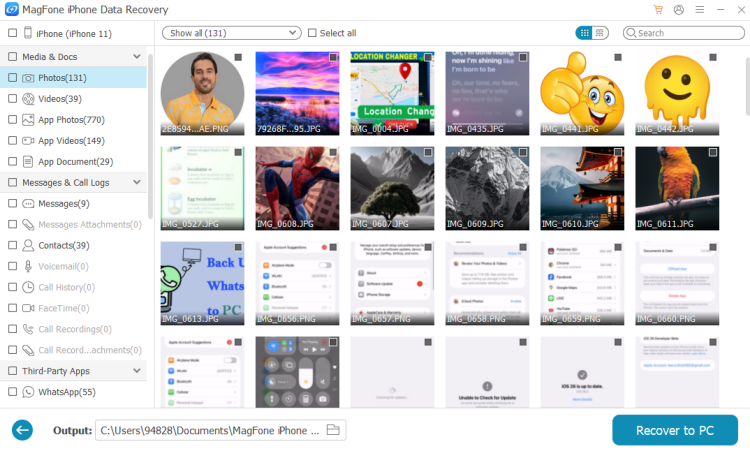
Check the deleted photos on the screen, then select and click Recover to PC or Recover to Mac to export permanently deleted photos to the computer.
If you have an accessible iCloud backup or iTunes backup made before the permanent deletion, you can also access deleted photos on iPhone from the backup. But these two methods require you to replace the current data on your iPhone with the data in the backup, which may cause newer data to disappear.
| Method | MagFone iPhone Data Recovery | iCloud Backup | iTunes Backup |
|---|---|---|---|
| A Backup | Not required | Required | Required |
| Data Overwriting | ❌ | ✔️ | ✔️ |
| Selective Recovery | ✔️ | ❌ | ❌ |
| Data Preview | ✔️ | ❌ | ❌ |
| Success Rate | High | Low | Medium |
Access Deleted Photos on iPhone from iTunes Backup:

Step 1. Access iPhone Settings > General > Transfer or Reset iPhone.
Step 2. Access Erase All Content and Settings > Continue > Erase iPhone.
Step 3. Input the required iPhone passcode and Apple ID password to permit to wipe the device.

Step 4. Once the iPhone is wiped and restarted, start setting it up. Follow the onscreen instructions to proceed. When you are asked to Transfer Your Apps & Data, choose From iCloud Backup.
Step 5. Wait for iCloud sync and go finish the setup. After setting up, open the Photos app to check deleted photos.
Access Deleted Photos on iPhone from iCloud Backup:

Step 1. Connect your iPhone to the computer you used to make a backup.
Step 2. Launch iTunes, and click the device icon once the iPhone is detected by the computer.
Step 3. Click Summary, then click Restore Backup and choose an iTunes backup to restore. When the restore is complete, go to Photos to check the deleted photos on iPhone.
Part 3. How to Prevent Photo Loss on iPhone
Prevention is better than recovery. To avoid accidental deletion of photos on iPhone, enabling iCloud backup or regularly backing up the iPhone with iTunes is a good habit.
01Enable iCloud Backup:
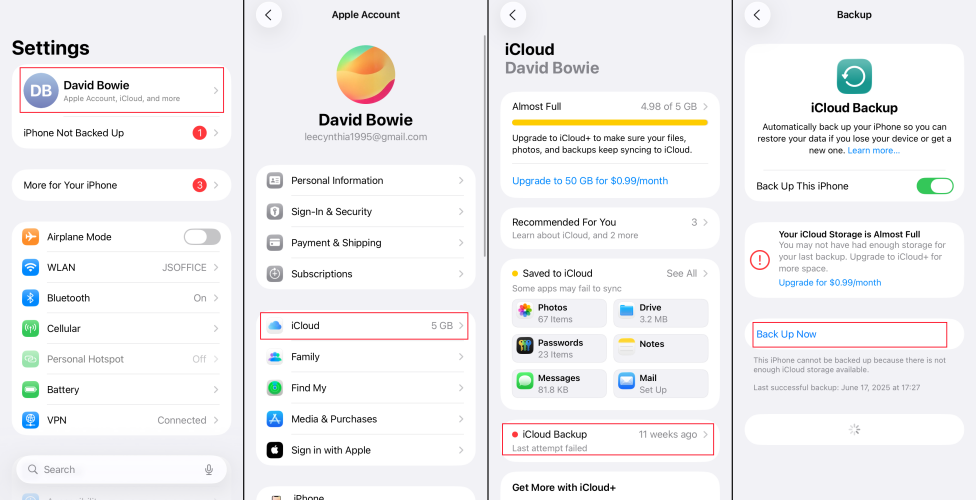
Step 1. Go to iPhone Settings > Apple ID > iCloud.
Step 2. Tap iCloud Backup and enable Back Up This iPhone.
02Make iTunes Backup:
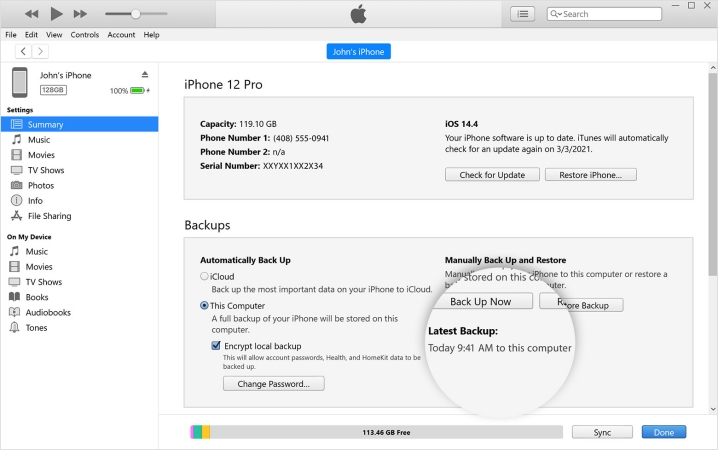
Step 1. Connect the iPhone to a computer using a data cable and open iTunes.
Step 2. Click Summary in the left menu, then click Back Up Now to make an iTunes backup.
Besides official backup methods, you can also apply a reliable third-party cloud service to sync your iPhone photos, like Google Drive.
Part 4. Conclusion
Accidentally clearing photos on an iPhone can be regretful. Knowing where deleted photos go on iPhone can help you know more about the recoverability. Whether it's recently deleted photos or permanently deleted photos, there's a way to access them. Quickly and efficiently, MagFone iPhone Data Recovery deserves consideration. In addition, always back up your iPhone photos to avoid data loss!

Edgar Davis
Editor in chief





