








Few things are more panic-inducing than realizing your iPhone is broken, and all your precious photos might be trapped inside. The good news is that you can still recover photos from a broken iPhone as long as you meet some requirements. No matter if you are willing to repair the broken or not, you can first check our guide! In this guide, we'll walk you through proven ways to recover photos from a broken iPhone, including iCloud recovery, iTunes recovery, and even no backup recovery.
- Part 1. How Can I Retrieve Photos from a Broken iPhone?
- Part 2. How to Get Photos Off iPhone When Screen Is Broken [iCloud]
- Part 3. How to Recover Photos from Broken iPhone without iCloud [iTunes]
- Part 4. How to Recover Photos from Broken iPhone without Backup
- Part 5. Conclusion
Part 1. How Can I Retrieve Photos from a Broken iPhone?
Depending on the situation of your broken iPhone and whether you have a backup, there are respective solutions. Even if your screen is shattered, the device won't turn on, or the touchscreen is unresponsive, there's a way to retrieve photos from the broken iPhone. Check the suitable scenarios of each method and choose based on your situation.
| Recovery Method | Option | Suitable For | Require Additional Device | Need Backup? |
|---|---|---|---|---|
| iCloud Recovery | iCloud Photos | All broken scenarios | Any device | ✔️ |
| Restore from iCloud Backup | All broken scenarios | Apple device | ✔️ | |
| iTunes Recovery | Restore iTunes Backup | All broken scenarios | Apple device | ✔️ |
| Extract Photos from iTunes Backup | All broken scenarios | ❌ | ✔️ | |
| Restore Photos Using External Accessories | Screen is broken | Apple device | ✔️ | |
| No Backup Recovery | MagFone iPhone Data Recovery | iPhone screen is responsive | ❌ | ❌ |
Part 2. How to Get Photos Off iPhone When Screen Is Broken [iCloud]
When your iPhone's screen is broken, iCloud is often the first way to try recovering your photos. On most Apple devices, iCloud features are enabled by default, so as long as you didn't manually turn them off, your photos may already be safely stored online. In this part, we'll show you how to get photos off a broken iPhone using either iCloud Photos or an iCloud backup, so you can restore your memories even if you can't use the device itself.
Method 1. Recover Photos from iCloud Photos
iCloud Photos keeps your entire photo library synced across all your Apple devices and iCloud.com in real time. If this feature was turned on before your iPhone broke, your photos are likely already stored in the cloud, ready to be accessed online.

Step 1. Navigate to the iCloud Photos website and sign in to your Apple Account.
Step 2. Here you can see all the photos you have synced to iCloud. You can download the photos to any device you want.
Method 2. Recover Photos from iCloud Backup
If you haven't enabled iCloud Photos before but you have iCloud Backup enabled, you can restore the iCloud backup to another Apple device. If you want to recover photos from a broken iPhone to an old Apple device, just follow the steps below. If you want to recover photos to a new phone, you can check Step 4 directly.

Step 1. Navigate to iPhone Settings > General > Transfer or Reset iPhone.
Step 2. Choose Erase All Content and Settings > Continue > Erase iPhone.
Step 3. Enter the iPhone passcode and Apple ID password to proceed.

Step 4. Follow the onscreen instructions to set up the erased iPhone or new iPhone. Choose Set Up Manually, and keep going. When you see the Transfer Your Apps & Data message, choose From iCloud Backup.
Step 5. Log in to your Apple Account and choose an iCloud backup to restore to the target device. After setting up, you can open the Photos app to check.
Part 3. How to Recover Photos from Broken iPhone without iCloud [iTunes]
Without iCloud, you can also recover photos from a broken iPhone if you have backed it up to a computer. With the backup on the computer, you can choose to recover the iTunes backup to another Apple device or extract photos from the iTunes backup. Even use a Based on your own situation, choose the suitable option below:
| Options | Details |
|---|---|
| Restore iTunes Backup | Restore a full iTunes backup to another Apple device directly |
| Extract Photos from iTunes Backup | Use a tool to extract photos seperately from iTunes backup |
| Restore Photos Using External Accessories | Use an external accessory to control the broken iPhone |
Option 1. Recover Photos from iTunes Backup
If you used to back up the broken iPhone to a computer, and you have another Apple device, you can restore the iTunes backup to another Apple device to retrieve photos from the broken iPhone. But this requires you to perform a full restore, which will cause data overwriting on the target device.

Step 1. Connect another Apple device to the computer you used to back up the broken iPhone.
Step 2. Launch iTunes and click the device icon once the device is detected.
Step 3. Click Summary > Restore Backup, choose a backup, and click Restore to restore the iTunes backup to the target device.
Where to find iTunes Backup files on the computer?
Unwilling to restore a full iTunes backup, you may wonder if you can access the iTunes backup file directly. The answer is no. Though you can find the iTunes backup file on your computer, you can't access the contents in it. You can only see a bunch of weirdly-named files in the iTunes backup file.
- On PC:
Step 1. Press Windows + R to open dialog box.
Step 2. Type %appdata% and press Enter.
Step 3. Head to this location: Apple Computer > MobileSync > Backup, and this is where the iTunes backup is stored on your PC.
- On Mac:
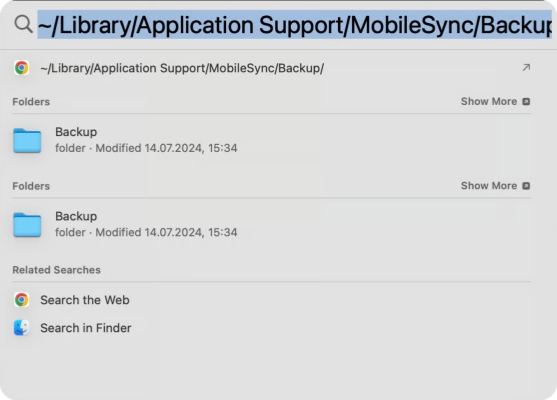
Step 1. Open Finder and click Go in the top-left menu.
Step 2. Click Go to Folder and paste the location in the pathname window: ~/Library/Application Support/MobileSync/Backup/
Step 3. Double-click the location, and that's where your iTunes backup file is stored on your Mac.
Option 2. Extract Photos from iTunes Backup Using an Extractor
You know that iTunes backup is not readable. When there's an iTunes backup of the broken iPhone, and you don't want to restore a full iTunes backup to your device, you can use a backup viewer to help you extract data from the backup. Here we tried MagFone iTunes Backup View, and it did help extract photos from an iTunes backup.

Step 1. Download MagFone iPhone Data Recovery on your computer, then click Recover Data from iTunes.
Step 2. Select an iTunes backup and click Next. Then select Photos and click Scan to allow the tool to scan your iTunes backup.
Step 3. After the scan, you can view the extracted photos from the iTunes backup. Just select and click Recover to PC or Recover to Mac to export them to your computer.
Option 3. Restore Photos Using External Accessories
If there's no iTunes backup and the screen is broken, but you used to connect your iPhone to external accessories, the good news is that you can control the broken iPhone using the external accessories. Then backup the broken iPhone to a computer to back it up.
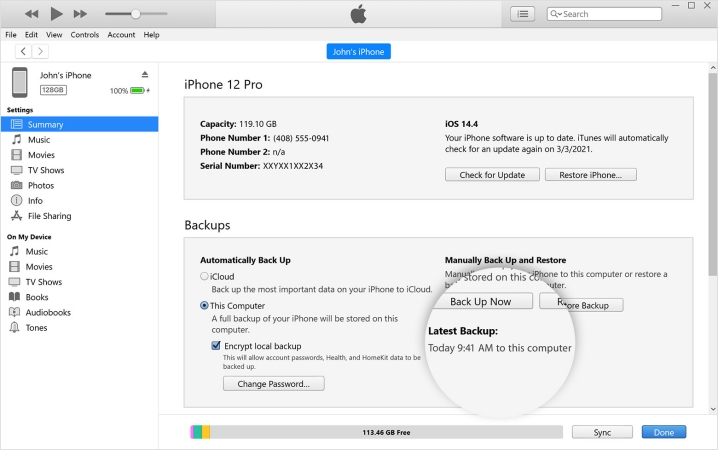
Step 1. Using the broken iPhone with an external accessory, like an external keyboard or Bluetooth mouse. Then connect the iPhone to a computer using a data cable.
Step 2. Open iTunes and click the device icon when the broken iPhone is detected.
Step 3. Click Summary, then click Back Up Now to back up the broken iPhone. Use the external accessory to trust the computer if required.
Step 4. After backing up, you can use an iTunes backup viewer to extract the photos.
Part 4. How to Recover Photos from Broken iPhone without Backup
If your iPhone is broken, but the screen is still responsive, or you can use an external accessory to control the broken iPhone, there's good news that you can recover photos from the broken iPhone without a backup. With MagFone Photos Data Recovery, you can scan photos from the broken iPhone, preview scanned photos, and recover scanned photos selectively. Besides photos in the broken iPhone, MagFone can even help you recover more data, including messages, videos, contacts, etc. Just follow the steps below to get the data on broken iPhone:

MagFone iPhone Data Recovery
Recover data from iPhone and iPad in three recovery modes without data overwritting and device reset.
Step 1 Open MagFone iPhone Data Recovery

Download and install MagFone on your computer, and connect your iPhone to the computer using a data cable. Then open MagFone after installation.
Step 2 Scan Photos from Broken iPhone
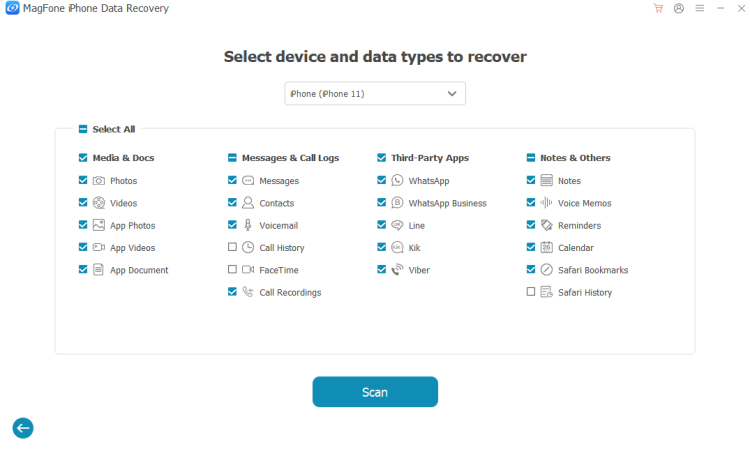
Click iPhone/iPad Data Recovery, select Photos from the data list, and click Scan to allow MagFone to scan photos from the broken iPhone.
Step 3 Retrieve Photos from Broken iPhone
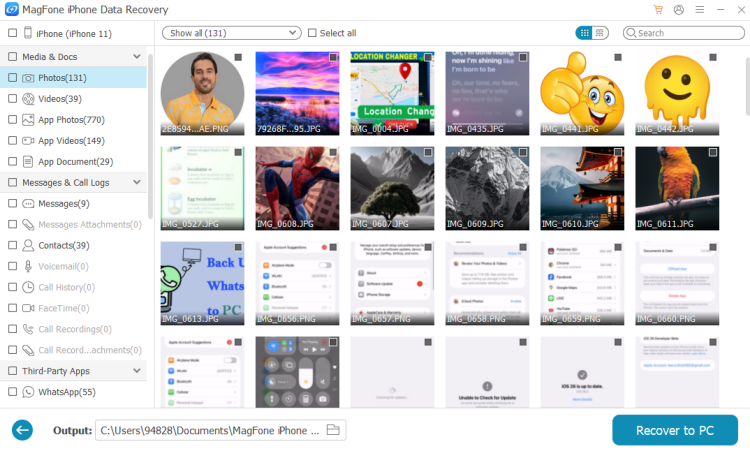
When the scan is complete, you can view the scanned photos on the computer. Select and click Recover to PC or Recover to Mac to export them.
Part 5. Conclusion
Recovering photos from a broken iPhone can feel overwhelming, but it doesn't have to mean losing your memories. Whether you rely on iCloud Photos, restore from an iCloud or iTunes backup, use a backup extractor, or even turn to external accessories and professional help, there are multiple paths to get your photos back. To retrieve photos in a safe manner, using an iTunes backup extractor or recovery tool like MagFone iPhone Data Recovery is recommended.

Olivia Wood
Editor in chief





