







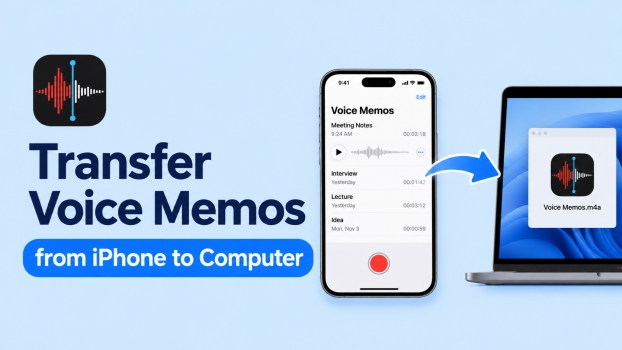
Voice recordings can capture everything from quick notes to important interviews, and you may sometimes need to transfer your voice recordings to a computer for archiving or backup. It's useful to move voice memos from iPhone to computer. Whether you are using a Mac or Windows PC, this guide will share five methods to transfer voice memos from iPhone to computer.
- Part 1. How Can I Transfer Voice Memos from iPhone to Computer?
- Part 2. How to Transfer Voice Memos from iPhone to Computer
- Part 3. Quickest Way to Transfer Voice Memos from iPhone to Computer [Mac & Windows]
- Part 4. Conclusion
Part 1. How Can I Transfer Voice Memos from iPhone to Computer?
The methods may differ depending on the computer you want to transfer to. If you are a Mac user, you can use AirDrop, iCloud sync, or iCloud Drive to transfer voice recordings. If you are a Windows user, you can use iCloud Drive or iTunes to transfer voice recordings. There is also another comprehensive method regardless of Windows and Mac users. Keep reading and find the best method you need.
Part 2. How to Transfer Voice Memos from iPhone to Computer
We have tried and summarized five methods to transfer voice memos from iPhone to computer, covering options for Mac and Windows. You can choose the most suitable one to transfer your voice memos.
Option 1. Transfer iPhone Voice Memos to Computer via AirDrop [Mac]
AirDrop must be the most convenient method if you are transferring iPhone voice memos to a Mac. But it works best when there is a small number of voice memos.
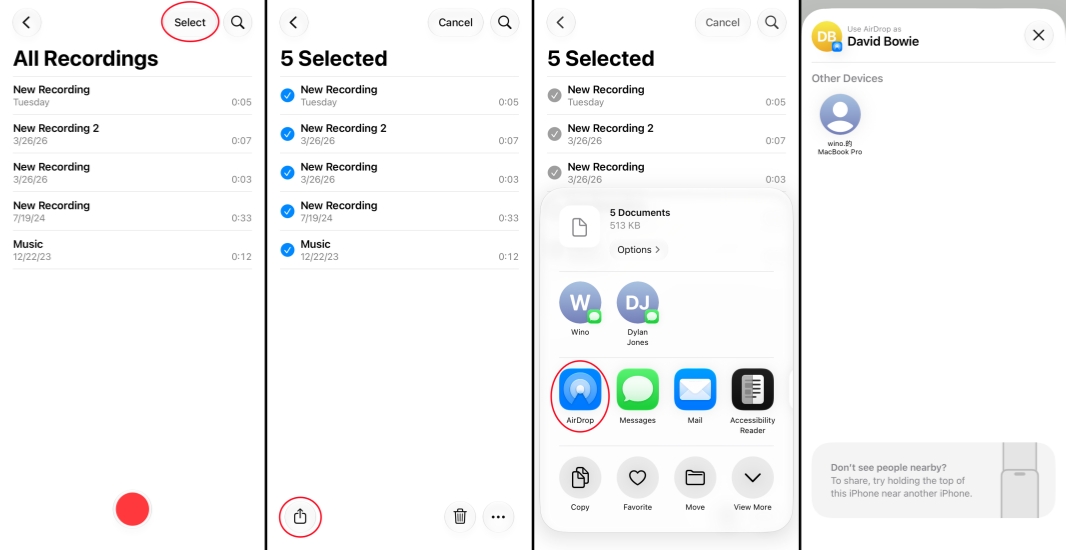
Step 1. Open the Voice Memos app and enter the All Recordings folder.
Step 2. Tap Select to select recordings and tap the Share icon.
Step 3. Tap AirDrop and tap the Mac you need to transfer the voice memos to.
Step 4. Tap Accept on the Mac to receive the voice memos.
 Pros
- Quick transfer for small amount of voice memos

- Takes more time transferring large voice memos
- Only between iPhone and Mac
Method 2. Enable Voice Memos in iCloud [Mac]
If you use the same Apple Account on your iPhone and the Mac, you can also enable Voice Memos in iCloud to sync iPhone voice memos across your devices.
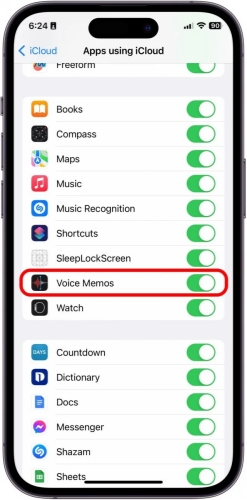
Step 1. Go to iPhone Settings > Apple ID > Saved to iCloud.
Step 2. Enable the switch next to Voice Memos.
Step 3. Open Voice Memos on your Mac, and check whether the voice memos have been synced.
Pros- Automatically syncs recordings across Apple devices
- Requires internet
- Requires iCloud storage
Option 3. Transfer iPhone Voice Memos to Computer via iCloud Drive [Mac & Windows]
It's not as convenient to access voice memos as accessing iCloud photos. But you can save voice memos on iPhone to iCloud Drive and download voice memos to your computer from iCloud Drive.
Save Voice Memos to iCloud Drive:
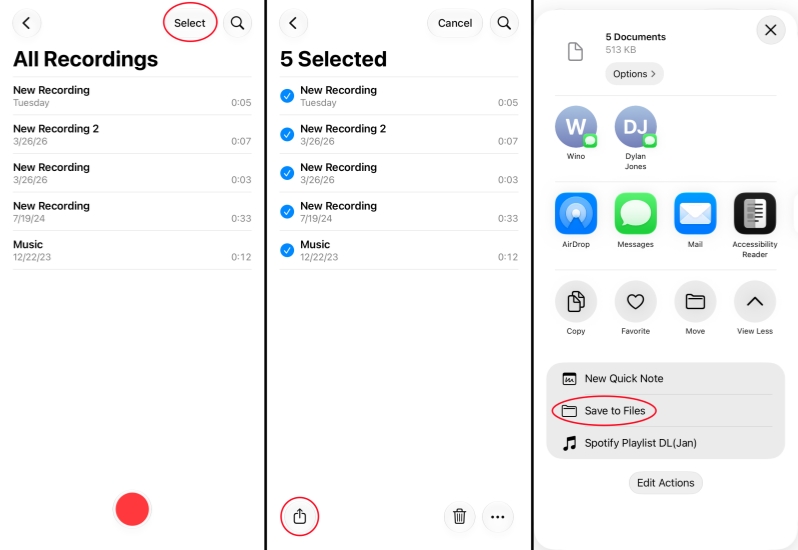
Step 1. Open Voice Memos on iPhone and enter the All Recordings folder.
Step 2. Tap Select to select the voice memos you want to transfer.
Step 3. Tap Share and find Save to Files.
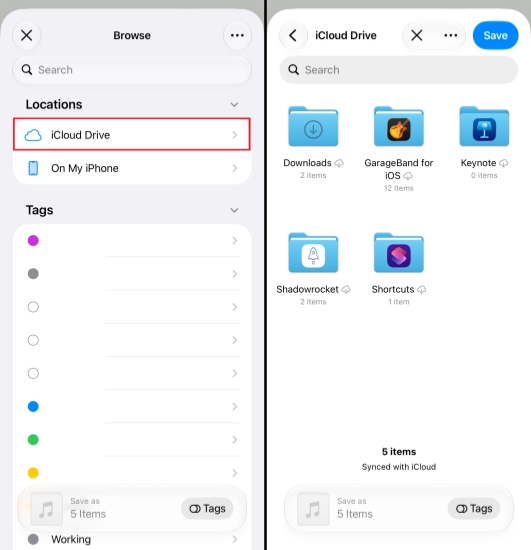
Step 4. Choose iCloud Drive and tap Save to save the voice memos in iCloud Drive.
Download Voice Memos on iCloud Drive Website:
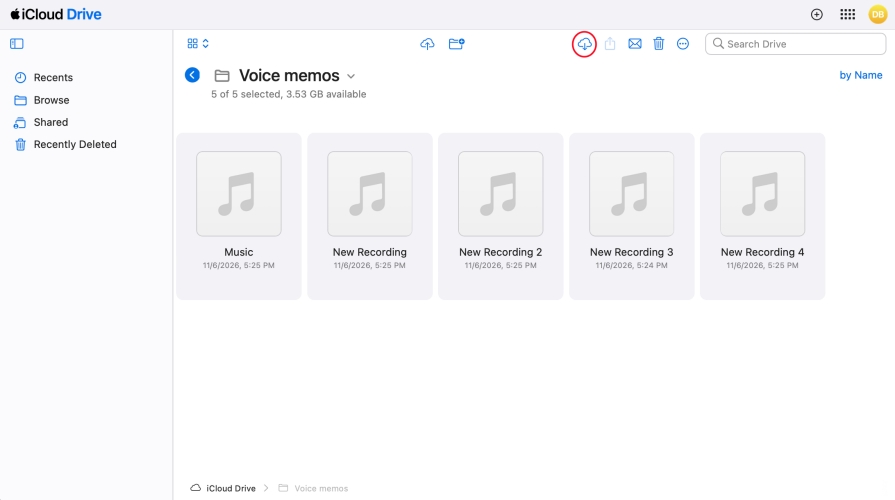
Step 1. Go to the iCloud Drive website on your computer and log in to your Apple Account.
Step 2. Click Browse and open the folder where you save the voice memos.
Step 3. Click the voice memo you want to transfer to your computer, then click the Download icon to download it to your computer.
Pros- Available for Windows and Mac
- Selectively transfer voice recordings to the computer
- Requires sufficient iCloud storage
- Complicated operation
- Requires network
Option 4. Transfer iPhone Voice Memos to Computer via iTunes [Mac & Windows]
iTunes can also help iPhone users sync data from iPhone to a computer. So you can also use iTunes to sync voice memos on iPhone to a computer.
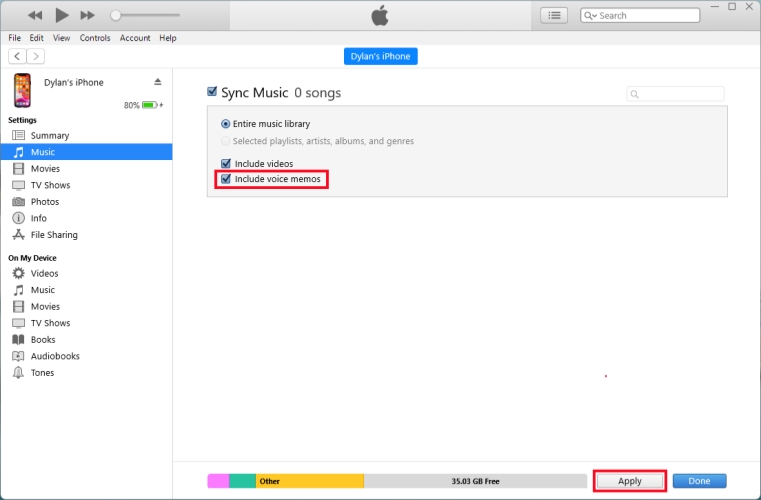
Step 1. Use a data cable to connect your iPhone to the computer.
Step 2. Open iTunes and click the iPhone icon.
Step 3. Click Music in the menu, check Sync Music, and check Include voice memos.
Step 4. Click Apply and wait for the voice memos to sync with iTunes.
Step 5. When the voice memos are successfully synced, you can find the path below to check.
Pros- Transfer all voice memos on iPhone to computer
- Complicated operation
- Requires network
- Can't transfer voice memos selectively
Note:
If you have enabled iCloud for Windows on your computer, you can access contents in iCloud Drive via File Explorer and download voice memos to your computer.
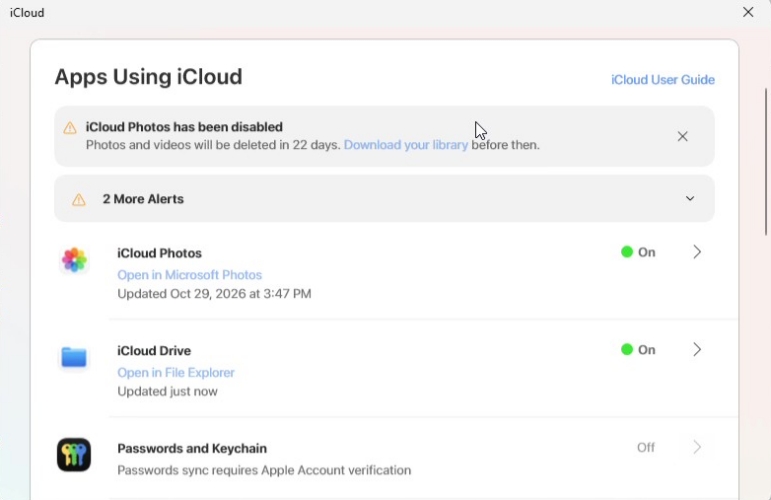
Step 1. Open iCloud for Windows.
Step 2. Click Open in File Explorer under iCloud Drive.
Step 3. Enter the folder where you have just saved the voice memos.
Step 4. Select the voice memos and right-click the mouse to download the voice memos.
Part 3. Quickest Way to Transfer iPhone Voice Memos to Computer
Apart from using Apple's built-in service to transfer voice memos from iPhone to computer, you can also consider using a data transfer tool. MagFone iPhone Data Recovery is a professional data management tool to transfer data between iPhone and computer, recover data from iPhone with or without backup, and back up and restore iPhone. If you are looking for the easiest way to transfer voice memos from iPhone to computer, MagFone iPhone Data Recovery must be the best choice. Follow the steps below to move your voice memos to a computer.

MagFone iPhone Data Recovery
Export and transfer iPhone Voice Memos to computer in Minutes.
Step 1 Install and Launch MagFone iPhone Data Recovery
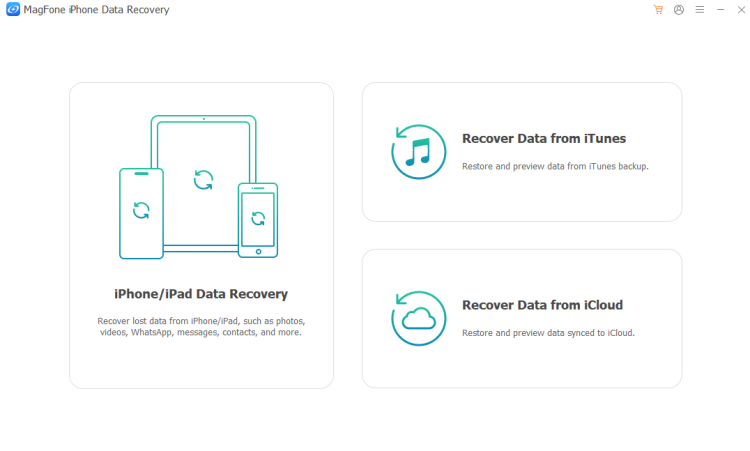
First, download and install MagFone iPhone Data Recovery on your computer. Then use a data cable to link the iPhone to the computer.
Step 2 Scan Voice Memos on iPhone
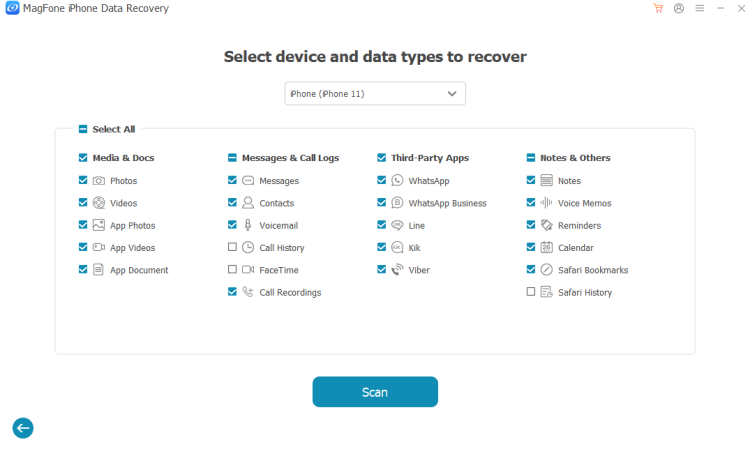
Choose iPhone/iPad Data Recovery in MagFone. If the iPhone is detected, choose Voice Memos and click Scan to scan all voice memos on the iPhone.
Step 3 Transfer Voice Memos from iPhone to Computer
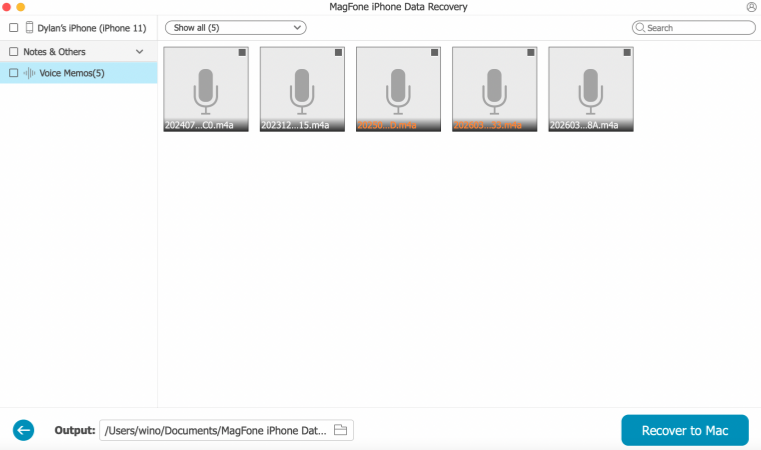
After scanning, select the voice memos you need or click Voice Memos to select all, and click Recover to PC or Recover to Mac to export them to your computer.
Pros- Bulk transfer voice memos to pc
- Available on Window and Mac
- Needs to install a tool
Part 4. Conclusion
If you are transferring several voice memos, of course, AirDrop or iCloud sync, or iCloud Drive, may be suitable. But if there is a large amount of voice memos, MagFone iPhone Data Recovery should be the most comprehensive method. It works for all computer and allows you to transfer voice memos selectively and massively. Just download this tool and try it.

Edgar Davis
Editor in chief




