








I have old iPhone text threads that I do not want to delete (due to legalities / just in case I need them in the future) but I really don't like keeping them on my phone and have the constant sight. I want to be able to export these entire threads to my hard drive that is secure and locked and then delete on my phone. Is there a way to do this - especially with keeping time stamps?
——From Reddit
Many iPhone users want to export text messages to a computer for better storage, easier access, and added peace of mind. Whether you need to save conversations for legal purposes, keep important work-related details, or preserve personal messages you do not want to lose, moving them off your phone can be a smart choice. But with several options available, finding the best method is not always easy. In this guide, we will walk you through five effective ways to export text messages from iPhone to computer and help you choose the one that best fits your needs.
- Part 1. Can You Export Text Messages from iPhone to Computer?
- Part 2. How to Export Text Messages from iPhone to Computer
- Part 3. Which Method Is Right for You?
- Part 4. Conclusion
Part 1. Can You Export Text Messages from iPhone to Computer?
If you are wondering whether iPhone text messages can really be exported to a computer, the answer is yes. There are several ways to save your iPhone messages. Apple offers a few built-in options that let you transfer, sync, or back up messages to a computer at no extra cost, while third-party tools can provide more flexible export features and more readable file formats. To help you choose the right option, let's look at each method in detail.
Part 2. How to Export Text Messages from iPhone to Computer
You know it's possible to export iPhone messages to computer. Below, we'll walk through five practical methods so you can understand how each one works and what it is best suited for.
Method 1. Text Message Forwarding to Mac [Mac Only]
If you use a Mac signed in with the same Apple ID as your iPhone, you can turn on Text Message Forwarding to view and access your iPhone messages on your computer. Once enabled, your messages will sync to the Messages app on your Mac.
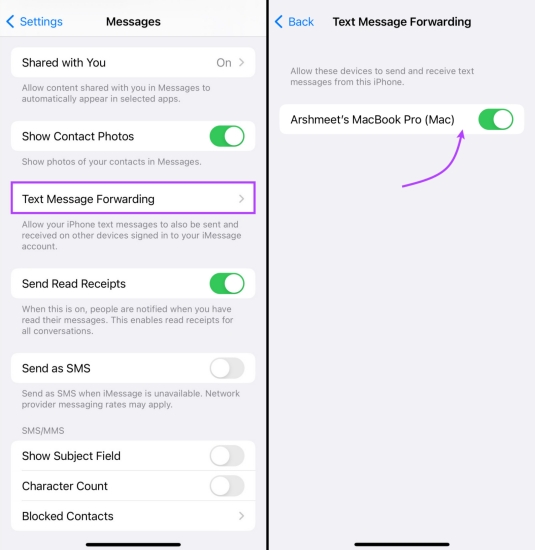
Step 1. Open iPhone Settings and tap Apps at the bottom.
Step 2. Find Messages > Text Message Forwarding, and enable your Mac for text message forwarding.
Step 3. Open Messages on Mac, and you can view the text messages from iPhone.
Method 2. iCloud Messages Sync to Mac [Mac Only]
Another Apple-based option is syncing Messages through iCloud. When Messages in iCloud is turned on, your conversations are updated across your Apple devices signed in with the same Apple ID, including your Mac.
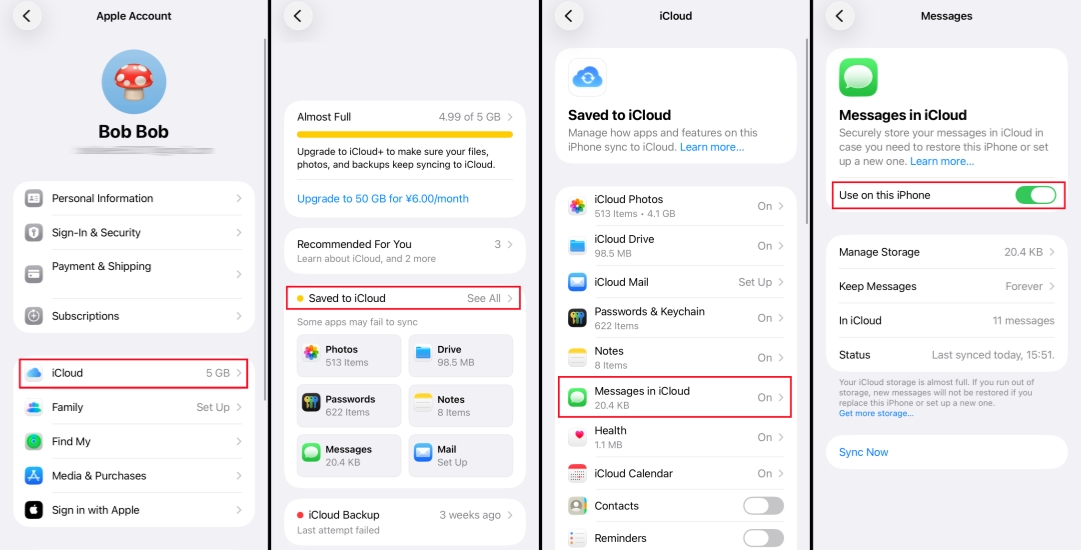
Step 1. Go to iPhone Settings and tap your Apple ID.
Step 2. Tap iCloud > Saved to iCloud > Messages.
Step 3. Turn on Sync this iPhone so that messages will sync to iCloud, and you can check the messages on all Apple devices that are linked to the same Apple ID.
Note:
If you want to keep an extra copy of your messages on your computer, you can also export an iPhone text conversation as a PDF on your Mac.
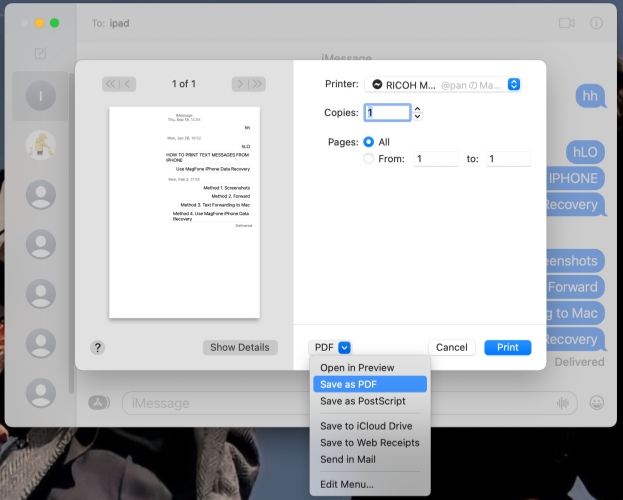
Step 1. Open the Messages app on Mac and select the conversation you want to export.
Step 2. Click File > Print.
Step 3. In the print window, click the dropdown menu, choose Save as PDF, and then click Save to store the conversation on your computer.
Method 3. Screenshot
Taking screenshots and transferring the screenshots to a computer is the simplest manual way to save important text messages from your iPhone. It works well if you only need to keep a few conversations, specific parts of a thread, or visual proof of a message with visible dates and timestamps on screen. However, this method can become time-consuming and less practical when you need to save long message threads.
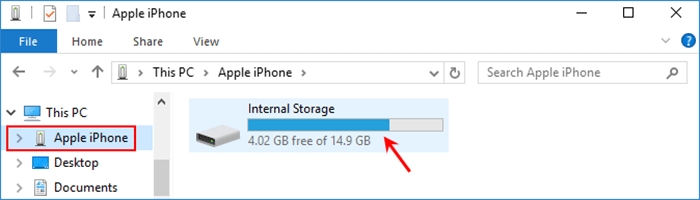
Step 1. Take screenshots of the iPhone text messages you want to save.
Step 2. Use a data cable to connect your iPhone to a computer using a data cable.
Step 3. Open the File Explorer and click the iPhone in the left directory.
Step 4. Go to Internal Storage > DCIM > the folder containing your screenshots, then select and transfer the screenshots to your computer.
Method 4. Use iTunes or Finder
You can also use iTunes on Windows or Finder on Mac to back up your iPhone, including your text messages, to a computer. After creating the backup, you can use an iTunes backup extractor or similar tool to access and export the messages from the backup file.
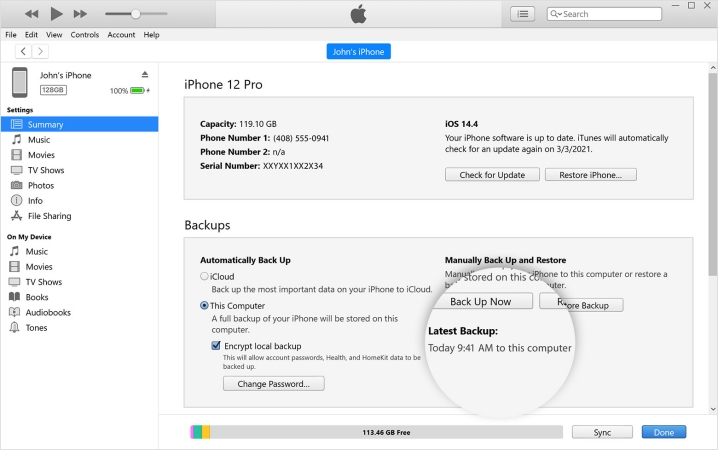
Step 1. Use a data cable to connect your iPhone to your computer, then open iTunes or Finder.
Step 2. Click the iPhone icon, then click Back Up Now to back up the iPhone to the computer.
Step 3. After backup, open an iTunes Backup Extractor to export iPhone text messages to the computer.
Method 5. Use MagFone iPhone Data Recovery
If you need a more complete way to export iPhone text messages to a computer, MagFone iPhone Data Recovery can be a useful option. This tool offers several data management features, including recovering deleted or lost files, backing up iPhone data, restoring data, extracting iTunes backups, and retrieving data from iCloud. For text messages, it can help you export conversations directly from your iPhone to your computer, while also giving you the option to back up your messages for extra security.
One of the main advantages of MagFone is that it can export text messages with important details such as dates, times, and conversation records. It also supports export formats like HTML and CSV, which can be more convenient for viewing, saving, or organizing your messages on a computer.
Below, we'll show you how to use the data recovery feature in MagFone to export text messages from your iPhone step by step.

MagFone iPhone Data Recovery
Recover data from iPhone and iPad in three recovery modes without data overwritting and device reset.
Step 1 Run MagFone iPhone Data Recovery

Download and install MagFone iPhone Data Recovery on your computer and link your iPhone to the computer using a data cable. When all is done, run this too to start.
Step 2 Scan Text Messages on iPhone
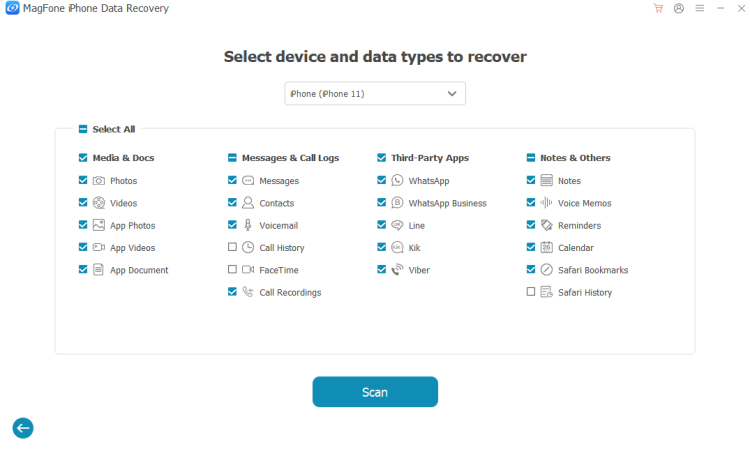
Choose iPhone/iPad Data Recovery from the main interface. Choose Messages and click Scan to allow the tool to scan your iPhone text messages.
Step 3 Export iPhone Messages to Computer
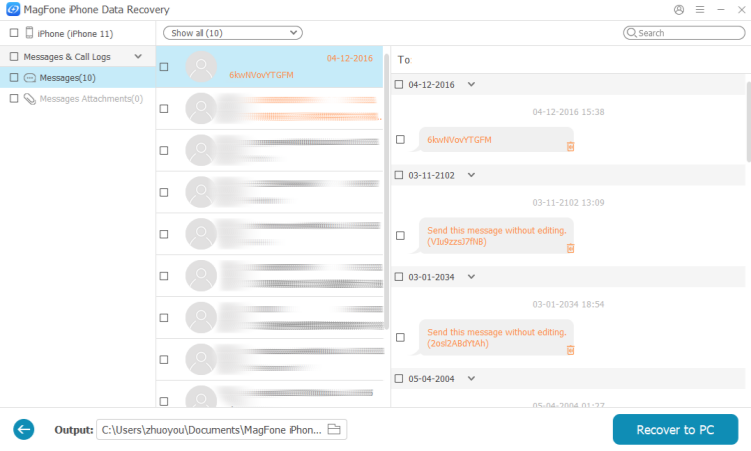
When the scan is complete, you can read your iPhone text messages on the computer. To export iPhone text messages, just select and click Recover to PC or Recover to Mac.
Part 3. Which Method Is Right for You?
After looking at the different ways to export text messages from iPhone to computer, you should have a clear knowledge of each method. To help you compare them more easily and find the most suitable method, here is a more detailed breakdown of what each method offers.
| Method | Device | Export Format | Readability | Third-Party Tool | Best For |
|---|---|---|---|---|---|
| Text Message Forwarding to Mac | Mac | View in Messages/PDF via Print | High | ❌ | Easy message access |
| iCloud Messages Sync to Mac | Mac | View in Messages/PDF via Print | High | ❌ | Cross-device syncing |
| Screenshot | Windows or Mac | JPG/PNG images | Medium | ❌ | Saving a few messages |
| iTunes or Finder | Windows or Mac | Backup file | Readable with iTunes backup extractor | Require | Full message backup |
| MagFone iPhone Data Recovery | Windows or Mac | HTML/CSV | High | Require | Detailed message export |
Part 4. Conclusion
Exporting text messages from iPhone to computer is possible with several different methods, but the best option depends on what you need. If you want a more complete and flexible solution, MagFone iPhone Data Recovery stands out for its ability to export messages with important details like dates and timestamps, while also offering readable formats for easier saving and management.

Edgar Davis
Editor in chief





