








Few iPhone problems feel as alarming as realizing you're locked out of your device while years of irreplaceable photos are still inside. Whether it's due to a forgotten passcode or mistakenly attempting passcodes, it can make it seem as though your photos have vanished. In truth, what happens to your photos depends on the safeguards you set up beforehand. In this guide, we will tell you what actually works to recover photos from a locked iPhone, and how to choose the method that offers the best chance of getting your photos back with the least risk.
- Part 1. Can You Recover Photos from a Locked iPhone?
- Part 2. How to Recover Photos from Locked iPhone
- Part 3. Bonus Tip: Extract Photos from iTunes Backup
- Part 4. Conclusion
Part 1. Can You Recover Photos from a Locked iPhone?
If your iPhone is only temporarily locked, you can simply enter the correct passcode to unlock it and access your photos as usual. However, if the iPhone is permanently locked or disabled, you generally can't extract photos directly from the device anymore. The good news is that there are still several ways you may be able to retrieve those photos, depending on how you've backed up your data. The recovery results will vary for each method and your specific situation. If iCloud Photos was enabled on the locked iPhone, if iCloud Backup was turned on, or if you previously backed up the device to a computer, you still have a real chance to recover your photos from those sources.
| Options | Requirements | Data Completion | Require Device Reset | Recommendation |
|---|---|---|---|---|
| iCloud Photos | iCloud Photos is enabled on the locked iPhone |
Depends on the iCloud Photos sync time | ❌ | ⭐⭐⭐⭐ |
| iTunes Backup | You backed up the locked iPhone to computer before |
Depends on the backup time | ✔️ | ⭐⭐⭐ |
| iCloud Backup | iCloud backup is enabled on the locked iPhone |
Depends on the backup time | ✔️ | ⭐⭐⭐ |
| iTunes Backup Extractor | An iTunes backup on computer | Depends on the backup time | ❌ | ⭐⭐⭐⭐ |
Part 2. How to Recover Photos from Locked iPhone
You have known the possibilities and options to retrieve photos from a locked iPhone. In this section, we will explain each option to help you recover photos from a locked iPhone with the least risk.
Note:
Recovering photos from an iTunes or iCloud backup requires either a new iPhone or an iPhone that has been erased and set up again. If you have a spare device, you can factory reset it and then restore from the backup. Alternatively, you can also factory reset the locked iPhone itself and restore your photos during the setup process. Before factory resetting, make sure you have backed up your iPhone in advance.

Step 1. Go to iPhone Settings > General, and tap Transfer or Reset iPhone.
Step 2. Tap Erase All Content and Settings > Continue > Erase iPhone.
Step 3. Enter the required passwords, including screen passcode and Apple ID password, to confirm the operation.
When the iPhone restarts, you can follow the steps below to restore an iTunes backup or iCloud backup.
Option 1. Recover Photos from iCloud Photos
If you turned on iCloud Photos before your iPhone was locked, many or all of your photos may already be safely stored in Apple's cloud. In this case, you don't necessarily need to unlock the original device to get them back. Instead, you can sign in with your Apple ID on another iPhone, iPad, Mac, or even a web browser and download your images from there.
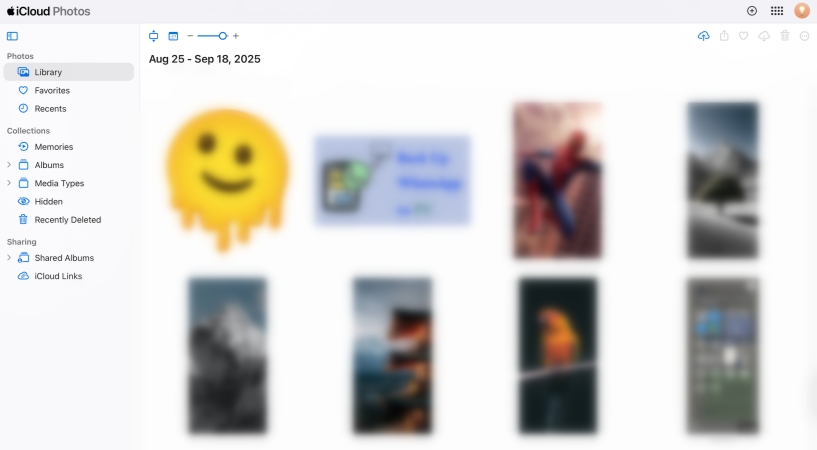
Step 1. Head to the iCloud Photos website and sign in to your Apple account on the locked iPhone.
Step 2. After verifying your identity, you can view all synced photos from the locked iPhone.
Step 3. You can select the photos and click the Download icon to download them to your device.
Option 2. Recover Photos from iTunes Backup
If you've backed up your iPhone to a computer using iTunes or Finder, you may be able to recover your photos by restoring from that backup.

Step 1. Use a data cable to connect your iPhone to the computer you used to back it up.
Step 2. Open iTunes or Finder, and click the iPhone icon when it's detected.
Step 3. Click Restore Backup and choose an iTunes backup to restore to your iPhone.
Option 3. Recover Photos from iCloud Backup
If you have backed up the locked iPhone to iCloud, you can recover photos from a previous iCloud backup. But you cannot directly extract photos from the iCloud backup, so you need to restore a full iCloud backup to get photos off the locked iPhone. If the iCloud backup is up-to-date until it's locked, then you have a chance to get full photo data.

Step 1. Unlock the iPhone and set it up from the Hello screen.
Step 2. When you reach the Transfer Your Apps & Data screen, choose From iCloud Backup. Then enter your Apple Account and verify your identity.
Step 3. After verifying, you can see a list of iCloud backups related to your Apple Account, select one to restore to your iPhone.
Part 3. Bonus Tip: Extract Photos from iTunes Backup
If you have an iTunes backup available, there's another way to recover photos from a locked iPhone: extracting them directly from the backup. By using an iTunes backup extractor, you can pull photos out without restoring the entire backup or overwriting any current data on your device. MagFone Photos Data Recovery is a tool worth considering for this. It can help you extract various types of data from an iTunes backup, back up your iPhone to a computer without using iTunes, and even recover deleted data from an iPhone when no backup is available. Follow the steps below to recover your photos from an iTunes backup with no risk of data overwriting.

MagFone iPhone Data Recovery
Selectively extract photos from iTunes backup without device restore.
Step 1 Launch MagFone iPhone Data Recovery

Start by downloading and installing MagFone iPhone Data Recovery on your computer, then launch this program after installation.
Step 2 Scan Photos in iTunes Backup
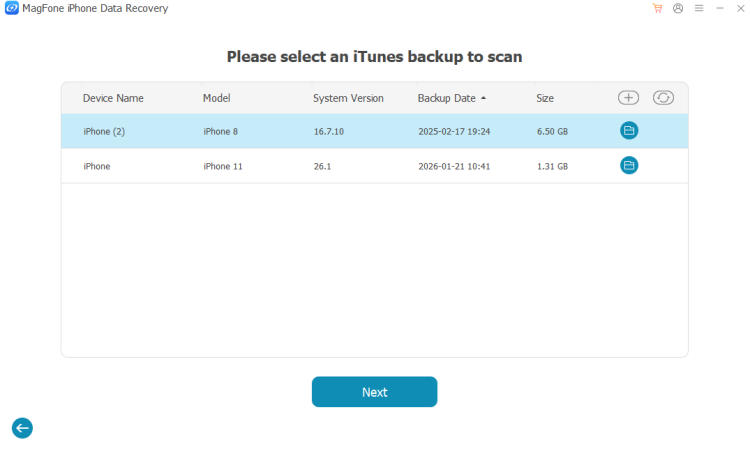
Choose Recover Data from iTunes, and this program can automatically detect available iTunes backup on your computer. Choose a backup and click Next. Then select Photos from the data list and click Scan to scan photos.
Step 3 Extract Photos from iTunes Backup
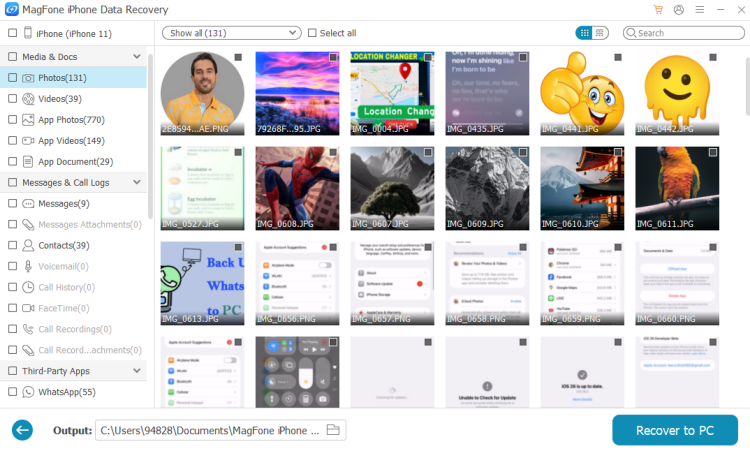
After scanning, you can view all photos in the iTunes backup. Just select Photos and click Recover to PC or Recover to Mac to export them to your computer.
Part 4. Conclusion
Being locked out of your iPhone with a large amount of photos inside can seem overwhelming at first. But there is still a way forward. If you have an iTunes or Finder backup, you can restore your device or use MagFone iPhone Data Recovery to bring your photos back. If you use iCloud Photos or iCloud Backup, you may be able to access your pictures from another device or by restoring from the cloud. Hope our guide can help you recover photos as much as possible.

Olivia Wood
Editor in chief





