








iCloud is closely tied to your iPhone, so when photos go missing, are deleted, or stop syncing, restoring them from iCloud is often the first solution users consider. Apple provides two main ways to do this, depending on how your photos were stored. In this guide, you will learn the two main methods to restore photos from iCloud to iPhone: using iCloud Photos and restoring from an iCloud backup. Keep reading, and you will learn how to master your iPhone photos effectively.

- Part 1. How Do You Restore Photos from iCloud to iPhone?
- Part 2. How to Restore Photos from iCloud to iPhone
- Part 3. Bonus Tip: Restore iPhone Photos without Backup
- Part 4. Conclusion
Part 1. How Do You Restore Photos from iCloud to iPhone?
Before restoring photos from iCloud to the iPhone, it's better to understand where you store iPhone photos and the difference in the storage location. Apple allows you to store photos in iCloud Photos and iCloud Backup. Although both services are connected to iCloud, they store and recover your data in very different ways. Here we conclude a comparison table of these two methods.
| Method | iCloud Photos | iCloud Backup |
|---|---|---|
| Service | A syncing service | A backup service |
| Purpose | Syncs photos and videos across devices | Backs up iPhone data for full-device restore |
| What It Stores | Photos and videos | App data, settings, messages, photos, and more |
| Photo Recovery Method | Re-downloads synced photos to iPhone | Restores photos by restoring the entire backup |
| Requires Device Reset | ❌ | ✔️ |
| Best For | Missing synced photos or accessing photo library | Recovering photos from an older device backup |
If your photos were originally synced with iCloud Photos, you can redownload them to restore photos from iCloud to your iPhone. But if the photos were included in an older iCloud Backup, you may need to erase and restore your iPhone to get them back.
Part 2. How to Restore Photos from iCloud to iPhone
Understanding the difference between iCloud Photos and iCloud Backup, you can now choose the suitable method to restore your photos from iCloud based on the way your photos were originally stored in iCloud.
Option 1. Restore Photos from iCloud Photos to iPhone
This option is best for users who have iCloud Photos enabled and want to recover pictures that were previously synced with their Apple ID. When you find that there are missing synced photos on iPhone, you can visit the iCloud Photos website to redownload photos.
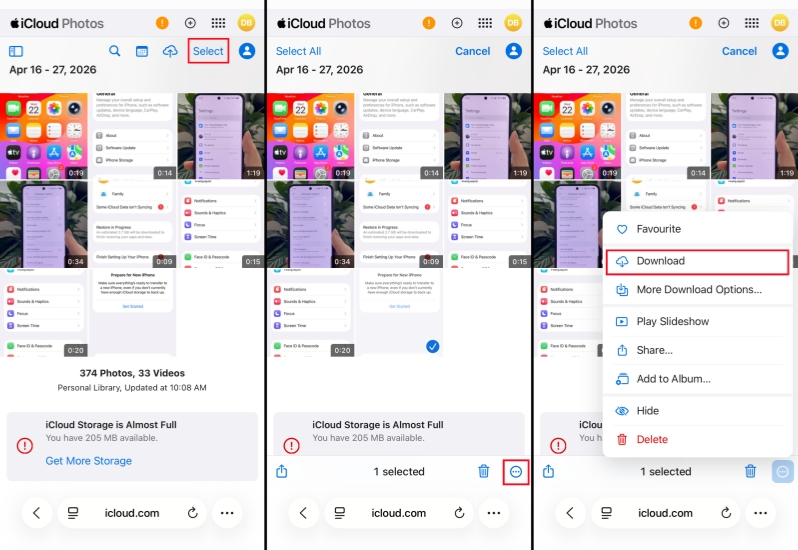
Step 1. Visit iCloud Photos website and log in to your Apple Account.
Step 2. Trust the device and browse photos.
Step 3. Tap Select to select photos, tap the more icon, and tap Download to restore them to your iPhone.
Step 4. Tap the Download icon next to the Safari navigation box and check the downloaded images. To restore the photos to your iPhone library, you need to open the photo one by one, tap the share icon, and tap Save Image to save.
Option 2. Restore Photos from iCloud Backup to iPhone
This method is more suitable if your missing photos were included in an earlier iCloud Backup rather than synced through iCloud Photos. With an old iCloud backup, you may be able to recover older photos that are no longer available in your current library. However, restoring photos from iCloud backup usually requires erasing your iPhone first and setting it up again, so it is generally considered a more time-consuming and riskier method. If you are hesitating, check part 3 for a safer recovery method.

Step 1. Open iPhone Settings and tap General.
Step 2. Tap Transfer or Reset iPhone at the bottom, then tap Erase All Content and Settings.
Step 3. Choose Continue > Erase iPhone, and enter your iPhone passcode and Apple ID password to confirm the process.

Step 4. Then your iPhone will be erased. When it restarts, follow the onscreen instructions to set it up manually. When you reach the Transfer Your Apps & Data screen, choose From iCloud backup.
Step 5. Sign in to your iCloud and choose an available backup to restore to your iPhone. After setting up your iPhone and photos from iCloud backup loading on your iPhone, you can open the Photos app to check.
Part 3. Bonus Tip: Restore iPhone Photos without Backup
iCloud Photos and iCloud backup offer a way to recover photos on iPhone. But what if the photos are deleted permanently, or you don't want to reset your iPhone and restore a full backup? That's where MagFone Photos Data Recovery comes out. No matter what the reason you want to restore photos from iCloud to your iPhone, MagFone Photos Data Recovery provides a more flexible and effective method. With MagFone, you can not only recover deleted or lost photos on an iPhone, but also restore photos to a new iPhone. Check the steps below to restore your iPhone photos:

MagFone iPhone Data Recovery
Recover data from iPhone and iPad in three recovery modes without data overwritting and device reset.
Step 1 Connect iPhone to Computer

Download and install MagFone iPhone Unlocker on your computer and connect your iPhone to the computer using a data cable. Then launch MagFone to start.
Step 2 Scan iPhone Photos
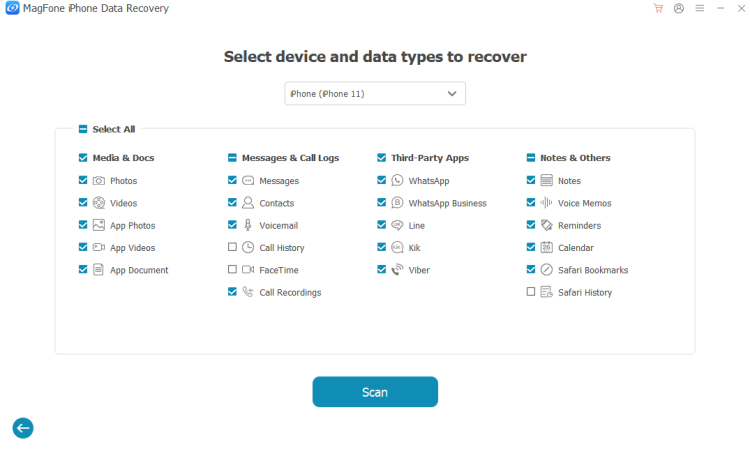
Click iPhone/iPad Data Recovery on the main interface, then choose Photos and click Scan. Also, enter your passcode on your iPhone to confirm this operation.
Step 3 Restore iPhone Photos without Backup
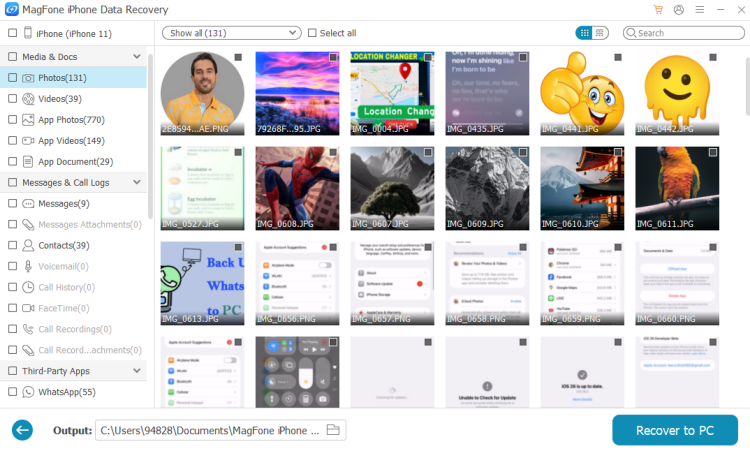
When the scan is complete, you can read all your iPhone photos here. If you want to restore the photos, you can select and click Recover to PC or Recover to Mac to export them to your computer. Then you can restore the photos to any device.
Part 4. Conclusion
Restoring photos from iCloud to iPhone can be simple once you understand which recovery option matches your situation. If your images were synced with iCloud Photos, you can usually get them back quickly by redownloading. If they were stored in an iCloud Backup, you may need to reset your device and restore from a previous backup to recover them. And if neither option works, third-party recovery tools like MagFone iPhone Data Recovery offer another chance to find lost photos.

Olivia Wood
Editor in chief




