







Want to listen to a voicemail on your iPhone but stopped by the voicemail password? Whether you set your voicemail up long ago or simply can't remember the last time you used it, there are several straightforward ways to reset or change your voicemail password and get back into your inbox within minutes. In this guide, we will show you a step-by-step guide to help you regain access to your iPhone voicemail when you forgot the voicemail password on iPhone.
- Part 1. What to Do If You Forgot Voicemail Password on iPhone?
- Part 2. How to Access Voicemail If You Forgot the Password
- Part 3. Conclusion
Part 1. What to Do If You Forgot Voicemail Password on iPhone?
When you forget your iPhone voicemail password, depending on your situation, you can either change your voicemail password directly from your iPhone's settings or reset it through your carrier's dedicated voicemail tools.
Option 1. Change Voicemail Password in iPhone Settings
When you forget the iPhone voicemail password, in most cases, you can directly change the voicemail password in iPhone Settings. After changing the password, you can use the new password to gain access to your voicemails on your iPhone.
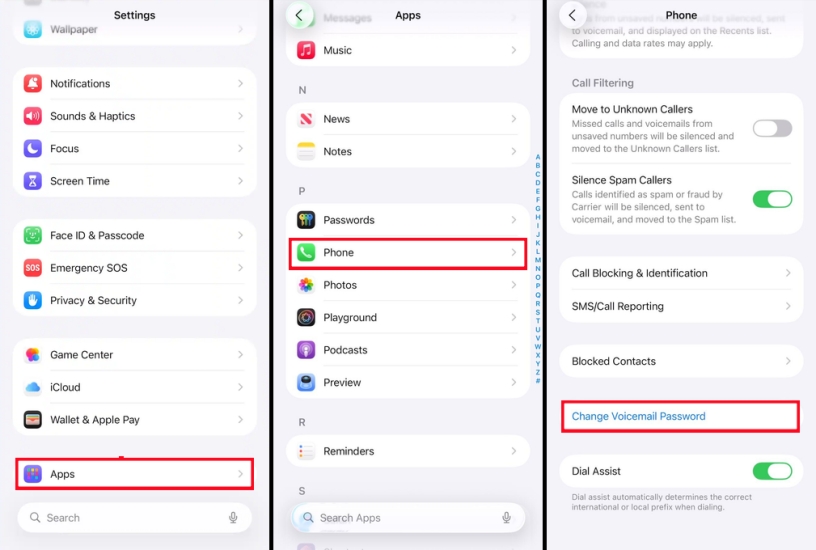
Step 1. Go to iPhone Settings > Apps > Phone.
Step 2. Find and tap Change Voicemail Password.
Step 3. Enter a new Voicemail password twice to set a new password, then tap Done.
Option 2. Reset Voicemail Password via Carrier Services
If you're unable to change the voicemail password from iPhone Settings, or if your carrier has additional security checks, then you need to reset the voicemail password through your mobile carrier. Here, we will introduce how to reset your voicemail password on different carriers.
AT&T :
- In myAT&T App:
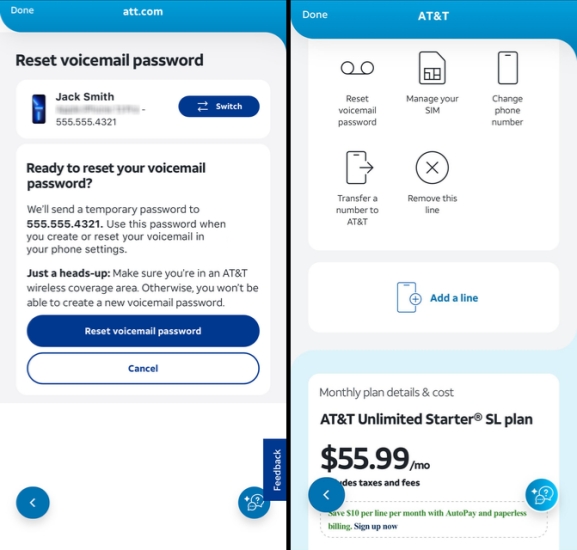
Step 1. Open the myAT&T app and tap your device.
Step 2. Tap Manage device, then scroll down to find View all options & settings.
Step 3. Choose Reset voicemail password and tap Reset voicemail password again.
Step 4. Follow the instructions to reset the forgotten voicemail password on iPhone.
- On the AT&T Website:
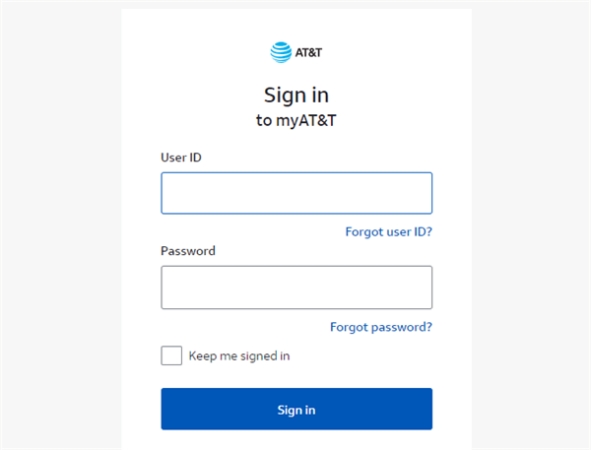
Step 1. Log in to your account on the AT&T website.
Step 2. Choose Reset voicemail password and follow the web instructions to reset your voicemail password.
Verizon:
- In Verizon App:
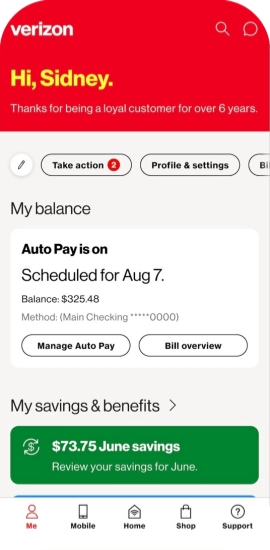
Step 1. Launch the Verizon app on your iPhone and sign in.
Step 2. Tap Me > Profile & settings > Voicemail password.
Step 3. You can choose Create my own password or Choose a password for me to reset the Verizon voicemail password.
Step 4. After creating a new voicemail password, tap Update.
- Call Verizon:
Step 1. Call *611 from your Verizon number or call (800) 922-0204 from any phone to reach the automated customer service menu.
Step 2. When you are required, enter the required information to verify your identity.
Step 3. When you are asked to explain your dial purpose, say "Reset voicemail password".
Step 4. Follow the instructions in the call to reset your voicemail password.
T-Mobile:
- Call Verizon:
Step 1. Open the Phone app and dial #793#.
Step 2. You will receive an SMS with a temporary PIN. Enter the PIN on your dialpad.
Step 3. Follow the prompts in the call to create a new voicemail password.

MagFone iPhone Unlocker
Find various saved passwords on iPhone, including Wi-Fi passwords, Web & App passwords, email passwords, and Apple ID passwords.
Part 2. How to Access Voicemail If You Forgot the Password
If you forget your iPhone voicemail password, there's another way to access your messages besides resetting the password. You can use MagFone Voicemail Data Recovery. This tool can scan your iPhone for missing items, including voicemail messages, and help you regain access. In addition, MagFone iPhone Data Recovery can recover deleted data on your iPhone, such as photos, messages, and voicemails, giving you a better chance of getting important information back. The operation is quite simple as follows:

MagFone iPhone Data Recovery
Recover deleted voicemail from iPhone and iPad without data overwritting and device reset.
Step 1 Download MagFone iPhone Data Recovery

Start by downloading and installing MagFone iPhone Data Recovery on your computer, then open it to start recovery.
Step 2 Scan for Voicemails on iPhone

Click iPhone/iPad Data Recovery from the main interface, and use a data cable to connect your iPhone to the computer. When it's detected, select Voicemail from the data list and click Scan.
Step 3 Access Voicemail on iPhone
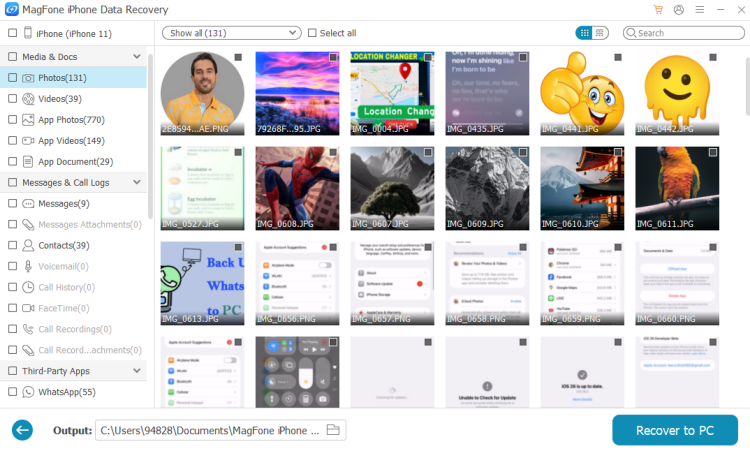
After all voicemails have been scanned from your iPhone, you can check the scanned result on the screen. You can also select and click Recover to PC or Recover to Mac to export the voicemail to your computer.
Part 3. Conclusion
Forgetting your iPhone voicemail password doesn't mean that you can no longer access those voicemails on your iPhone. From changing the password directly in your iPhone settings to resetting it through your carrier and turning to professional recovery software like MagFone iPhone Data Recovery, there are several effective ways to regain control of your voicemail. Follow our guide and check your voicemails now!

Teresa Miller
Editor in chief





