







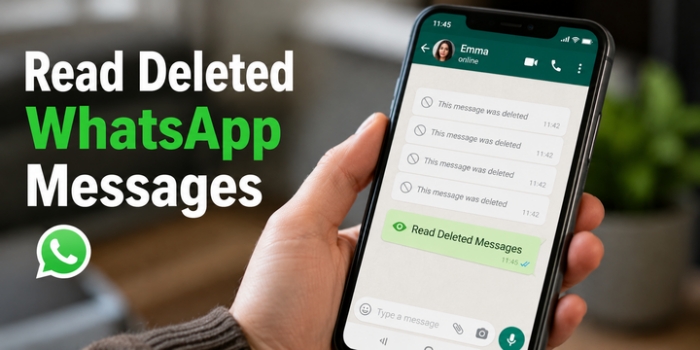
Ever seen a WhatsApp message vanish before you could read it? Or have you ever deleted WhatsApp messages that you meant to keep by accident? These are one of those small moments that can feel surprisingly frustrating, especially when the message might have been important, and you are very curious. The good news is that you may still have a chance to read deleted WhatsApp messages. In this guide, you'll learn the most effective ways to view them on Android and iPhone, from simple built-in options to recovery methods that can help you get the message back.
- Part 1. How Can I Read Deleted WhatsApp Messages?
- Part 2. How to Read Deleted WhatsApp Messages on Android
- Part 3. How to Read Deleted WhatsApp Messages on iPhone
- Part 4. Conclusion
Part 1. How Can I Read Deleted WhatsApp Messages?
If the sender deleted the message immediately, it may be difficult to recover and read it. If the message was deleted only on your side, you may be able to use a data recovery tool to restore it without a backup or data loss. If it was deleted for everyone, the only way to view it is through a backup created before the deletion. In most cases, restoring a WhatsApp backup can bring back deleted messages, but it will also overwrite newer chats and data. Keep reading to learn the possible ways to read deleted WhatsApp messages.

MagFone Chats Transfer
Efficiently back up your WhatsApp content without loss or hassle — everything moves with you, just as it was.
Part 2. How to Read Deleted WhatsApp Messages on Android
For Android users, there are two practical ways to read deleted WhatsApp messages. If the messages were deleted by the sender and you haven't had a chance to see them, you may still be able to check Notification History and see what was deleted. If you have a backup before the deletion, restoring it may bring back deleted messages.
Option 1. Read Deleted WhatsApp Messages in Notification History [No Data Loss]
If you want to read a deleted WhatsApp message sent by your contact, there is a chance you can find it in Android's Notification history. This can be a quick way to check deleted WhatsApp messages on Android without losing any data.
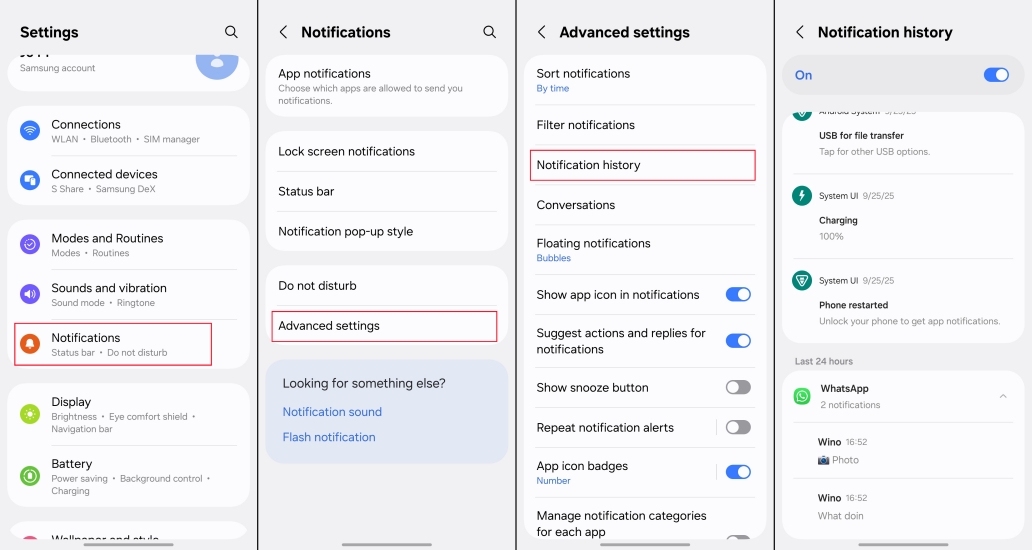
Step 1. Open Settings and find Notifications.
Step 2. Tap Advanced settings > Notification history.
Step 3. Tap WhatsApp to read the deleted WhatsApp messages in the past 24 hours.
Option 2. Read Deleted WhatsApp Messages from Backup [Data Loss]
If you have just deleted a WhatsApp chat, you can restore a WhatsApp backup as soon as possible to read the deleted messages. This method can help you recover the chat, but it may also overwrite newer WhatsApp data.
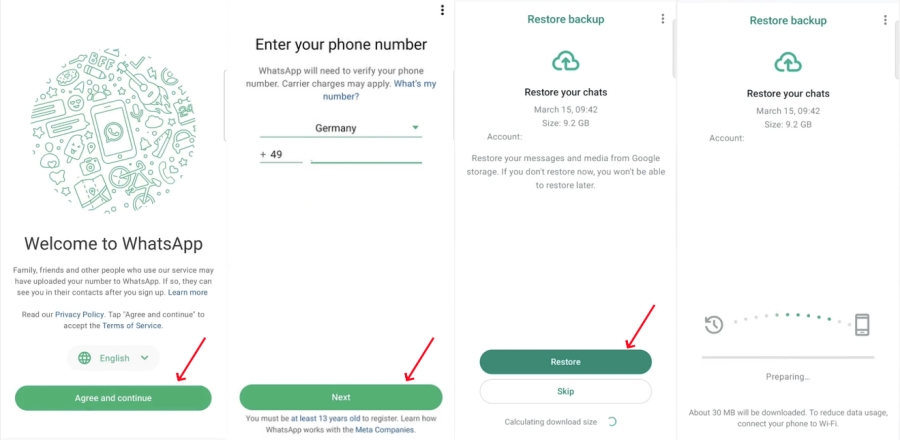
Step 1. Uninstall WhatsApp on your phone and reinstall it from the Play Store.
Step 2. Open WhatsApp and tap Agree and continue.
Step 3. Set the preferred language and verify your phone number.
Step 4. When there is a backup detected from your Google Drive account, choose Restore. Then you can read the deleted messages on WhatsApp.
Part 3. How to Read Deleted WhatsApp Messages on iPhone
On iPhone, the options are a little different. You can use a recovery tool to scan your device without restoring a backup, or you can retrieve deleted WhatsApp messages from an iTunes or iCloud backup if one was created before the deletion.
Option 1. Use MagFone iPhone Data Recovery [No Data Loss]
Using a data recovery tool can help you recover deleted WhatsApp messages without a backup or data overwriting. MagFone iPhone Data Recovery lets you scan your iPhone and read deleted WhatsApp messages, including both text and media messages. It is a safer option if you want to avoid losing newer data while trying to recover deleted chats. In addition, you can also extract deleted WhatsApp messages from an iTunes backup, back up your iPhone data with MagFone, read backup data, and restore data to your iPhone selectively.

MagFone iPhone Data Recovery
Recover data from iPhone and iPad in three recovery modes without data overwritting and device reset.
Below is how to use MagFone to recover and read deleted WhatsApp messages on iPhone.
Step 1 Download MagFone iPhone Data Recovery
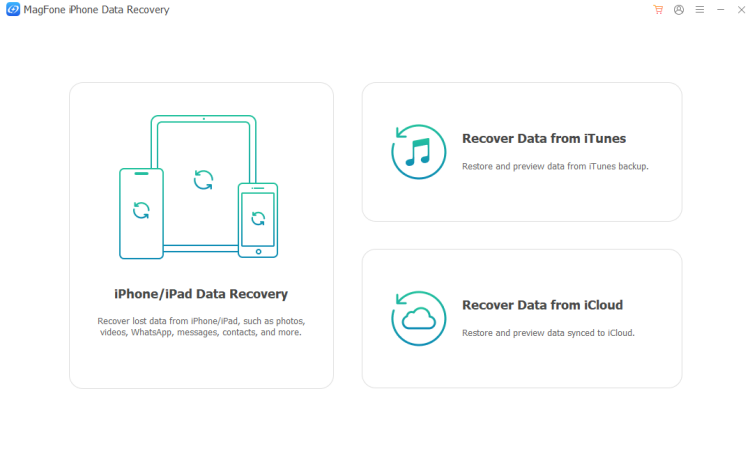
First, download and install MagFone iPhone Data Recovery on your computer. Then use a data cable to link your iPhone to the computer using a data cable.
Step 2 Scan for Deleted WhatsApp Messages on iPhone
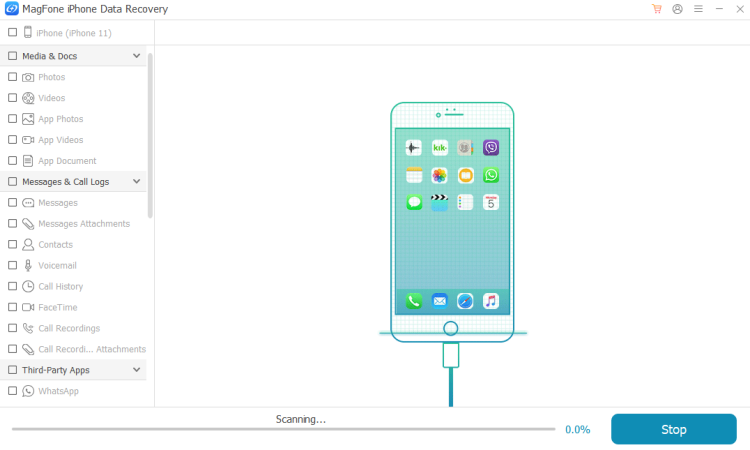
Click iPhone/iPad Data Recovery, and check WhatsApp from the data list. Then click Scan to scan for all WhatsApp data on your iPhone, as well as deleted WhatsApp messages.
Step 3 Read Deleted WhatsApp Messages
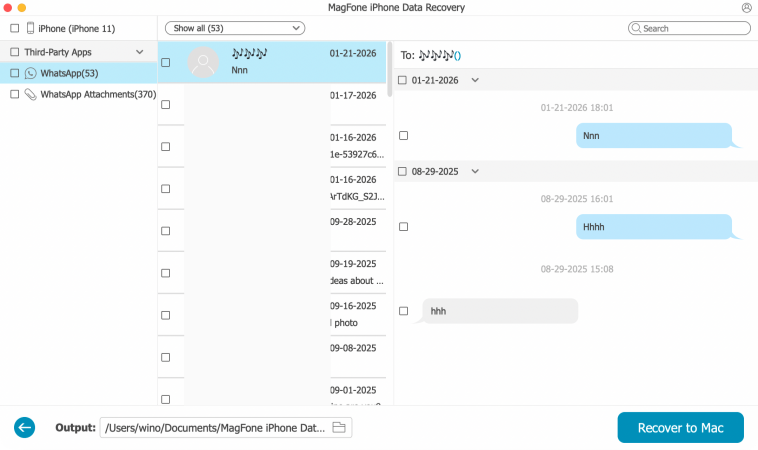
After scanning, you can click the specific WhatsApp chat to read the deleted WhatsApp messages.
Option 2. Extract Deleted WhatsApp Messages from iTunes Backup [Data Loss]
If you have created an iTunes backup previously, you may also restore WhatsApp messages from the iTunes backup. This requires you to restore a full backup to your iPhone, and the messages are not complete and consistent. You can restore the iTunes backup to an iPhone that you don't use much.
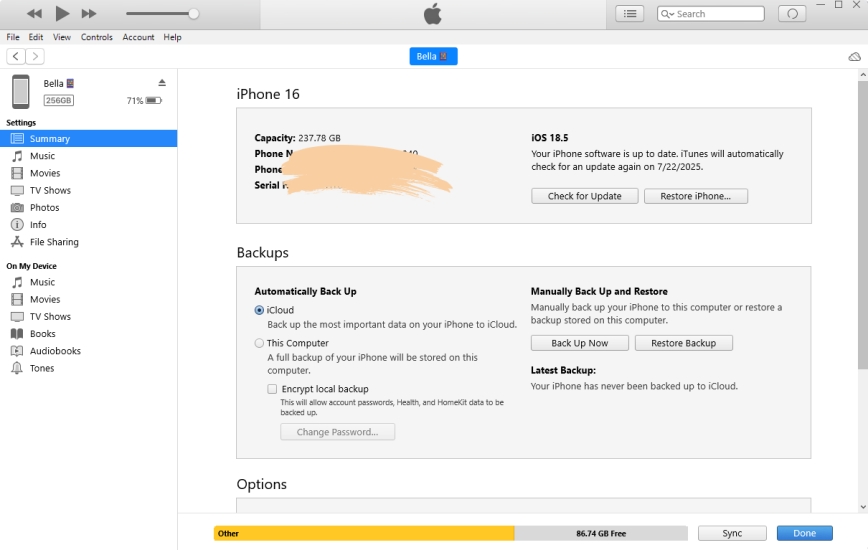
Step 1. Link an iPhone to your computer with a data cable.
Step 2. Open iTunes and click the iPhone icon after your iPhone is detected.
Step 3. Click Restore Backup and choose one iTunes backup to restore to your iPhone.
Option 3. Restore Deleted WhatsApp Messages from iCloud Backup [Data Loss]
If the messages were just deleted and your iPhone still hasn't synced the data, you can restore the WhatsApp messages from the last iCloud backup. This can bring back the missing chats, but it will also replace newer data on your device.
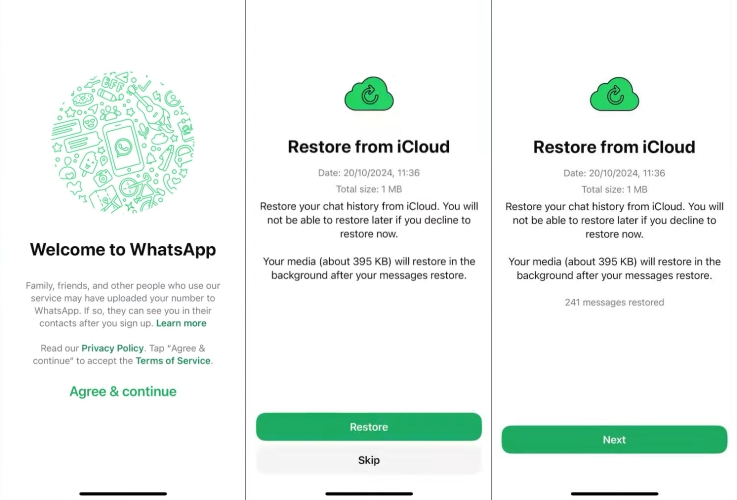
Step 1. Uninstall WhatsApp on your iPhone and redownload it from the App Store.
Step 2. Open WhatsApp and set it up.
Step 3. After entering your phone number, WhatsApp will scan for available backup on your iCloud. If it detects one, choose Restore.
Step 4. After restoring WhatsApp backup from iCloud, you can check and read deleted WhatsApp messages.
Part 4. Conclusion
Deleted WhatsApp messages can often be recovered, but the best method depends on how the message was deleted and whether you have a backup available. On Android, Notification History and backups can all be useful in different situations. On iPhone, you can either use a recovery tool or restore from an iTunes or iCloud backup, but backup-based methods may replace newer data. Choose the method that best fits your device and data-loss concerns.

Olivia Wood
Editor in chief




