








Safari bookmarks disappeared on your iPhone? You're not alone. This happens to many iPhone users. In most cases, disappearing bookmarks are caused by sync glitches or temporary bugs, not permanent data loss. In this guide, we'll cut through the panic and show you what might have happened and how to quickly track down your missing bookmarks.
- Part 1. Why Did My Bookmarks Disappear in Safari?
- Part 2. Quick Fixes to Get Missing Safari Bookmarks Back
- Part 3. How to Restore Safari Bookmarks
- Part 4. How to Avoid Missing Bookmarks in Safari
- Part 5. Conclusion
Part 1. Why Did My Bookmarks Disappear in Safari?
Many users have suddenly found their Safari bookmarks missing. This is actually quite common and is usually caused by the following reasons:

iCloud Sync Issues:
If your devices are not correctly signed in to the same Apple ID, or Safari syncing is turned off or malfunctioning in iCloud, bookmarks may not sync to all devices, thus appearing to disappear on some devices.
System Updates or Upgrades Causing Errors:
iOS updates may cause Safari data errors, temporarily causing Safari bookmarks to be missing.
Accidental Deletion of Bookmarks:
Some users may accidentally delete entire folders or collections when organizing their bookmarks or favorites. However, Apple retains the bookmark history for the most recent 30 days in iCloud, which can be recovered.
Part 2. Quick Fixes to Get Missing Safari Bookmarks Back
Knowing why your bookmarks disappeared in Safari, it's easier to get them back. When you find bookmarks missing in Safari, you can first try these methods below to quickly track them down.
Method 1. Restart the Device
A basic restart can clear temporary glitches and software hiccups that may be preventing Safari from loading your bookmarks correctly. Power off your iPhone, wait a few seconds, then turn it back on and reopen Safari to see if your bookmarks have reappeared.
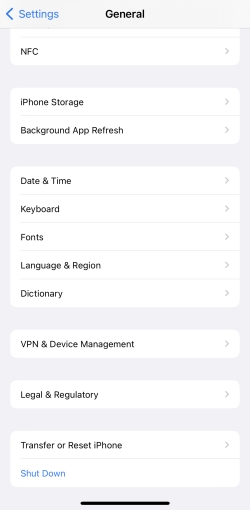
Step 1. Go to iPhone Settings > General.
Step 2. Scroll to the bottom and tap Shut Down.
Step 3. Drag the slide to shut down your device.
Step 4. Long-press the power button to restart the device.
Method 2. Check the Safari History
Even if bookmarks seem to be missing, your browsing history may still show the websites you saved. You can look for recently visited pages that used to be bookmarked. From there, you can quickly re-add important sites to your bookmarks.
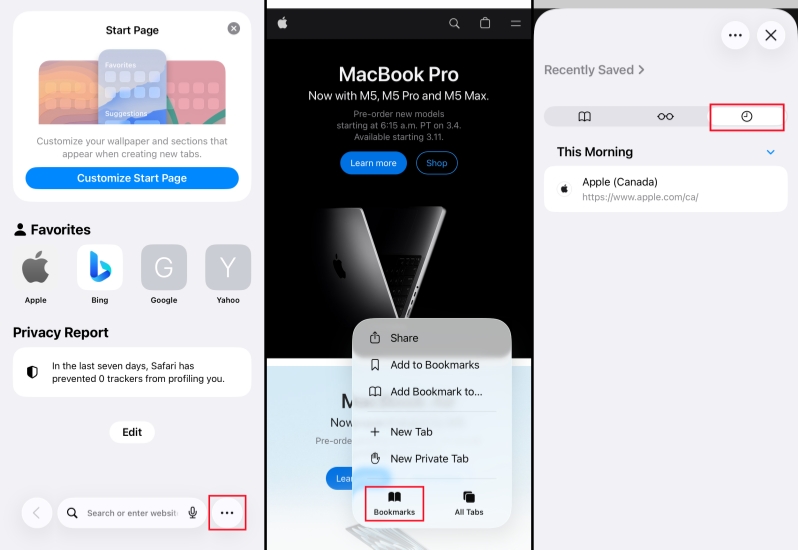
Step 1. Open Safari, tap the triple-dot icon, and tap Bookmarks.
Step 2. Tap the clock icon, swipe down the screen.
Step 3. Type the details of the missing bookmarks in the search box.
Step 4. If you can find the missing bookmark, load it and re-add the bookmark.
Method 3. Recover Recently Deleted Bookmarks in iCloud.com
If your bookmarks were deleted by mistake, you may be able to restore them from iCloud.com.
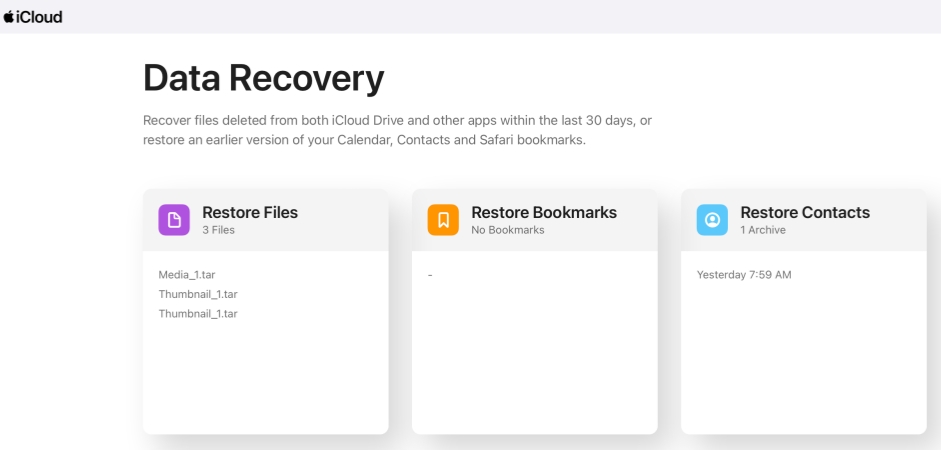
Step 1. Sign in to your Apple ID at https://www.icloud.com/recovery/.
Step 2. Click Restore Bookmarks, and click Restore next to the Bookmarks version you want to restore.
Method 4. Toggle Safari Sync Off and On
Sometimes the sync connection between your iPhone and iCloud gets stuck. By toggling off and toggling on iCloud for Safari, you can refresh the sync process and bring your bookmarks back from iCloud.
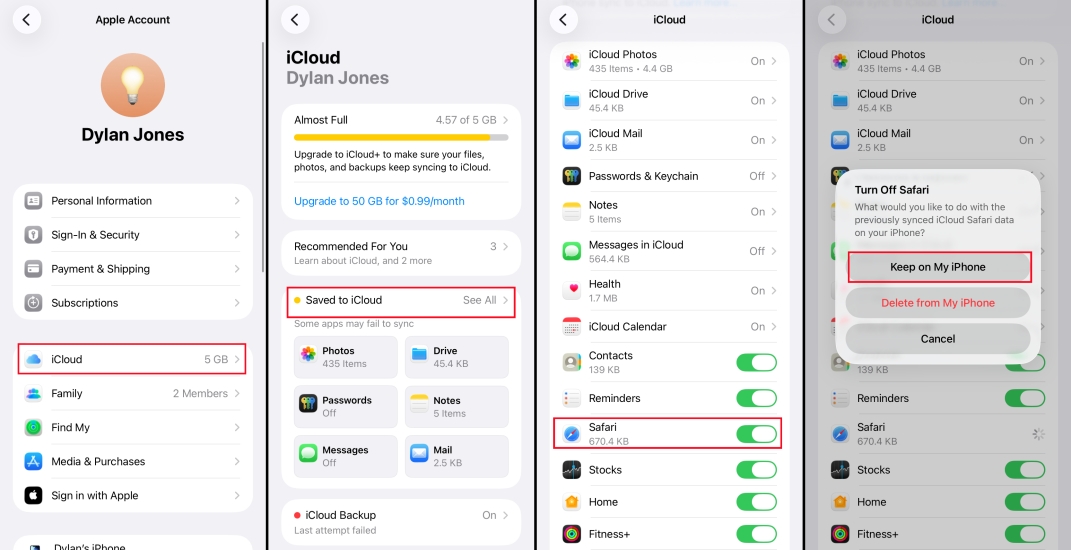
Step 1. Open iPhone Settings and tap your Apple ID.
Step 2. Tap iCloud > Saved to iCloud.
Step 3. Toggle off Safari and choose Keep on My iPhone.
Step 4. Toggle on Safari and choose Merge.
Method 5. Sign Out and Back into Apple ID
If the problem is tied to your Apple account, signing out and back in can help. Once you're signed in and Safari sync is enabled, your bookmarks may re-download to your device.
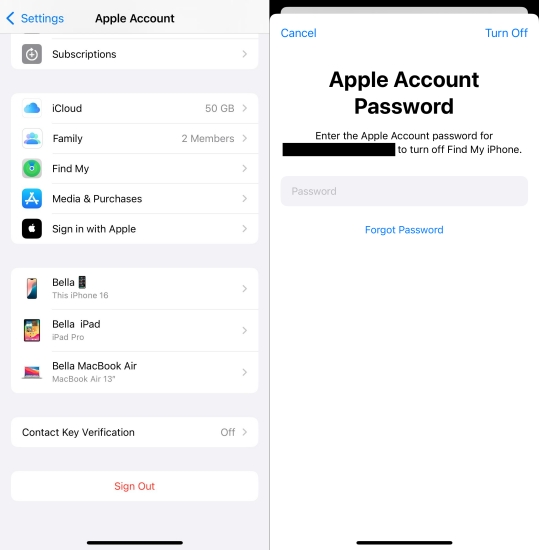
Step 1. Open iPhone Settings and tap your Apple ID.
Step 2. Scroll to the bottom and tap Sign Out.
Step 3. Choose whether to erase this iPhone or not.
Step 4. Tap Continue twice and enter the Apple ID password to sign out.
Step 5. Then sign back into your Apple account.
Part 3. How to Restore Safari Bookmarks
If the quick fixes still haven't brought your Safari bookmarks back, it's time to move on to more powerful recovery options. To keep your data as safe as possible, we'll start with the lowest‑risk, most recommended method, using MagFone to selectively recover bookmarks, before moving on to full device restores from iTunes and iCloud backups.
| Rank | Method | Data Loss Risk | Difficulty | Best For |
|---|---|---|---|---|
| 1 | MagFone Recovery | ❌ | Easy | No backup No existing data overwriting |
| 2 | iTunes Backup | Medium | Medium | A latest computer backup |
| 3 | iCloud Backup | High | Hard | iCloud backup users |
Method 1. Recover Safari Bookmarks via Safari Recovery Tool [No Backup]
To guarantee your current iPhone data, use a data recovery tool like MagFone Safari Data Recovery is more feasible. This tool is available to scan deleted or missing data on an iPhone, allowing you to preview the scanned data and recover data selectively. Different from restoring bookmarks from iCloud backup or iTunes backup, recovering bookmarks using MagFone will not cause any data loss or data overwriting. So you can be released to follow the steps below:

MagFone iPhone Data Recovery
Recover data from iPhone and iPad in three recovery modes without data overwritting and device reset.
Step 1 Launch MagFone iPhone Data Recovery

Download and install MagFone iPhone Data Recovery on your computer, then connect your iPhone to the computer using a data cable. When all is done, launch this tool.
Step 2 Scan Disappeared Safari Bookmarks on iPhone
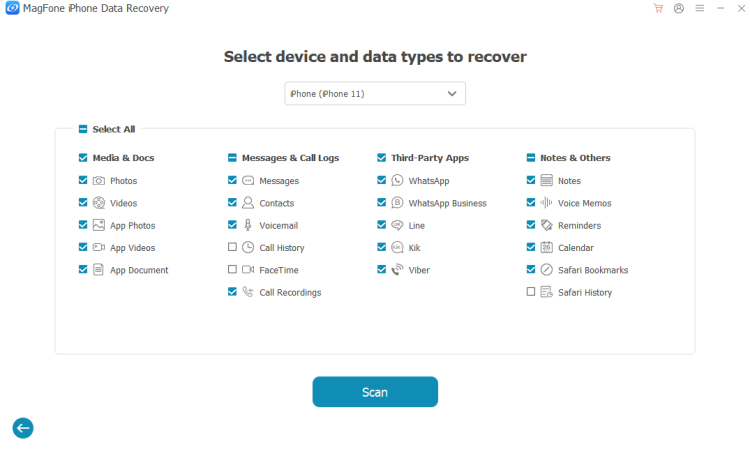
Click iPhone/iPad Data Recovery from the main page. Select Bookmarks in the provided options. Then click Scan to forward.
Step 3 Recover Disappeared Safari Bookmarks
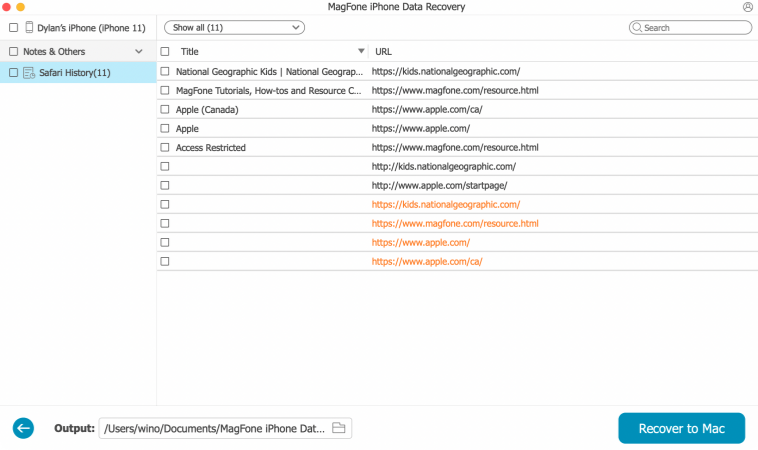
When MagFone finishes scanning your iPhone data, you can view missing Safari bookmarks on your computer. Then select and click Recover to PC or Recover to Mac to export them.
Method 2. Recover Safari Bookmarks from iTunes Backup
This method is in the middle because it involves restoring a full backup from your computer. It can effectively bring back missing bookmarks, but it also replaces the current data on your iPhone with what's in the backup. Before you proceed, it's suggested you create a fresh iTunes backup in case the older iTunes backup doesn't contain the missing bookmarks, so you'll still have a copy of your most recent data to fall back on.

Step 1. Launch iTunes and link your iPhone to the computer using a data cable.
Step 2. Click the device icon, then click Summary on the left menu.
Step 3. Click Restore Backup and choose a backup to restore to your iPhone.
Method 3. Recover Safari Bookmarks from iCloud Backup
Restoring Safari bookmarks from iCloud backup is usually considered the highest risk among the three recovery methods. Because it requires erasing the device first. And if the backup is outdated or incomplete, you could lose newer data.

Step 1. Head for iPhone Settings > General > Transfer or Reset iPhone.
Step 2. Choose Erase All Content and Settings > Continue> Erase iPhone.
Step 3. Type the iPhone passcode and Apple ID password to confirm.

Step 4. After iPhone data has been wiped, get started to set it up. Follow the on-screen instructions, and when you reach the Transfer Apps & Data request, choose From iCloud Backup.
Step 5. When you complete the configuration, open Safari to check the disappeared bookmarks in Safari.
Part 4. How to Avoid Missing Bookmarks in Safari
In iOS 18.2 or later, you can export selected data from Safari, including your bookmarks. By regularly exporting and saving this data, you create an extra backup of your important links, which can greatly reduce the risk of losing bookmarks if something goes wrong with sync, updates, or your device.
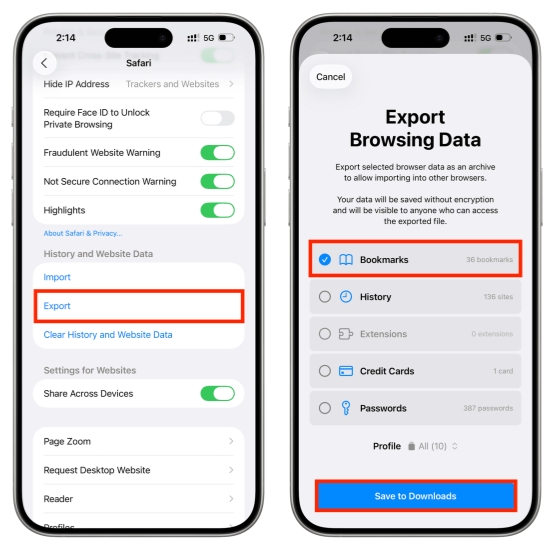
Step 1. Go to iPhone Settings > Apps > Safari.
Step 2. Tap Export under History and Website Data.
Step 3. Select Bookmarks and tap Save to Downloads.
Step 4. Enter the iPhone passcode, and the Safari Bookmarks will be downloaded to Files.
Part 5. Conclusion
Losing Safari bookmarks on your iPhone can be alarming, but in most cases, the problem comes down to temporary glitches or sync issues that can be fixed with a few steps. By starting with simple checks and quick fixes, then moving on to safer recovery options like MagFone and, if necessary, full iTunes or iCloud restores, you can get missing bookmarks in Safari back. To avoid missing bookmarks, you can export Safari history regularly so you always have a copy to restore.

Olivia Wood
Editor in chief




