








Transferring photos from iCloud to iCloud can feel overwhelming, whether you are switching to a new Apple ID or managing multiple iCloud accounts. Apple does not offer a direct transfer button to transfer photos across iCloud accounts, but moving your photos is entirely possible. In this guide, we'll walk through the most practical methods for transferring photos from one iCloud to another without losing photo quality.
- Part 1. How Can I Transfer Photos from One iCloud to Another? [Comparison Table]
- Part 2. How to Transfer Photos from iCloud to iCloud
- Option 1. Transfer iCloud Photos Using Shared Albums
- Option 2. Transfer iCloud Photos Using Shared Library
- Option 3. Transfer iCloud Photos Using iCloud Links
- Option 4. Transfer iCloud Photos Using AirDrop
- Option 5. Transfer iCloud Photos by Switching Apple ID on iPhone
- Option 6. Transfer iCloud Photos Using MagFone
- Part 3. FAQs about iCloud Photos Transfer
- Part 4. Conclusion
Part 1. How Can I Transfer Photos from One iCloud to Another? [Comparison Table]
When it comes to transferring photos from iCloud to iCloud, there isn't just one method that works for everyone. Depending on how quickly you want to share the photos, how many you need to move, and whether you want a temporary or more permanent solution, you can choose from several different options. Below, we'll look at five common ways to transfer iCloud photos and what each one is best for.
| Option | Selective Transfer? | Best For | Notes |
|---|---|---|---|
| Shared Albums | ✔️ | Transferring small batches/albums | There my be sync error with photos in Shared Albums |
| iCloud Link | ✔️ | Temporary sharing via links (expires in 30 days) | Links expire after 30 days. Photos must be downloaded before expiration. |
| Shared Library | ✔️ | Moving entire library between 2 iCloud accounts | Both devices must run iOS 16.1 or later. Destination account needs enough iCloud storage. |
| AirDrop | ✔️ | Fast wireless transfer to nearby devices | Best for nearby devices. Large transfers may fail if Wi-Fi/Bluetooth disconnects. |
| Sign in with iCloud | ❌ | Moving entire library when changing account on 1 iPhone | Requires enough iPhone local storage to save photos during sign-out. |
| MagFone iPhone Data Recovery | ✔️ | Smooth data handling during Apple ID switching | Ideal for managing data safely on desktop without cloud size or sync limits. |
Part 2. How to Transfer Photos from iCloud to iCloud
Here are the 6 effective and practical methods to move your photo collection from one iCloud account to another. You can choose the method that best meets your needs.
Option 1. Transfer iCloud Photos Using Shared Albums
Shared Albums let you share selected photos from one iCloud account with another account. After creating a Shared Album, you can invite the second Apple ID and save the shared photos to the recipient's photo library.
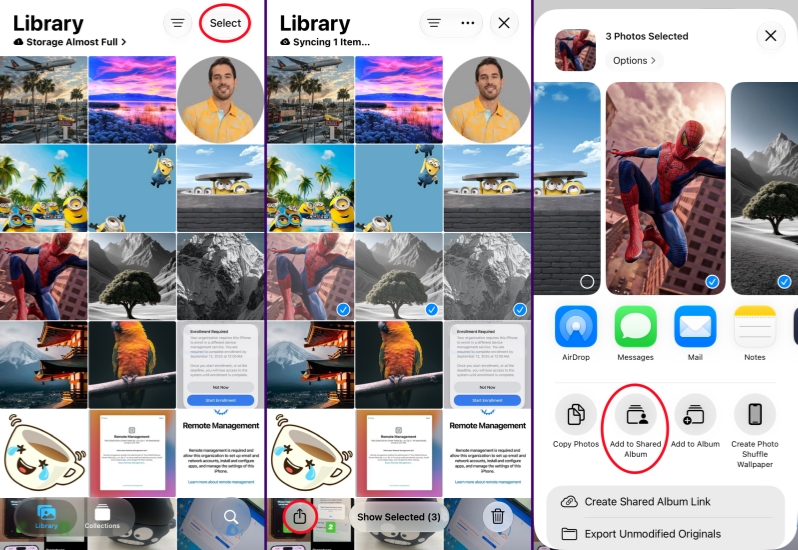
Step 1. Open the Photos app and tap Select.
Step 2. Select the photos you want to transfer and tap the Share icon.
Step 3. Tap Add to Shared Album and create a new shared album or add them to an existing shared album.
Step 4. Then add a participant to the shared album so the photos will be transferred to another iCloud account.
Option 2. Transfer iCloud Photos Using Shared Library
If both Apple IDs are running iOS 16.1 or later, utilizing the iCloud Shared Photo Library is a lossless way to transfer photos between accounts. iCloud Shared Photo Library allows you to share photos with another Apple Account through a shared library. You can move or copy selected photos into the shared library, making them accessible to the invited participant.
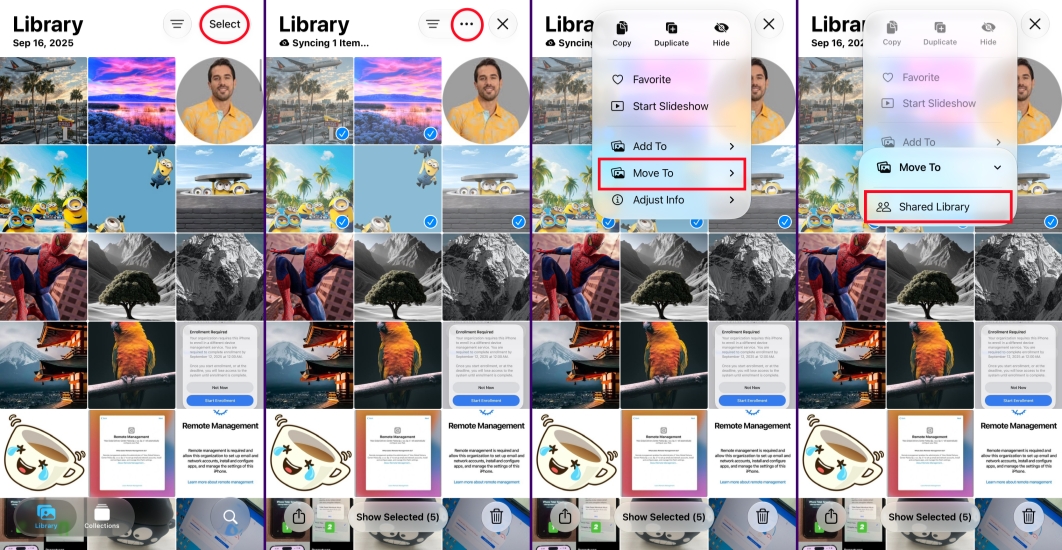
Step 1. Open the Photos app and tap Select to select the photos you want to transfer.
Step 2. Tap the triple-dot icon and choose Move To.
Step 3. Tap Shared Library and tap Move to Shared Library. Then the participant can view, edit, and delete these photos on their devices.
Option 3. Transfer iCloud Photos Using iCloud Links
iCloud Links provide a quick way to share selected photos through a link. You can create a link from the Photos app or iCloud website and send it to the other person, who can then download the photos and save them to their device or iCloud account. However, iCloud Links are temporary and generally work better for transferring a limited number of photos.
On iPhone
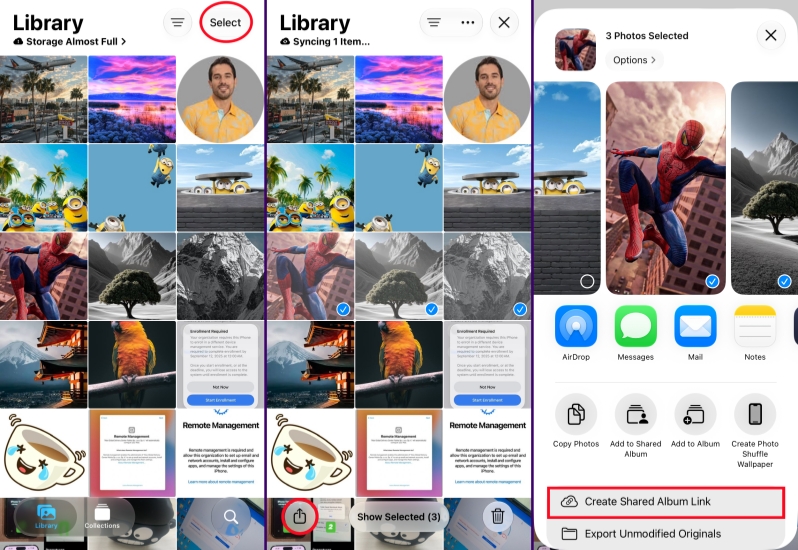
Step 1. Open the Photos app and tap Select to select the photos you want to transfer.
Step 2. Tap the Share icon and choose Create Shared Album Link.
Step 3. Then you can share the iCloud link with the person you want to transfer photos to.
On the iCloud Photos Website
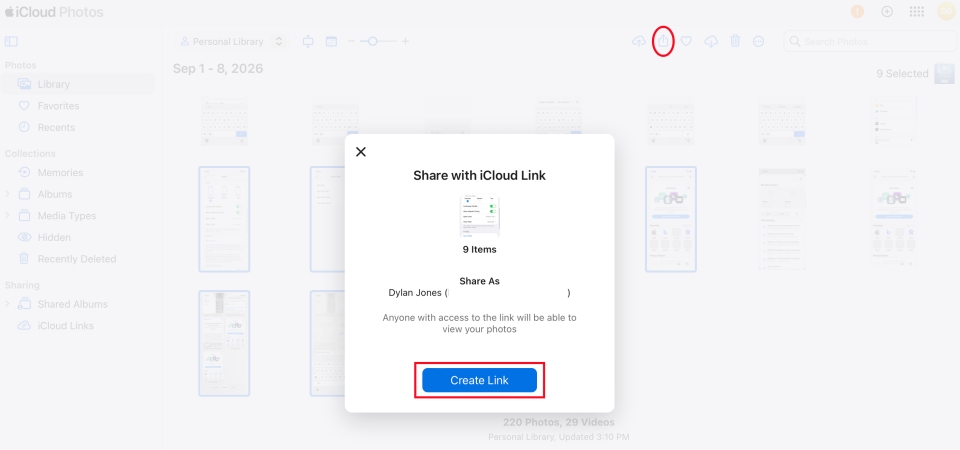
Step 1. Navigate to the iCloud Photos website and sign in with your Apple Account.
Step 2. Select the photos you want to transfer and click the Share icon.
Step 3. Click Create Link, then you can copy the link and share it with another iCloud account.
Option 4. Transfer iCloud Photos Using AirDrop
AirDrop allows you to transfer photos directly from one Apple device to another without uploading them to a cloud service first. This is fast and can preserve the original quality, but it may be inconvenient for transferring a large photo collection.
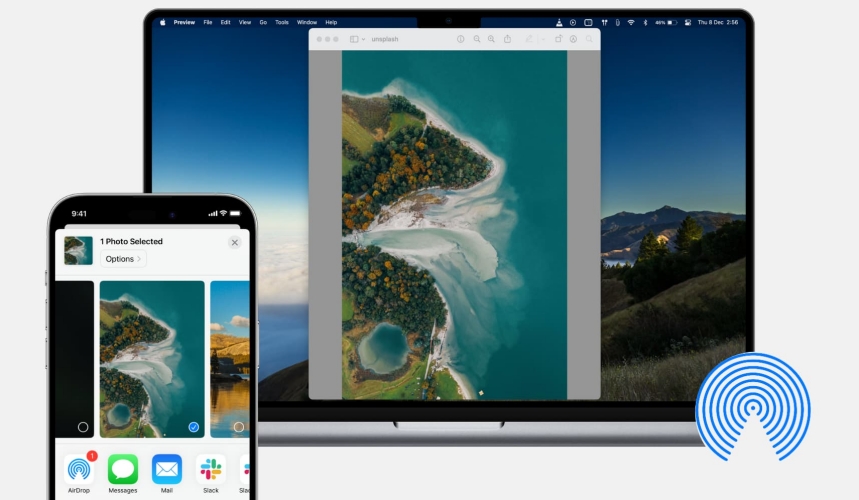
Step 1. Open the Photos app and tap Select to select the photos you want to share.
Step 2. Tap Share and choose AirDrop.
Step 3. Choose the person you want to share with and wait for the photos to be transferred.
Option 5. Transfer iCloud Photos by Switching Apple ID on iPhone
Switching the Apple ID on an iPhone can help you access photos stored in another iCloud account, but it does not directly merge or permanently transfer the photo libraries. If you want to move photos from the old account to the new one, keep the photos on the device first, sign in with the new Apple ID, and then upload them to the new iCloud account.
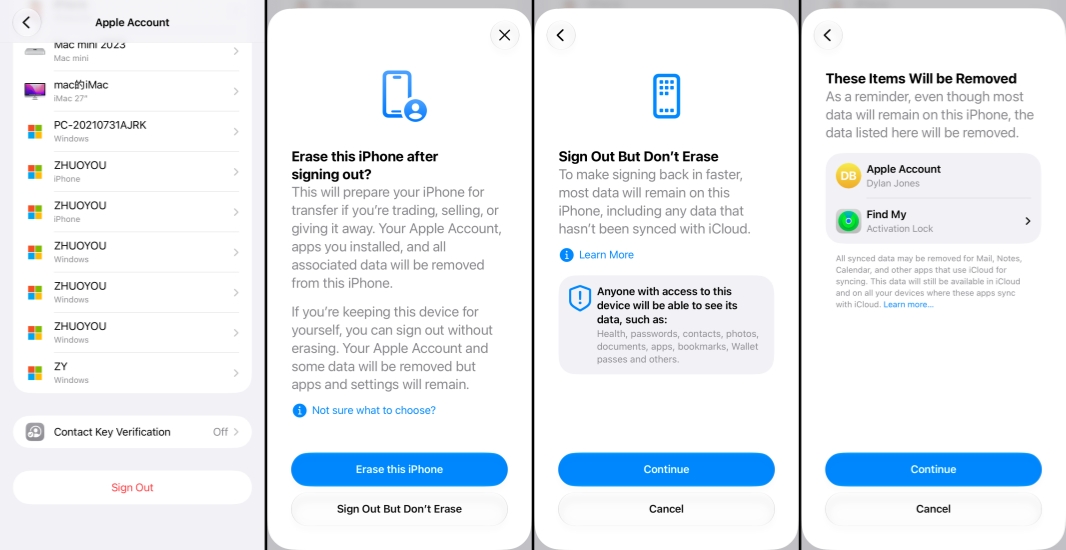
Step 1. Go to Settings and tap the Apple ID.
Step 2. Tap Sign Out at the bottom and choose Sign Out But Don't Erase.
Step 3. Tap Continue twice and enter the Apple ID password to confirm and Sign Out.
Step 4. Tap Apple Account to sign in with another iCloud account on the iPhone. Then those previous photos on the iPhone will be uploaded to the new iCloud Account.
Option 6. Transfer iCloud Photos Using MagFone
Besides the methods mentioned above, you can use a data management tool to transfer photos between iCloud accounts. MagFone iPhone Data Recovery lets you transfer photos across devices and iCloud accounts while also providing features for backing up photos, recovering deleted or lost photos, and extracting photos from iTunes backups. This option is useful when you need a more comprehensive solution, and it can help preserve the original photo quality and information during the transfer. Follow the steps below to transfer photos between iCloud accounts with ease.

MagFone iPhone Data Recovery
Extract and Transfer iPhone Photos from Your Device or Backup in Minutes.
Step 1 Open MagFone iPhone Data Recovery
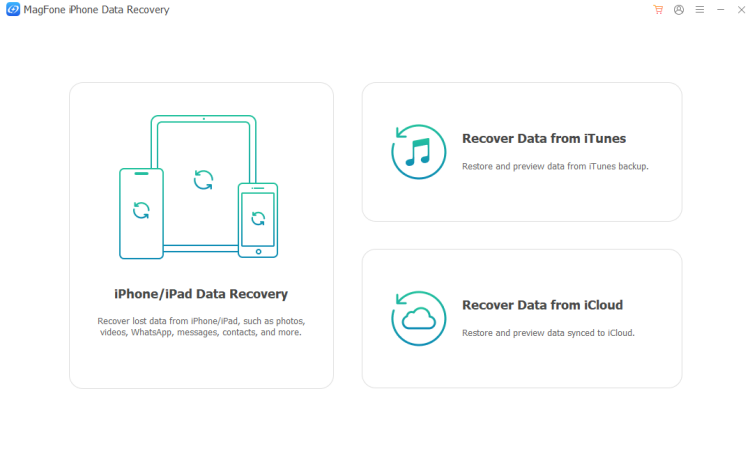
Download and install MagFone iPhone Data Recovery on your computer and use a data cable to connect your iPhone to the computer. Then open MagFone to start.
Step 2 Scan Photos on iPhone
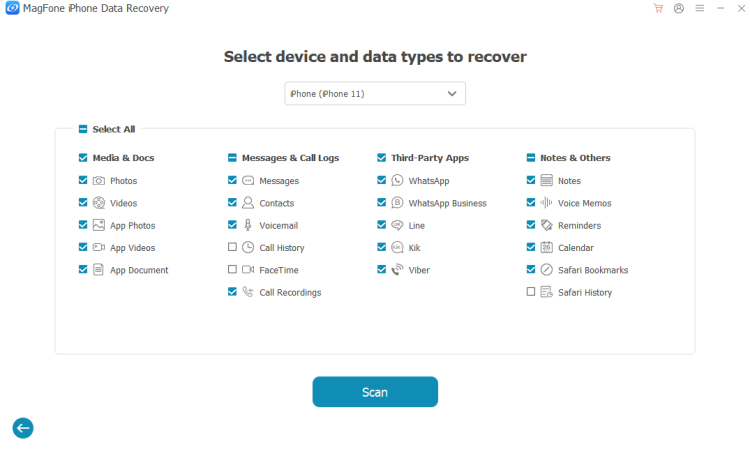
Click iPhone/iPad Data Recovery on the main interface, then select Photos and click Scan to scan for photos on your iPhone.
Step 3 Transfer Photos Across Devices/Accounts.
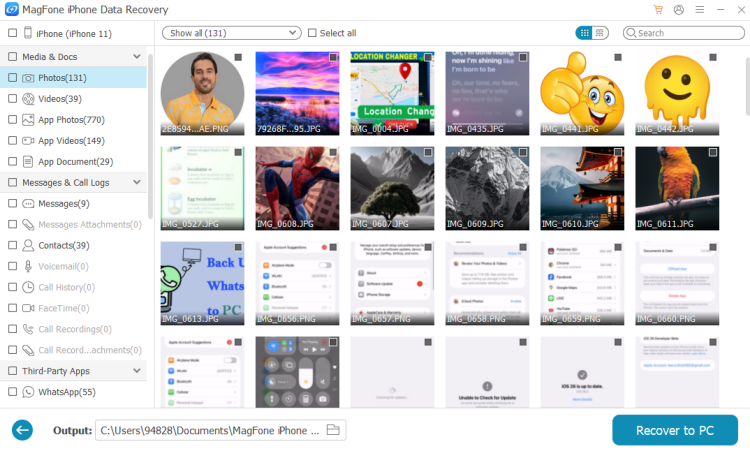
After scanning, you can select the photos you want to transfer or select all photos, and click Recover to PC or Recover to Mac to export them to your computer. Then you can upload and transfer these photos to another iCloud account.
Part 3. FAQs about iCloud Photos Transfer
How to transfer iCloud Photos from one iPhone to another?
To transfer iCloud photos from one iPhone to another, you can log in to the Apple ID on another iPhone, and the iCloud photos will sync on the phone. You can also consider other methods in this guide, like iCloud links, Shared Album, or Shared Library.
How do I move all photos from one account to another?
The most effective way to move an entire photo collection from one account to another is using MagFone iPhone Unlocker. You can use MagFone to transfer photos across iCloud accounts and Apple devices without data loss. You can check the detailed operation in Part 2.
How to transfer photos with iCloud?
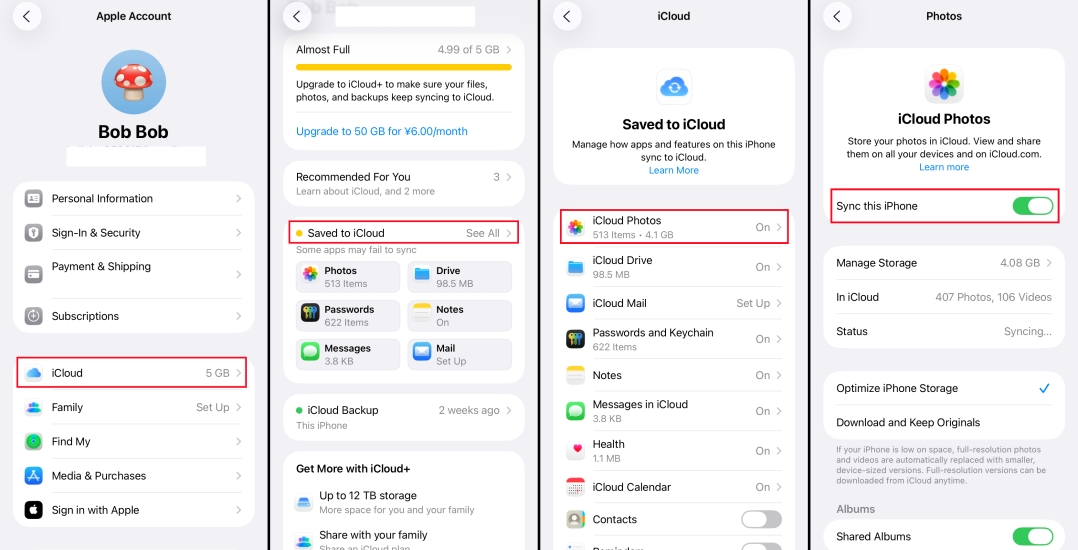
You can transfer photos using iCloud by turning on iCloud Photos under Settings > Apple ID > iCloud > Photos. Once turned on, all photos taken on your device automatically upload to iCloud storage, and you can transfer the photos anywhere you want.
Part 4. Conclusion
Transferring photos between iCloud accounts is possible, and the methods are much more than you imagine. Whether you are using iCloud Library, Shared Albums, iCloud links, AirDrop, or a data transfer tool like MagFone, by comparing the available options and considering their limitations, you can choose a practical way to move your photos safely to the destination iCloud account.

Edgar Davis
Editor in chief




