








Is there a way to download a full text conversation into a file? Hi there, my best friend took his own life, and I never want to lose the messages between us. I’ve already taken screenshots of the most significant messages, but I would really like to know the whole history won’t be lost and can be archived."
——From Reddit
There are many uncertain reasons you need to download text messages from an iPhone. But iPhone now doesn't allow users to export messages. If you don't know where to start, don't worry. In this guide, we will share three alternative ways to download text messages from iPhone, including screenshots, the Messages app on Mac, and a data management tool.
- Part 1. How Can I Download Text Messages from iPhone?
- Part 2. How to Download Text Messages from iPhone
- Part 3. FAQs about Downloading Messages on iPhone
- Part 4. Conclusion
Part 1. How Can I Download Text Messages from iPhone?
Although iPhone doesn't allow you to directly export and download messages, there are still several workarounds to achieve this. If the messages are short, you can create screenshots and download the screenshots as a PDF. Or if you have a computer, you can use the Messages app on a Mac or a data management tool to export and download the text messages. In the following section, we will show you how to download text messages from iPhone while keeping the most original information.
Part 2. How to Download Text Messages from iPhone
If you need to download text messages from iPhone for memory, archiving, or proof, just check the solutions below.
Method 1. Download Text Messages via Screenshots
One simple but repeated method to download text messages on iPhone is to take screenshots and export them to PDF. This method is best for short messages.
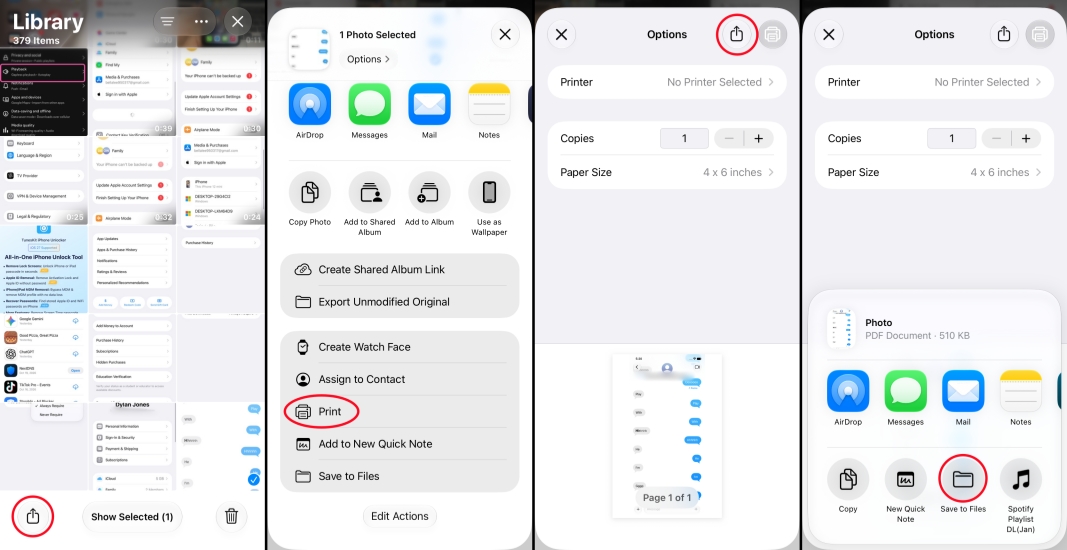
Step 1. Screenshot the text messages on iPhone and save them to Photos.
Step 2. Open the Photos app and tap Select to select these screenshots.
Step 3. Tap the Share icon and tap Print.
Step 4. Tap the Share icon and tap Save to Files to save the PDF file on your iPhone.
 Pros
Pros- Keeps the original messages thread

- Complicated when there are lots of messages to save
- Repeat operation
Method 2. Download Text Messages via Messages App on Mac
If you have a Mac, you can sync or forward text messages from iPhone to the Mac. Then you can download the text messages on Mac via the Print feature. Make sure you are signed in to the same Apple ID on your iPhone and Mac.
Enable Messages Sync on iPhone
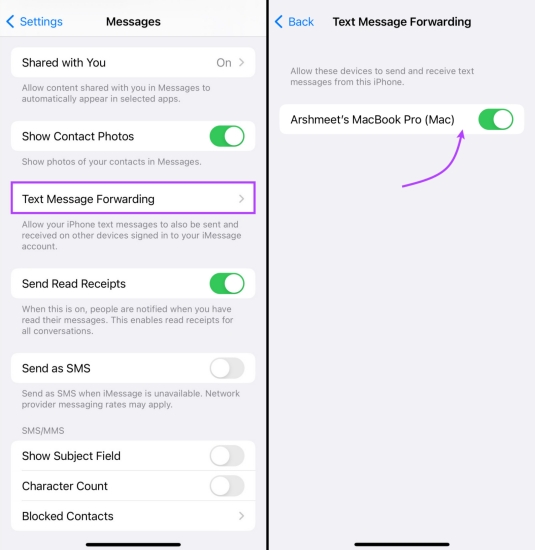
Step 1. Go to iPhone Settings > Apps > Messages.
Step 2. Tap Text Message Forwarding and turn on the button next to your Mac to allow it to send and receive messages from the iPhone.
Download Text Messages on Mac
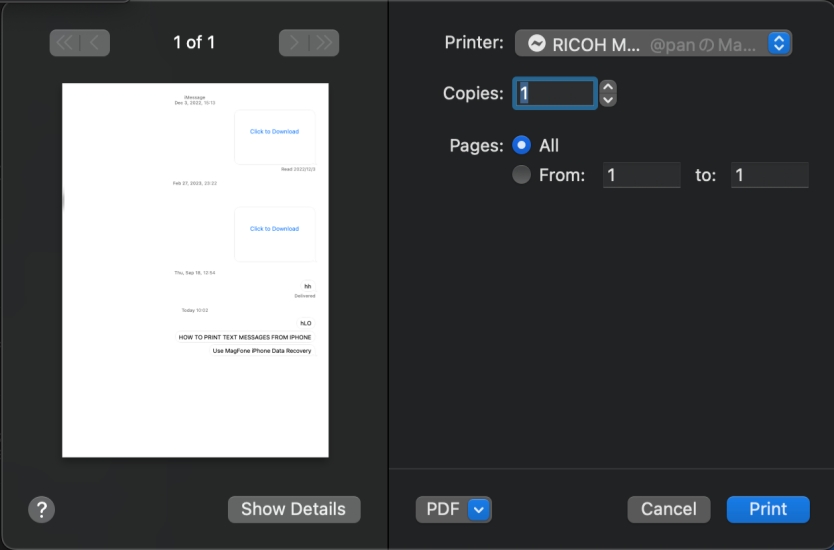
Step 1. Open the Messages app on the Mac.
Step 2. Click the messages you want to download.
Step 3. Click File in the Messages menu and click Print.
Step 4. Adjust the format, click the drop-down icon, and choose Save as PDF.
Step 5. Choose a path to store and click Save.
Pros- Keeps date information
- Requires a Mac
- Not reliazble for massive messages
Method 3. Download Text Messages with MagFone iPhone Data Recovery
When there are many text messages in a thread, you need to scroll to the start message so the print feature will work well. But this method may not be reliable enough. MagFone iPhone Data Recovery is a data management tool for iPhone and iPad users to manage various data on their devices, including photos, messages, videos, voice memos, etc. It is compatible with Windows and Mac, so it's a reliable option when you need to export or download text messages on iPhone. Besides, it can even help recover deleted messages so you can keep a full copy of the conversation. Follow the steps below to download text messages on iPhone.

MagFone iPhone Data Recovery
Export and download text messages from iPhone in several clicks.
Step 1 Launch MagFone iPhone Data Recovery
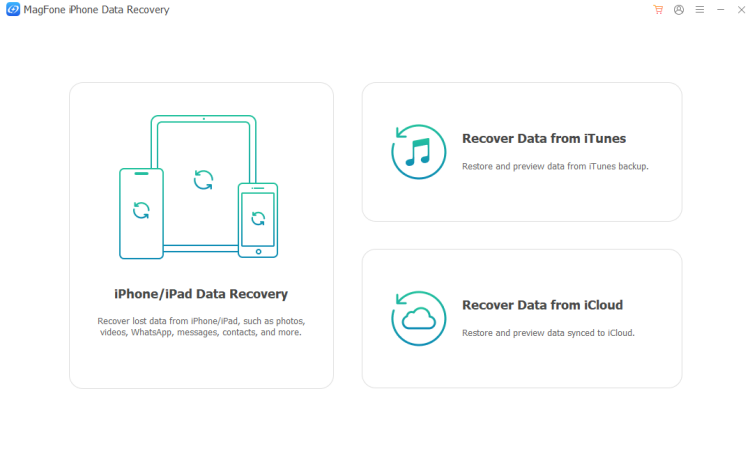
Download the MagFone iPhone Data Recovery package on your computer, install it, and launch it.
Step 2 Scan Text Messages on iPhone
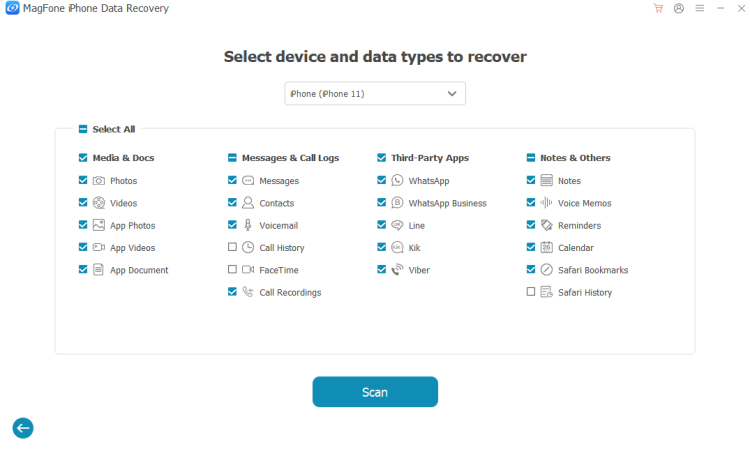
Use a data cable to link your iPhone to the computer. Click iPhone/iPad Data Recovery on MagFone, select Messages, and click Scan to scan text messages on iPhone.
Step 3 Export and Download Text Messages on iPhone
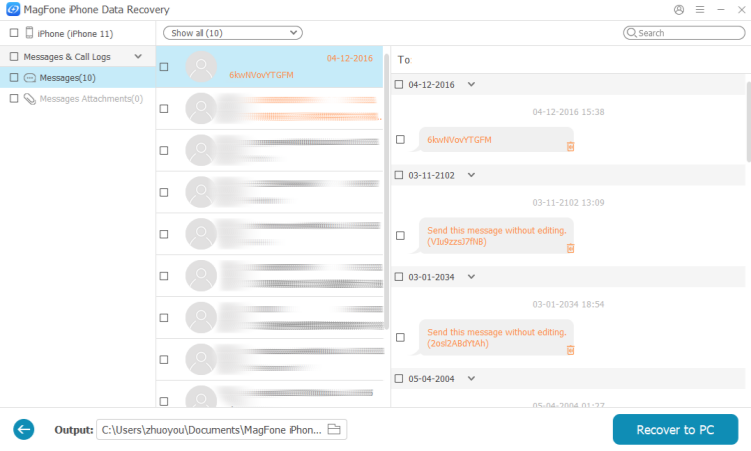
After scanning, select a chat you want to download and click Recover to PC or Recover to Mac. Then you'll be directed to the exported file.
Pros- Works on Windows and Mac
- Keeps messages information
- Downloads media messages as well
- Easy to download massive text messages
- Requires a computer
- Does not keep the original message layout
Part 3. FAQs about Downloading Messages on iPhone
How to download text messages from iPhone to computer?
You can use the Messages app to download text messages from iPhone to Mac. You can also use a data transfer tool like MagFone iPhone Data Recovery to download text messages from iPhone to a computer.
How to download voicemail messages from iPhone?
You can share a voicemail message and download it to the Files app.
Step 1. Enter Voicemail Box in the Phone app.
Step 2. Tap the voicemail message you want to save.
Step 3. Tap the Share icon and choose Save to Files. The voicemail message will be downloaded and stored in the Files app.
How to download all text messages from iPhone?
If you need to download all text messages from iPhone, you can export chat threads one by one on a Mac. Or you can use the MagFone iPhone Data Recovery tool to export messages at once.
Part 4. Conclusion
It's not easy to download text messages from iPhone. After reading this guide, you should have a clear understanding of how to download text messages. Screenshots are a quick option for saving a few messages, while the Messages app on Mac is more suitable for exporting conversations across Apple devices. If you need to download a larger number of messages in a more organized format, MagFone iPhone Data Recovery may offer an additional option.

Edgar Davis
Editor in chief




