








When you need to print out important text messages or iMessages from your iPhone, you often find it's not as simple as it seems. Whether for legal evidence collection, work communication archiving, or long-term backup of important conversations, the iPhone itself doesn't offer a direct text printing function. This leaves many users confused when they want to print iPhone text messages. In this guide, we will show you 4 feasible methods to print text messages from iPhone, helping you choose the most suitable method to successfully print your text messages.
- Part 1. How Can I Print Text Messages from iPhone?
- Part 2. How to Print Text Messages from iPhone
- Part 3. Conclusion
Part 1. How Can You Print Text Messages from iPhone
When you encounter a court or something else, you may need to print your text messages on your iPhone for evidence. Actually, there is no direct print option to print text messages on iPhone. You need to apply some methods to achieve this. The common methods include printing text messages from iPhone via screenshots, via the Forward feature, via Mac, or via a third-party tool.
| Method | Operation | Pros | Cons | Recommendation |
|---|---|---|---|---|
| Screenshot | Tricky | Real chat page | Inconvenient | ⭐⭐⭐ |
| Forward | Tricky | Selective text messages | No messages details | ⭐⭐ |
| Print on Mac | Moderate | Convenient for iPhone and Mac users | No sender and receiver details | ⭐⭐⭐ |
| MagFone iPhone Data Recovery | Easy | Print text messages selectively | / | ⭐⭐⭐⭐⭐ |
Part 2. How to Print Text Messages from iPhone
You may have a brief knowledge of these four methods from the comparison table. In this part, we'll cover the details of each method, so you can choose the option that best fits your situation.
Method 1. Print Text Messages on iPhone via Screenshot
Printing text messages on iPhone via screenshot is the most intuitive and direct method, suitable for users who only need to print a small amount of conversation content. Simply capture the desired chat content in the Messages app, then print the photos on iPhone directly via a printer. However, this method requires multiple screenshots for longer conversations, which can lead to content inconsistency and limit readability.
Step 1. Just find and stay on the text messages you want to print.
Step 2. Then press both the power button and the volume up button to take a screenshot.
Step 3. Open the Photos app and select the screenshots you've just made.
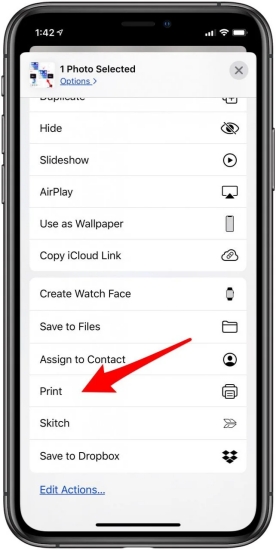
Step 4. Tap the Share icon and choose Print, then tap Print again to print text messages on iPhone.
Method 2. Print Text Messages on iPhone via Forward
If you prefer to save text messages as text rather than images, you can print them by forwarding them. Select the target text messages one by one and merge them into a single continuous thread using the Forward feature. Then copy the combined text into another app that supports editing and printing. However, this method is more cumbersome and makes it difficult to preserve the original conversation details, such as timestamps.
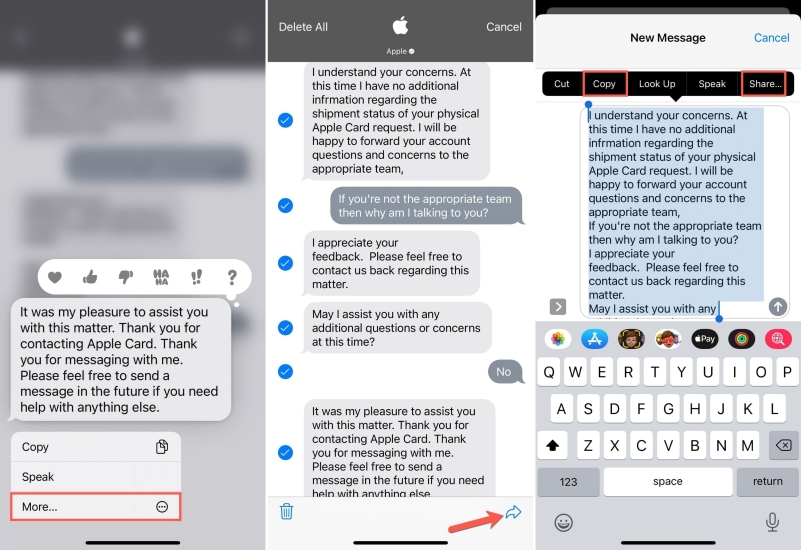
Step 1. Open Messages on your iPhone and enter a chat page.
Step 2. Long-press a text message and tap More, then select the text messages you want to print.
Step 3. Tap the Forward icon, and all selected text messages will display in the typing box.
Step 4. Copy the text messages, then print them on the Notes app.
Step 5. Tap the Share icon and tap Print, then choose the printer and tap Print again to print iPhone text messages.
Method 3. Print Text Messages from iPhone via Text Forwarding to Mac
If you are signed in with the same Apple ID on both your iPhone and Mac, another effective way to print iPhone text messages is by using your Mac. For users who regularly use both devices, forwarding and syncing text messages to the Mac is a convenient solution. Once message forwarding is enabled, text messages and iMessages on your iPhone will sync to the Messages app on your Mac, allowing you to organize and print them directly from your computer.
Note:
To print text messages from iPhone on Mac, you need to first allow Text Message Forwarding for Mac on your iPhone.
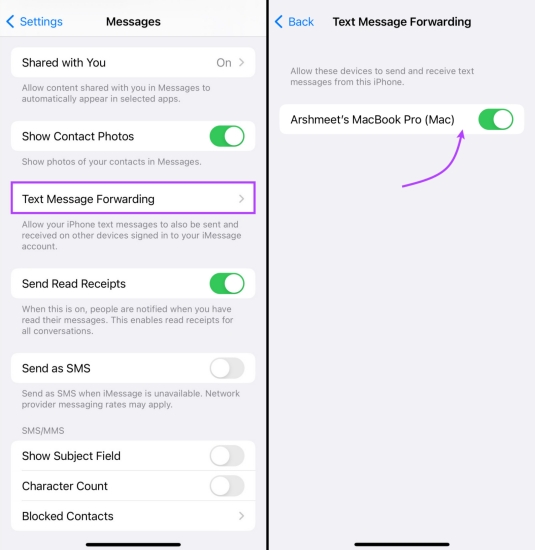
Step 1. Go to iPhone Settings > Apps > Messages.
Step 2. Tap Text Message Forwarding and allow Mac.
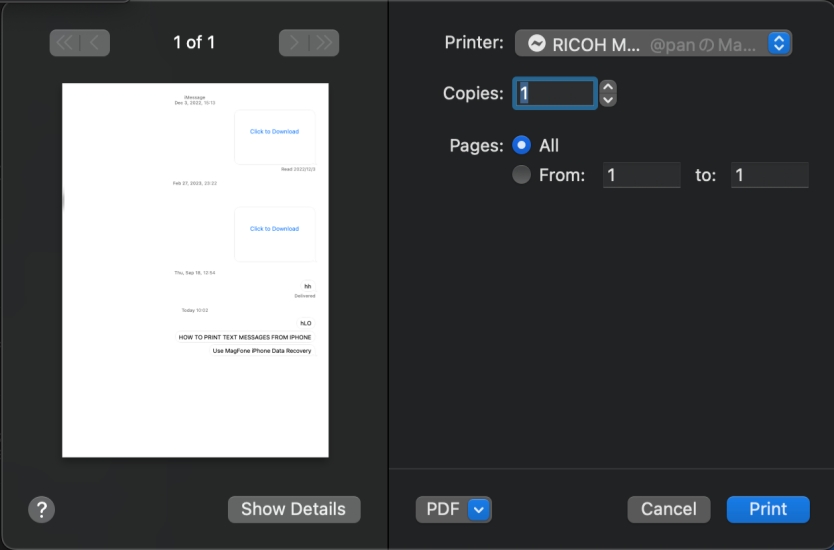
Step 1. Launch the Message app on your Mac and enter the message thread you want to print.
Step 2. Click File on the top-left bar and click Print.
Step 3. Choose your printer and click Print to print text messages from iPhone.
Method 4. Print Text Messages from iPhone Using A Tool
If you find it tricky to print text messages on iPhone using the previous methods, a more effective option is to export your messages first and then print them. Here, MagFone iPhone Data Recovery is recommended. It's a professional data management tool for iPhone and iPad users. Whether you want to print text messages on iPhone or export messages from third‑party apps, MagFone allows you to preview and export your text messages in a clear and printable format. If you need to print text messages from your iPhone, simply follow the steps below:

MagFone iPhone Data Recovery
Recover data from iPhone and iPad in three recovery modes without data overwritting and device reset.
Step 1 Launch MagFone iPhone Data Recovery

Install MagFone iPhone Data Recovery on your computer and complete the setup. Connect your iPhone via USB and start the program when your device is detected.
Step 2 Scan iPhone Text Messages
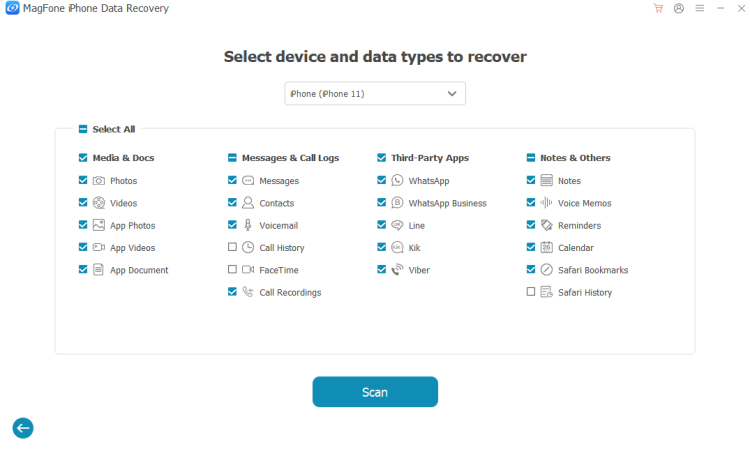
On the start screen, select iPhone/iPad Data Recovery. Choose which kinds of files you want to scan and click Scan so the tool can analyze your iPhone for selected messages.
Step 3 Export iPhone Text Messages
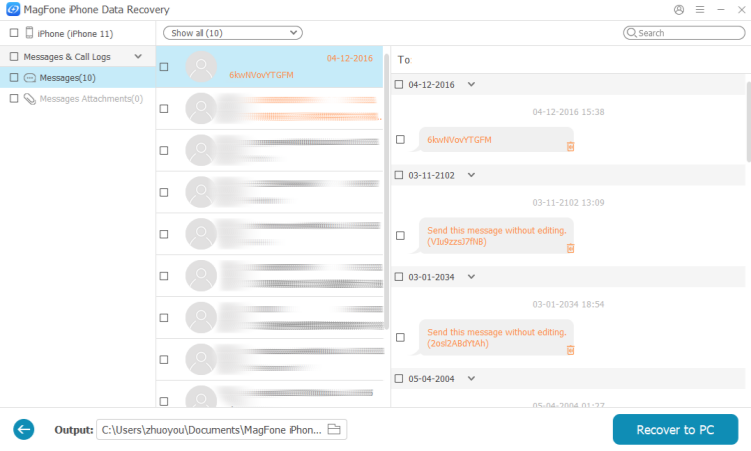
Once the scan is done, you can preview the results. Go to Messages, select the text messages you want to print, and click Recover to PC. Then Open the exported file and open the selected text messages, then press Command + P or Control + P to print text messages from iPhone.
Part 3. Conclusion
Printing messages from iPhone becomes easy after you read this guide. If you're only temporarily saving or printing a small amount of conversation, screenshots or forwarding are sufficient. However, when dealing with a large number of messages, requiring clear formatting, or for formal purposes, a more flexible method like using MagFone iPhone Data Recovery can often save significant time.

Edgar Davis
Editor in chief




