








If you are browsing PrimoSync's website, you must be hesitant to use this software. Does Primo iPhone Data Recovery still work today? The answer is not guaranteed. In this review, we test PrimoSync's performance and share our experience. You will learn how to use Primo iPhone Data Recovery and a more reliable alternative for recovering lost or deleted data on iPhone.
- Part 1. What is Primo iPhone Data Recovery?
- Part 2. How to Use Primo iPhone Data Recovery
- Part 3. Real Feedback on Primo iPhone Data Recovery
- Part 4. Best Alternative to Primo iPhone Data Recovery
- Part 5. Final Words
Part 1. What is Primo iPhone Data Recovery?
Primo iPhone Data Recovery is a data recovery tool from iMobie. It offers three recovery features for iPhone and iPad users, including recovering data from an iPhone device, recovering data from iTunes backup, and recovering data from iCloud data. It also offers an iOS system repair feature to fix an iPhone when it is stuck on the Apple logo or stuck in Recovery Mode. It supports recovering data from most Apple in-built apps, including Photos, Notes, Voice Memos, Messages, Phones, Contacts, Reminders, Safari, WhatsApp, and LINE.

Primosync's website and software haven't been updated since 2019, and its listed compatibility information still remains old iOS versions and old iPhone models. Although the website offers two license plans, it doesn't appear possible to complete an order. As a result, you can't unlock the full recovery features, making it difficult to recover your data with the software.
Part 2. How to Use Primo iPhone Data Recovery
With the Primo Data Recovery free version, you can still use it to scan data on an iPhone and preview scanned data. But you can't recover any data if you find your lost item in the scanned results. You can use it as a data checker to scan for lost or accidentally deleted items on iPhone.
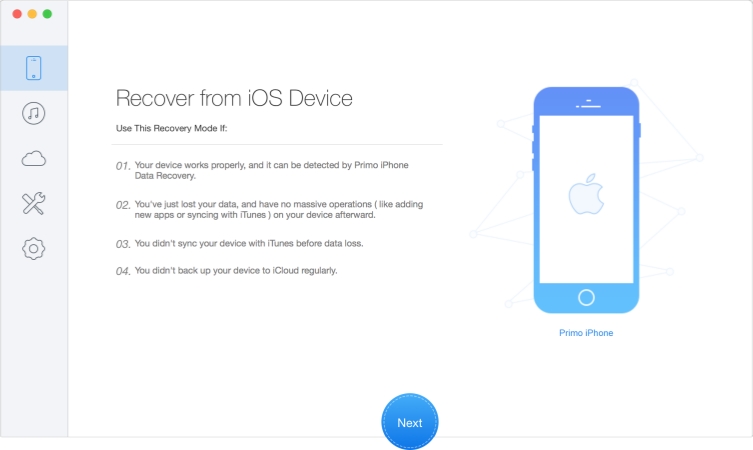
Step 1. First, download and install Primo iPhone Data Recovery on your computer.
Step 2. Use a data cable to connect your iPhone to the computer and open Primo iPhone Data Recovery.
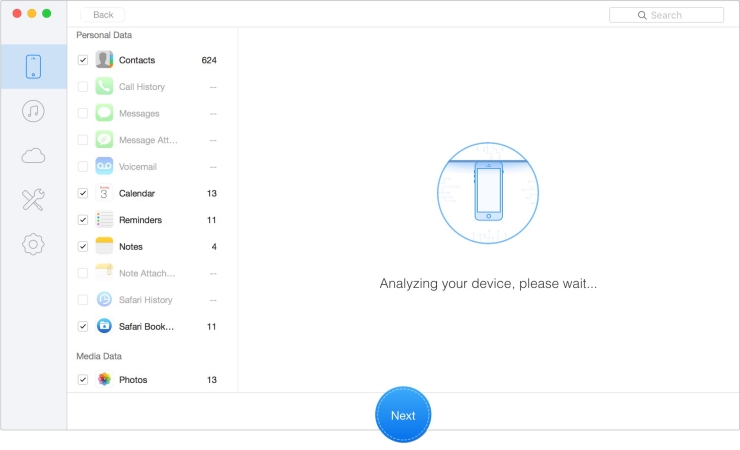
Step 3. Click the device icon in the left bar, then click Next, and it will scan and analyze your iPhone data.
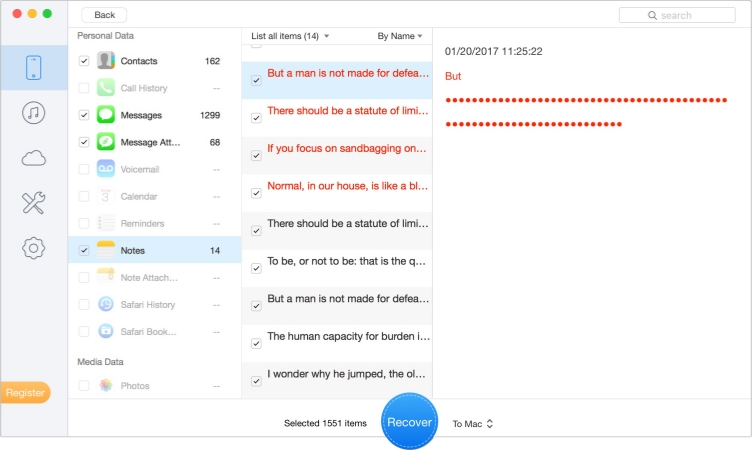
Step 4. After analyzing, you can preview your data, select data, and choose Recover To Mac/PC or Recover To Device to restore the data to your computer or device.
Part 3. Real Feedback of Primo iPhone Data Recovery
Primo iPhone Data Recovery has little user feedback available online, and we couldn't find reviews on sites such as Trustpilot. So, we share our own testing experience here. We liked the software's simple interface, but its performance raised some concerns. On the Mac version, the recovery button didn't respond when we tried to recover data from an iDevice, and the software sometimes failed to detect the device. Scanning and restoring data also took a long time.
- Clear interface
- Extra iOS repair feature
- Obvious Settings for data recovery
- Lifetime license
- Unable to detect iTunes backup sometimes
- Unable to recover data from iCloud
- Recover from iOS Device feature not work on Mac
- Unable to detect device
After testing primo's three features, we also found it is not as expected, as it claims. Its data processing is quite slow, and it may fail to scan all recoverable data. But you can take it as an alternative if you need to preview recoverable data.
Part 4. Best Alternative to Primo iPhone Data Recovery
With more fluent performance and a regularly updated version, MagFone iPhone Data Recovery stands out as the best alternative to Primo iPhone Data Recovery. You can choose to recover any supported data from iPhone devices, extract supported data from iTunes backup, and export data from iCloud. MagFone only recovers your data with your permission, and it allows you to control the recovery process completely. You can select data before scanning and preview data before recovering. No matter why you lost your data, MagFone can help you get it back. Install it and follow the steps below to recover any lost data.

MagFone iPhone Data Recovery
Recover data from iPhone and iPad in three recovery modes without data overwritting and device reset.
Step 1 Open MagFone iPhone Data Recovery
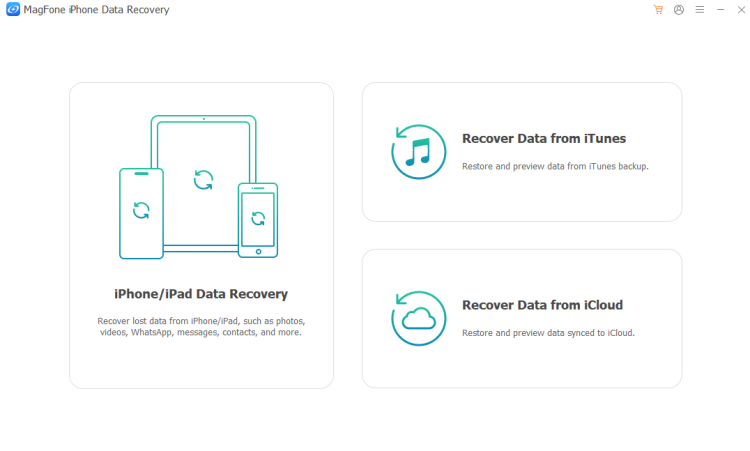
If you have installed MagFone iPhone Data Recovery on your computer, open it and use a data cable to connect your iPhone to the computer. Then click the iPhone/iPad Data Recovery feature from its interface.
Step 2 Scan for Lost or Deleted Data on iPhone
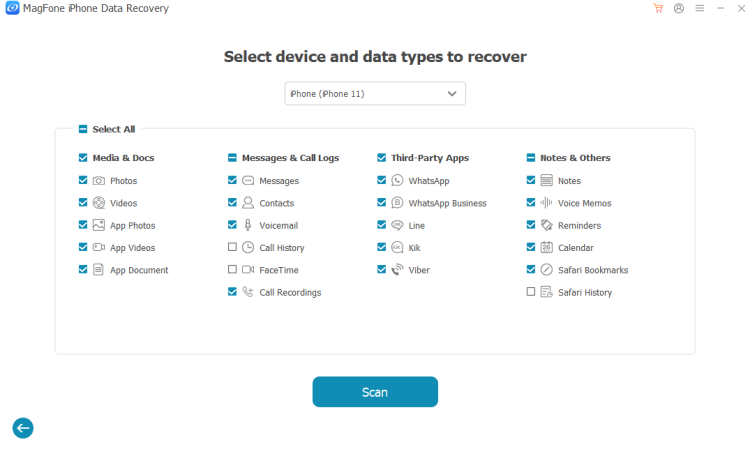
Select the data from the data list and click Scan to allow MagFone to scan the selected data. Keep your iPhone unlocked and connected during the process.
Step 3 Recover Lost Data from iPhone
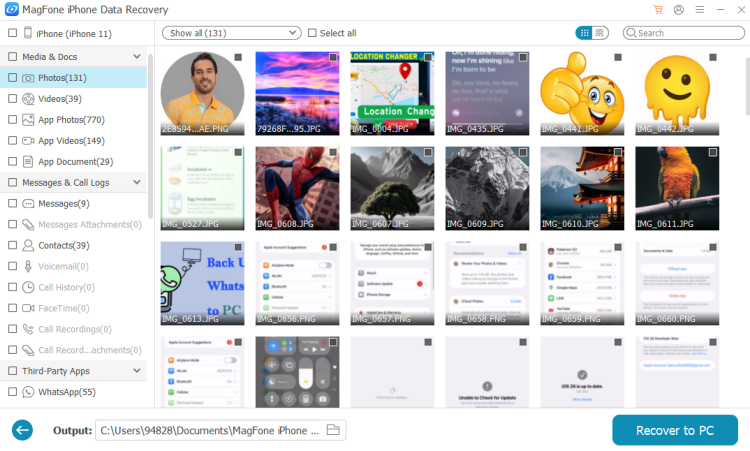
After MagFone scans your data, you can preview your data. Then select and click Recover to PC or Recover to Mac to get them back.
Part 5. Conclusion
Primo iPhone Data Recovery may once have been a useful option for iPhone and iPad users, but its outdated website and software raise concerns about its reliability today. If you're looking for a more up-to-date recovery tool, consider MagFone iPhone Data Recovery as an alternative. Visit MagFone's website and install it to check whether it suits your needs.

Edgar Davis
Editor in chief




