








Are your iPhone photos not showing up in iCloud, no matter how long you wait and no matter how many times you refresh the web? You're not alone. Many users run into the issue of photos not syncing to iCloud. The good news is that this issue is usually caused by a few common settings and connection issues, and it's often easy to fix. In this guide, we'll walk you through the main reasons your photos are not syncing to iCloud, show you step-by-step methods to get everything working again, and share a simple way to back up your iPhone photos without relying on iCloud.
- Part 1. Why Are My Photos Not Syncing to iCloud?
- Part 2. How to Fix Photos Not Syncing to iCloud
- Part 3. Bonus Tip: Back Up iPhone Photos without iCloud
- Part 4. Conclusion
Part 1. Why Are My Photos Not Syncing to iCloud?
📝How to check iCloud Photos sync status on iPhone?
The location of the iCloud Photos sync status varies a lot among iOS versions. You can open the Photos app on your device, then:
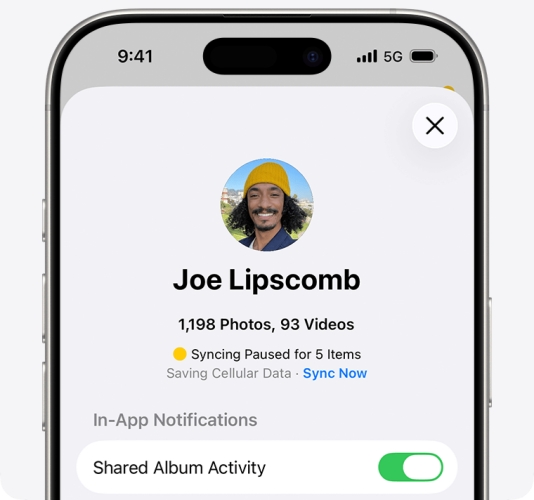
- iOS 17 and lower versions: Scroll to the bottom and check the status of photo sync.
- After iOS 17, before iOS 26: Tap the profile icon to check the iCloud Photos sync status under your name.
- iOS 26 and newer versions: Tap Collections and tap your profile icon, check the photos sync status under your name.
When your iPhone photos aren't syncing to iCloud, it usually comes down to a handful of common settings with your iPhone or iCloud Photos. iCloud Photos relies on enough available storage space, a stable internet connection, and the right settings on your device. If any of these are off, your photos may upload very slowly, get stuck, or stop syncing altogether.

Low Power Mode:
When Low Power Mode is enabled on your iPhone, it may interfere with iCloud Photos sync efficiency and even lead to a pause in iCloud Photos sync for battery-saving purposes.
Network Restrictions:
If your Wi-Fi connection or cellular is weak or unstable, your iPhone may pause or delay photo uploads to avoid using too much data.
iCloud Storage:
One of the most frequent reasons is that your iCloud storage is full or nearly full. When there isn't enough space left in your iCloud account, new photos and videos simply can't be uploaded.
iCloud Photos Settings:
If iCloud Photos is turned off, or if you recently changed your Apple ID on iPhone, your photos will not sync properly to the expected account.
Photos in Shared Library:
If you're using a Shared Library in iCloud and keep most pictures there, these photos might not appear where you expect them in your Personal Library, making it seem like iCloud isn't syncing correctly.
Part 2. How to Fix Photos Not Syncing to iCloud
Now that you know what usually causes iCloud Photos to stop syncing, you can work through a few simple checks and adjustments to get everything back on track.
Method 1. Check iCloud Storage
If you see a red exclamation mark and a "Your iCloud storage is full" message in your Photos app, you need to check your iCloud storage usage and upgrade it if essential.
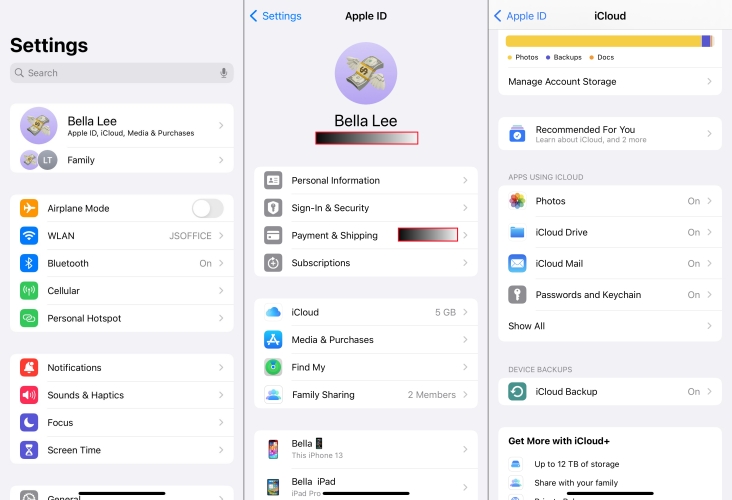
Step 1. Head to iPhone Settings and find iCloud.
Step 2. Tap Storage to check if there is sufficient storage that allows you to sync your iPhone photos.
Step 3. If there is insufficient storage, tap Get More Storage to upgrade your iCloud storage.
Method 2. Disable Low Power Mode
If the battery icon in the upper-right corner is yellow, turning off Low Power Mode while keeping your iPhone charging helps ensure that photo syncing can continue without being interrupted by battery-saving limits.
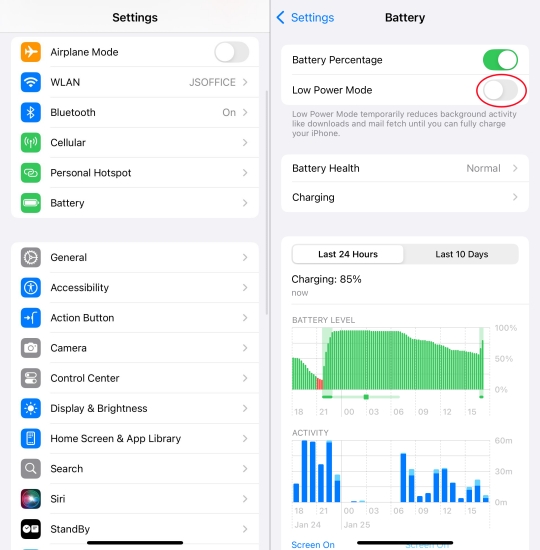
Step 1. Go to iPhone Settings and tap Battery.
Step 2. Disable Low Power Mode if it's enabled.
Method 3. Ensure Stable Wi-Fi or Cellular Network
iCloud Photos needs a reliable internet connection to upload your pictures and videos. If your Wi‑Fi is weak, frequently disconnects, or you're on a very slow network, uploads may stall or fail. Connecting to a stable, fast Wi‑Fi network gives iCloud the bandwidth it needs to sync your entire photo library smoothly.
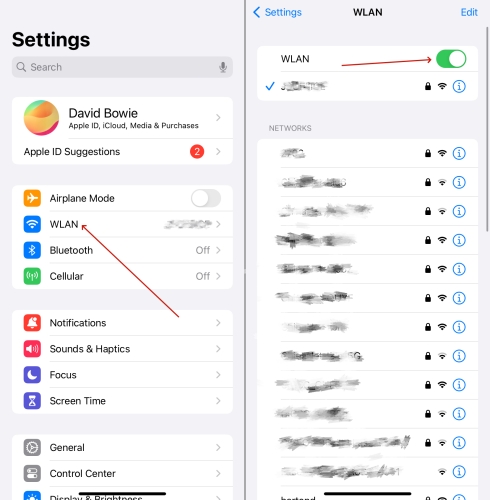
Step 1. Open Settings and tap WLAN.
Step 2. Make sure your iPhone is connected to a stable Wi-Fi network.
Note:
If you want to sync photos to iCloud using cellular data, you can change the settings for the Photos app.
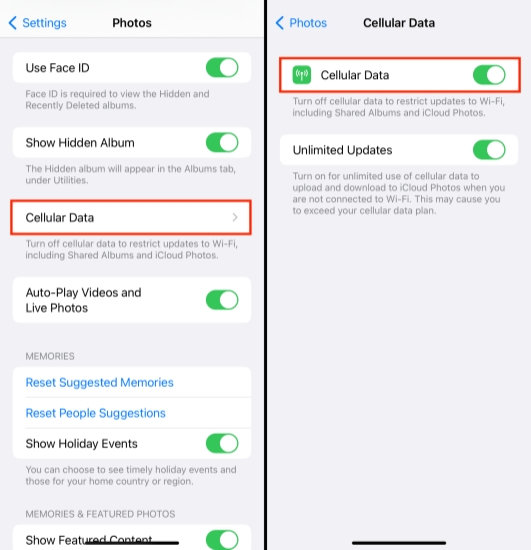
Step 1. Go to iPhone Settings > Apps > Photos.
Step 2. Tap Cellular Data and turn on Cellular Data. You can also consider turning on Unlimited Updates to upload to iCloud Photos.
Method 4. Restart iPhone
Sometimes, a simple restart can clear minor glitches that interfere with iCloud syncing. Restarting your iPhone refreshes system processes and network connections, which can immediately resolve temporary bugs or stuck uploads in the Photos app.
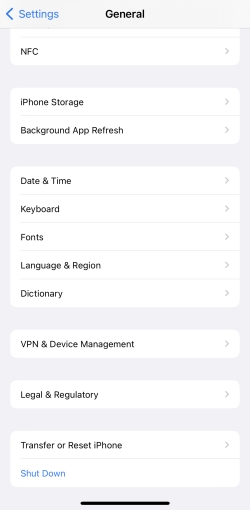
Step 1. Head to iPhone Settings > General.
Step 2. Tap Shut Down at the bottom, then drag the slider to shut it off.
Step 3. When it completely shuts down, long-press the Power button to restart it.
Method 5. Disable and Enable iCloud Photos
If iCloud Photos has run into a small software hiccup, toggling it off and back on can reset the syncing process. Turning the feature off, waiting a moment, and then enabling it again forces your iPhone to reconnect to iCloud Photos and can help kick-start stalled uploads.
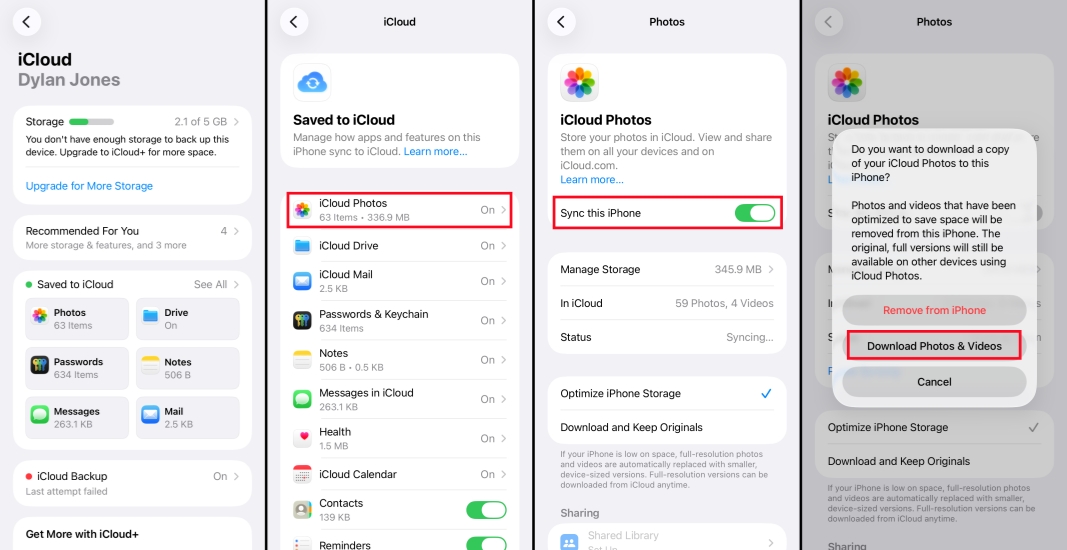
Step 1. Go to Settings > iCloud > Saved to iCloud.
Step 2. Tap iCloud Photos and disable Sync this iPhone. Choose Download Photos & Videos.
Step 3. Then re-toggle on Sync this iPhone and tap Sync Now to sync your iPhone photos to iCloud.
Method 6. Sign Out of iCloud
Occasionally, account-related issues, such as a temporary glitch with your Apple ID session, can stop photos from syncing. Signing out of iCloud on your iPhone and then signing back in refreshes your connection to Apple's servers and can fix deeper sync problems.
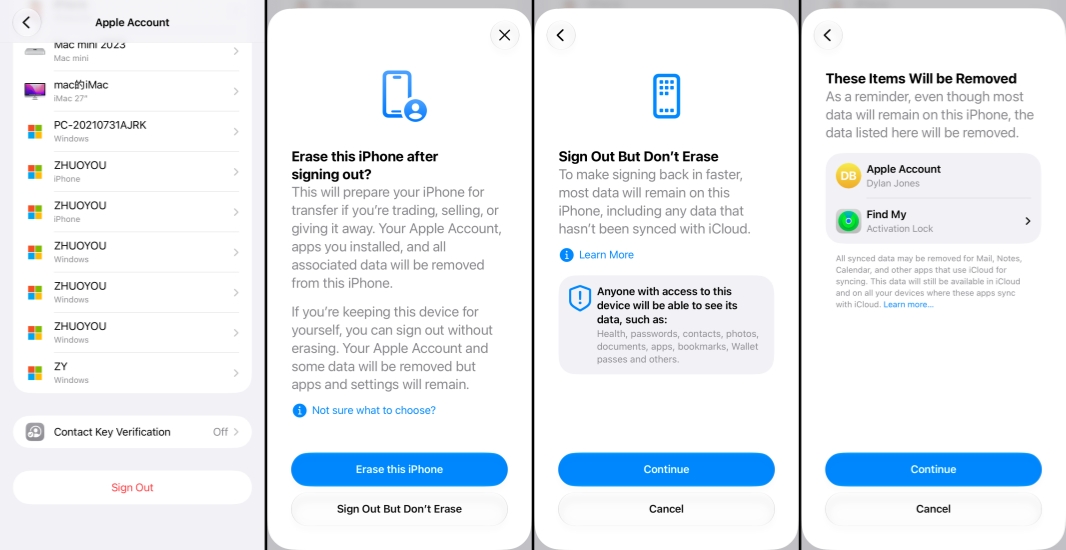
Step 1. Open iPhone Settings and tap your Apple ID.
Step 2. Tap Sign Out at the bottom, then choose Sign Out But Don't Erase.
Step 3. Tap Continue twice, then enter your Apple Account password to turn off Activation Lock.
Step 4. Tap Confirm and Sign Out to sign out. Then sign back in to your Apple Account.
Method 7. Move Photos from Shared Library to Personal Library
If you see the "Move Photos to Personal Library to Continue Syncing" message when you are about to add some photos to a Shared library, you need to first move them to your Personal Library, so they can be first synced to your Personal Library. Then you can upload them to the Shared Library when the Shared Library owner has upgraded their iCloud storage.
Part 3. How to Recover Missing iCloud Photos
iCloud Photos is a convenient way to keep your iPhone photos synced across all your devices. However, it isn't ideal as a true backup solution, because any photo you delete on your iPhone will also be removed from iCloud after a while. Many iPhone users want a way to keep a separate copy of their photos so they can recover them even if they're deleted from the device. That's where MagFone iPhone Data Recovery comes in. This tool helps you manage your iOS photos more flexibly, whether you want to back up iPhone photos without using iCloud, avoid syncing deletions, or recover items that have already been removed. With MagFone, you can handle all of these situations with ease. Just follow the steps below to back up your iPhone photos without relying on iCloud syncing.

MagFone iPhone Data Recovery
Securely back up, manage, and recover your iPhone photos without relying on iCloud or syncing unwanted deletions.
Step 1 Download and Install MagFone iPhone Data Recovery

First, download and install MagFone iPhone Data Recovery on your computer. Then use a data cable to link your iPhone to the computer. Click Backup & Restore from the main interface.
Step 2 Back Up iPhone to Computer
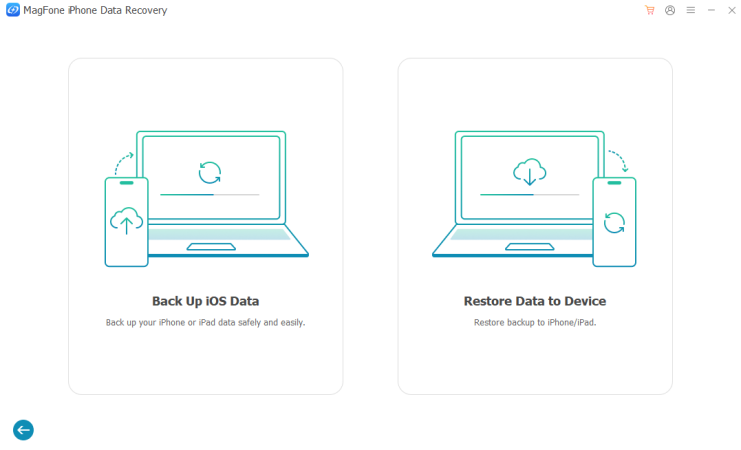
Click Back Up iOS Data and click Start Backup to back up your iPhone data to the computer. All photos on your iPhone are included in this backup.
Step 3 Scan Photos from iPhone Backup
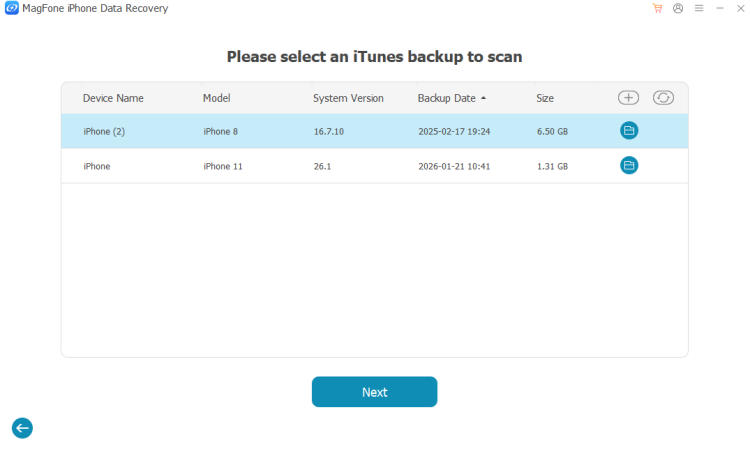
Go back to the main interface, click Recover Data from iTunes. Choose a backup and click Next. Then select Photos and click Scan to scan the photos.
Step 4 Export or Restore Photos on iPhone

After scanning, you can check the scanned result on your computer. All the photos on your iPhone will display on the screen. Just select and click Recover to Mac or Recover to PC to export them.
Part 4. Conclusion
Photos not syncing to iCloud can be frustrating, but it's usually easy to fix once you know where to look. By checking your iCloud storage, adjusting power and network settings, and making sure iCloud Photos is set up correctly, you can often restore normal syncing in just a few minutes. And if you prefer a more reliable backup option that doesn't mirror deletions, a tool like MagFone iPhone Data Recovery gives you extra peace of mind by letting you create independent copies and recover lost photos when needed.

Olivia Wood
Editor in chief





