








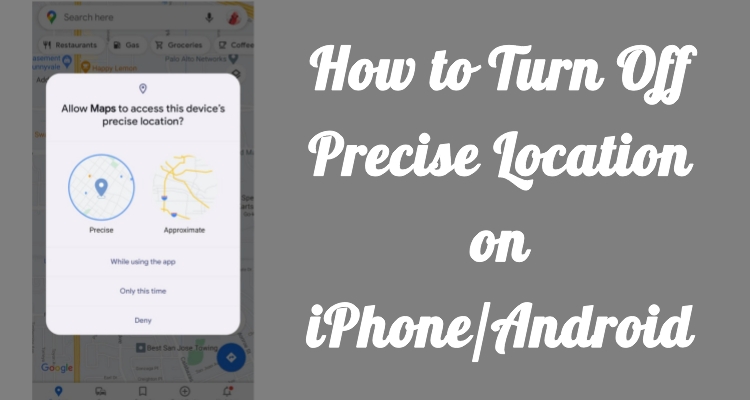
Precise location is a feature on smartphones that allows apps to access your exact position using GPS, Wi-Fi, and mobile network data. It is useful when you need accurate navigation, delivery tracking, or location-based services. However, some users prefer more privacy and want apps to see only an approximate area instead of their exact spot. In this guide, we show you how to turn off precise location on both iPhone and Android devices.
- Part 1. How to Turn Off Precise Location on iPhone
- Part 2. How to Turn Off Precise Location on Android
- Part 3. How to Spoof GPS Locatoin on iPhone/Android
- Part 4. FAQs about Turning Off Precise Location
- Part 5. Conclusion
Part 1. How to Turn Off Precise Location on iPhone
Apple provides detailed location controls that allow users to decide which apps can access their exact position. By adjusting these settings, you can limit location accuracy while still keeping useful features available. The process is simple and can be completed directly from your iPhone settings.
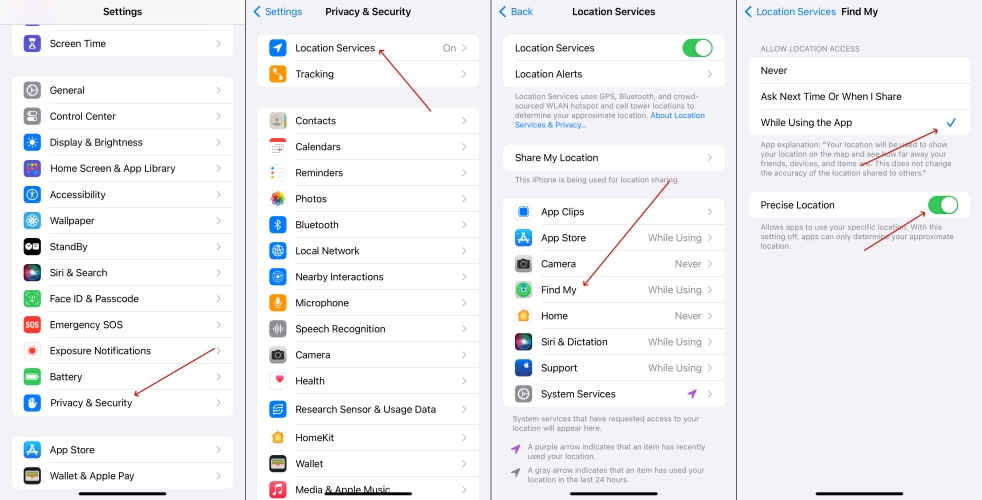
Step 1. Enter Settings, then Privacy & Security.
Step 2. Then select the Location Services section.
Step 3. Find the app you want to use for the precise location.
Step 4. Tap that app and toggle off the Precise Location option.
Part 2. How to Turn Off Precise Location on Android
Android devices also include location privacy controls, although the exact menu names may vary depending on your phone brand and Android version. The system allows you to control location permissions and here's how to turn off turn off your precise location on Samsung Android device.
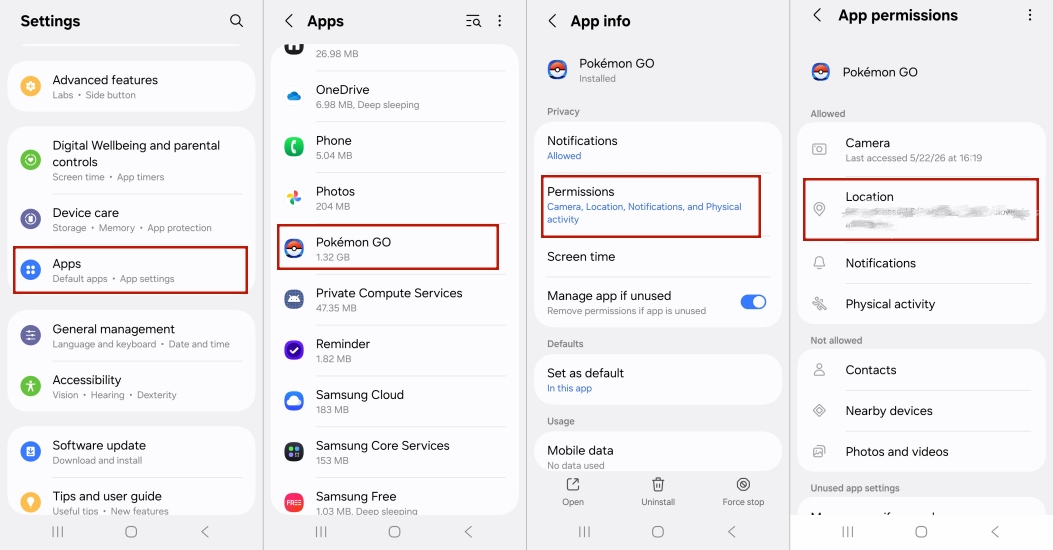
Step 1. Go to Settings, then select the Apps section from the list.
Step 2. Continue to select the app you want and choose Permissions.
Step 3. After that, select the Location section and disable Use precise location.
Part 3. How to Spoof GPS Locatoin on iPhone/Android
Besides turning off precise location, some users may want to change their GPS position completely for privacy, testing, gaming, or accessing location-based features. MagFone Location Changer allows you to display a different virtual location instead of your real one. It can help modify your device position without relying on traditional VPN services, which usually only change your IP address. Here's how to spoof a GPS location on your iPhone or Android phone.

MagFone Location Changer
Easily change your GPS location on iOS and Android devices to anywhere with one click, while not requiring root or jailbreaking!
Step 1 Run MagFone Location Changer on PC
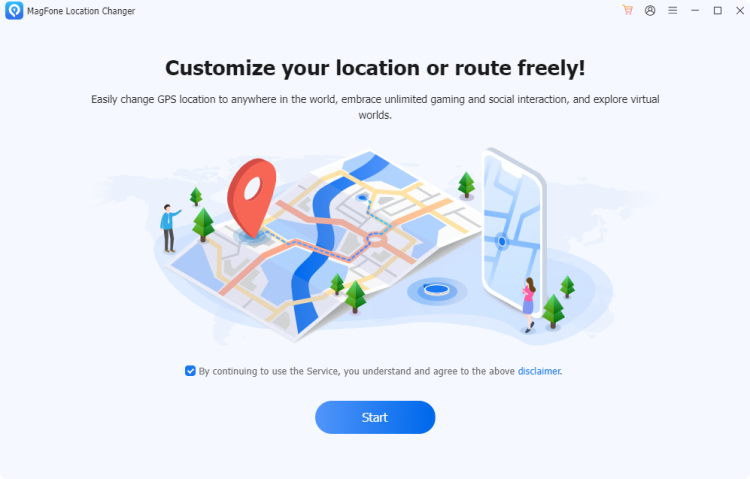
Begin by installing and opening MagFone Location Changer on your PC. Connect your iPhone or Android device to the computer and allow the software to recognize your phone. Then click Start and choose a mode to get started.
Step 2 Select a New Location on iPhone/Android
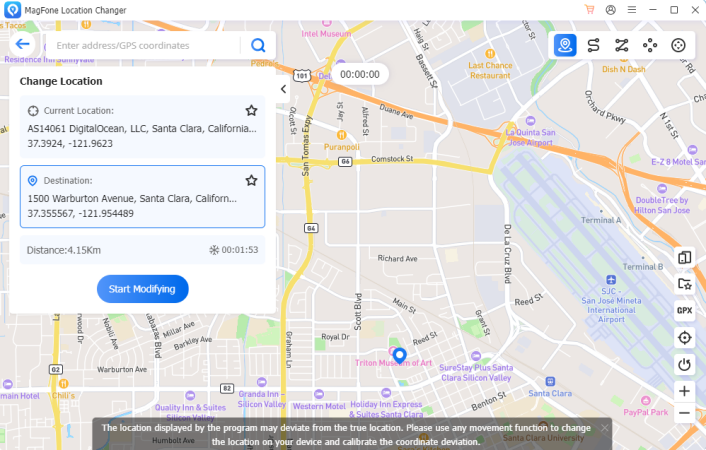
After entering the location-changing mode, search for your desired destination by typing an address or selecting a point directly on the interactive map. Once the new location appears, confirm your choice and start the modification process.
Part 4. FAQs about Turning Off Precise Location
Why can't Find My show precise location?
Find My may not show precise location due to disabled Location Services, weak GPS signals, poor internet connection, outdated software, low battery mode, device shutdown, or restricted location permissions. The app may only display an approximate location when accurate location data is unavailable. Here are some troubleshooting steps you can follow to resolve the issue.
1. Turn on Location Services in device settings.
2. Enable Precise Location for Find My.
3. Check internet connection and GPS availability.
4. Disable Low Power Mode temporarily.
5. Update iOS to the latest version.
6. Restart the device and reopen Find My.
7. Ensure the device has enough battery power.
How to turn on precise location for Siri?
Turning on precise location for Siri allows Siri to use your exact position when providing location-based suggestions, reminders, and services. You can enable this feature by adjusting Siri's location permissions in your device settings and allowing precise location access.
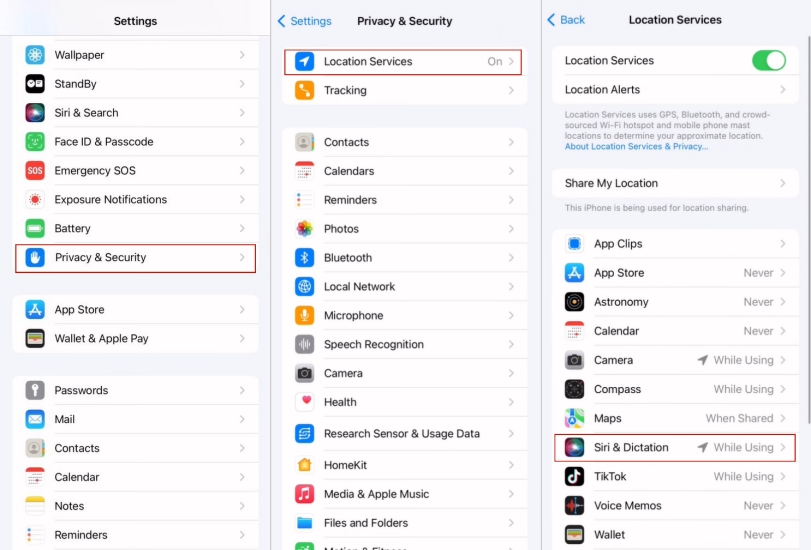
Step 1. Navigate to the Settings app.
Step 2. Swipe up and pick Privacy & Security.
Step 3. Select Location Services.
Step 4. Find and tap Siri & Dictation.
Step 5. Turn on Precise Location.
What does precise location off mean on Life360?
On Life360, "Precise Location Off" means the app is not getting the exact GPS location from a phone. It usually happens when the precise location is disabled in settings.
Part 5. Conclusion
Knowing how to turn off precise location gives you more control over your smartphone privacy. Both iPhone and Android devices allow users to limit exact location sharing through built-in settings. If you need additional location flexibility, GPS spoofing tools can help create a virtual position. Responsible control of location permissions enables a safer and more private mobile app experience while preserving convenience.

Edgar Davis
Editor in chief





