








Can you see someone's location on iPhone? The answer is yes. While Apple strongly emphasizes user privacy and data protection, it also provides built-in tools that allow location sharing when permission is granted. Features like Find My make it easy to stay connected with family and friends by viewing their real-time whereabouts. Whether for safety, coordination, or convenience, you can explore how to see someone's iPhone location in more detail.
- Part 1. How to See Someone's iPhone Location on Find My iPhone
- Part 2. How to See Someone's Location on iPhone Messages
- Part 3. How to See Someone's iPhone Location on Google Maps
- Part 4. Bonus Tip: How to Avoid Someone Tracking My iPhone Location
- Part 5. FAQs about Seeing Someone's Location
- Part 6. Conclusion
Part 1. How to See Someone's iPhone Location on Find My iPhone
The Find My app is designed to help users locate lost Apple devices and stay connected with loved ones. One of its key features is the ability to share and track locations among family members or friends. While it does not provide detailed location history, it shows the current or last known location and updates in real time when available.
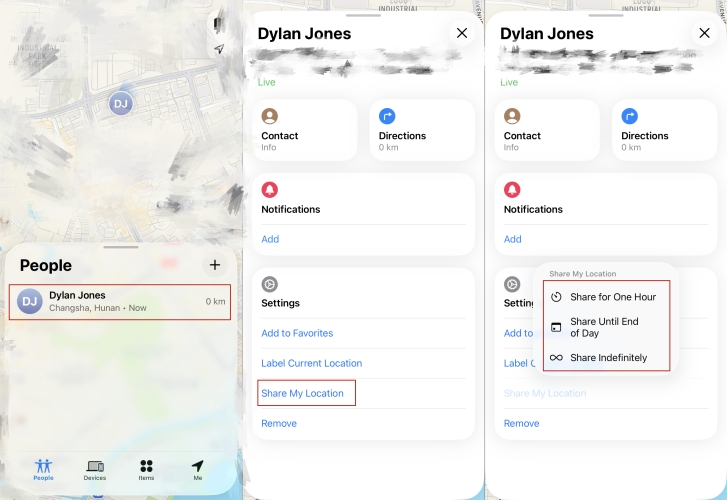
Step 1. Fire up the Find My app on your iPhone.
Step 2. Then select the People tab at the bottom of the screen.
Step 3. Tap their name and select Share My Location to view their current location.
Part 2. How to See Someone's Location on iPhone Messages
In certain situations, people may share their location directly through the Messages app, especially during conversations for meetups or safety check-ins. This method is more conversation-based compared to Find My, which is designed for continuous tracking. Messages allows temporary or ongoing sharing within a specific chat.
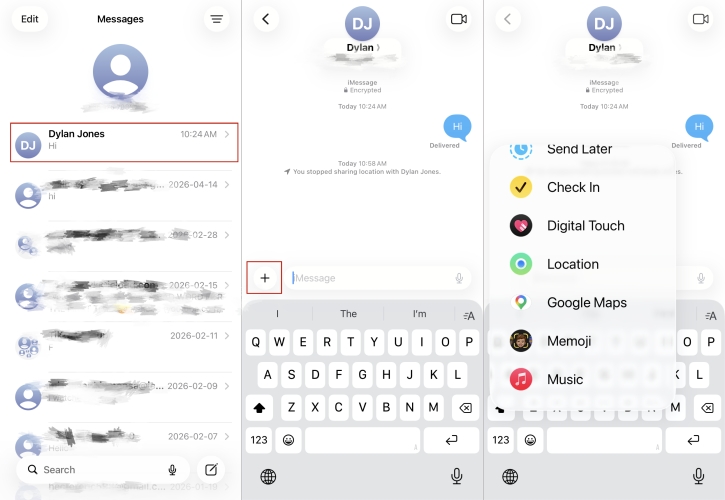
Step 1. Open the Messages app and enter the conversation with the person.
Step 2. Tap the + icon and choose Find My or Google Maps to share location.
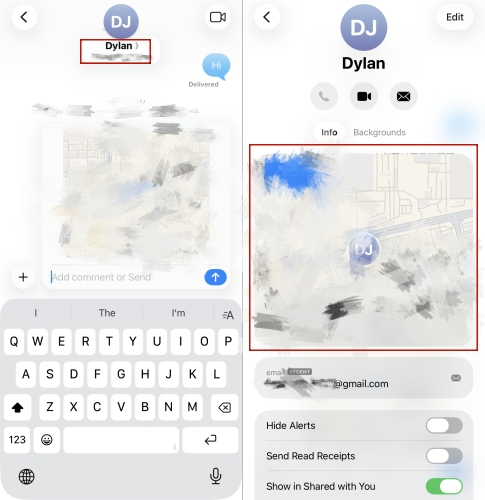
Step 3. Proceed to press the contact name at the top of the screen. If the person has shared their location, you will see a map displayed.
Step 4. Tap the map to view their current or shared location in more detail.
Part 3. How to See Someone's iPhone Location on Google Maps
Google Maps is another popular option for location sharing, especially when communicating across different devices. It works on both iPhones and Android devices, making it more flexible than Apple-only solutions. Unlike Find My or Messages, Google Maps supports cross-platform sharing and can provide navigation-friendly tracking.
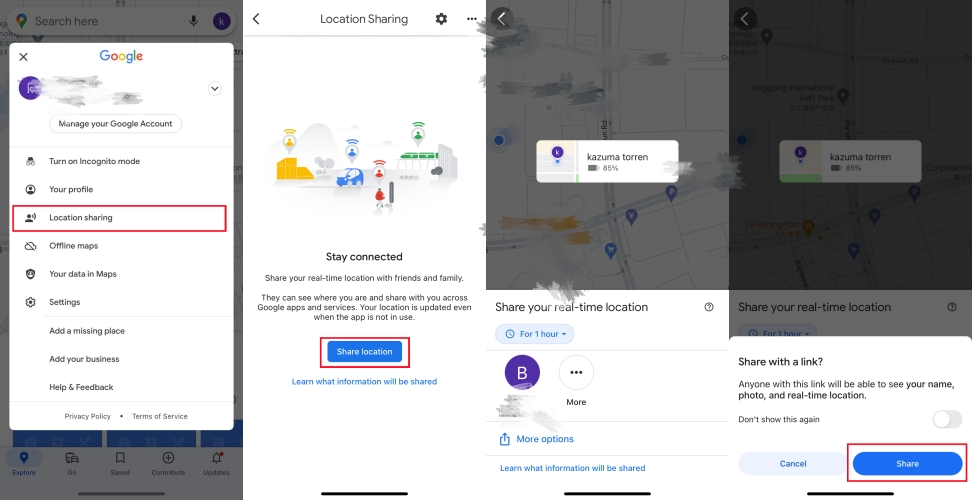
Step 1. Open Google Maps on your iPhone.
Step 2. Hit your profile icon and select Location sharing.
Step 3. Press Share location and look for contacts who have shared their location with you.
Step 4. Tap the person's name and tap Share to check their real-time position on the map.
Part 4. Bonus Tip: How to Avoid Someone Tracking My iPhone Location
Sometimes, you may want a bit of personal space and prefer not to share your exact whereabouts. Simply turning off location services can notify others that your location is unavailable, which might raise questions. In such cases, tools like MagFone Location Changer can be helpful. This software allows you to display a virtual location instead of your real one, letting you maintain privacy without alerting others to any changes.

MagFone Location Changer
Easily change your GPS location on iOS and Android devices to anywhere with one click, while not requiring root or jailbreaking!
Here, we'll tell you how to use MagFone Location Changer to stop others from tracking your iPhone location.
Step 1 Choose a Location Mode

Install the location-changing software on your computer and connect your iPhone using a USB cable. Launch the program, follow the on-screen prompts, and select the preferred mode for modifying your device's location.
Step 2 Set a Virtual Location

Once the map interface appears, enter a destination in the search field or manually select a point on the map. Confirm your chosen location and activate the change. Your iPhone will now reflect this new GPS virtual position without notifying others.
Part 5. FAQs about Seeing Someone's Location
Can you still see someone's location if they blocked you?
No. If someone blocks you or removes location sharing in iPhone's Find My, you will stop seeing their location. Blocking typically also ends location sharing, so updates stop immediately.
Can someone see your location on Airplane Mode?
Not live. Airplane Mode turns off GPS updates to the network. Others may still see your last known location until you reconnect to Wi-Fi/cellular and your phone updates again.
How to always see someone's location on iPhone?
You can only see someone's location if they choose to share it continuously through Find My. There is no way to "always" see it without their permission and active sharing.
How to stop seeing someone's location on iPhone?
You can stop or hide someone's location sharing in a couple of ways:
In the Find My app:
Step 1. Open Find My and go to the People section.
Step 2. Choose the person you want to manage.
Step 3. Tap Stop Sharing My Location to end location sharing with them.
In the Messages app:
Step 1. Open the conversation in Messages.
Step 2. Then press their name or profile icon at the top.
Step 3. Select Stop Sharing My Location to turn it off.
Part 6. Conclusion
Tracking someone's iPhone location can be simple and helpful when done with permission. Whether you use Find My for continuous updates, Messages for quick sharing, or Google Maps for cross-platform convenience, each method serves a different purpose. At the same time, privacy remains essential, and users have full control over their location data. Understanding both tracking and privacy tools ensures a balanced and responsible approach to staying connected in everyday life.

Edgar Davis
Editor in chief




