








Losing an iPhone is stressful, but the situation feels even worse when the device has no power. Many users immediately wonder how to locate a dead iPhone or whether recovery is still possible. Fortunately, Apple provides tracking tools that can still show useful information even after shutdown. In this guide, you'll learn practical methods, step-by-step instructions, and backup options to understand how to find a dead iPhone step by step.
- Part 1. Can You Find Your iPhone When It's Offline or Dead?
- Part 2. How to Locate a Dead iPhone with Find My
- Part 3. How to Find a Dead iPhone without Find My
- Part 4. Bonus Tip: How to Fake Location on iPhone
- Part 5. Conclusion
Part 1. Can You Find Your iPhone When It's Offline or Dead?
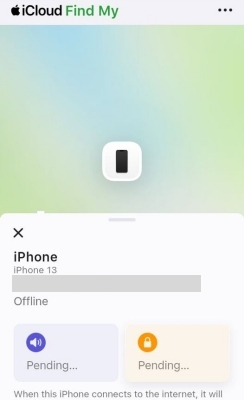
If you have enabled the Find My feature on your iPhone, you can track it from any Apple device using the same Apple ID. When the iPhone is offline or dead, you can't see its real-time location anymore, but you can still view its last known location before it powered off.
Part 2. How to Locate a Dead iPhone with Find My
The most reliable method for locating a dead iPhone is to use Apple's Find My tracking ecosystem. This system works through both a mobile app and an online platform, allowing users to access device data from almost any internet-connected device.
Option 1. Locate a Dead iPhone at iCloud.com
You can access Apple's tracking service through the official iCloud website on any browser. By logging in with your Apple ID, you gain access to device-tracking tools even when your phone is offline. This is often the first method for users searching for how to find a dead iPhone without physical access to another Apple device.
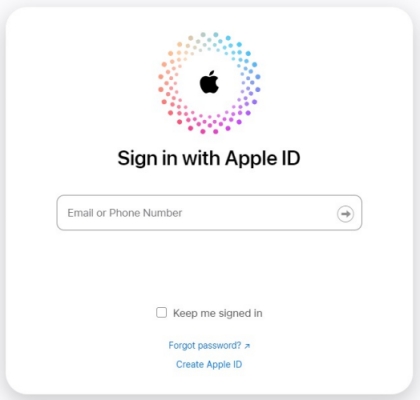
Step 1. Open a browser on any device and visit the official iCloud login page.
Step 2. Sign in using your Apple ID and password linked to the missing iPhone.
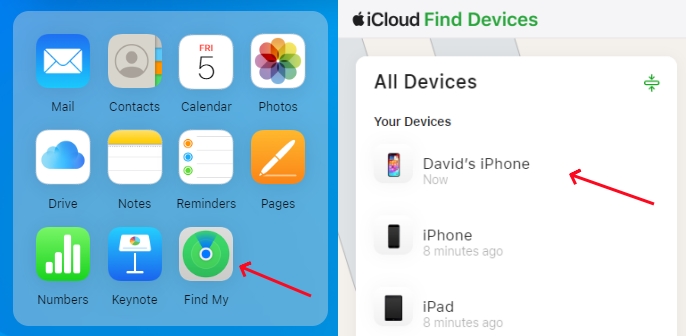
Step 3. Click on the Find My feature from the main interface.
Step 4. Select your iPhone from the device list shown on the screen.
Step 5. View the last available location on the map if it appears.
Option 2. Locate a Dead iPhone on Find My App
If you own another Apple device signed in with the same Apple ID, the tracking process becomes even easier. The built-in Find My app allows instant access to device maps and locations. This method is commonly used for how to find an iPhone that is dead in real time.
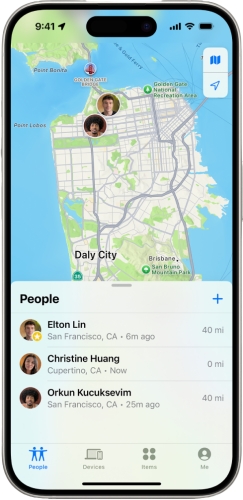
Step 1. Open the Find My app on your iPad, Mac, or secondary iPhone.
Step 2. Tap the Devices section from the bottom menu.
Step 3. Select your missing iPhone from the device list.
Step 4. Check the map to view its last known location.
Step 5. Use directions or Lost Mode to secure the device if needed.
Part 3. How to Find a Dead iPhone without Find My
In addition to Apple's built-in tracking system, there is another way to explore how to find a dead iPhone without last location access. One possible method involves checking Google Maps Timeline if location history was previously enabled. This feature may show past movement patterns that help estimate where the device was last active. While not as precise as Apple tools, it can still provide helpful clues for how to find a dead iPhone without Find My.
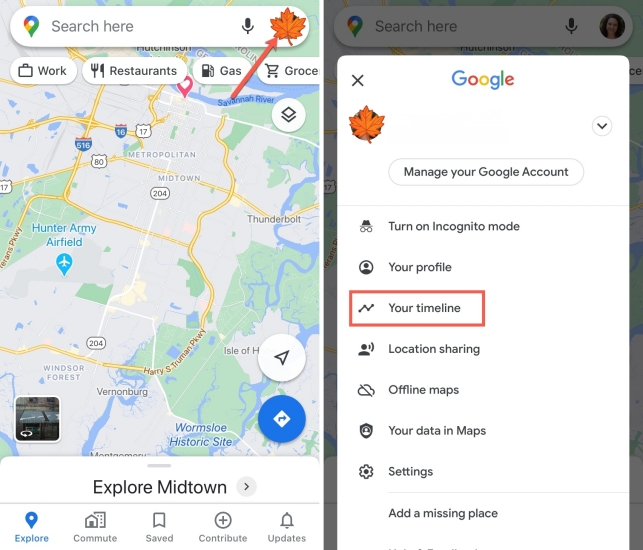
Step 1. Open Google Maps on another device and sign in with your Google account.
Step 2. Go to the Your timeline or location history section.
Step 3. Select the date when the iPhone was lost or last used.
Step 4. Review recorded movements and identify the last known position.
Step 5. Visit the location to check if the device is nearby.
Part 4. Bonus Tip: How to Fake Location on iPhone
In daily life, there are times when you may want to fake your location on an iPhone. For instance, you might need to change your location or send a fake live location on Find My, WhatsApp, or other apps to protect your privacy, maintain personal security, or meet other specific needs. In such cases, MagFone Location Changer can be a practical solution for changing your iPhone's location quickly and easily. Here's how to fake location on your iPhone.

MagFone Location Changer
Easily change your GPS location on iOS and Android devices to anywhere with one click, while not requiring root or jailbreaking!
Step 1 Open MagFone Location Changer

Download and install MagFone Location Changer on your computer, then launch the software. Connect your iPhone to the computer using a USB cable. Once your device is detected, select Start from the main dashboard and click Start to confirm your device information.
Step 2 Select a Virtual Location and Apply

Tap Next and select the GPS spoofing mode you need. Browse the map to choose your desired destination or type an address into the search field. After the selected location appears on the map, click the Start Modifying or the Plan Route button to apply.
Part 5. Conclusion
Learning how to locate a dead iPhone is essential for protecting your data and increasing recovery chances. Even if the device is offline or powered off, tools like Find My and iCloud can still reveal useful last known location details. Alternative options, such as Google Maps history, may also help.

Edgar Davis
Editor in chief





