








App tracking allows apps to collect personal data, location details, and browsing habits to build profiles for advertisers. As concerns about data privacy continue to grow, knowing how to control these permissions is important. This guide explains how to turn off app tracking on both iPhone and Android, with simple, step-by-step instructions to help limit unwanted data collection and protect your privacy across your devices.
- Part 1. Why You Need to Turn Off App Tracking?
- Part 2. How to Turn Off Tracking Apps on iPhone
- Part 3. How to Turn Off App Tracking on Android
- Part 4. Extra Tip: How to Avoid Location Tracking
- Part 5. Conclusion
Part 1. Why You Need to Turn Off App Tracking?
People often decide to turn off app tracking after noticing ads that seem to follow them everywhere or simply wanting more privacy. While tracking can make apps more personalized, it also allows them to collect and use information about your activity. Here are a few reasons why disabling this feature may be worth considering:
- Keeps your personal profile from being sold to data brokers.
- Reduces the number of intrusive, personalized ads you see.
- Stops apps from monitoring you even when closed.
- Can help preserve battery life and background performance.
Part 2. How to Turn Off Tracking Apps on iPhone
Apple's App Tracking Transparency framework requires every app to ask permission before tracking you across other apps and websites, but you can also manage or block this permission manually at any point through your settings menu.
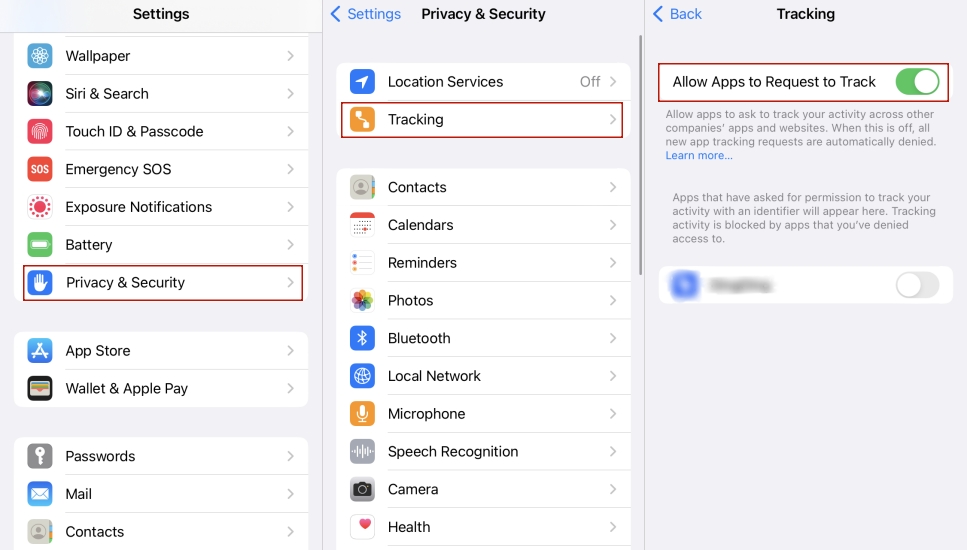
Step 1. Launch Settings on your iPhone.
Step 2. Pick the Privacy & Security section, then choose the Tracking option.
Step 3. To block every app at once, toggle off Allow Apps to Request to Track. To manage apps individually, scroll through the list below and switch off tracking for specific apps.
If you'd like to see exactly what data your apps have been collecting and sharing, Apple's built-in App Privacy Report gives you a detailed seven-day log. It shows when apps access sensitive features, such as your location, camera, microphone, contacts, and photos, while also tracking their network activity and connected domains.
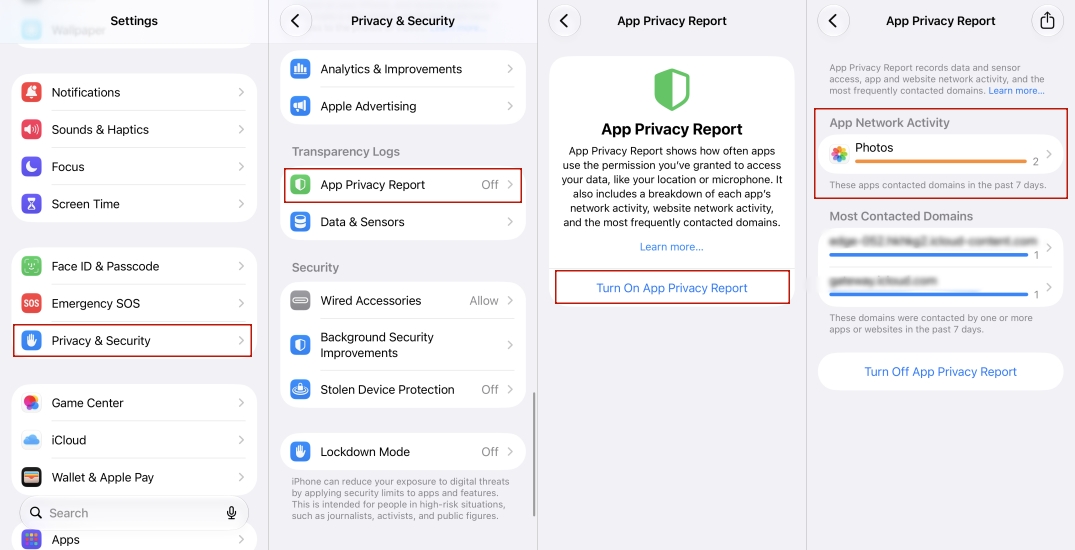
Step 1. Go to Settings.
Step 2. Tap Privacy & Security.
Step 3. Select App Privacy Report and turn it on if it isn't already active.
Step 4. Open the report to review which apps accessed your camera, microphone, contacts, location, or photos, and which domains they contacted.
Part 3. How to Turn Off App Tracking on Android
Android doesn't offer one central switch for tracking the way iOS does, so controlling it takes a bit more digging through app-level and system-level permission menus, but the process is still fairly quick once you know where to look.
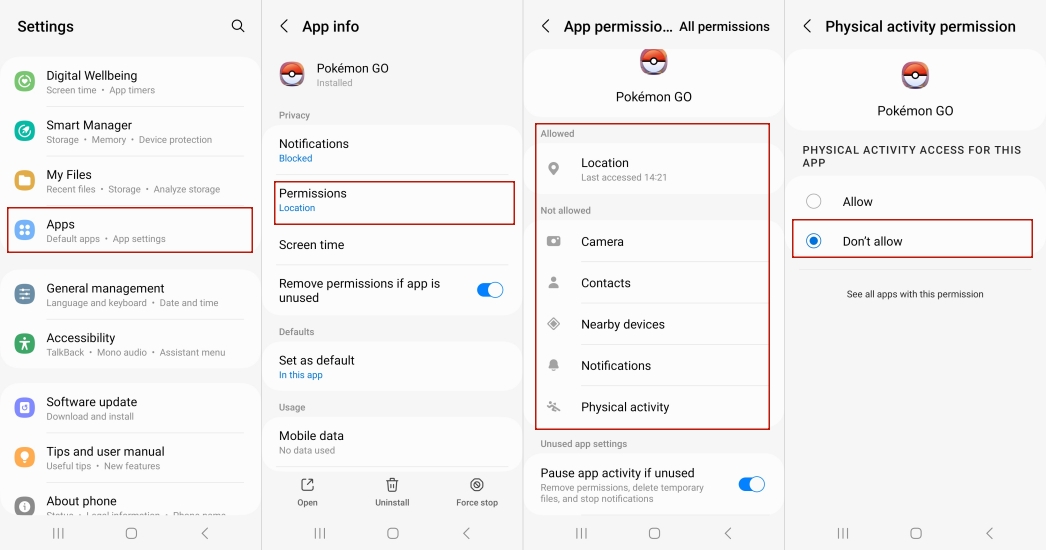
Step 1. Open Settings on your Android device.
Step 2. Scroll down and tap Apps.
Step 3. Find the app and open its permission settings to make changes.
Step 4. Tap Permissions. Then turn off permissions like Location, Contacts, or Call Logs, or set the app to ask each time it needs access.
You can also review tracking activity across your entire device rather than checking each app individually. This gives you a broader view of how your data is being collected and makes it easier to spot recurring patterns, unexpected activity, or tracking behavior you may want to limit or shut down.
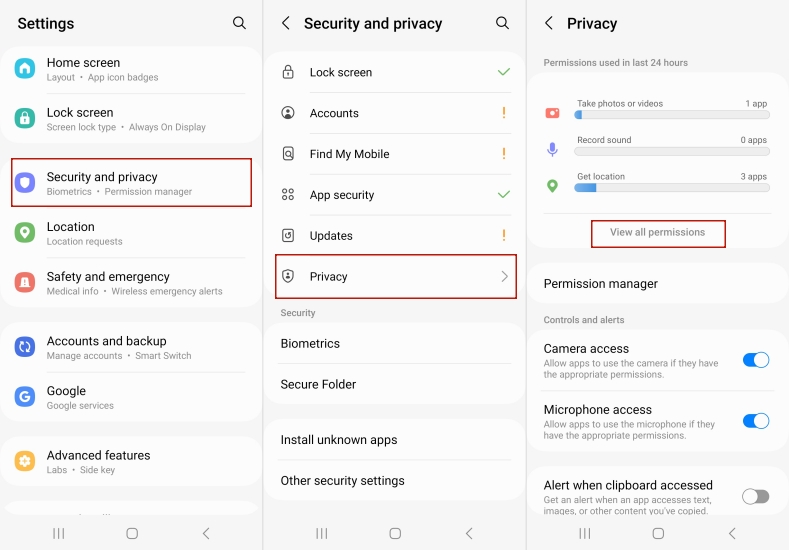
Step 1. Navigate to Settings and enter the Security and Privacy section.
Step 2. In the Privacy section, choose Permissions Used in the Last 24 Hours.
Step 3. Browse recent or weekly permission activity by category.
Step 4. Tap into any permission to see which apps used it, then disable access for the ones you don't trust.
Note:
Keep in mind that menu names can differ slightly depending on your phone's manufacturer and Android version. For instance, some devices label this section "Application Manager" instead of "Apps."
Part 4. Extra Tip: How to Avoid Location Tracking
Certain apps, such as Find My, Life360, and Pokémon GO, rely on your real-time GPS position to function properly, so switching location services off entirely isn't always practical. When you still want to keep location-based features working but don't want your actual whereabouts exposed, a tool like MagFone Location Changer lets you set a virtual GPS position on your iPhone or Android and even simulate realistic movement along a route at a natural walking or driving speed, making the spoofed location harder to detect. Here's how to.

MagFone Location Changer
Easily change your GPS location on iOS and Android devices to anywhere with one click, while not requiring root or jailbreaking!
Step 1 Connect Your Phone and Launch MagFone
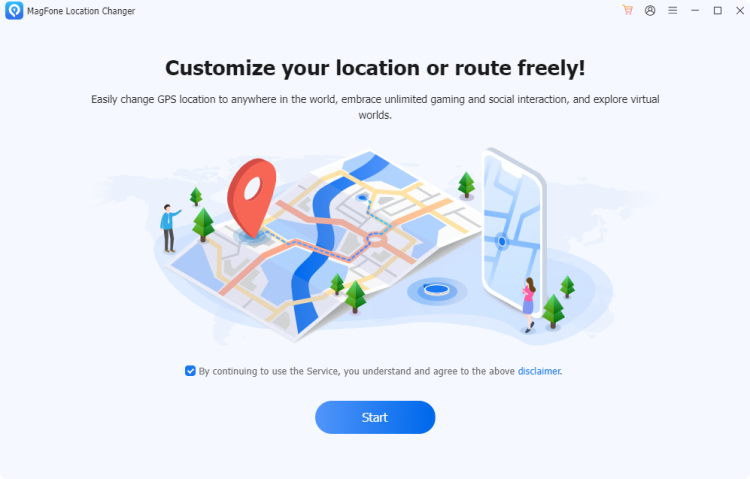
Attach your device to your computer with a USB cable, and confirm Developer Mode has already been enabled. Then open MagFone Location Changer, select the Change Location option, and click Start to begin the session.
Step 2 Set a New Spot in Pokémon GO
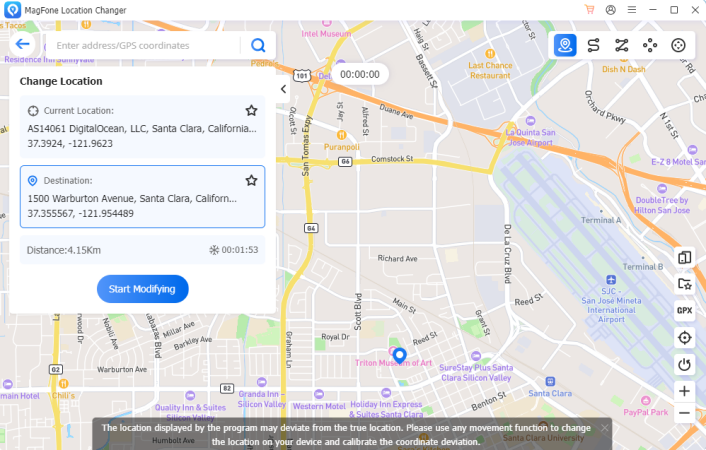
Scroll around the map to find the location you want to appear in, or type an address directly into the search bar and let the app locate it automatically. Once you've chosen your spot, click Start Modifying, and your position within the game will switch immediately.
Part 5. Conclusion
Disabling app tracking on iPhone or Android is one of the simplest ways to reclaim control over your personal data and cut down on targeted ads. Whether you're adjusting Apple's Tracking settings or managing permissions on Android, a few extra minutes now can meaningfully improve your long-term privacy and device performance.

Olivia Wood
Editor in chief





