
-
Unlock
-
Utilities
-
Recovery
-
Solutions
- Support
 Content
Whatever reasons you want to change your location on your mobile device, you can select MagFone Location. While there are plenty of location spoofing tools available online, MagFone Location Changer puts in a great show of changing location on both iOS and Android devices. Follow the steps below to connect your device with MagFone Location Changer first.
For iOS Devices

Run MagFone Location Changer on your computer, then agree to the disclaimer after carefully reading it and click the Start button.
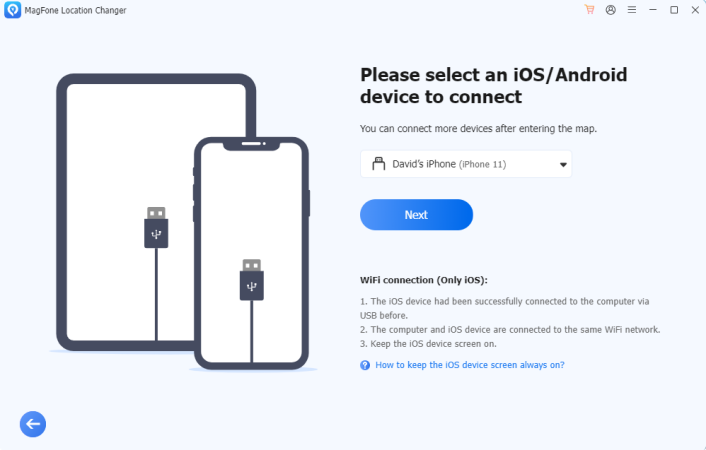
Proceed to connect your iPhone or iPad to the computer via a USB cable. Without a USB cable, you can choose to establish the connection between your device and computer via the same WiFi network. Then click the Next button.
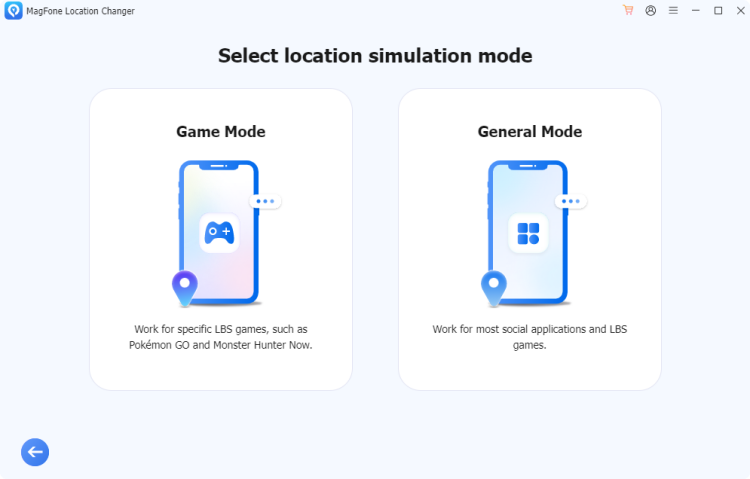
Go to select a location simulation mode. Two options including Game Mode and General Mode are available for you to choose. To change location on location-based games, just choose Game Mode, while selecting General Mode to change location on most applications.
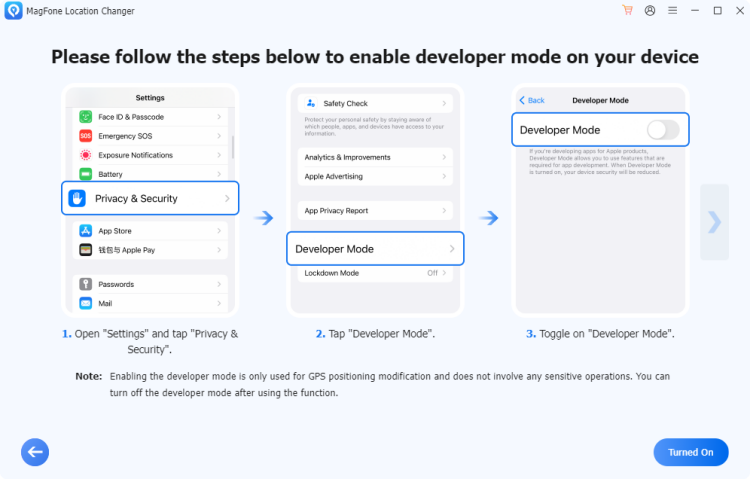
After selecting a location simulation mode, you'll be asked to turn on Developer Mode on your device by following the onscreen instruction. Once turning on Developer Mode, click the Turned On button, then you can access all features in the MagFone software. If Developer Mode is activated on your device, you don't need to do that again.

If you choose Game Mode, you don't have to turn on Developer Mode on your device. You only need to pair your device with computer via Bluetooth. Follow the onscreen instructions to complete the Bluetooth connection.
For Android Devices
Launch MagFone Location Changer on your computer, then agree to the disclaimer after carefully confirming and click the Start button.
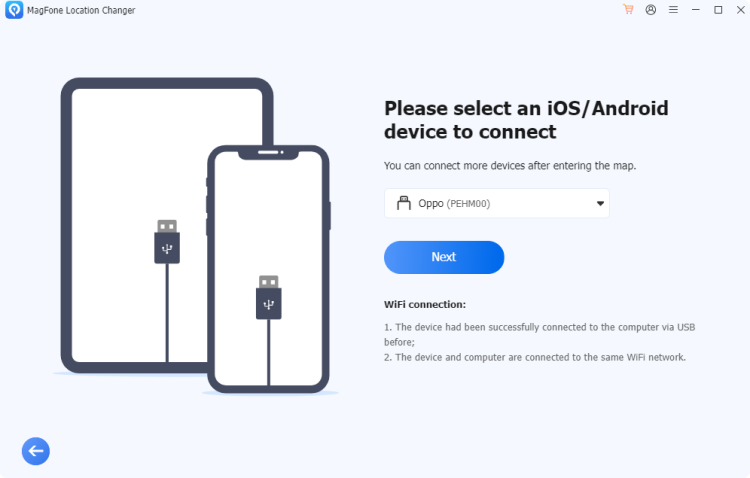
Unlock your Android device and use a USB cable to connect it to the computer. Select the option on your Android device to allow the connection. Make sure that your device is connected to the computer.
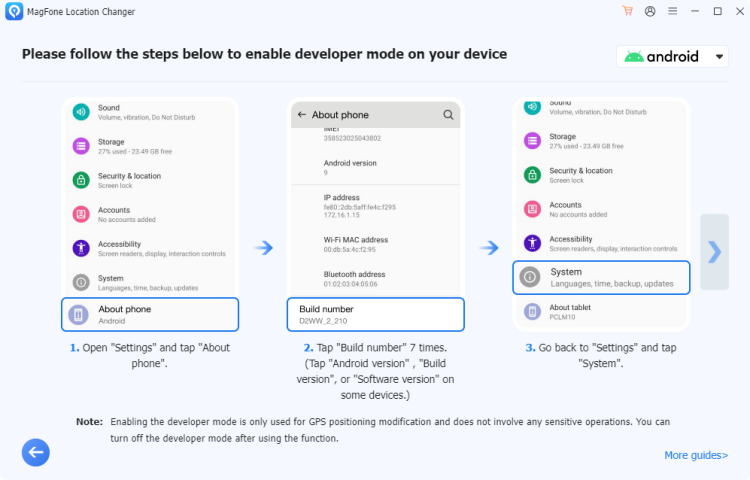
After your Android device is detected by the computer, you'll see the prompts on how to turn on Developer Mode on your device. Follow the detailed onscreen instructions to turn on Developer Mode on your device. Once Developer Mode is enabled, you don't have to do this again.
When your device is in Developer Mode, you have to select a Location Simulation Mode. Two location simulation modes includes Game Mode and General Mode. For changing location on location-based games, just select Game Mode, while changing location on most applications with General Mode.
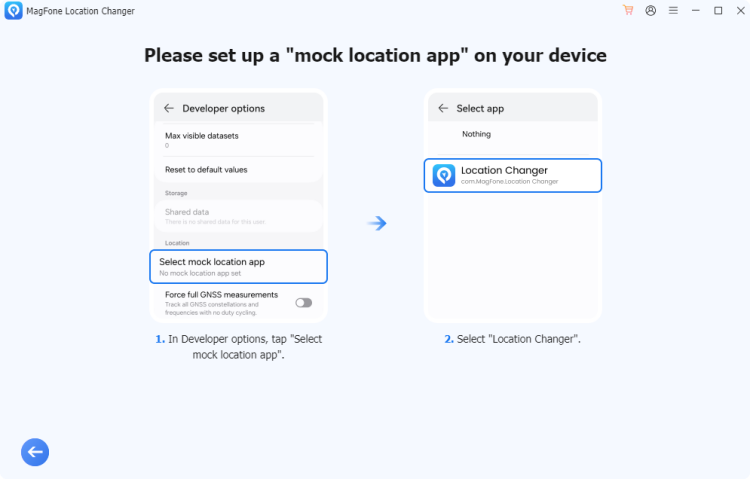
After selecting a location simulation mode, you need to set up a "mock location app" on your Android device. With the onscreen instructions, you can complete it with ease. Then you can access all features in the MagFone software successfully.
Whether to hide your actual location for privacy purpose or spoof location for entertainment, the best choice is to use MagFone Location Changer. With the help of MagFone Location Changer, you can change your location on your iPhone or Android device to anywhere in the world. Follow the steps below to change location on your device.
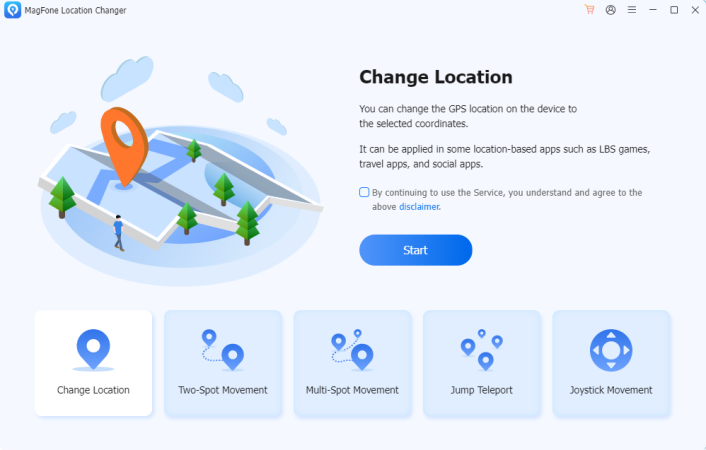
After entering the map, you can select a destination you want to teleport. You can either click on any spot on the map or enter the address in the search box.

Then wait for a cooldown timer indicator to appear. Proceed to click the Start Modifying button to change your location on your device.
GPS simulation lets users experience the journey from one location to another virtually, making it essential for gaming applications. MagFone Location Changer offers three modes such as Two-Spot Mode, Multi-Spot Mode, and Jump Teleport Mode, each offering unique functionality and utility. When simulating GPS movement, you can use different modes depending on the goal.
Option 1. Two-Spot Mode
Two-Spot Mode allows users to create a GPS route between two locations, simulating a straight-line journey from one to the other. In Two-Spot Mode, users define a starting point and an endpoint, enabling the simulation to create a linear movement between the two.
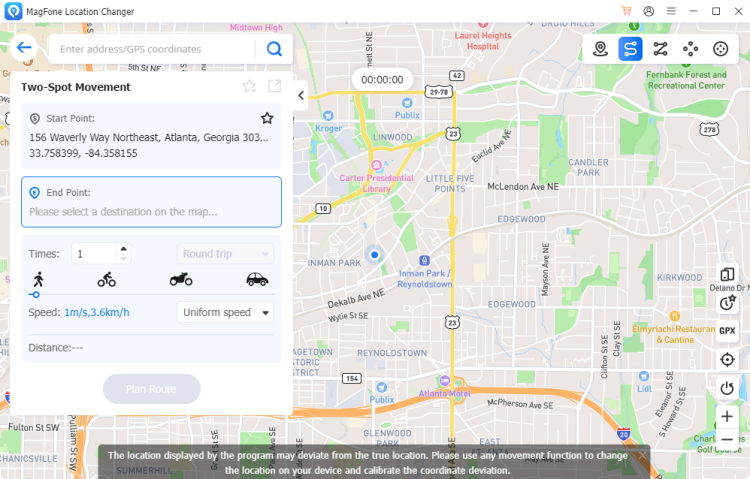
Once selecting the Two-Spot Movement option, set a starting point and an endpoint on the map. Also, you can select the speed mode and customize the speed according to your demand. Then click the Plan Route button to generate different two-spot routes.
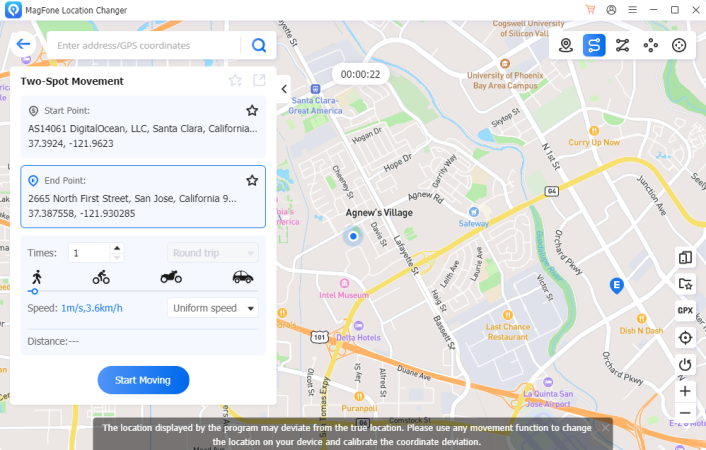
After selecting a two-spot route, you can click the Start Moving button to start the virtual journey between the two points. During the movement, you can freely pause or continue the simulation. And you can choose to directly stop the movement.
Option 2. Multi-Spot Mode
Multi-Spot Mode expands on Two-Spot Mode, allowing users to create a more complex path with several stops along the journey. In Multi-Spot Mode, users create a sequence of stops by adding waypoints, which the simulation follows in a connected path.
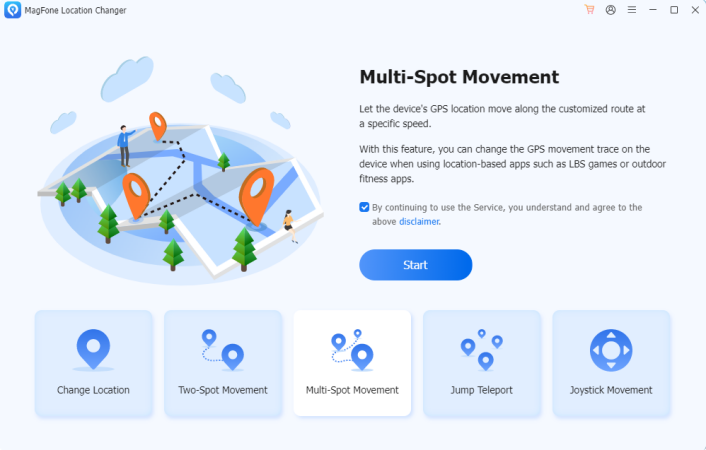
On the top-right menu of MagFone Location Changer, select the Multi-Spot Movement option. Then you'll be able to add several random waypoints on the map and select the speed mode. After selecting the speed mode, you can set the speed and the number of round trips or cycles.
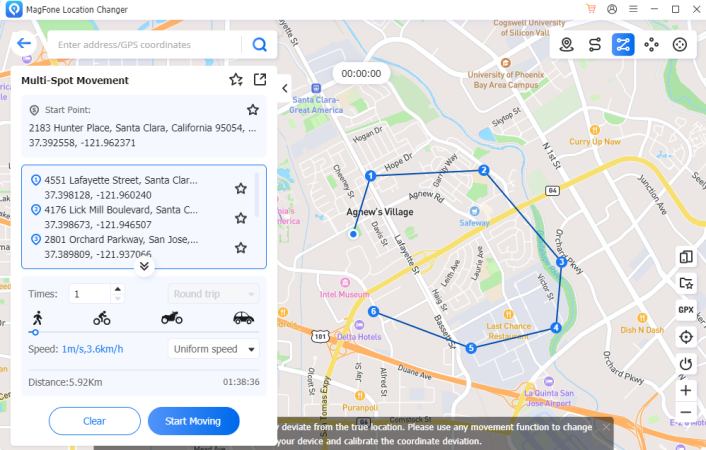
Continue to click the Start Moving button, and there will be a customized route on the map. The simulation movement will start along the route. You can choose to pause or continue the movement freely. Also, you can directly stop it during the movement.
Option 3. Jump Teleport Mode
Jump Teleport Mode simulates instantaneous jumps between different locations, making it ideal for testing responses at varying locations. By selecting locations, users can "teleport" instantly without a route, testing quick transitions.
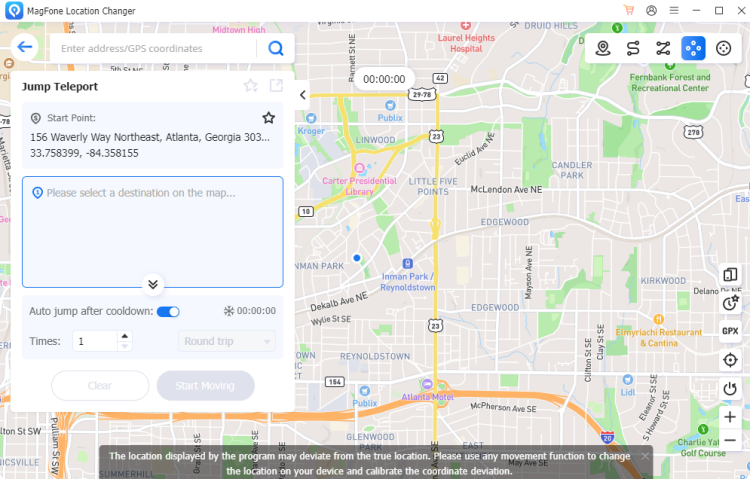
After connecting your device to your computer, select the Jump Teleport option on the MagFone software. On the map, choose multiple locations as many as needed. Then you can choose to jump manually by clicking on the location or automatically after the cooldown time ends.
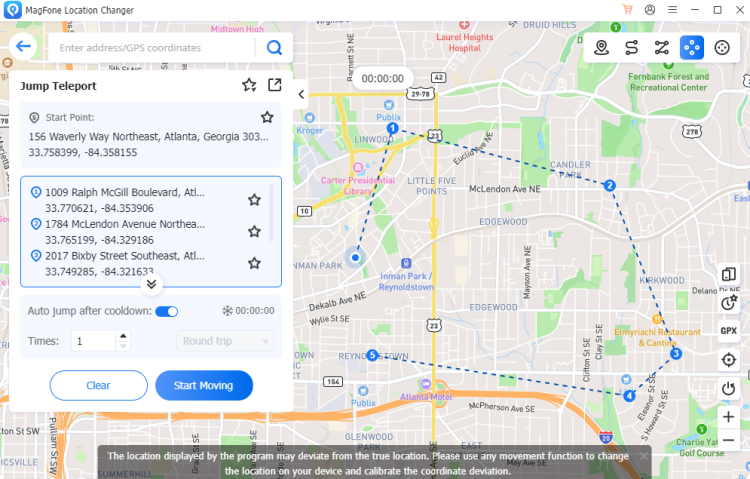
Click the Start Moving button to start jumping and teleporting. If you choose the manual jump and teleport, you need to click the Previous Point or Next Point button to teleport to the previous or next point. And you can click the End button to end the moving process.
Joystick movement might sound straightforward, but it opens up a world of precision and control in gaming, simulations, and accessibility tools. With the Joystick Movement feature in MagFone Location Changer, you can freely navigate, aim, or perform complex maneuvers. Here are the steps you can follow to use Joystick Movement with MagFone.
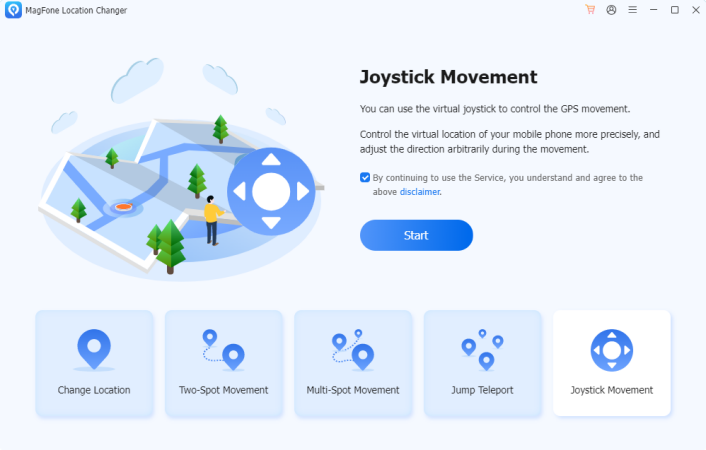
On the main interface of MagFone Location Changer, select the Joystick Movement option, then you'll be directed to the Joystick Movement mode. In the Joystick Movement mode, you can select the speed mode and drag the slider to set the speed of movement.
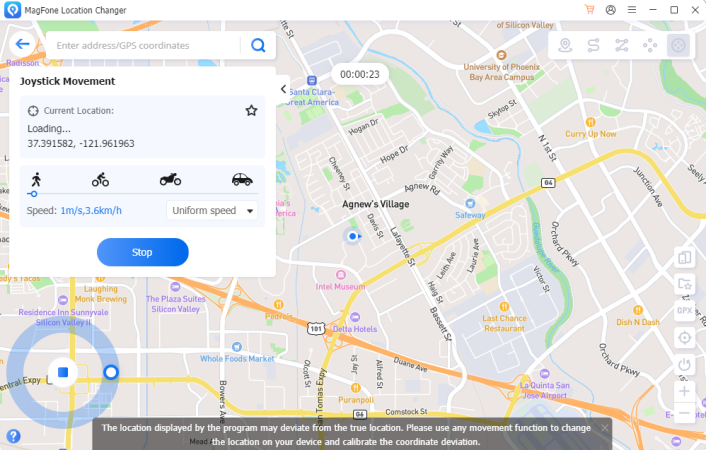
Click the Start Moving button to start moving in the specified direction according to your required speed. In the whole process, you can click the Stop button to stop moving at any time. While moving, you still can adjust the speed and speed mode.
Beyond that, MagFone Location Changer offers practical features as many as needed. Whether you need to mimic a simple journey, a complex route, or instant location jumps, those practical features can make you get better experience. Let’s explore practical features you maybe like.

Follow Us:











