








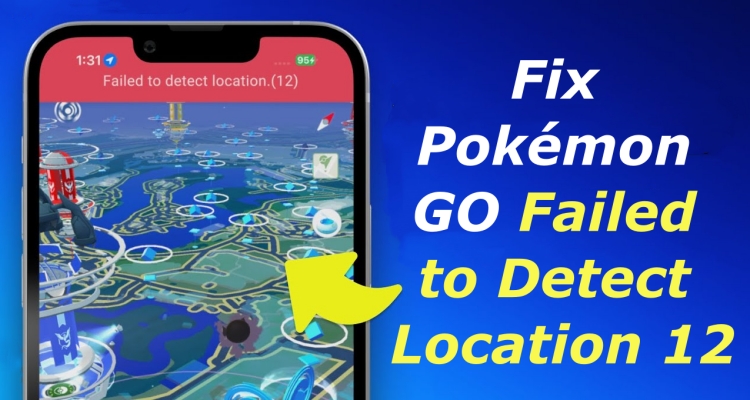
Few things disrupt a Pokémon GO session faster than a bright red banner declaring "Failed to detect location. (12)". Whether you are about to start a Tier 5 Raid, hatch a 10km Egg, or catch a rare shiny spawn, this error completely halts your gameplay by freezing the in-game map and hiding nearby PokéStops and Gyms. Fortunately, Error 12 is a common issue with clear solutions. This comprehensive guide explains what triggers Pokémon GO Error 12 and provides step-by-step methods to fix it on both Android and iOS devices.
- Part 1. What Is Pokémon GO Failed to Detect Location 12
- Part 2. How to Fix Failed to Detect Location 12 Android/iOS
- Part 3. Advanced Fixes for Failed to Detect Location 12
- Part 4. How to Prevent GPS Errors in Pokémon GO
- Part 5. FAQs about Failed to Detect Location 12
- Part 6. Conclusion
Part 1. What Is Pokémon GO Failed to Detect Location 12
First, Pokémon GO Error 12 is not an account ban or strike. Seeing this error banner does not mean Niantic has suspended your profile. It is a client-side GPS location error that occurs when the Pokémon GO application requests your device's location data, but receives an invalid response, an interrupted signal, or a mismatch in location parameters.
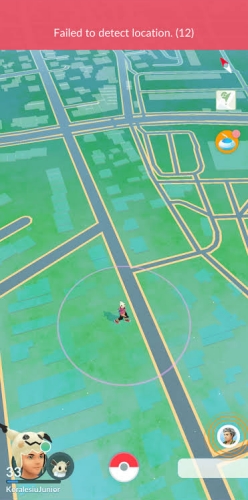
Niantic introduced strict location-checking protocols to ensure fair play. As a result, "Failed to detect location. (12)" in Pokemon GO triggers under two main circumstances.
- Hardware & System Failures: Weak GPS signals, aggressive battery-saver throttles, or disabled high-precision location permissions on legitimate devices.
- Software & Mock Location Discrepancies: Improperly configured Android Mock Location settings, unpatched third-party location tools, or mismatched iOS tethering drivers.
Before applying deep system fixes, check this summary table to identify the likely cause based on your current setup.
| Trigger Scenario | Primary Reason | Immediate Action Needed |
|---|---|---|
| Poor Signal | GPS satellites blocked by tall buildings or thick walls | Move near a window or outdoors. |
| Battery Saver Active | System throttling background location hardware | Disable Battery Saver mode. |
| Missing App Permissions | Pokémon GO lacks "Precise Location" access | Enable "Precise Location" in device settings. |
| Mock Location Enabled | Android Developer Options flagging an unlinked spoofer | Select proper Mock Location app. |
| Mismatched Location Tool | Outdated tethering software or missing game drivers | Update desktop location software and driver protocols. |
Part 2. How to Fix Failed to Detect Location 12 Android/iOS
If you play Pokémon GO standardly without location-altering software and encounter Error 12, the issue is almost certainly tied to system permissions or temporary sensor signal loss. Here are some standard fixes for "Failed to detect location. (12)" in Pokemon GO.
Method 1. Enable Precise Location Permissions
Modern operating systems allow you to share either an "Approximate" or "Precise" location with apps. Pokémon GO requires exact pin-point accuracy to load map assets correctly.
On Android:
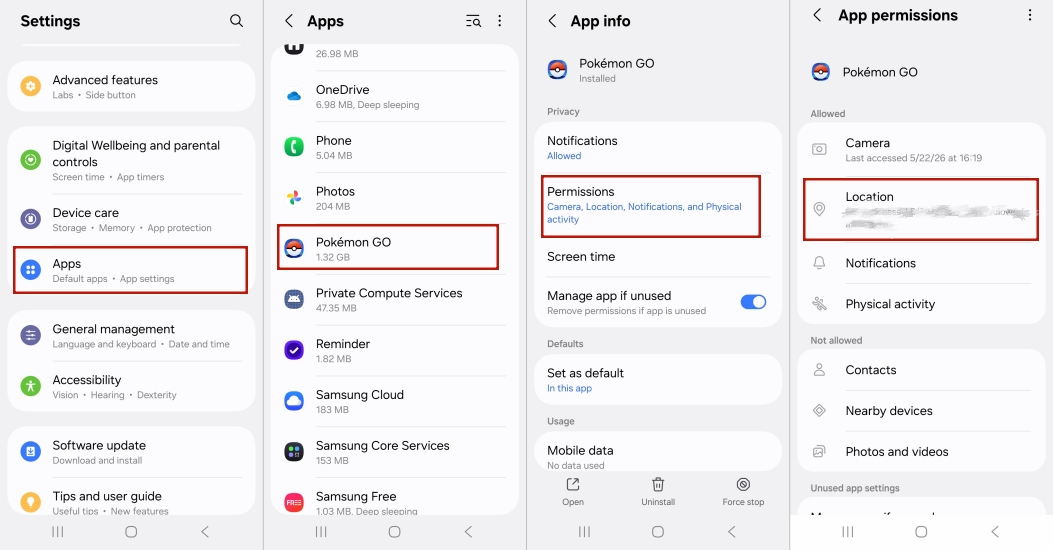
Step 1. Open Settings > Apps > Pokémon GO.
Step 2. Tap Permissions > Location.
Step 3. Ensure location access is set to "Allow only while using the app".
Step 4. Toggle on Use Precise Location.
On iOS:
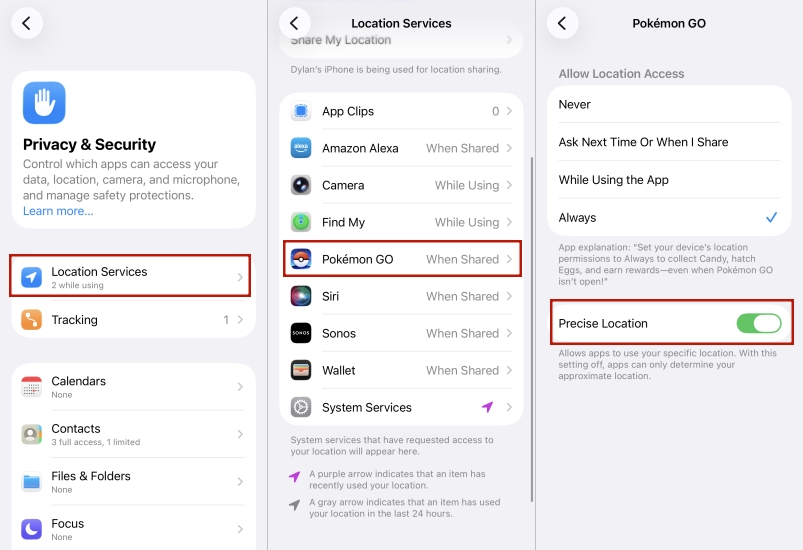
Step 1. Open Settings > Privacy & Security > Location Services.
Step 2. Ensure Location Services is toggled ON.
Step 3. Scroll down and select Pokémon GO.
Step 4. Set access to While Using the App or Always.
Step 5. Toggle Precise Location ON.
Method 2. Turn Off Device Battery Saver
Aggressive power management settings frequently limit power to your phone's internal GPS chip to extend battery life. This drop in frequency triggers Error 12.
On Android:
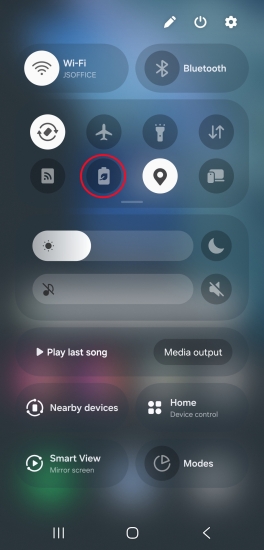
Step 1. Swipe down your notification shade.
Step 2. Turn off Battery Saver.
Disable App-Specific Optimization (Android):
Go to Settings > Apps > Pokémon GO > Battery. Change the battery usage setting from Optimized or Restricted to Unrestricted.
On iOS:
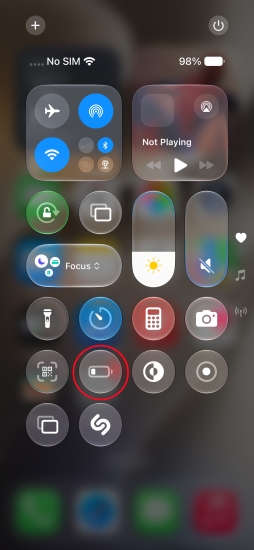
Step 1. Swipe down your control panel.
Step 2. Turn off Low Power Mode.
Method 3. Force Restart Pokémon GO
Simply backing out of the app to your home screen leaves Pokémon GO running in the background, keeping the glitched location session active. A force restart kills the app process completely.
On Android:
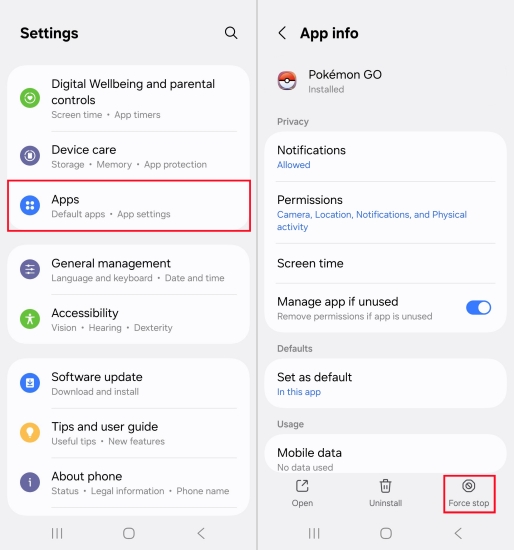
Step 1. Open Settings > Apps > Pokémon GO.
Step 2. Tap Force Stop at the bottom or top right of the screen.
Step 3. Confirm by tapping OK.
Step 4. Wait 10 seconds, then relaunch Pokémon GO.
On iOS:
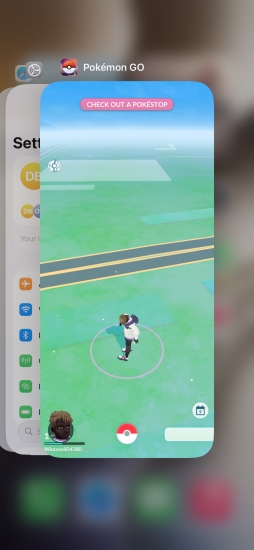
Step 1. Swipe up from the bottom of your screen.
Step 2. Pause in the middle to open the App Switcher.
Step 3. Locate the Pokémon GO app card and swipe it straight up to close it.
Step 4. Wait 10 seconds before opening the app again.
Method 4. Clear Pokémon GO Cache
Clearing the cache in Pokémon GO removes temporary location data, corrupted map files, and stalled network sessions that can block the game from updating your GPS coordinates correctly.
On Android:
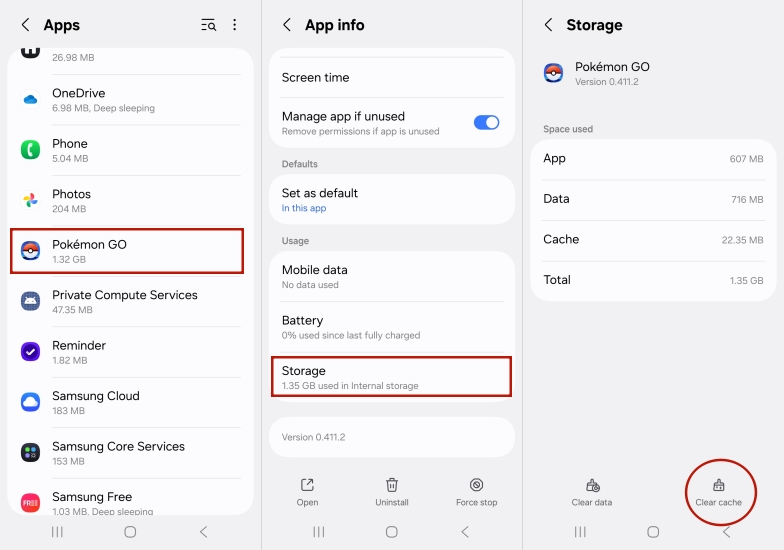
Step 1. Open Settings on your phone.
Step 2. Tap Apps and select Pokémon GO.
Step 3. Tap Storage & Cache, then Clear Cache.
Note:
Do not tap Clear Data unless you know your login credentials, as clearing data resets all app settings and logs you out.
On iOS:
Step 1. Swipe up from the bottom of your screen to open the App Switcher.
Step 2. Swipe Pokémon GO upward to force close it.
Step 3. Turn Airplane Mode ON for 10 seconds, then turn it OFF.
Step 4. Relaunch Pokémon GO to force a clean location fetch.
Method 5. Refresh Cell & Wi-Fi Connections
Defining your position relies on active cell towers and local Wi-Fi router beacons. Toggling Airplane Mode forces your device to drop all existing connections and perform a clean re-registration.
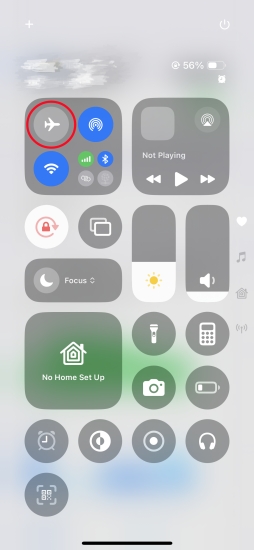
Step 1. Swipe down from the top of your screen to open Quick Settings or Control Center.
Step 2. Tap the Airplane Mode icon to turn it ON.
Step 3. Wait 10 to 15 seconds to ensure all network adapters fully power down.
Step 4. Tap the icon again to turn Airplane Mode OFF.
Step 5. Ensure Wi-Fi is enabled, then re-open Pokémon GO.
Method 6. Reset Network Settings
If an Airplane Mode toggle fails to clear persistent network latency or DNS caching issues affecting location data, reset your device's network configuration entirely.
On Android:

Step 1. Open Settings > General management.
Step 2. Tap Reset > Reset Wi-Fi and Bluetooth settings.
Step 3. Confirm the reset and restart your device.
On iOS:
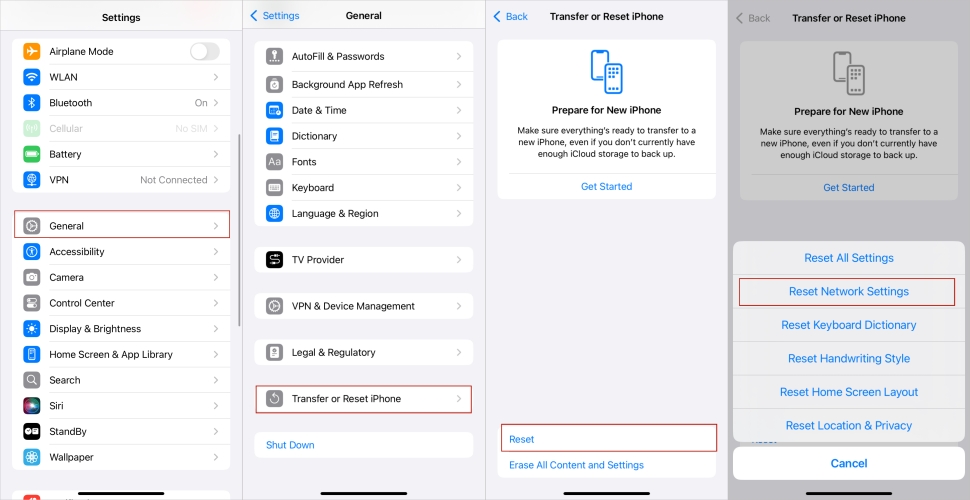
Step 1. Open Settings > General > Transfer or Reset iPhone.
Step 2. Tap Reset at the bottom.
Step 3. Select Reset Network Settings and enter your passcode to confirm.
Note:
Performing a full network reset will erase saved Wi-Fi networks and Bluetooth pairings, so you will need to reconnect to your Wi-Fi router afterward.
Part 3. Advanced Fixes for Failed to Detect Location 12
If you use desktop-tethered location tools for testing or playing in rural areas, Error 12 indicates that Niantic's anti-cheat verification detected a gap between your device sensors and software coordinates. To fix the issue, perform the following steps.
Method 1. Update Desktop Location Software
When using desktop tools like MagFone Location Changer on iOS or Android devices, Error 12 often occurs when the underlying location-driver protocols fall behind recent Niantic security updates. Because MagFone handles virtual location simulation via USB or WiFi connection without modifying the official Pokémon GO game client, fixing Error 12 requires ensuring its dedicated game drivers are actively engaged.
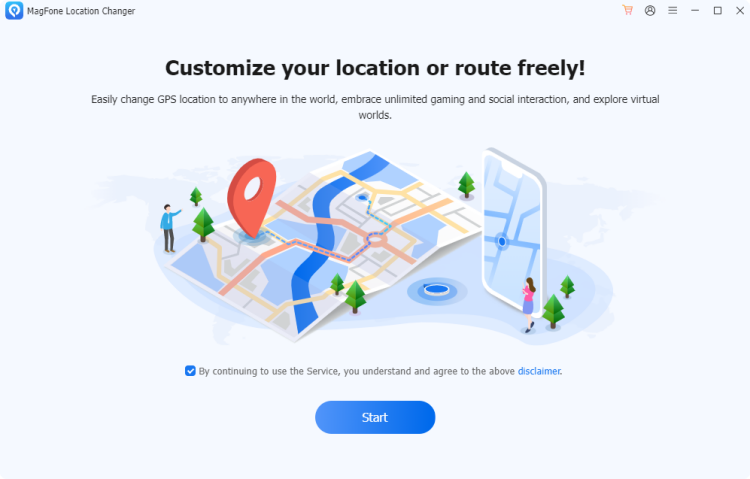
Step 1. Launch MagFone Location Changer on your computer and connect your mobile device.
Step 2. Click the Start button on the main interface, then select Game Mode.
Step 3. Allow the software to install or update the necessary virtual location driver component on your phone.
Step 4. Use the integrated Cooldown Timer feature before initiating new teleport or movement routes to ensure coordinate changes mirror realistic travel speeds.
Method 2. Set up Developer Options (Android)
If you use location simulation tools directly on Android, you must explicitly declare the service in Developer Options, or the OS will block signal transmission to the game.
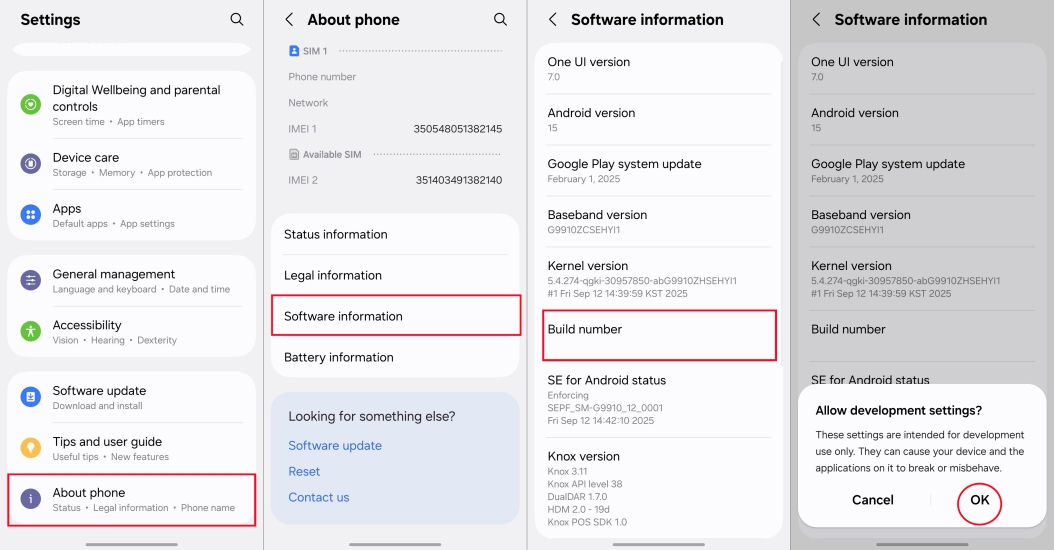
Step 1. Go to Settings > About Phone and tap Build Number 7 times to enable Developer Options.
Step 2. Open Settings > System > Developer Options.
Step 3. Scroll to Select mock location app.
Step 4. Choose your designated location tool from the list.
If you are not using a mock location tool and still get Pokémon GO Error 12, open this setting and ensure "Nothing" is selected.
Method 3. Disable Google Location Accuracy (Android)
When your phone rapidly flips between your real WiFi or Cellular location and simulated GPS coordinates, this rapid fluctuation triggers Pokémon GO Error 12 instantly.
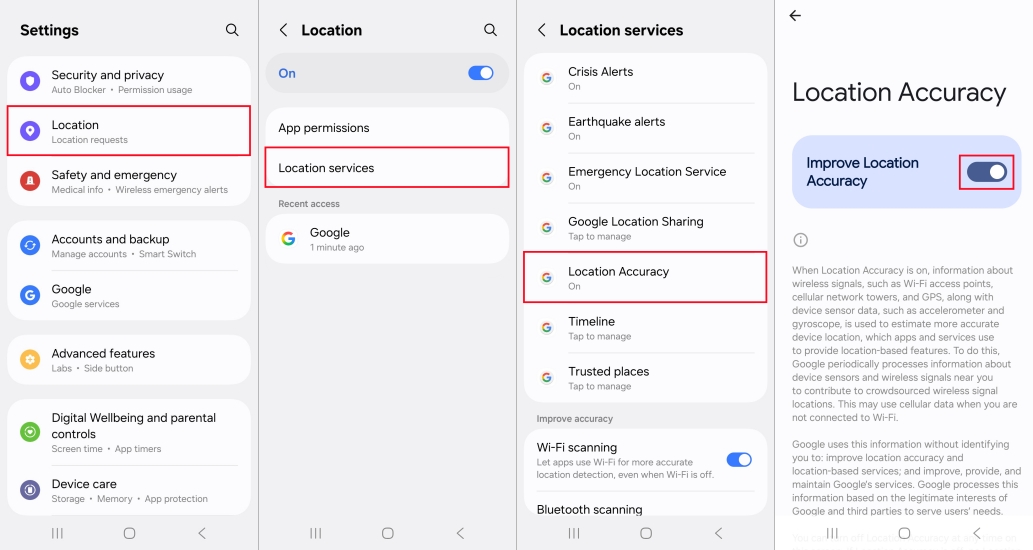
Step 1. Open Settings > Location.
Step 2. Tap Location Services > Google Location Accuracy.
Step 3. Toggle Improve Location Accuracy OFF.
Note:
This forces your device to rely purely on GPS coordinates rather than nearby Wi-Fi networks, reducing hardware conflict.
Method 4. Reset Location & Privacy Settings (iOS)
If the iOS location daemon becomes unresponsive after disconnected tethering sessions, resetting Location & Privacy Settings is an ideal solution.
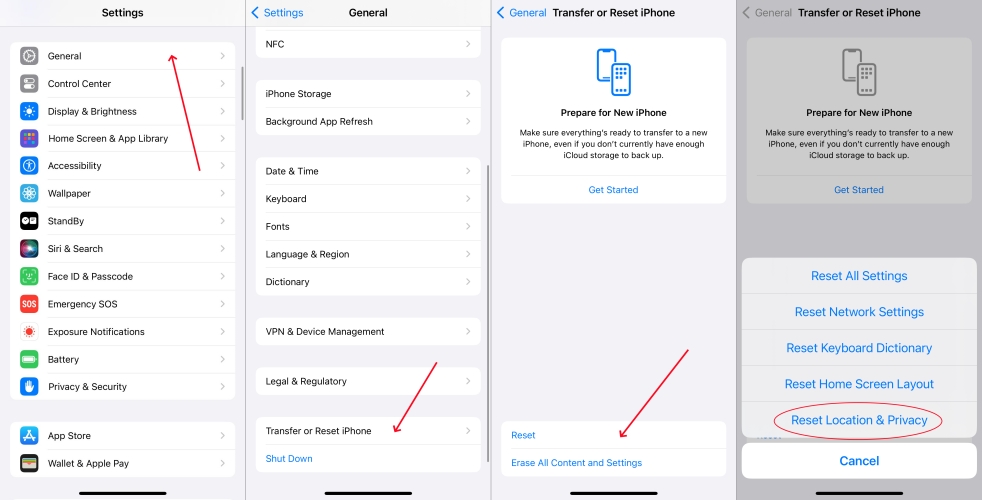
Step 1. Unplug your device from the computer.
Step 2. Go to Settings > General > Transfer or Reset iPhone > Reset > Reset Location & Privacy.
Step 3. Restart your iPhone and re-grant permissions when opening Pokémon GO.
Part 4. How to Prevent GPS Errors in Pokémon GO
To maintain a stable GPS connection and avoid "Failed to detect location 12" in future sessions, you can make those practices to avoid GPS errors in Pokémon GO.

Play Near Open Skies:
High-rise buildings, underground transit, and metal structures disrupt GPS satellite lines of sight.
Keep Wi-Fi Turned On:
Even if you aren't connected to a network, keeping Wi-Fi enabled helps your phone triangulate location via nearby routers.
Observe Cooldown Periods:
If using location modification tools, always adhere strictly to the built-in cooldown counter to avoid triggering sudden location jumps that alert Niantic's servers.
Keep Pokémon GO Updated:
Niantic frequently releases patches that optimize location polling stability on newer mobile operating systems.
Part 5. FAQs about Failed to Detect Location 12
Does Pokémon GO Error 12 mean I am soft-banned?
No. Error 12 is strictly a technical GPS validation error. A soft-ban allows you to see the map and PokéStops, but wild Pokémon immediately flee and PokéStops drop no items. Error 12 simply prevents map rendering.
Why does Error 12 keep popping up intermittently?
Intermittent Pokémon GO Error 12 pop-ups usually point to a weak physical GPS signal or battery saver mode throttling your phone's location chip every few minutes.
Will turning off Developer Options fix Pokémon GO Error 12 on Android?
If you don't use virtual location tools, yes. Disabling Developer Options completely ensures no mock location background services interfere with Pokémon GO.
Part 6. Conclusion
Encountering Pokémon GO Error 12 ("Failed to detect location") can instantly stall your gameplay, but it is rarely a reason to panic. Rather than indicating an account ban or permanent strike, Error 12 is simply a client-side location validation failure triggering when Niantic's servers detect an inconsistent, missing, or improperly routed GPS signal.
Resolving the issue comes down to re-establishing accurate GPS communication. By enabling precise location permissions, disabling battery optimizations, configuring Android Developer Options, and keeping your software updated to match current game protocols, you can eliminate the error banner and resume exploring the map smoothly.

Edgar Davis
Editor in chief




