








What are routes in Pokemon GO? Routes are predefined paths created by players or Niantic that guide Trainers through real-world locations while interacting with the game. They encourage exploration by leading you past PokeStops, Gyms, and unique spawns, offering rewards and discoveries along the way. In this guide, we'll show you how to follow a route in Pokemon GO so you can uncover hidden spots and enjoy more engaging adventures.
- Part 1. How to Find Routes in Pokemon GO
- Part 2. How to Follow a Route in Pokemon GO
- Part 3. How to Make a Route in Pokemon GO
- Part 4. FAQs about Pokemon GO Routes
- Part 5. Conclusion
Part 1. How to Find Routes in Pokemon GO
It's easy to find a Route in Pokemon GO through the Nearby menu. It shows a list of nearby Routes to choose from, along with ratings from players who have walked them. After checking these details, you can pick the Route you prefer.
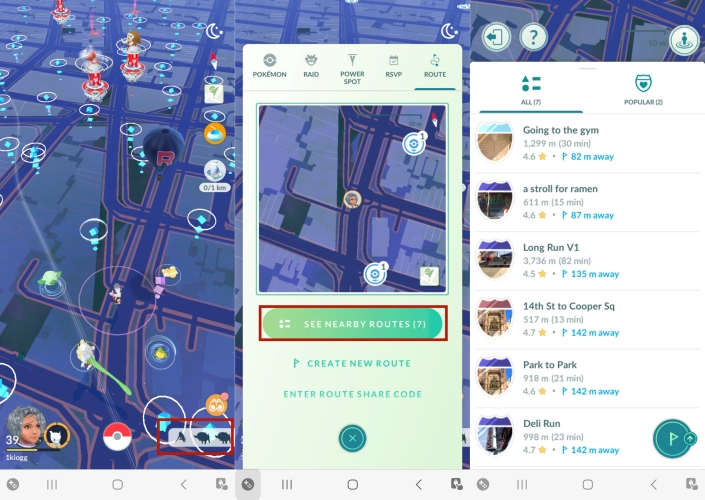
Step 1. Open Pokemon GO on your phone and tap the menu at the bottom-right corner of the screen.
Step 2. Navigate to the ROUTE tab and tap SEE NEARBY ROUTES to check available Routes in your area.
Part 2. How to Follow a Route in Pokemon GO
Following Routes in Pokemon GO is an excellent way to explore new locations, earn rewards, enhance your overall gameplay experience. Here we will show you how to follow and complete a Route by walking along the path or without physically walking outside. Let's dive into the details.
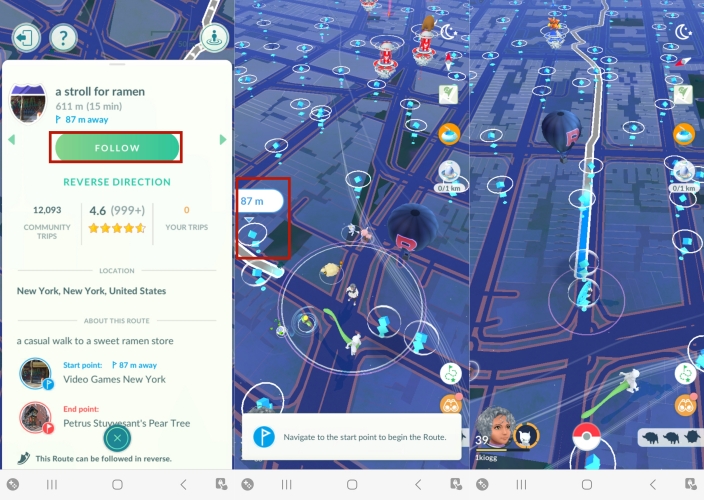
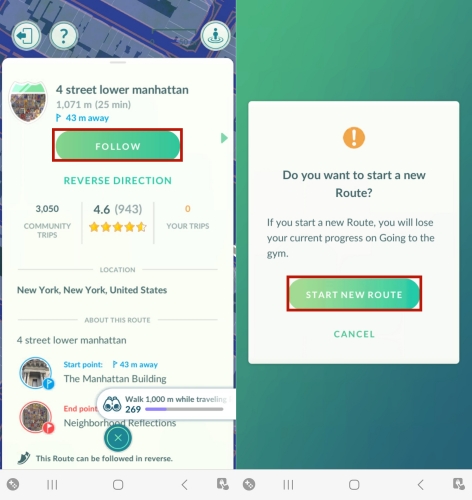
Step 1. Select a Route that interests you and tap the FOLLOW button.
Step 2. To begin the route, you should first navigate to the start point shown on the screen.
Step 3. After that, the route will show up, and you can start walking along the designated path.
Note:
If you can't see the Routes, try walking closer to the route start point or check the path in the ROUTES tab to see if it appears.
After completing a full Route, you can earn rewards in Pokemon GO. However, actually following a Route on foot can be challenging, especially if you get tired partway through or encounter a Route that's difficult to access. Fortunately, MagFone Location Changer provides an easy solution. With this powerful tool, you can simulate GPS movement and enjoy completing Pokemon GO Routes from the comfort of your home, without walking long distances.
Step 1 Connect Your Device and Run MagFone
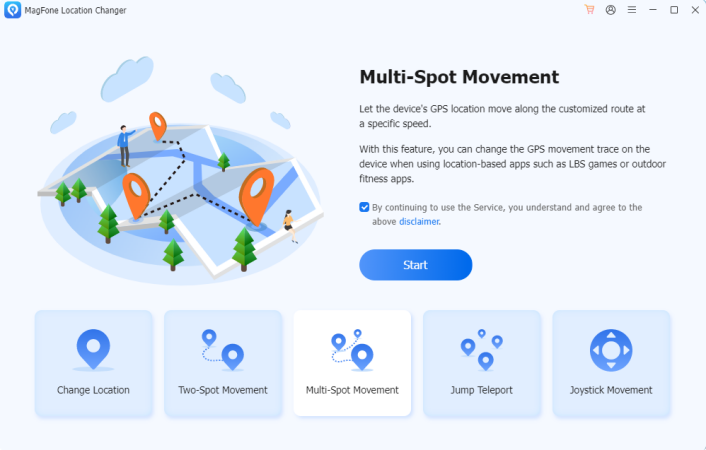
First of all, connect your iPhone or Android device to your computer through a USB cable, then launch MagFone Location Changer. Next, select the Multi-spot Movement option or other movement mode on the main interface and click the Next button.
Step 2 Start to Follow a Route in Pokemon GO
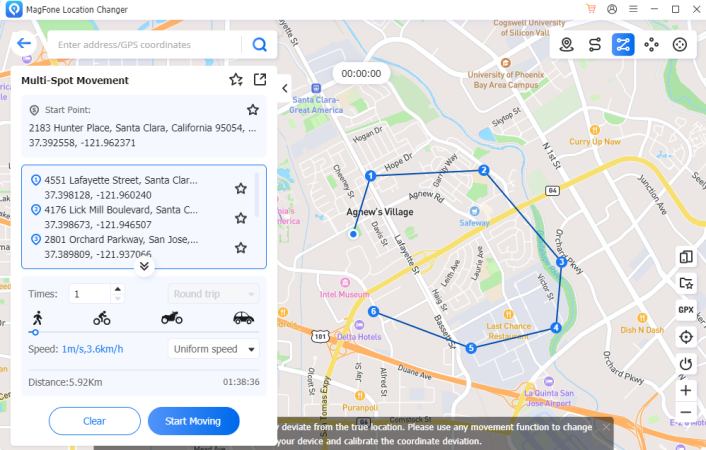
On the map, set the start and end point of a Route you want to follow. Then it will plan a route, and you can check whether the path is exactly same with the Route. Proceed to select the movement speed and click the Start Moving button.
Part 3. How to Make a Route in Pokemon GO
In addition to following pre-existing Routes, players can also create their own Routes in Pokemon GO. There are two options to create a Route in Pokemon GO. Either tapping Create New Route from the Route section of the Nearby menu or scrolling to the Routes section of your Trainer Profile to tap Create New Routes can enable you to create a Route. Creating Routes in Pokemon GO is simple, but if you're new to this feature, the following step-by-step guide can help.
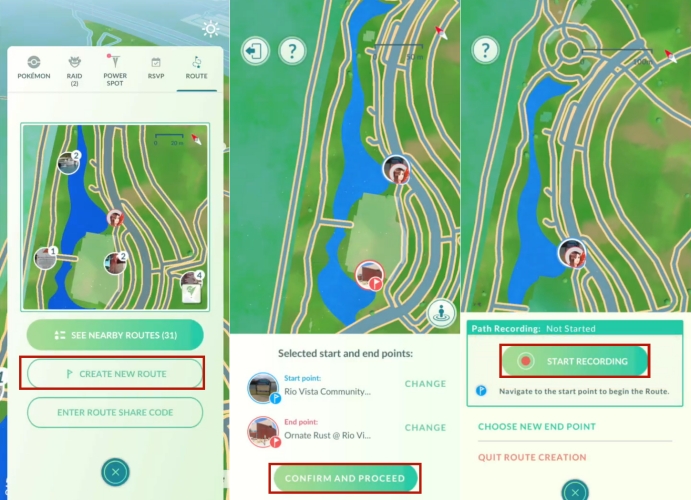
Step 1. Tap Nearby Pokemon in the bottom right corner of the Map View screen.
Step 2. In the Nearby screen, switch to ROUTE and tap CREATE NEW ROUTE.
Step 3. Select a nearby PokeStop or Gym on the map and tap Set as Start Point.
Step 4. Select a location on the map as the end point, then tap Confirm and Proceed.
Step 5. Tap Start Recording and follow the Route you create on the map to walk.
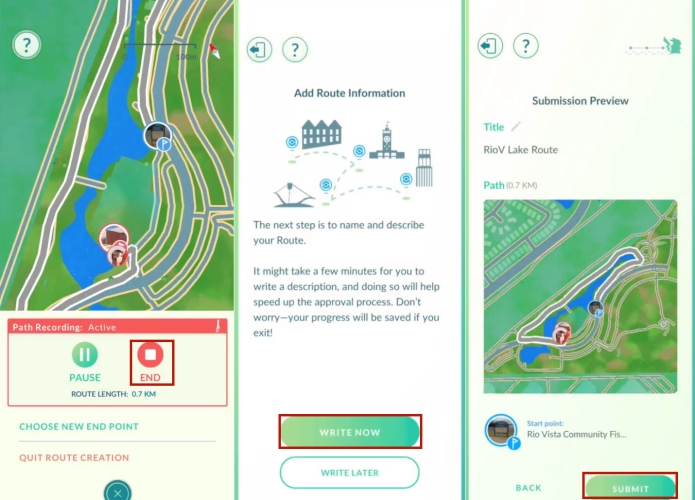
Step 6. End the route. Then tap WRITE NOW to add additional information about your Route.
Step 7. Tap NEXT to check the Route information and submit your Route by tapping SUBMIT.
After selecting the Route start and end points, you must explore along the map to mark the path, then you can successfully complete the creation of your Route in Pokemon GO. But if you want to create a Route without walking outside, you can use MagFone Location Changer. By entering the start and end points on the map, MagFone Location Changer will generate a route, then automatically mock GPS movement to complete the creation of your Route in Pokemon GO.

MagFone Location Changer
Easily change your GPS location on iOS and Android devices to anywhere with one click, while not requiring root or jailbreaking!
Part 4. FAQs about Pokemon GO Routes
Can anyone make a Route in Pokemon GO?
Yes, anyone can make a Route in Pokemon GO currently. By following the steps introduced in Part 3, you can create your own Route in Pokemon GO.
How to fix Pokemon GO Routes not working?
When Pokemon GO Route is not working on your device, you can update the Pokemon GO app or restart your device to resolve the issue. If you want to know more detailed solutions, you can check our guide: How to fix Pokemon GO Routes not working.
Can you drive a Route in Pokemon GO?
No, you cannot drive a Route in Pokemon GO. At present, all players are only allowed to walk a Route in Pokemon GO. If you drive a Route in Pokemon GO, you cannot complete a Route.
How to get rid of a route in Pokemon GO?
To end your current route, you can tap the route icon from the main page, then scroll down to tap QUIT ROUTE and confirm it again.
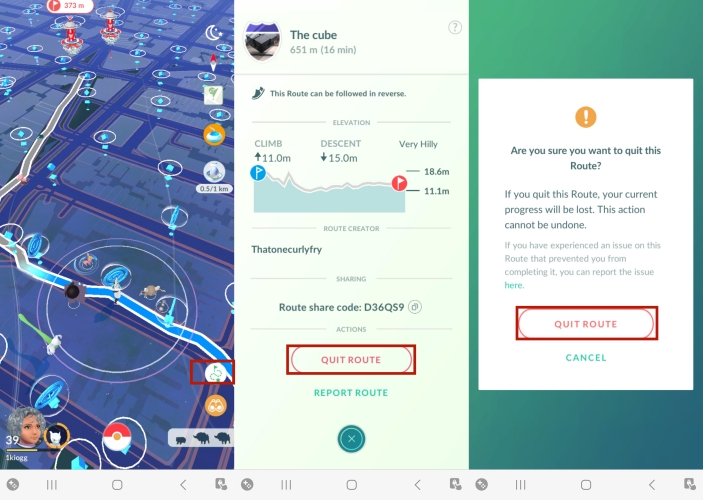
If you want to end the routes and start another route, you can directly choose another route and tap Follow and START NEW ROUTE.
Part 5. Conclusion
Routes in Pokemon GO offer a new and exciting way to experience the game, encouraging exploration, social interaction, and rewarding gameplay. Whether you're out for a casual stroll or a serious hunt for rare Pokemon, following a Route can enhance your adventure. But if you don't want to get out and explore new places, make the most of MagFone Location Changer. With this tool, you can easily plan a route by selecting the start and end points on the map, then it will automatically help you complete the route.

Edgar Davis
Editor in chief




