








Pokemon GO revolutionized mobile gaming when it launched, combining augmented reality with real-world exploration. But even after years of updates, the game still has its fair share of issues. From server crashes to login failure and GPS glitches, players frequently encounter problems that can make gameplay frustrating. This guide helps you quickly identify and fix common Pokemon GO issues on both Android and iOS devices. Jump directly to the error message you see and follow the step-by-step solutions.
- Part 1. Is Pokemon GO Down?
- Part 2. How to Fix Common Pokemon GO Issues
- Part 3. Ultimate Solution to All Pokemon GO Errors
- Part 4. FAQs about Issues with Pokemon GO
- Part 5. Conclusion
Part 1. Is Pokemon GO Down?
Sometimes, the issue is Niantic's servers instead of your device. Server outages can prevent login, syncing, or gameplay. When you suspect something's wrong, here are the ways to confirm it.
Method 1. Visit the Official Niantic Server Status Page
Niantic sometimes updates their official servers status page or support X with outage information. Checking there should be your first step.
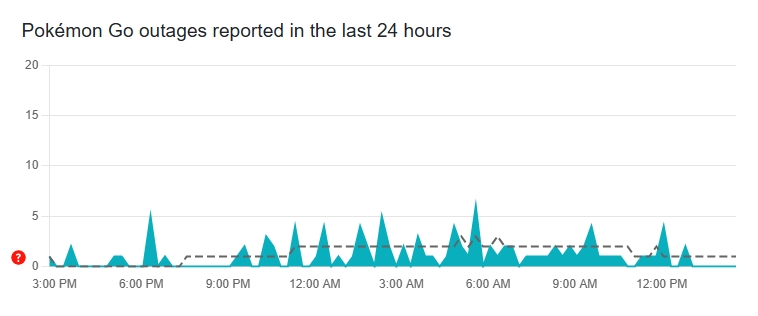
Method 2. Use DownDetector
Sites like DownDetector.com allow players to report connection issues. If you see a spike in reports, it's a good indicator Pokemon GO might be down globally.
Method 3. Browse Social Media
X, Facebook, Reddit, and Discord communities often light up with messages from frustrated trainers when the game isn't working. Search for "Pokemon GO down" to see the latest chatter.
If servers are marked "Operational" and you still can't play, your device or settings are likely the cause. Move to the next section, then find the solution to fix your Pokemon GO issues.
Part 2. How to Fix Common Pokemon GO Issues
Although Niantic continuously updates the game, users still report technical and performance problems. But before diving into fixes, it's important to understand why these issues occur. Pokemon GO is an augmented game that relies on multiple systems like GPS, camera, network, and Niantic servers working together. When one of the fails, the game may crash, freeze, or lose connection. Common root causes include:
- Weak or unstable permissions disabled
- App cache corruption
- Outdated game or system version
- Temporary Niantic server outage
- Battery-saving or background restrictions
By identifying the root cause, you can apply the right fix faster without wasting time on guesswork. Let's dive into most common issues and explore practical fixes.
1. Login and Authentication Problems
Pokemon GO login issues are common for users linked via Google, Facebook, or Niantic Kids. These errors usually appear when Pokemon GO can't reach the Niantic servers or when your credentials are outdated. Also, network instability and corrupted app cache cause these issues.
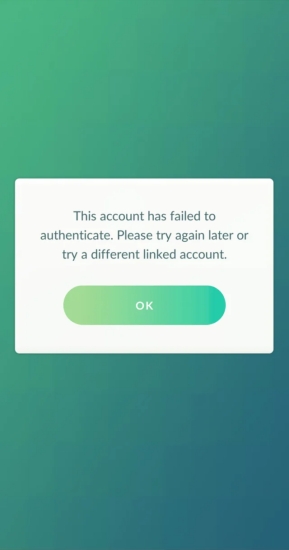
💡Error Messages:
- "Unable to authenticate"
- "Failed to log in"
- "Error 26"
🧩How to Fix Pokemon GO Sign In Issues:
Solution 1. Check your internet connection. Switch between WiFi and mobile data.
Solution 2. Force close the Pokemon GO app and your device, then reopen them.
Solution 3. Delete Pokemon GO, then reinstall it from the App Store or Google Play Store.
Solution 4. Clear app cache by tapping Settings > Apps > Pokemon GO > Storage > Clear Cache.
Solution 5. Log into Pokemon GO with the same account you used to sign up originally.
Solution 6. Temporarily turn off VPN or firewall apps that block Niantic connections.
2. GPS Signal Not Found
Pokemon GO relies heavily on your phone's accurate GPS data and location permissions to work correctly. If your signal keeps dropping, the game won't function correctly. These errors occur due to disabled location services, weak GPS signal, or mock location apps interfering.
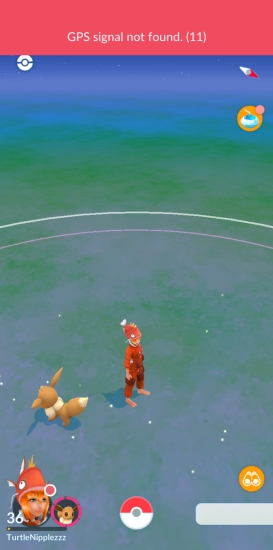
💡Typical Messages:
- "GPS signal not found"
- "Location not detected"
- "Failed to detect location"
🧩How to Fix Pokemon GO Signal Issues:
Solution 1. Turn on Location Services and set to High Accuracy.
Solution 2. Turn off mock locations or developer options on Android devices.
Solution 3. Restart your phone to refresh location data.
Solution 4. Avoid playing indoors or near tall buildings that block GPS.
Solution 5. Turn off Bluetooth scanning if your GPS fluctuates.
Solution 6. Keep WiFi on even without network to improve GPS triangulation.
Solution 7. Reset Location Settings by tapping Settings > General > Transfer or Reset iPhone > Reset iPhone > Reset Location Settings on iOS devices.
Solution 8. Disable MAC address randomization under Wi-Fi advanced settings on Android devices.
3. Adventure Sync Not Working
Adventure Sync tracks steps and hatches eggs even when Pokemon GO is closed. But if it fails, your walking distance won't count. Problems often occur when location permission is not set to "Always", the fitness app is disconnected, or battery optimization is enabled on the device.
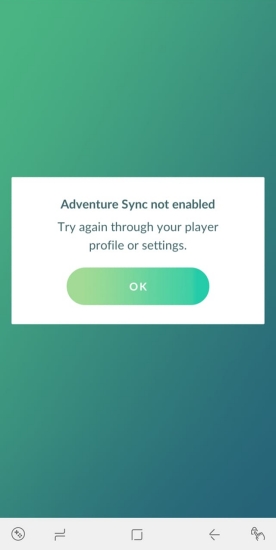
💡Symptoms:
- Steps not counting while the app is closed.
- Egg hatching doesn't progress.
🧩How to Fix Pokemon GO Adventure Sync Not Working:
Solution 1. Enable Adventure Sync by tapping Settings > Adventure Sync in Pokemon GO.
Solution 2. Disable Battery Saver Mode on both Android and iOS devices.
Solution 3. Grant "Always" in Location Access on Android or iOS devices.
Solution 4. Reconnect the Fitness app like Google Fit on Android devices or Health on iOS devices.
Solution 5. Restart Pokemon GO and walk a few steps to test sync.
4. Pokemon GO Crashing or Freezing
If Pokemon GO randomly closes or freezes at startup or during gameplay, the app cache or outdated files are often to blame. In addition to these causes, game crashes can also happen for reasons like outdated software and insufficient memory.
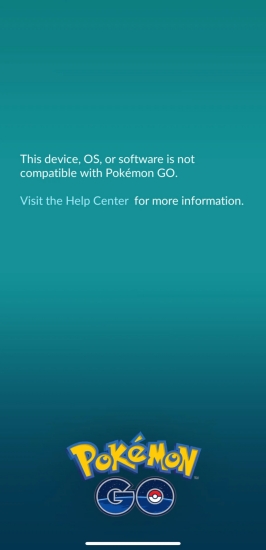
💡Symptoms:
- Game closed randomly
- Freezes during battle
- Loads indefinitely
🧩How to Fix Pokemon GO Crashing:
Solution 1. Close all other apps running in the background to reduce system load.
Solution 2. Clear Pokemon GO's cache and data on Android devices.
Solution 3. Delete and reinstall Pokemon GO on iOS devices.
Solution 4. Free storage space to ensure at least 2 GB for running Pokemon GO.
Solution 5. Update both the app and device operating system.
Solution 6. Restart your phone to clear temporary memory.
Solution 7. Turn off battery saver or performance modes that throttle background apps.
5. AR Mode or Camera Not Working
AR Mode or camera problems are often reported by Pokemon GO players. If you see "AR mode not available" or "Camera not detected," the issue is typically related to camera permissions or device compatibility.
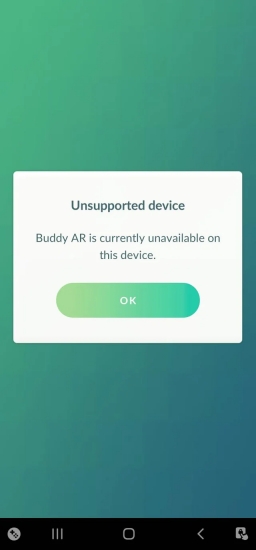
💡Common Problems:
- AR mode not available
- Black screen
- Camera not detected
🧩How to Fix Pokemon GO AR Mode Issues:
Solution 1. Turn on Camera permissions for Pokemon GO.
Solution 2. Update ARCore on Android devices or ARKit on iOS devices.
Solution 3. Restart Pokemon GO and test AR mode.
Solution 4. Disable AR+ mode if performance issues persist.
Solution 5. Check if your phone supports ARCore or ARKit on Google or Apple's official lists.
6. Other Pokemon GO Known Issues
Beyond that, players encounter some other common problems while playing Pokemon GO on their phones. If you encounter these problems, try the following solutions to fix them.
⚡PokeStops or Gyms Not Loading
Solution 1. Check the internet connection on your phone.
Solution 2. Toggle between WiFi and mobile data.
Solution 3. Log out and back in Pokemon GO.
Solution 4. Restart the game to refresh map data.
Solution 5. Move to a different area for batter signal reception.
🎮Raid or Battle Disconnects
Solution 1. Turn off Battery Saver during gameplay.
Solution 2. Keep WiFi on even when using mobile data.
Solution 3. Avoid switching networks during battle.
Solution 4. Update Pokemon GO before major events.
Solution 5. Report raid bugs through Niantic's in-app support system.
📦Inventory or Item Glitches
Solution 1. Restart Pokémon GO and check your item storage.
Solution 2. Increase your bag capacity if it's full.
Solution 3. Re-sync your account with Niantic servers.
Solution 4. Report the issue via Niantic Help Center.
🗺️Pokemon Disappearing or Not Spawning
Solution 1. Check if incense or lures are active.
Solution 2. Move around some areas have fewer spawns.
Solution 3. Restart the app to refresh spawn data.
Part 3. Ultimate Solution to All Pokemon GO Errors
If you're tired of dealing with Pokemon GO GPS errors, limited spawn areas, or region-locked events, a reliable location changing tool can make a big difference. One popular and secure option is MagFone Location Changer, a professional tool designed to change GPS location anywhere in the world instantly on both Android and iOS devices. This makes it useful not only for fixing Pokemon GO GPS signal issues, but also for exploring new in-game regions and participating in events that might not be available in your area.
By using MagFone Location Changer, you can:
- Fix location errors instantly when GPS fails to detect properly
- Simulate walking paths to hatch eggs or earn Buddy Candy
- Access regional Pokemon spawns for events or challenges
- Instantly move your GPS to any global location with one-click

MagFone Location Changer
Easily change your GPS location on iOS and Android devices to anywhere with one click, while not requiring root or jailbreaking!
Step 1 Run MagFone Software and Connect Phone
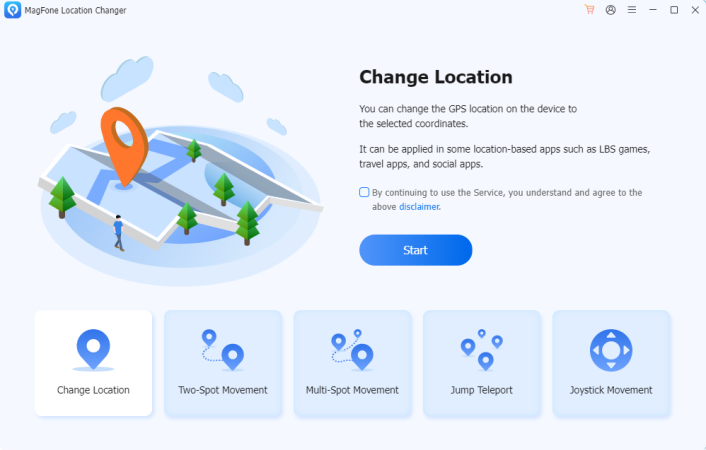
Install MagFone Location Changer from the official website and run it. Then connect your phone to your computer. Continue to choose a mode like Change Location or Jump Teleport.
Step 2 Set the Target Location and Start Teleporting

On the map, set your preferred virtual location. After finding the targeted location, click Start Modifying. After changing the location, launch Pokemon GO and start exploring the new area.
Part 4. FAQs about Issues with Pokemon GO
Why does Pokemon GO keeps saying 'Unable to Authenticate'?
It's often a temporary server or network issue. Go to check server status, switch networks, restart the app, or log in again after 30 minutes. If it persists, revoke app access in your Google or Apple account, then log in again.
Does reinstalling Pokemon GO delete my progress?
No, deleting and reinstalling Pokemon GO doesn't delete your progress. It is because your progress is saved to your Niantic account. Just log back into your original Pokemon GO account.
Why does Pokemon GO drain my battery so fast?
Because Pokemon GO uses multiple systems like GPS, camera, and mobile data simultaneously. For better performance during gameplay, it is not suggested to use battery saver mode.
How to fix GPS fails indoors while playing Pokemon GO?
When you encounter GPS errors indoors, you can use WiFi-based location services or step outside for better signal reception. Besides, make sure that high-accuracy mode is enabled.
Part 5. Conclusion
With this complete troubleshooting guide to fix all Pokemon GO issues, you can fix almost every major error from login issues and GPS failures to AR crashes and Adventure Sync bugs. If your problem persists even after trying these steps, visit Niantic Support and report your problem directly. Happy hunting, and may your next catch be a shiny.

Edgar Davis
Editor in chief





