








As a handy companion for Pokemon GO players, Pokemon GO Plus automatically notifies you of nearby Pokemon, retrieves items from PokeStops, and keeps track of your journey while your smartphone stays in your pocket. However, many players face the Pokemon GO Plus not connecting error that prevents the device from working properly. Whether it fails to pair, disconnects randomly, or connects without catching Pokemon, this guide explains the practical fixes to different connection issues.
- Part 1. How to Pair Pokemon GO Plus Correctly
- Part 2. Why Is Pokemon GO Plus Not Connecting?
- Part 3. How to Fix Pokemon GO Plus Not Connecting
- Part 4. Great Alternative Tool to Pokemon GO Plus
- Part 5. Conclusion
Part 1. How to Pair Pokemon GO Plus Correctly
Before troubleshooting connection problems, make sure your Pokemon GO Plus is paired correctly. A wrong setup process can make the device appear broken even when everything works normally. The pairing method is similar across supported games, including Pokemon GO, Pokemon HOME features, and Pokemon: Let's Go, but the available functions may vary.
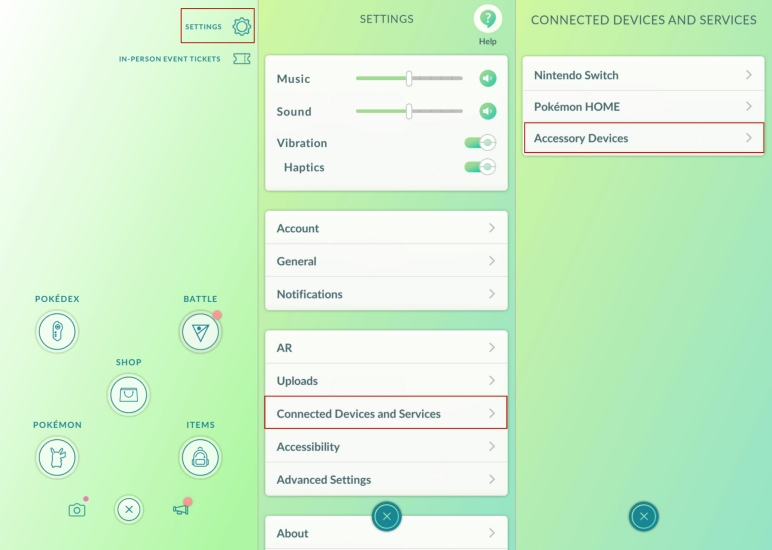
Step 1. Turn on Bluetooth on your phone and open the Pokemon GO app.
Step 2. Tap the Poke Ball icon on the main screen and open Settings.
Step 3. Select Connected Devices and Services, then choose Accessory Devices.
Step 4. Press the main button on your Pokemon GO Plus until the indicator light flashes.
Step 5. When the device appears in the available accessories list, tap it to connect.
Step 6. Wait until the game confirms the connection. The accessory icon should appear on the screen. If the device was connected before, remove the old pairing first and repeat the process.
Part 2. Why is Pokemon GO Plus Not Connecting?
The pokemon Go Plus not connecting problem can happen for several reasons, from simple Bluetooth issues to incorrect game settings. Finding the exact cause helps you avoid unnecessary troubleshooting and quickly restore the connection. Here are some possible reasons.
- Reason 1: Low or empty battery inside the Pokemon GO Plus device.
- Reason 2: Bluetooth is turned off or is experiencing temporary connection errors.
- Reason 3: Pokemon GO app is running an outdated version.
- Reason 4: Device already connected to another phone or Nintendo system.
- Reason 5: Incorrect pairing process or corrupted connection data.
- Reason 6: Battery-saving settings stop Pokemon GO from running in the background.
- Reason 7: Accessory settings are disabled inside the Pokemon GO app.
Part 3. How to Fix Pokemon GO Plus Not Connecting
Most Pokemon GO Plus connection failures are software-related and can be solved with simple adjustments. The following methods cover various situations, including Bluetooth pairing failures, connection drops, and instances where the device works but does not perform the expected actions.
01Fix Pokemon GO Plus Plus Not Connecting to Pokemon GO
The accessory may power on and function normally, but it is unable to establish a connection with the game. As a result, Pokemon GO cannot recognize or communicate with the device, preventing access to its companion features and automated gameplay functions.
- Method 1: Make sure your Pokemon GO app is updated to a compatible version.
- Method 2: Restart the device and repeat the pairing process if it still fails.
- Method 3: Check if Bluetooth and location services are enabled.
- Method 4: Forget old accessory connections from your phone settings.
- Method 5: Restart Pokemon GO after installing updates.
02Fix Pokemon GO Plus Not Connecting to Bluetooth
When the device fails to establish a Bluetooth connection, it cannot communicate with your phone or the game. This issue may prevent the accessory from appearing in the available devices list or from completing the pairing process, making it unusable during gameplay.
- Method 1: Check that your Pokemon GO Plus has enough battery power. Replace the CR2032 battery if the device shows no light or response.
- Method 2: Turn Bluetooth off on your phone, wait around 10 seconds, then enable it again.
- Method 3: Open your phone's Bluetooth settings and remove Pokemon GO Plus from saved devices.
- Method 4: Restart your smartphone to clear temporary Bluetooth errors.
- Method 5: Move away from crowded Bluetooth environments to reduce signal interference.
03Fix Pokemon GO Plus Connected But Not Catching
The accessory may appear to be connected successfully, but it does not automatically catch Pokemon or interact with nearby encounters as expected. Players may notice that notifications appear normally while the device fails to perform its primary in-game actions.
- Method 1: Make sure the Nearby Pokemon option is enabled.
- Method 2: Check that you have regular Poke Balls available in your inventory.
- Method 3: Confirm that the Poke Ball is selected as the catching method. (Pokemon GO Plus cannot automatically catch using Great Balls or Ultra Balls.)
- Method 4: Remove unnecessary items if your Pokemon storage is full.
04Fix Pokemon GO Plus Not Staying Connected
The device may connect successfully at first but disconnect after a short period without warning. Frequent connection drops can interrupt gameplay, requiring repeated reconnections and reducing the reliability of the accessory during walks or events.
- Method 1: Keep Pokemon GO running while using the accessory.
- Method 2: Disable Battery Saver mode on your phone because it may restrict Bluetooth activity.
- Method 3: Allow Pokemon GO to operate in the background.
- Method 4: Keep your phone and Pokemon GO Plus close together to maintain a stable Bluetooth signal.
- Method 5: Open Pokemon GO settings and check whether the Quick Reconnect option is enabled.
- Method 6: Reset the network settings if the Pokemon GO Plus consistently fails to work.
Part 4. Great Alternative Tool to Pokemon GO Plus
Pokemon GO Plus is a convenient accessory that helps track your walking distance, hatch eggs, and increase buddy candy progress while playing Pokemon GO. However, it still depends on real-world movement. For players who want to save more effort and time, MagFone Location Changer offers a flexible solution. It allows you to teleport and simulate movement routes without walking at all. Here's how to use MagFone Location Changer.

MagFone Location Changer
Easily change your GPS location on Rover to anywhere with one click, while not requiring jailbreaking!
Step 1 Prepare Your Device for Location Control
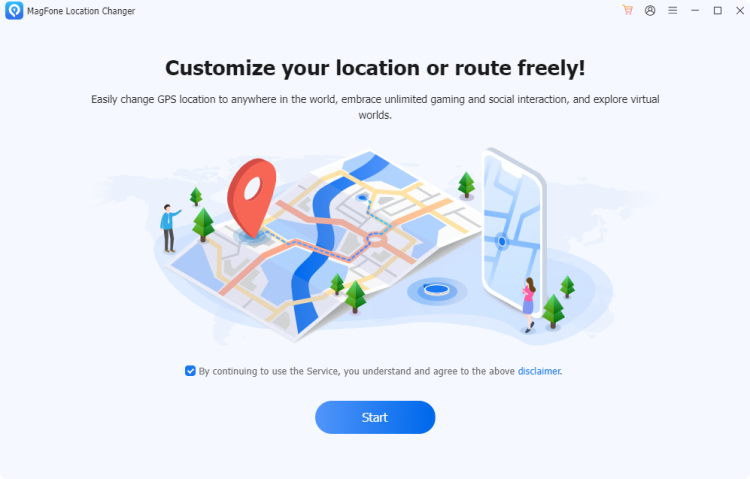
To get started, download MagFone Location Changer onto your Windows PC or Mac. Launch the software after installation, connect your iPhone or Android device through USB, and choose the GPS mode you plan to use before configuring your virtual location.
Step 2 Teleport or Follow Routes in Pokemon GO
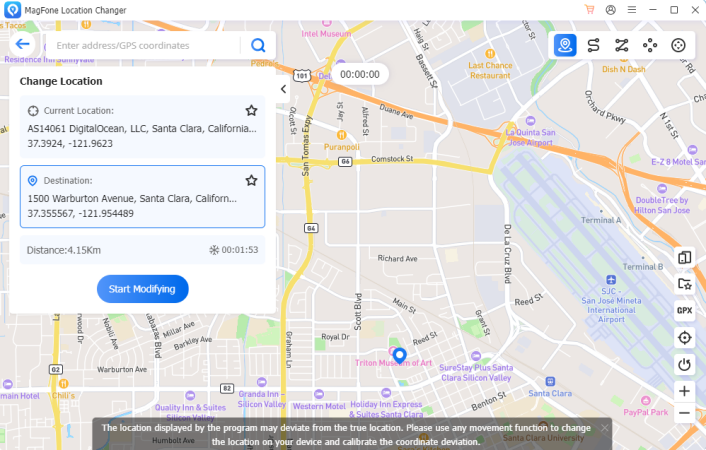
After entering the map interface, choose your destination for teleporting or set multiple points to design a realistic route. You can customize the movement speed to match walking, cycling, or driving patterns.
Part 5. Conclusion
Pokemon GO Plus connection errors are usually caused by Bluetooth problems, outdated apps, low batteries, or incorrect settings. Whether your device is not pairing, disconnecting, or connected but not catching Pokemon, the solutions above can help restore normal performance. By following proper pairing steps and adjusting settings, you can enjoy a smoother Pokemon GO experience with fewer interruptions.

Edgar Davis
Editor in chief




