








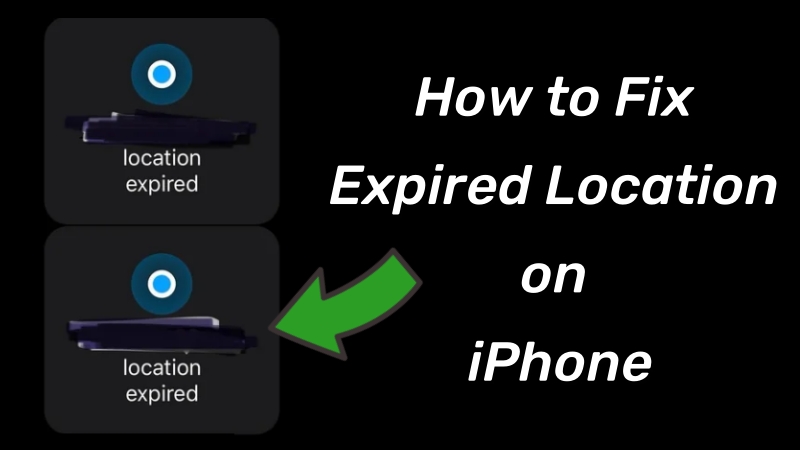
Are you frustrated by the Location Expired on iPhone when trying to track a friend or share your whereabouts? This common glitch can turn a helpful safety feature into a major inconvenience, leaving you disconnected from loved ones. Whether it is a software bug, poor signal, or a settings mishap, we have you covered. This guide explores 8 proven solutions to troubleshoot and resolve location errors, ensuring your Find My app works flawlessly every time you need it.
- Part 1. What Does Location Expired Mean on iPhone?
- Part 2. Why Does It Say Location Expired on iPhone?
- Part 3. Easy Fixes: How to Fix Location Expired on iPhone
- Part 4. Final Resorts: How to Fix Expired Location on iPhone
- Part 5. Conclusion
Part 1. What Does Location Expired Mean on iPhone?
"Location Expired" acts as a status alert indicating that the data you are viewing is no longer current. It serves to inform the user that the connection between devices has been interrupted, preventing the continuous flow of geographic data necessary for live tracking. On an iPhone, Location Expired message essentially means that the Find My network or the specific app you are using is unable to retrieve a real-time GPS update for a contact. Instead of showing a live movement, the device displays the last known position recorded before the signal was lost or the sharing session timed out.
Part 2. Why Does It Say Location Expired on iPhone?
My husband and I share our locations. In the last couple of weeks, his phone stopped sharing with mine and every time we try to share indefinitely, my phone shares with his just fine, but a message pops up on my phone from his saying "[name] location expired."
—— From Reddit
If your iPhone also keeps showing "Location Expired," several factors could be responsible. Understanding these common causes helps you identify why location updates fail and prepares you to apply the right solutions to restore accurate sharing. Here are three common causes.
Weak GPS Signal: Being indoors, in rural areas, or surrounded by skyscrapers can prevent your phone from reaching satellites
Software Glitches: Temporary system errors or background process failures can cause the service to hang.
Privacy Settings: Restrictive permissions or disabled "Precise Location" settings can block updates.
Part 3. Easy Fixes: How to Fix Location Expired on iPhone
Getting your location back on track doesn't always require a trip to the Genius Bar. Most instances of the "Location Expired" error are caused by minor software hiccups or misconfigured settings. These logical, step-by-step fixes are designed to refresh your device's connection and restore seamless sharing with your trusted contacts immediately.
Method 1. Restart Your iPhone
A simple restart is often the most effective way to clear out temporary software glitches that cause the "Location Expired" error. By power cycling your device, you refresh the operating system and relaunch essential background services. This logical first step ensures that any minor processing hangs are eliminated before trying more complex solutions.
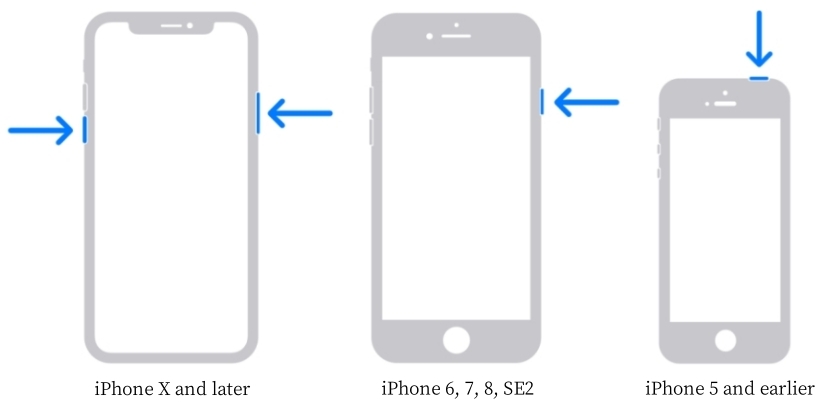
Step 1. Press and hold the Side button along with either Volume button.
Step 2. When the Slide to Power Off slider appears, drag it to the right.
Step 3. Wait approximately 15 seconds for the device to shut down completely.
Step 4. Press and hold the Side button again until the Apple logo appears.
Method 2. Check Internet Connection
Location sharing relies heavily on a stable data connection to transmit GPS coordinates. If your Wi-Fi or cellular signal is flickering, the location will inevitably expire. Refreshing your radios via Airplane Mode or performing a full network reset can clear the communication blockages that prevent your iPhone from updating its current position.

Method 3. Check Location Services
If your privacy settings are too restrictive, your iPhone may be forbidden from sharing data even if the hardware is working perfectly. You must ensure that "Precise Location" is active for the Find My app. Without this permission, the system cannot pinpoint your exact coordinates, leading to a "Location Expired" status.
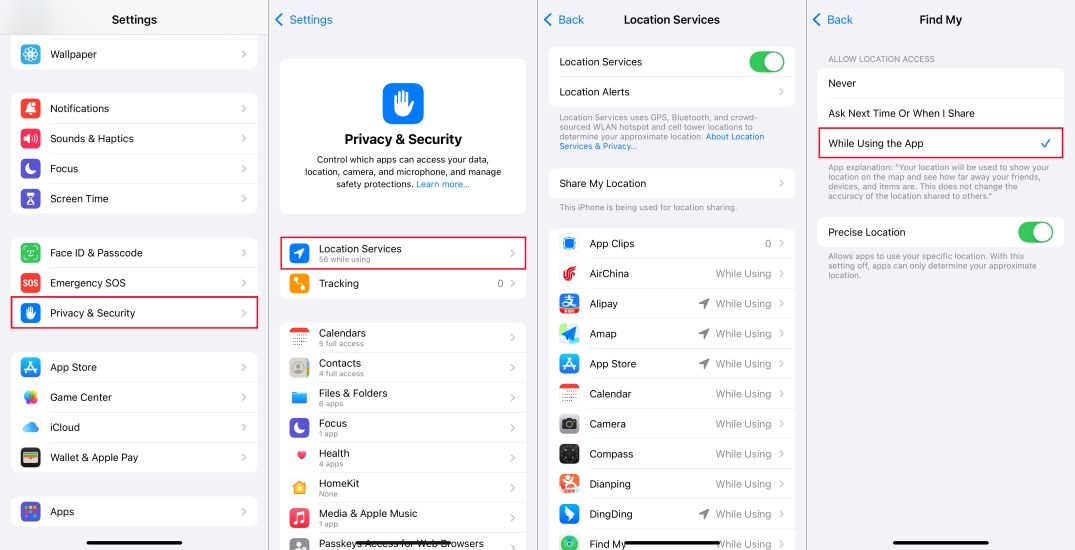
Step 1. Open Settings and select Privacy & Security.
Step 2. Tap Location Services and ensure the main toggle is On. Then scroll down to Find My.
Step 3. Set Allow Location Access to While Using the App and toggle Precise Location to On.
Method 4. Check Privacy Restrictions
Sometimes, Screen Time settings act as a silent barrier to location sharing. If Content & Privacy Restrictions are enabled, they may "lock" your location settings in a disabled state. Checking these restrictions is a logical way to ensure that no parental controls or self-imposed limits are interfering with your device's tracking capabilities.
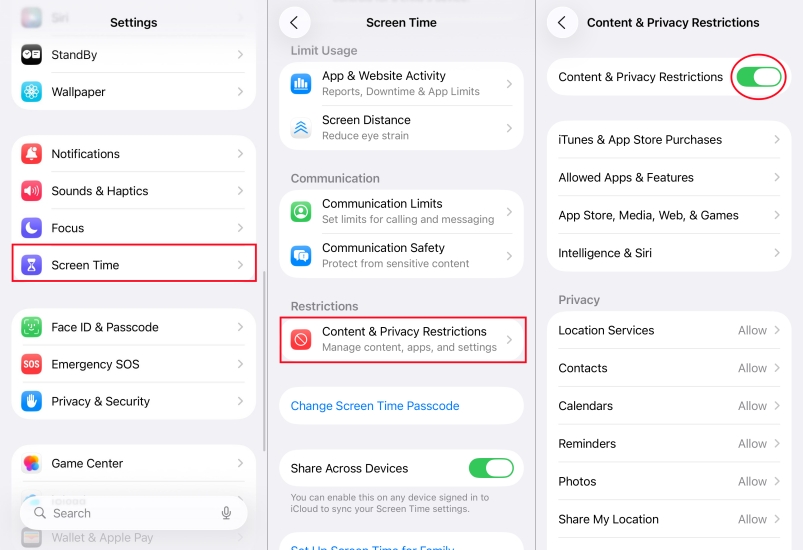
Step 1. Navigate to Settings and tap Screen Time. Then select Content & Privacy Restrictions.
Step 2. If it is on, either toggle the main switch Off or tap Location Services.
Step 3. Ensure that Allow Changes is selected and that the Find My app is permitted to use your location.
Method 5. Restrict and Allow Contact
Conflicts in your address book can confuse the Find My network, especially if a contact has multiple entries with different emails or numbers. Refreshing the specific connection by blocking and unblocking a contact forces the iPhone to re-establish a clean "handshake" for location sharing, effectively clearing the expiration error.
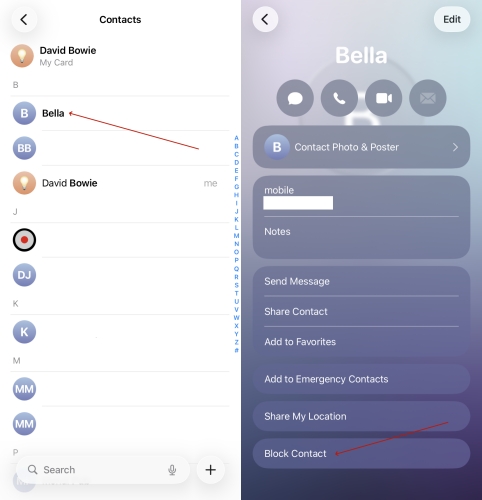
Step 1. Open the Phone app and select the Contacts tab.
Step 2. Tap on the specific person who cannot see your location.
Step 3. Scroll to the bottom and tap Block Contact, then confirm the choice.
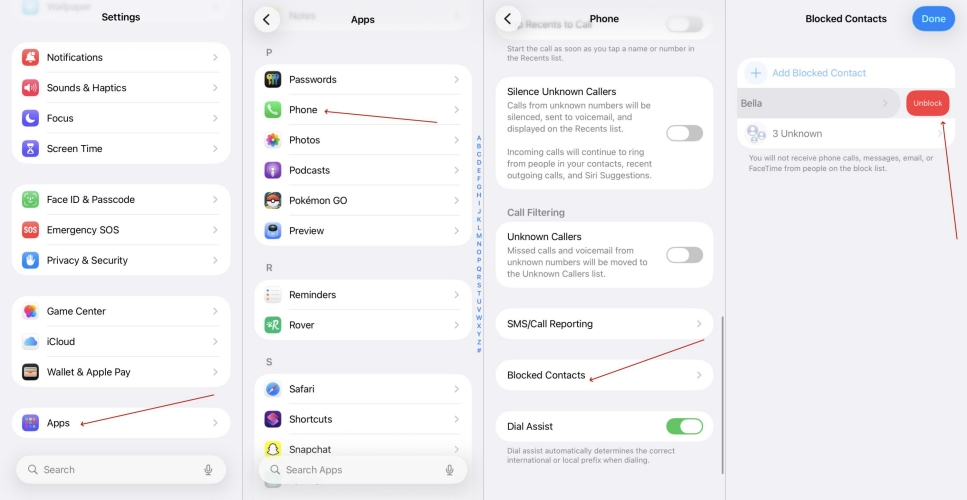
Step 1. Open the Settings app. Tap on Apps (scroll down to find it).
Step 2. Select Phone and tap Blocked Contacts.
Step 3. Tap Edit at the top right, tap the red minus (-) icon, and select Unblock.
Method 6. Request Share Location
If the automated system fails, a manual request can jumpstart the sharing process. By explicitly sending a new "Share My Location" invite through the Find My app, you override previous sessions that may have timed out. This forces both devices to communicate directly and establish a fresh, active link for real-time tracking.
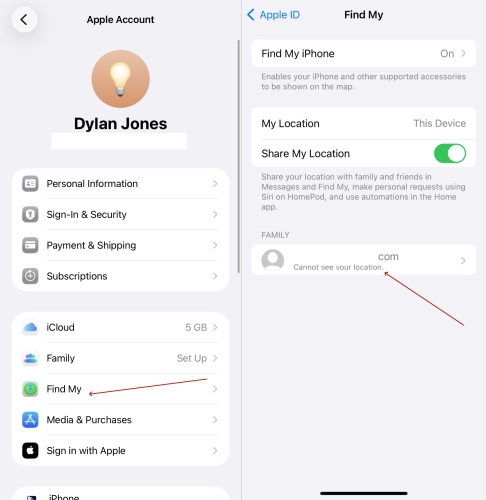
Step 1. Open Settings and tap your Apple ID Name at the top.
Step 2. Enter Find My and select the specific contact from your Family or Friends list.
Step 3. Tap Share My Location at the bottom of the contact card and wait for them to accept.
Part 4. Final Resorts: How to Fix Expired Location on iPhone
If the Expired Location error still lasts, it is time to look at deeper system updates or hardware-level communication. These final resorts target persistent software bugs and provide a pathway to professional assistance.
Method 1. Refresh GPS Location
To fix persistent iPhone expired location, you can also try using MagFone Location Changer to refresh your GPS location by locating your current position with a single click. This professional tool forces your iPhone to re-calibrate its coordinates, effectively clearing the Expired status and restoring accurate real-time sharing across all your device's mapping services.
Also, this app supports changing location on iPhone and iPad in different apps to make your life more convenient. It is perfect for protecting your privacy by hiding your real position on dating apps or exploring more fun in games like Pokémon GO by teleporting to different regions without physically moving.

MagFone Location Changer
Easily refresh or change your GPS location on iPhone to anywhere with one click, while not requiring root or jailbreaking!

Method 2. Contact Apple Support
When all troubleshooting fails, there may be an underlying hardware issue with the GPS antenna or a complex account-level error. Contacting Apple Support is the most logical final step to diagnose if your iPhone requires a physical repair or if there is a server-side problem with your Apple ID.
Part 5. Conclusion
Fixing the "Location Expired" error on your iPhone is usually a matter of refreshing your settings or clearing minor software bugs. From simple restarts to updating your iOS, these methods provide a comprehensive roadmap to restoring your peace of mind. By following these steps, you can ensure that your location sharing remains accurate and reliable, keeping you connected with those who matter most.

Edgar Davis
Editor in chief





