








Few things are more frustrating than opening Google Maps and finding the little blue dot planted several streets, or even several miles, away from where you actually stand. Whether you're trying to catch a bus, meet a friend, or simply find your way home, Google Maps wrong location can turn a quick check into a genuine headache. The good news is that this glitch is common and almost always fixable in just a few minutes. Let's dive in.
- Part 1. Why Is My Location Wrong on Google Maps?
- Part 2. Simple Solutions to Fix Google Maps Wrong Location
- Part 3. How to Fix Google Maps Wrong Location on iPhone
- Part 4. How to Fix Google Maps Wrong Location on Android
- Part 5. Extra Tip: How to Change Location on Google Maps
- Part 6. Conclusion
Part 1. Why Is My Location Wrong on Google Maps?
Google Maps determines your position by combining GPS signals from satellites with data from nearby Wi-Fi networks and cell towers. This process usually works smoothly, but it isn't foolproof for a number of reasons. Both inside your device and out in the environment can throw off the detection and leave your blue dot in the wrong spot. Below are some common causes.

1. Weak or obstructed GPS signal
Tall buildings, tunnels, dense forests, or bad weather can block the satellite signal your phone needs.
2. Disabled or restricted location permissions
If Google Maps isn't granted full access to your location, it can only make guesses.
3. Outdated app version
Older builds sometimes carry bugs that have already been patched in newer releases.
4. Poor or no internet connection
Wi-Fi and cellular data help refine GPS accuracy, and without them the app may fall back on stale data.
5. Uncalibrated compass
A miscalibrated sensor can make the blue dot point in the wrong direction even if the position itself is close.
6. Battery-saving modes
Features like Low Power Mode or Battery Saver often throttle background location services.
7. System-level glitches
Sometimes it's simply a temporary software hiccup that a restart will clear up.
Part 2. Simple Solutions to Fix Google Maps Wrong Location
Before diving into device-specific fixes, it's worth trying a handful of universal troubleshooting steps that work on both iPhone and Android. These are quick, require no special tools, and solve the issue for a large share of users right away.
Method 1. Tap Relocate Location Icon
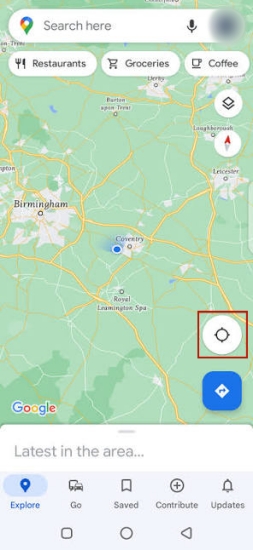
The Google Maps app has a small target-shaped icon on the bottom-right corner of the screen. This button tells the app to re-center the map on your current GPS position. If your blue dot has drifted somewhere it shouldn't be, a single tap often nudges it right back to where you actually are.
Method 2. Check Network Connection
Since Google Maps leans on nearby Wi-Fi networks and cell towers to sharpen its GPS reading, a shaky or dropped connection can easily throw off your position. Take a moment to confirm that whatever network you're using, whether Wi-Fi or mobile data, is stable and actually connected.
Method 3. Restart the App or Your Phone
A surprising number of location glitches are simply temporary. Close Google Maps completely, wait a few seconds, and reopen it; this alone resolves many minor errors. If the blue dot is still misplaced afterward, go a step further and restart your phone entirely.
Method 4. Update the Google Maps App
Running an outdated version of Google Maps can introduce bugs that have since been fixed by the developers. Head to the App Store on iPhone or the Play Store on Android, search for Google Maps, and install any pending update.
Part 3. How to Fix Google Maps Wrong Location on iPhone
iPhone users have some settings unique to iOS that can influence how accurately Google Maps tracks position. If the general fixes above didn't do the trick, work through these iPhone-specific options next.
Method 1. Reset Location Services
Sometimes the cleanest fix is to reset location tracking entirely rather than adjusting individual toggles. Turning the master switch off and back on forces your iPhone to re-establish its location fix from scratch, which often clears up lingering inaccuracies that smaller tweaks can't touch.
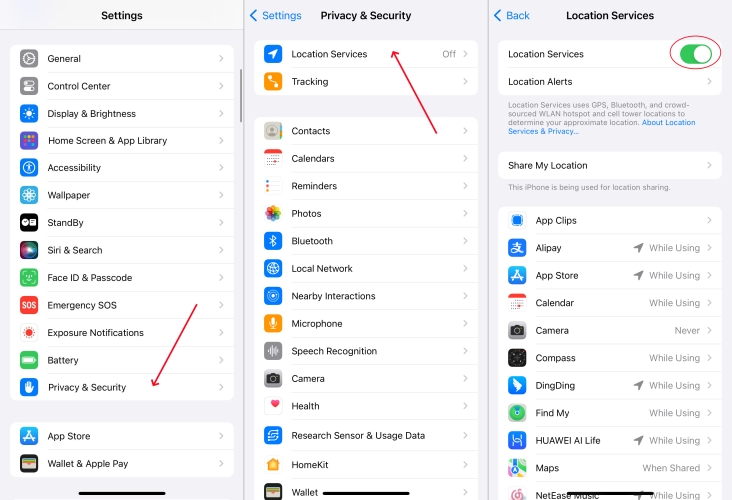
Step 1. Open the Settings app on your iPhone.
Step 2. Pick the Privacy & Security section, then choose Location Services.
Step 3. Toggle Location Services off. Then wait about 10 seconds, then toggle it back on.
Step 4. Reopen Google Maps and check if your position has corrected itself.
Method 2. Enable Compass Calibration
If your blue dot is sitting in roughly the right spot but pointing the wrong direction, your compass sensor likely needs recalibrating. Turning on this system-level setting lets your iPhone fine-tune its directional readings whenever Maps is in use.
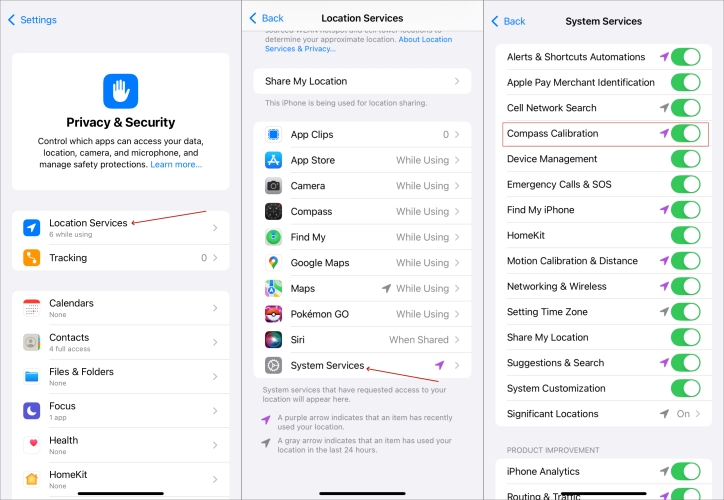
Step 1. Run Settings. Then enter Privacy & Security.
Step 2. Select Location Services, then tap System Services.
Step 3. Look for the Compass Calibration option and switch it on.
Step 4. Open Google Maps and move your phone in a slow figure-eight motion. Watch the blue beam narrow, confirming the compass is now calibrated.
Method 3. Disable Battery Saver Mode
Low Power Mode is great for stretching your battery life, but it also scales back background activity, including the frequency at which your phone checks its location. Switching it off restores full location tracking so Maps can update in real time.
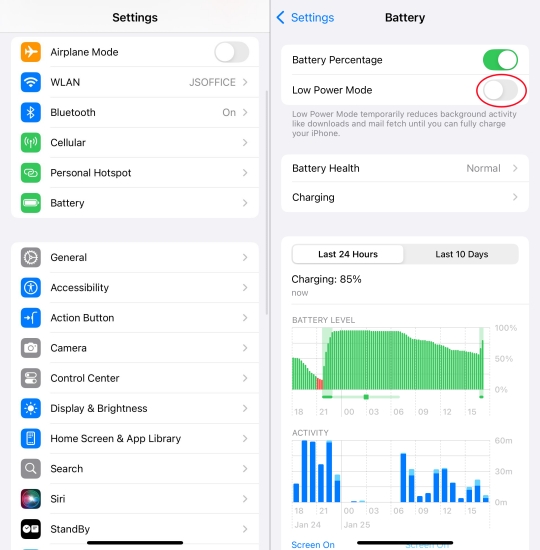
Step 1. Open the Settings app and select the Battery section.
Step 2. Toggle Low Power Mode off.
Method 4. Turn On Precise Location
iOS gives you the option to share only an approximate area rather than your exact position, and if that setting is active, Google Maps simply won't have the detail it needs. Enabling Precise Location ensures the app receives your exact coordinates every time.
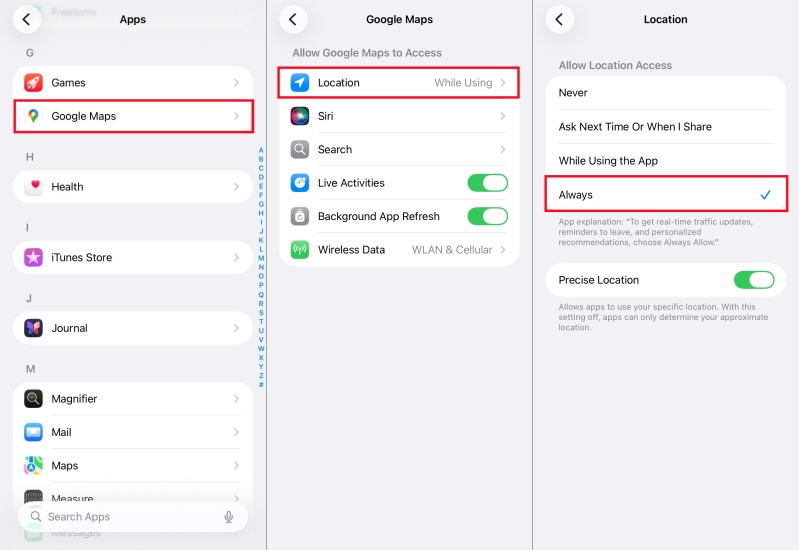
Step 1. Navigate to Settings and select Privacy & Security.
Step 2. Choose Location Services and scroll down to pick Google Maps.
Step 3. Confirm Allow Location Access is set to Always or While Using the App. And toggle Precise Location on.
Part 4. How to Fix Google Maps Wrong Location on Android
Since Android devices use various location settings to determine your position, incorrect setup may affect the accuracy of Google Maps location detection. If Google Maps has you in the wrong location after trying the basic solutions, you can follow these Android-specific methods to improve location accuracy.
Method 1. Re-enable GPS Location
A simple toggle reset can work wonders on Android. Turning location off and back on forces your device to reconnect with GPS satellites from a clean state, which often resolves positioning errors within seconds.
Step 1. Swipe down from the top of your screen to open the quick settings panel.
Step 2. Tap the Location icon to turn it off.
Step 3. Wait a few seconds, then tap it again to turn it back on.
Step 4. Reopen Google Maps and check whether your position has corrected itself.
Method 2. Calibrate GPS Location
Google Maps depends on Android's location services, so incorrect settings on your device may affect the accuracy of your detected location. If the app is still showing the wrong location after trying the basic solutions, you can follow these Android-specific methods to improve location accuracy.
Step 1. Open Settings and tap Location.
Step 2. Turn on Location Services if it is disabled.
Step 3. Tap Improve Accuracy or Location Accuracy.
Step 4. Enable Wi-Fi scanning and Bluetooth scanning to improve location accuracy.
Method 3. Turn Off Low Power Mode
Battery Saver mode on Android restricts background processes in much the same way Low Power Mode does on iPhone, and location tracking is one of the first things affected. Disabling it lets Google Maps refresh your position at full accuracy again.
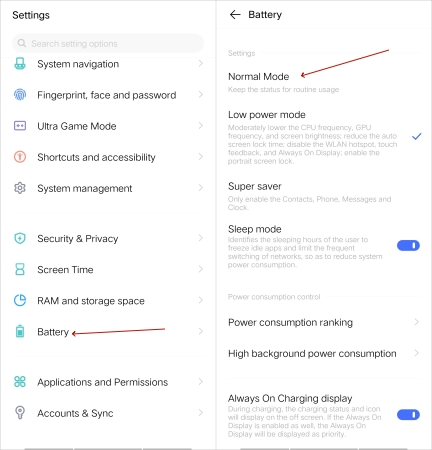
Step 1. Go to your device's Settings menu and choose Battery.
Step 2. Select Normal Mode to switch off the Low power mode.
Method 4. Enable Precise Location
Android also lets you choose between approximate and precise location sharing on a per-app basis. Without precise location enabled, the app can only place you within a broad radius rather than your actual spot.
Step 1. Open Settings and tap Location.
Step 2. Tap App permissions.
Step 3. Locate and select the Maps app from the app list.
Step 4. Choose Allow all the time or Allow only while using the app and toggle Use precise location on.
Part 5. Extra Tip: How to Change Location on Google Maps
Sometimes what you actually want isn't to fix your real GPS position, but to change it on purpose, whether for testing an app or protecting your privacy. If you've been searching for a reliable way to do this, MagFone Location Changer is worth a look. It lets you set your device's GPS to virtually any spot on the globe in just a few clicks, and it doubles as a handy workaround when Google Maps keeps insisting you're somewhere you're not. Here's a quick rundown of how to use it.

MagFone Location Changer
Easily change your GPS location on iOS and Android devices to anywhere with one click, while not requiring root or jailbreaking!
Step 1 Set Up the Software on PC
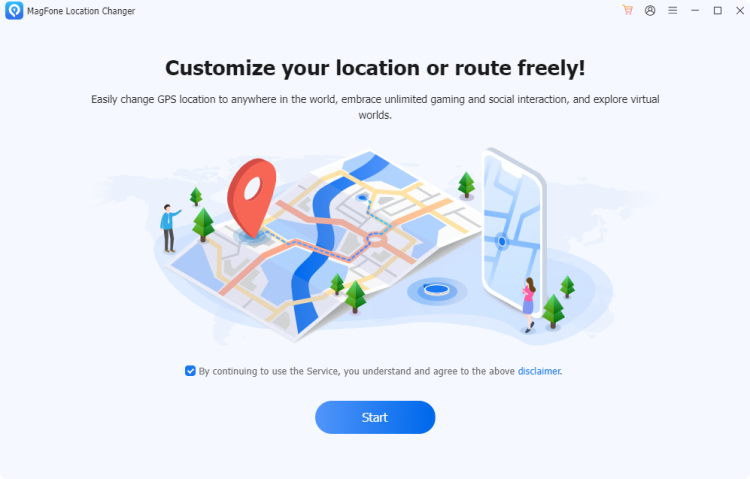
Download and install MagFone Location Changer on either a Windows PC or a Mac. Once it's installed, open the program, plug your iPhone or Android phone into your computer using a USB cable, and select which GPS mode you'd like before setting your new virtual location.
Step 2 Pick a Spot or Plot a Path
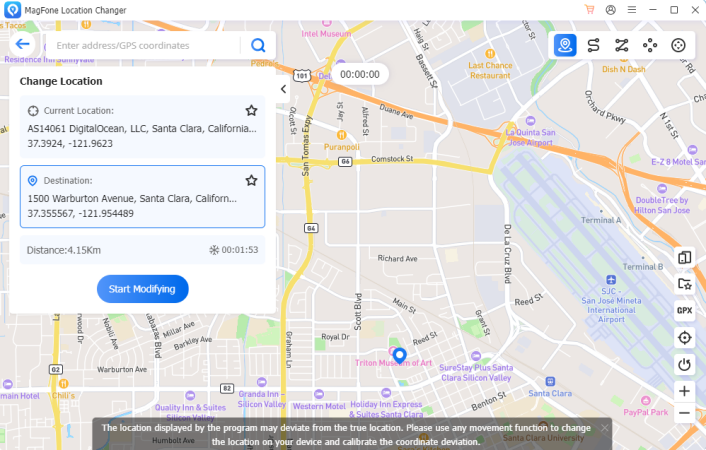
Once the map loads inside the program, either click directly on the destination you want to appear at, or drop several waypoints to build out a more natural-looking route. You can also adjust the movement speed to mimic walking, biking, or driving.
Part 6. Conclusion
A misplaced blue dot is almost never a dead end. Whether the cause is, the fixes above cover nearly every scenario. And if you ever need more control over your GPS position for other reasons, a tool like MagFone Location Changer gives you that flexibility too.

Edgar Davis
Editor in chief




