








Apple's AI features, including Siri, dictate key functionalities that help users maximize the potential of their devices. From hands-free commands to smart suggestions, these features simplify tasks, making technology more intuitive. But what happens when Apple Intelligence fails to show up or function properly? In this guide, we'll explore how to fix Apple Intelligence not showing up and troubleshoot common issues to get you back on track.
- Part 1. Why Is Apple Intelligence Not Showing Up?
- Part 2. How to Get Apple Intelligence on iPhone/iPad/Mac
- Part 3. How to Fix Apple Intelligence Not Showing Up [Basic Methods]
- Part 4. How to Fix Apple Intelligence Not Showing Up [Advanced Methods]
- Part 5. FAQs about Apple Intelligence
- Part 6. Conclusion
Part 1. Why Is Apple Intelligence Not Showing Up?
Apple Intelligence encompasses various AI features built into Apple's ecosystem. Several factors can cause Apple Intelligence features to disappear or malfunction. These include:
Reason 1. Device Compatibility Issues
Not all iPhone, iPad, or Mac models support Apple Inc.'s Apple Intelligence features. Even if your device is an Apple product, only certain newer models are compatible. If your device isn't on the supported list, these AI features simply won't appear in settings or Siri options.
| Device | Model Required | iOS Required |
|---|---|---|
| iPhone | iPhone 15 Pro models, and iPhone 16 models or later | iOS 18.1 or later |
| iPad | iPad mini (A17 Pro), and iPad models with M1 and later | iPadOS 18.1 or later |
| Mac | Mac with M1 or later | macOS Sequoia 15.1 or later |
| Apple Vision Pro | Apple Vision Pro | visionOS 2.4 or later |
| Apple Watch | Apple Watch Series 6 or later, all Ultra models, and SE 2+ (paired with an Apple Intelligence iPhone nearby) | watchOS 11 or later |
Reason 2. Feature Not Activated
Sometimes, features may be turned off inadvertently. If the settings related to Apple's AI are disabled, Siri or other intelligence features may not show up.
Reason 3. Software Bugs or Glitches
Like all software, Apple's operating systems are susceptible to bugs and glitches, which may cause AI features to malfunction or disappear.
Reason 4. AI Regional Limitations
Apple intelligence currently is not available for supported devices purchased in China and European Union due to regional regulatory restrictions rules.
Reason 5. Not Enough Storage
To properly run Apple Intelligence, your device needs enough storage, or the feature may not show up correctly.
Part 2. How to Get Apple Intelligence on iPhone/iPad/Mac
Apple Intelligence is a completely new feature for all Apple users. If you cannot find Apple Intelligence on your iPhone, make sure that you have activated Apple Intelligence. And here you can follow the below instruction to set up Apple Intelligence on the iPhone.
How to Turn on Apple Intelligence on iPhone or iPad
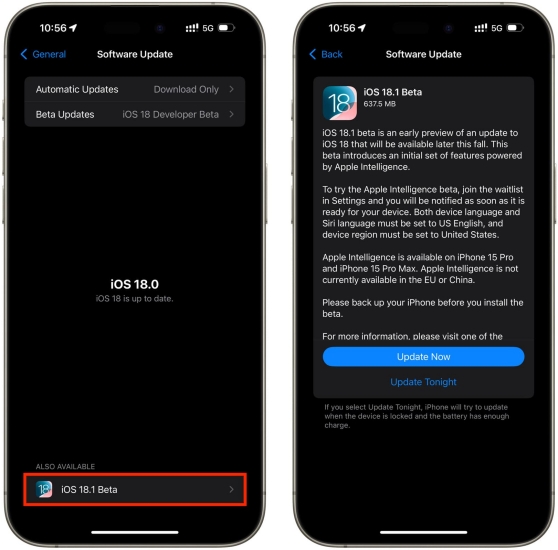
1) On your iPhone, go to Settings > General > Software Update.
2) Under Also Available, tap iOS 18.1, then tap Update Now.
3) Enter your screen lock passcode to allow to update iOS.
4) Go back and tap Apple Intelligence & Siri. Then tap Join the Apple Intelligence Waitlist.
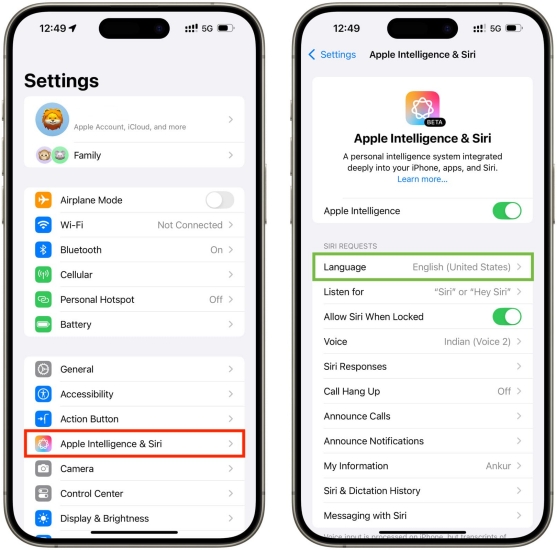
5) Restart your device, then tap Apple Intelligence & Siri.
6) Press Language, then choose English (United States) or other supported languages.
7) Tap Voice and choose American.
How to Turn on Apple Intelligence on Mac
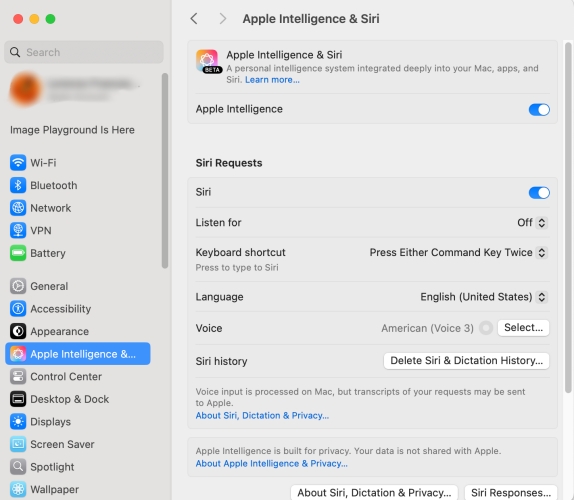
1) Open the Apple menu and select System Settings > General > Software Update, then update your Mac to macOS 15.1 or a newer version.
2) In System Settings, choose Apple Intelligence & Siri from the left-hand menu.
3) Turn on the toggle next to Apple Intelligence to enable the feature.
4) After downloading, you can start using Apple Intelligence features such as Writing Tools, Image Playground, and the upgraded Siri experience.
Part 3. How to Fix Apple Intelligence Not Showing Up [Basic Methods]
In the Apple Community, lots of users reported Apple Intelligence not showing up in Settings on their iPhone, but don't know how to resolve the issue. No worry, there are many feasible ways to help you get out of this trouble. Follow the simple steps below to resolve the issue now.
Method 1. Update iOS System
Keeping your software up-to-date is one of the easiest ways to prevent and fix issues with Apple Intelligence. As Apple Intelligence only be available with iOS 18.1 and later, make sure that your device is updated to iOS 18.1. Or you would fail to enable and use AI on your iPhone.
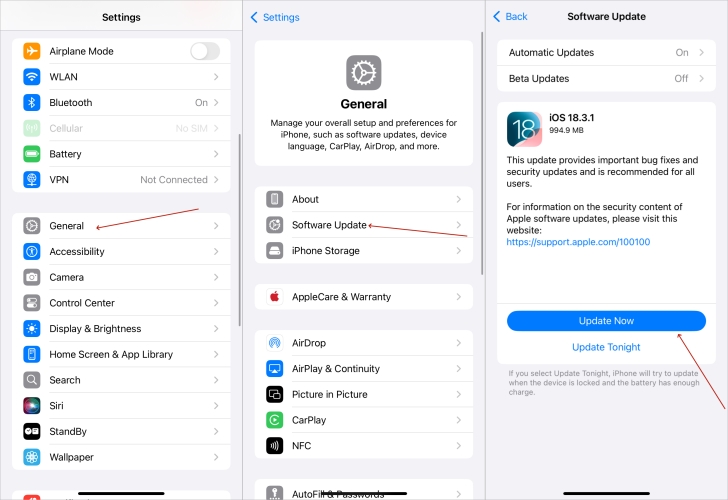
1) In Settings, tap General > Software Update.
2) Check for software update and download the update.
3) Tap Install Now, then enter your passcode to confirm.
Method 2. Reset Languages and Region Settings
Apple Intelligence is free to use, but it is only available in English in some regions around the world. This means that your device language and Siri language should be set to a supported language of Apple Intelligence. Go to set your device language and Siri language to a supported language to fix the issue.
Change Device Language
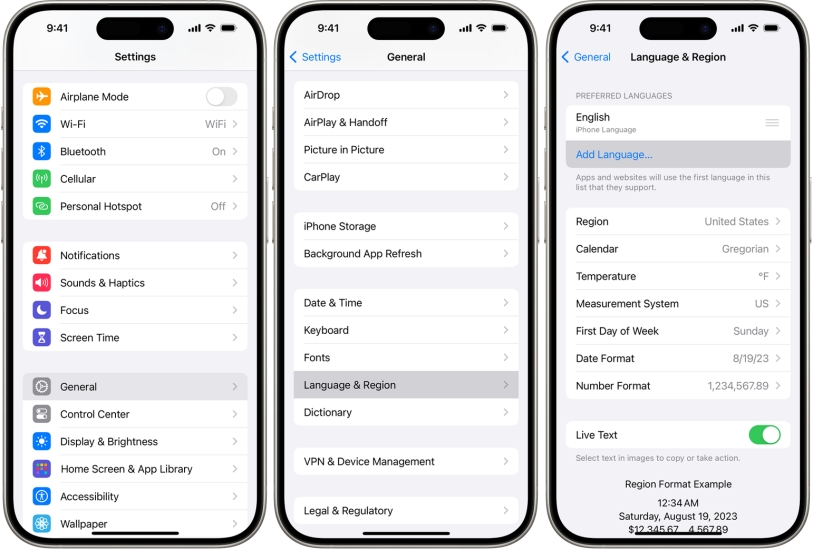
1) Open the Settings app and tap General.
2) Select Language & Region, then tap Add Language.
3) Select English (US) and tap Use English (US) to confirm.
Change Siri Language
1) Go to Settings > Siri & Search.
2) Tap Language and select English (US).
Supported languages:
Currently, Apple Intelligence is only available in English (Australia), English (Canada), English (Ireland), English (New Zealand), English (South Africa), English (UK), and English (US) in most regions around the world. In April, more language will support Apple Intelligence after a software update.
Method 3. Reset All Settings
If adjusting the settings related to Apple Intelligence doesn't help, you might consider resetting the features. Resetting can give you a clean slate and fix deep-rooted issues. When Apple Intelligence isn't showing up or doesn't work well, you can reset all settings on your iPhone to fix the issue. It will erase all the settings, but doesn't delete any data on your device.
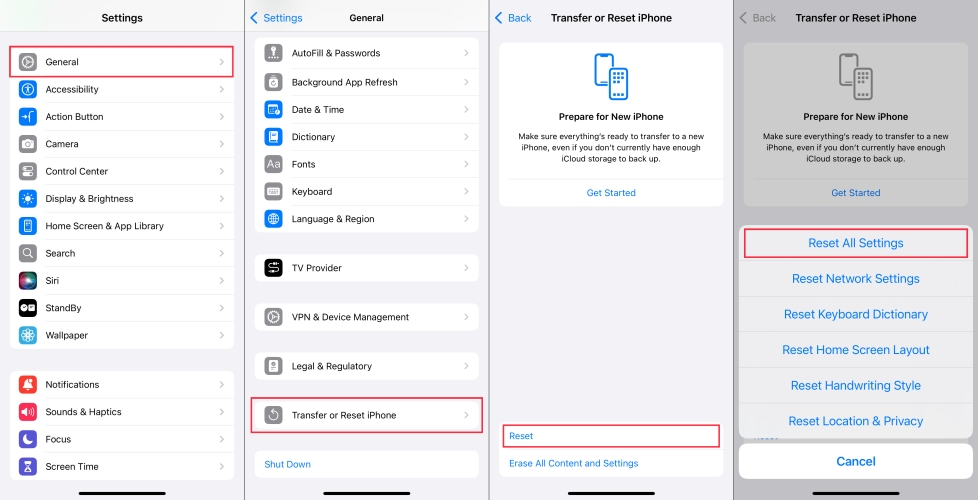
1) In Settings, tap General > Transfer or Reset iPhone.
2) Tap Reset iPhone at the bottom of the screen.
3) Select Reset All Settings and enter your screen lock passcode.
4) Tap Reset to confirm. And all the settings will be erased.
Method 4. Free Up Device Storage
Ensure your device has enough storage to run Apple Intelligence, as up to 7 GB of iPhone storage is required for running Apple Intelligence. The iPhone storage potentially affect Intelligence features. So, check where there is enough storage on your iPhone, then free up more storage.
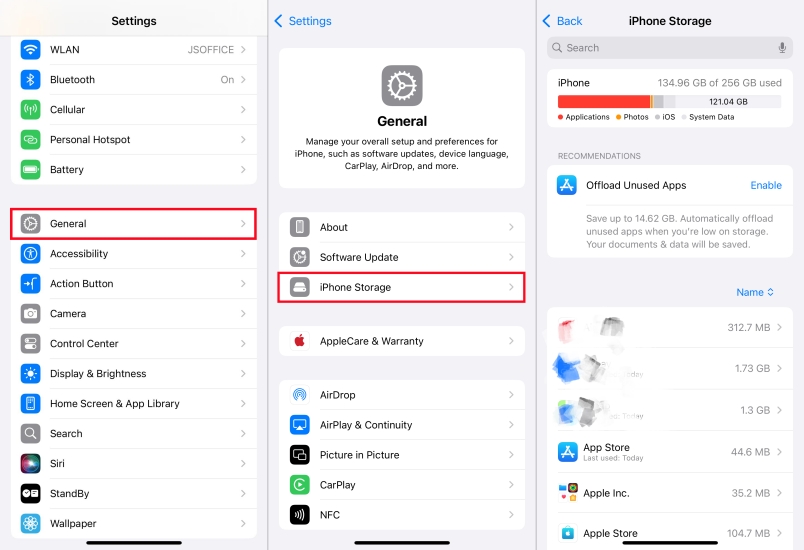
1) Go to Settings > General > iPhone Storage.
2) Locate Recommendations to check your storage.
3) Tap Enable next to Offload Unused Apps to free up space.
Method 5. Restart Your Device
If you've already turned on Apple Intelligence but it still isn't showing up, wait a few minutes for the setup to finish. Then restart your iPhone, iPad, or Mac and check again. This can help Apple Intelligence appear and work properly.
Part 4. How to Fix Apple Intelligence Not Showing Up [Advanced Methods]
If Apple Intelligence is still not showing up on your iPhone, try some additional fixes. Make sure that your iPhone meets of the requirement of Apple Intelligence set-up, then continue with the troubleshooting steps below to fix Apple Intelligence and Siri not showing up in Settings.
Method 1. Change Device Location to America
In addition to limitations of supported devices and supported language, there still exist the regional restriction. Currently, Apple Intelligence is not available in the EU and mainland China. Although your device language is set to English (US), you are still unable to use Apple Intelligence on your device. In this case, the best choice is to change your device location to America.
To change your iPhone's virtual location, you can consider using an iPhone location spoofer like MagFone Location Changer. As a powerful location changing tool, MagFone Location Changer enables you to change your phone's location to anywhere with one click. If Apple Intelligence doesn't work or isn't showing up on your device due to regional restriction, you can use MagFone Location Changer to get it work well.

MagFone Location Changer
Easily change your GPS location on iOS and Android devices to anywhere with one click, while not requiring root or jailbreaking!
Step 1 Select Change Location in MagFone
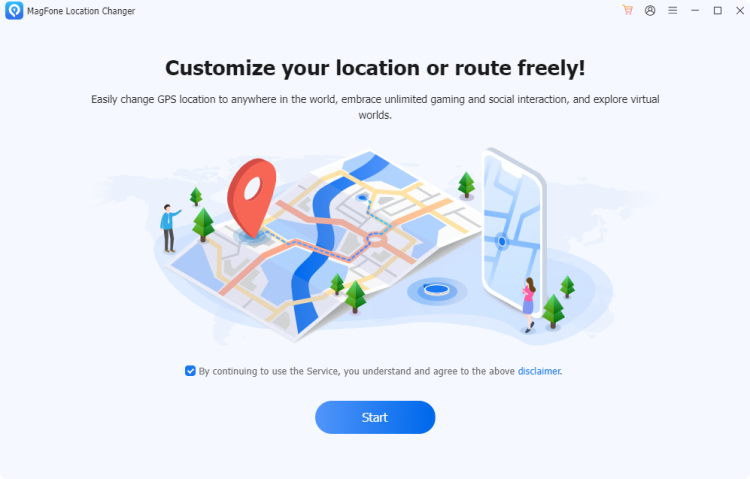
Connect your phone to your computer through a USB cable, then run MagFone Location Changer. On the main interface of MagFone software, select Change Location and click the Start button.
Step 2 Start to Change Location on iPhone
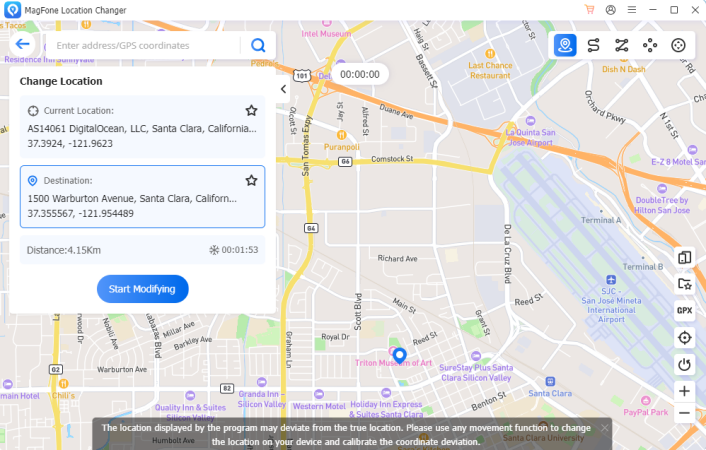
In the search bar, enter the address located in the U.S. and click the Start Modifying button. Your device will now show the changed location.
Method 2. Create a New America Apple ID
To a large extent, Apple offers services depending on your Apple Account country or region, let alone Apple Intelligence. If your Apple Account country or region is in the EU or China mainland, you won't be able to access Apple Intelligence. But according to the official reply, Apple Intelligence will work if you are not in China mainland or the EU and your Apple Account country or region is outside of the EU or China mainland. So, you can try to create a new American Apple ID. Alternatively, you can change your Apple Account country or region to U.S..
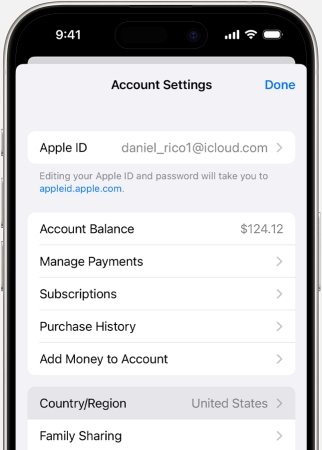
1) Open the Settings app, then tap your Apple ID name.
2) Tap Media & Purchases > View Account and sign in with your Apple ID password.
3) Tap Country/Region and select United States from the drop-down list.
4) Tap Change Country or Region, then tap your new country or region.
5) Review the Terms & Conditions and tap Agree twice to confirm.
Method 3. Reinstall AI-related Apps
Apps like Photos, Reminders, and Siri Shortcuts heavily rely on Apple Intelligence. Some AI-related apps, especially ChatGPT from OpenAI may need to be reinstalled to function correctly. When you find Apple Intelligence doesn't work or isn't showing up, you can try deleting and reinstall those AI-related apps on your device.
Method 4. Contact Apple Support
If none of the above steps resolve the issue, you may need professional assistance. Apple Support is there to help if you've tried everything and still can't get Apple Intelligence to show up. Go to visit the Apple Support website or use the Apple Support app.
Part 5. FAQs about Apple Intelligence
What does Apple Intelligence do?
Apple Intelligence can bring lots of smart features to you, which can help you write, express yourself, and get things done effortlessly.
How long does Apple Intelligence waitlist take?
It takes around 15~30 minutes to join the Apple Intelligence waitlist on the iPhone and Mac. But sometimes, the process of joining Apple Intelligence will be longer.
Can you turn off Apple Intelligence?
Yes, you can turn Apple Intelligence off on your iPhone. Just open Settings and tap Apple Intelligence & Siri, then set the switch next to Apple Intelligence to OFF.
Will Homepod get Apple Intelligence?
At present, Homepod doesn't support Apple Intelligence due to hardware limitations. But maybe this feature will be available for those new models of Homepod in future.
Part 6. Conclusion
When Apple Intelligence features disappears, it can be frustrating. However, following the troubleshooting steps outlined above, you should be able to resolve the issue quickly. Whether it's updating system, check settings, or resetting languages, you now have Apple Intelligence to work smoothly on your device again. But if you need to fix the issue by resetting your device location, try MagFone Location Changer, then you can quickly bypass the restriction.

Edgar Davis
Editor in chief





