








Hulu is a powerhouse in the streaming world, offering a mix of on-demand content and live local broadcasts. However, unlike standard streaming services, Hulu's Live TV package is closely tied to your "Home Location." If you move, travel, or encounter a "Hulu not available in your region" error, it's important to understand how to navigate the platform's strict location policies. This guide walks you through how to change home location on Hulu and provides some helpful notes along the way. Let's dive in.
- Part 1. Notes for Changing Home Location on Hulu
- Part 2. How to Enable Location Services for Hulu
- Part 3. How to Change Home Location on Hulu
- Part 4. How to Fix Hulu Not Available in Your Region Error
- Part 5. Conclusion
Part 1. Notes for Changing Home Location on Hulu
Before you start navigating the settings, it's important to understand how Hulu defines a "home." The platform uses your IP address and GPS data to tie your account to a specific residential network. Below are some frequently asked questions about changing your Hulu location.
Can I change my home location on Hulu Live?
Yes. You can change your home location, but Hulu intends for this feature to be used only when you permanently move or switch Internet Service Providers (ISPs). It is not designed for frequent travelers to switch local channels every weekend.
How many home location changes on Hulu?
Hulu is famously strict here: You are allowed only four home location changes within a rolling 12-month period. If you use all four changes, you will be locked into your last location until the year resets.
What happens if I change my home location on Hulu?
When you update your home location, your local channel lineup (ABC, NBC, CBS, FOX) and Regional Sports Networks (RSN) will update to match your new ZIP code. However, if you are away from home and try to change it via a mobile hotspot or a shared office Wi-Fi, Hulu may reject the change. Hulu requires a residential, non-mobile internet connection.
Part 2. How to Enable Location Services for Hulu
Hulu needs to "see" where you are to function. If your device's location services are off, you'll likely see a playback error. To ensure smooth streaming, it's essential to enable location services. The following guide explains how to turn them on across all major devices and platforms.
For Desktop Browsers
Chrome: Click the three dots > Settings > Privacy and Security > Site Settings > Location. Ensure "Sites can ask for your location" is enabled.
Edge: Go to your Windows > Settings > Privacy & security > Location. Toggle "Let apps access your location" to On.
Firefox: Click Menu > Preferences > Privacy & Security. Scroll to Permissions, click Settings next to Location, and ensure Hulu is not blocked.
Safari: Open System Settings > Privacy & Security > Location Services. Ensure "Location Services" is enabled and that Safari is checked in the list.
For Mobile Devices
Android Devices: Go to Settings > Security & Location > Location and toggle it on. Then, go to App Permissions, find Hulu, and select "Allow only while using the app."
iOS Devices: Open Settings > Privacy & Security > Location Services. Toggle it on, find Hulu in the list, and set access to "While Using the App."
Part 3. How to Change Home Location on Hulu
There are several ways to tackle a location change. While the official way is the most stable, third-party tools offer a "cheat code" for those who have exhausted their four-change limit or want to watch out-of-market sports. Next are three ways to change home location on Hulu.
Method 1. Change Home Location on Hulu on a Browser
This is the standard procedure. You must be physically at the new location (on the new Wi-Fi) to do this.
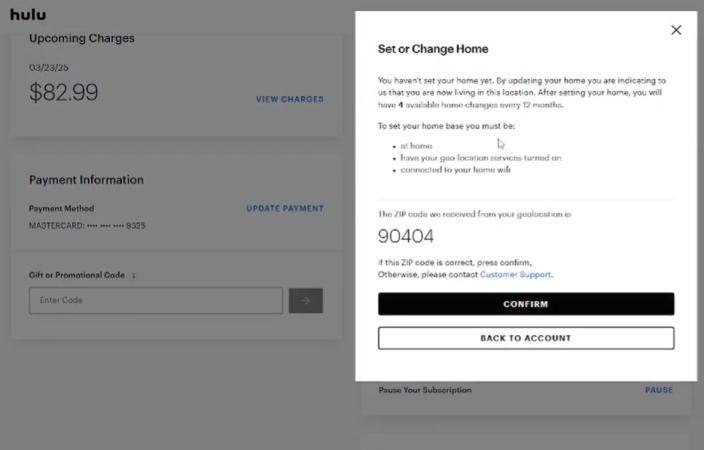
Step 1. Log in to Hulu.com on a browser.
Step 2. Under the Privacy and Settings section, look for Set or Change Home.
Step 3. Enter your new ZIP code. Note that if you've used your 4 changes, this option will be greyed out.
Method 2. Change Home Location on Hulu via MagFone Location Changer
If you're traveling or want Hulu to recognize a different city's local content, MagFone Location Changer is an effective solution. Unlike a VPN, which only alters your IP address, MagFone modifies your device's actual GPS coordinates. This makes Hulu believe you're at your home network or in another location entirely, allowing access to region-specific content, live channels, or local news without triggering playback errors. Here's how to use it.

MagFone Location Changer
Easily change your GPS location on iOS and Android devices to anywhere with one click, while not requiring root or jailbreaking!
Step 1 Connect Devices and Fire Up MagFone

Use a USB cable to connect your device to your computer, then open the MagFone Location Changer software. Select the "Change Location" feature to begin. Then continue to choose General Mode.
Step 2 Change Your Home Location on Hulu

On the interactive map, choose the location you want Hulu to detect. You can also type a specific address in the search bar. Click "Start Modifying" to update your device's GPS location and reflect the change across Hulu.
Method 3. Change Home Location on Hulu Using a VPN
A VPN, such as NordVPN, changes your IP address, making Hulu think you're in a different location.
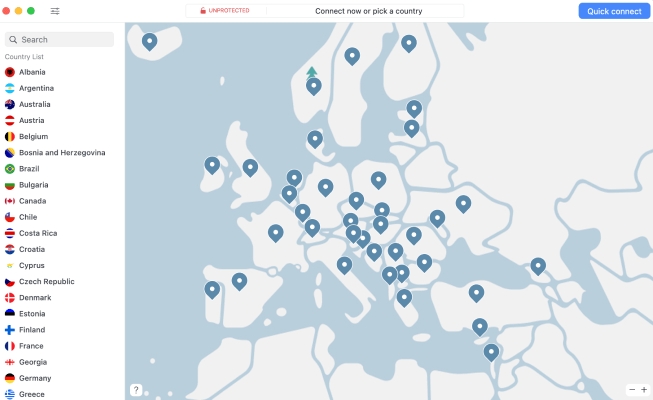
Step 1. Download and install NordVPN on your device.
Step 2. Open the app and log in with your NordVPN account credentials.
Step 3. In the server list, select a location in the U.S. (for example, New York or Los Angeles) and click Connect.
Step 4. Launch Hulu. Your IP now appears to be in the U.S., so you should have access to your usual content and local channels.
Note:
While a VPN can change your internet IP address for Hulu, GPS detection may still block access. To ensure Hulu Live streams smoothly, it's best to use both a VPN and a GPS location changer.
Part 4. How to Fix Hulu Not Available in Your Region Error
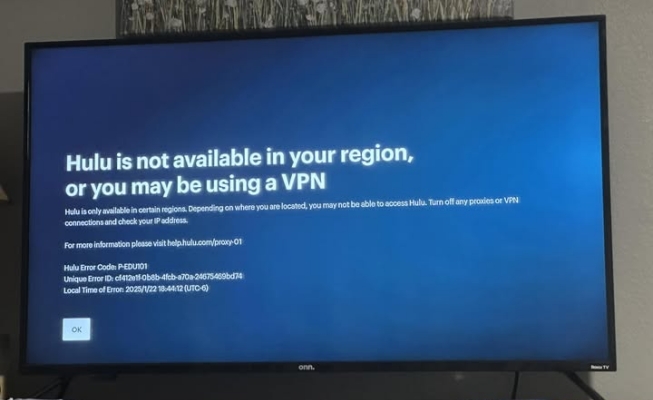
Q: Why am I getting this after 6 months? Was watching just yesterday no issues. Hulu can't help, have tried factory reset on Roku TV…nothing.
If you see the error message "Hulu is not available in your region, or you may be using a VPN," it means Hulu's security system has flagged your connection. In addition to disabling VPN services, you can try the following troubleshooting steps to resolve the issue.
Clear Cookies and Cache: Browser cookies or app cache can store old location data. Clearing them often resolves regional errors.
Reset DNS Settings: Switch your DNS to "Automatic" in network settings. Custom DNS servers can sometimes trigger location flags.
Check the 30-Day Rule: Hulu requires you to connect to your "Home Wi-Fi" at least once every 30 days on mobile devices.
Restart Device and Router: Simple but effective. Sometimes Hulu continues reading cached network info. Restarting can refresh the connection.
Update Hulu App or Browser: Outdated versions can have bugs that interfere with location detection. Make sure your app or browser is up to date.
Contact Hulu Support: If all else fails, Hulu Support can help verify your account and guide you through region-related access issues.
Part 5. Conclusion
Managing your Hulu home location requires a balance between following Hulu's strict 4-change rule and utilizing tools like MagFone or a high-quality VPN to maintain flexibility. If you are a permanent resident moving to a new home, the official browser method is your best bet. However, for those who need to bypass regional blackouts or keep their Live TV active while traveling, software-based location shifting is the ultimate solution.

Olivia Wood
Editor in chief





