








Finding yourself in a new neighborhood or trying to send a surprise meal to a friend across the country shouldn't be a technical challenge. Whether you are a hungry customer looking for local flavors, a traveler in a different state, or a Dasher seeking busier zones, adjusting your digital footprint is key. This complete guide explains how to change location on DoorDash, making it easy to update your coordinates and access any delivery zone with ease.
- Part 1. Can You Change Your Locations on DoorDash?
- Part 2. How to Change Pickup Location on DoorDash
- Part 3. How to Change Store Location on DoorDash
- Part 4. How to Change DoorDash Location with One-Click
- Part 5. Conclusion
Part 1. Can You Change Your Locations on DoorDash?
Yes, but with caveats. As a customer, you cannot manually pick which specific branch of a chain (like McDonald's or Starbucks) prepares your food. DoorDash's algorithm automatically assigns the order to the location closest to your delivery address to ensure food quality and driver efficiency.
However, if you are using the Pickup feature, you have total control. You can browse different neighborhoods and select the specific store location where you want to collect your order. For delivery, the only way to "force" a specific restaurant location is to change your delivery address to one within that store's specific delivery radius. Next, we'll share five ways to help you change your location on DoorDash.
| Method | User Group | Duration | Usability |
|---|---|---|---|
| DoorDash App | Customer | Quick | Very Easy |
| DoorDash.com | Customer | Quick | Easy |
| Dash Now | DoorDash Driver | Quick | Very Easy |
| DoorDash App (Merchant) | Business Owner | Moderate | Moderate |
| MagFone Location Changer | Customer, DoorDash Driver or Business Owner | Very Quick | Easy |
Part 2. How to Change Pickup Location on DoorDash
Depending on your current device and specific needs, there are three primary ways you can choose to change the pickup location. Let's see which method works best for your situation to ensure your food arrives hot.
Method 1. Change Delivery Location on DoorDash App
Updating your address via the mobile app is the most convenient and common method for hungry users on the go today.
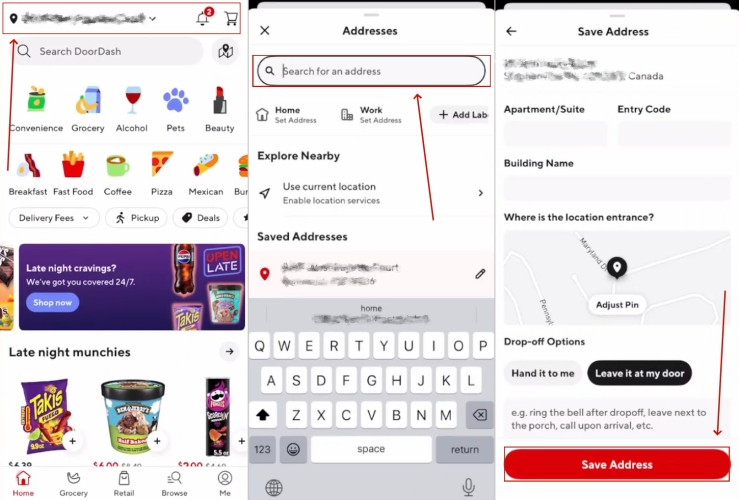
Step 1. Open the DoorDash app and tap your current address at the top of the screen.
Step 2. Tap the Search bar and type in your new street address, city, or zip code.
Step 3. Select the correct match from the dropdown suggestions provided.
Step 4. Confirm the new location you've selected, then tap Save Address.
Method 2. Change Delivery Location at doordash.com
If you prefer ordering from a laptop or desktop computer, the web-based process is often even faster and more visual.
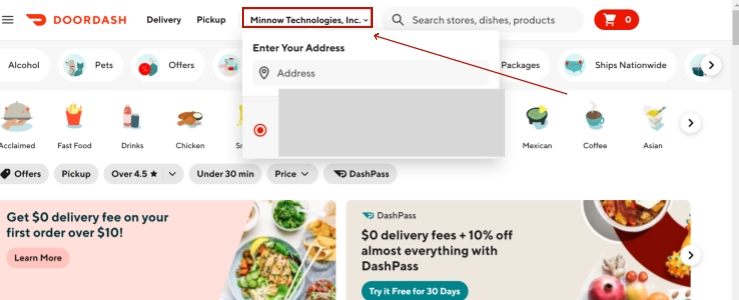
Step 1. Navigate to the DoorDash website and log in to your personal account.
Step 2. Click on the current address displayed at the top of the homepage.
Step 3. When the menu appears, select the Edit icon next to your saved address.
Step 4. After adjusting your location, tap Save to update your DoorDash address.
Method 3. Change Delivery Location via Dash Now
For DoorDash drivers, shifting your location is absolutely vital for finding active "Hotspots" and maximizing your total daily earnings.
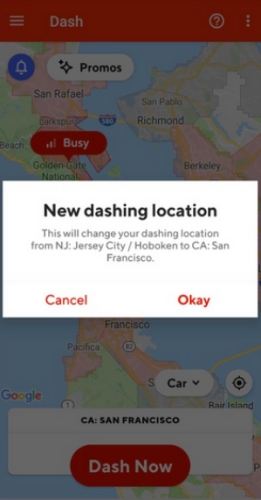
Step 1. Open the Dasher App on your mobile device.
Step 2. The app should automatically detect your new GPS coordinates if you have traveled.
Step 3. Tap the Dash Now button to trigger a location update prompt.
Step 4. Select Okay or Change to confirm your new starting point and begin receiving local delivery orders.
Part 3. How to Change Store Location on DoorDash
If you are a Merchant (Business Owner), updating your store location is a more formal process to ensure customers can find you. Next is how to change a restaurant location on DoorDash.
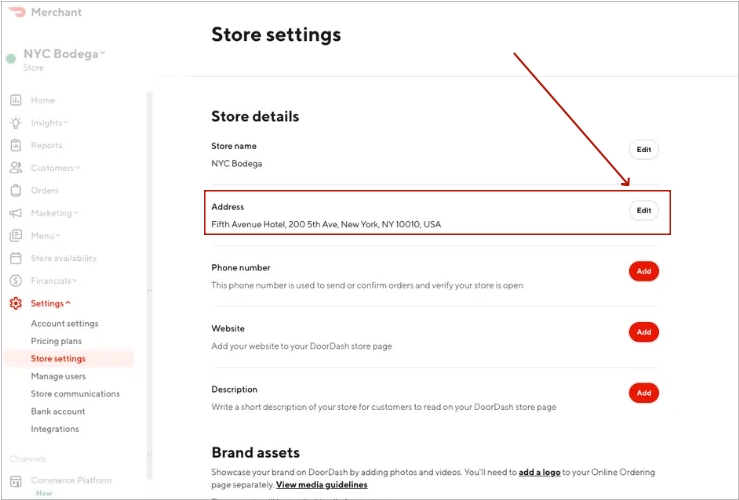
Step 1. Open your DoorDash Business/Merchant app and confirm you are signed in to the correct store profile.
Step 2. Navigate to the Settings part and select the Store Settings menu.
Step 3. Click Edit to change your store location on DoorDash. Then choose Save or Update to confirm the changes.
Part 4. How to Change DoorDash Location with One-Click
Sometimes, manually typing addresses isn't enough—especially if you want to bypass regional restrictions, check out "Dash Now" availability in a different state before moving, or access exclusive promo codes tied to specific GPS coordinates. For these scenarios, using a professional tool like MagFone Location Changer is the most effective solution. Unlike a standard VPN, which only changes your IP address, MagFone modifies the actual GPS coordinates of your device. This is crucial because DoorDash relies on GPS, not just your IP, to determine which restaurants you see.

MagFone Location Changer
Easily change your GPS location on Rover to anywhere with one click, while not requiring jailbreaking!
Step 1 Connect Your Device and Run MagFone

Download and install MagFone Location Changer on your computer (Windows or Mac), then launch the program. Connect your iPhone or Android phone to the computer using a USB cable. Once detected, choose the "Change Location" mode (the first icon on the left).
Step 2 Start to Change the DoorDash Location

You will see a world map. In the search bar at the top left, type in the specific city, state, or coordinates where you want to "be." Once the pin drops on your desired destination, click the Start Modifying button. Your phone's GPS on DoorDash will instantly teleport.
Part 5. Conclusion
Whether you're a customer trying to order a birthday meal for a relative across the country or a driver looking to maximize earnings in a busier state, the tools are at your fingertips. From the basic in-app address settings to the advanced GPS spoofing capabilities of MagFone, you now have the "Complete Guide" to navigating the DoorDash map like a pro.

Edgar Davis
Editor in chief





