








Bigo Live is a popular live streaming platform where users can broadcast, watch, and interact with people worldwide, enjoying real-time entertainment, chats, and social connections. In this guide, we've discussed the benefits of changing your location on Bigo Live and how it can enhance your experience. Additionally, we'll provide a clear tutorial on how to change your location on Bigo Live for both iOS and Android devices.
- Part 1. Reasons to Change Your Location on Bigo Live
- Part 2. How to Change Location on Bigo Live [iOS & Android]
- Part 3. How to Hide Location on Bigo Live Effortlessly
- Part 4. FAQs about Bigo Live Location
- Part 5. Conclusion
Part 1. Reasons to Change Your Location on Bigo Live
Bigo Live uses your location to show nearby users and live streams in your area. It helps connect you with local broadcasters. So, is there any benefit to changing your location on Bigo Live? Absolutely. Adjusting your location can improve your overall experience on the platform as follows.
- Discover region-specific live streams, trends, and creators that are not visible in your default location.
- Explore live streams from different cities or countries to enjoy diverse cultures and entertainment styles.
- Keep your real location private to reduce risks related to tracking, stalking, or personal data exposure.
- Reach international audiences and gain followers by appearing active in high-engagement global regions.
Part 2. How to Change Location on Bigo Live [iOS & Android]
There are two ways to change your location on Bigo Live—directly in your profile or using a location changer for more flexibility.
Option 1. Change Bigo Live Location in Profile
Changing your location on Bigo Live is simple and can be done directly from your profile. Just follow this step-by-step guide to update your location on both iOS and Android devices quickly and easily.
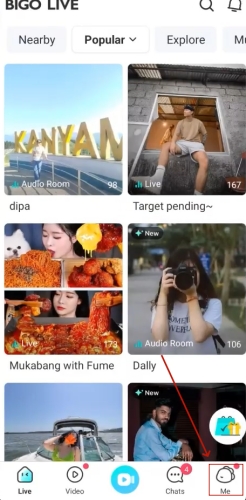
Step 1. Open the Bigo Live app on your device and tap Me on the bottom of the screen.
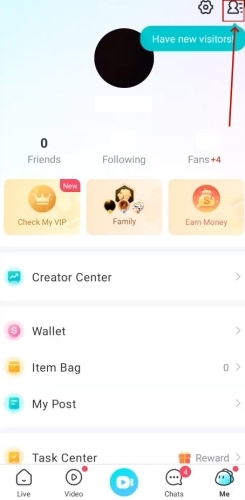
Step 2. Go to your profile by tapping the profile icon, usually found in the top-left corner.
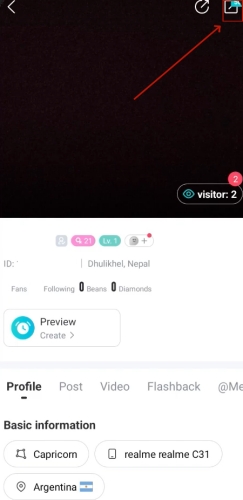
Step 3. Select the Edit option to make changes to your account location information.
Step 4. Scroll to the Personal Information section and tap the Hometown field.
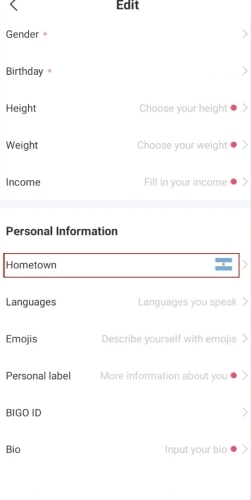
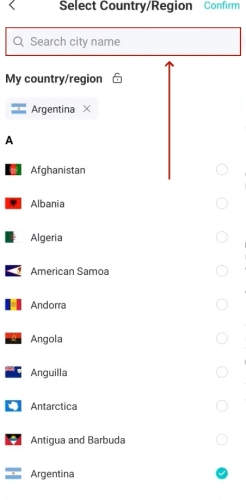
Step 5. Choose the country or region you want to display and tap Confirm to save your updated location.
Option 2. Change Bigo Live Location with MagFone
You can choose to change your hometown location in Bigo Live via your profile information, but the options there are limited. To set your Bigo Live location anywhere in the world, you can use a reliable location changer like MagFone, giving you much more flexibility. MagFone Location Changer allows you to modify your GPS location on Bigo Live to anywhere worldwide within minutes, unlocking new ways to interact and enjoy the app. Beyond Bigo Live, it also works well with other apps like Facebook, Pokémon Go, and dating apps to enhance your experience. With just a few clicks, you can enter a completely different virtual world. Here's how to do it.

MagFone Location Changer
Easily change your GPS location on iOS and Android devices to anywhere with one click, while not requiring root or jailbreaking!
Step 1 Connect Your Device and Launch MagFone

Obtain MagFone Location Changer on your computer, then open the software. Connect your mobile device using a USB cable or Wi-Fi connection. Make sure developer mode is enabled on your phone. Once connected, access the location simulation feature from the MagFone interface.
Step 2 Start to Change Bigo Live Location

Pick a location on the map or enter specific coordinates in the search bar to choose your desired spot. Click the Start Modifying button to update your Bigo Live location instantly. Your app will now display the new location, letting you explore streams and interact as if you were there.
Part 3. How to Hide Location on Bigo Live Effortlessly
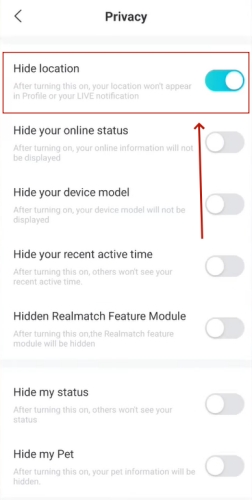
In addition to changing your location, Bigo Live offers an official way to hide your location for privacy, which can be activated in just three simple steps.
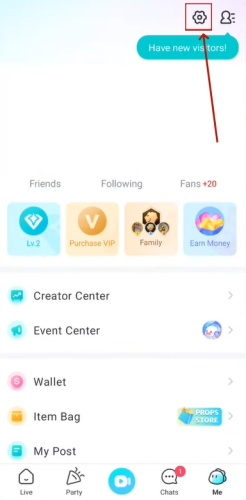
Step 1. In Bigo Live, select the Me option at the bottom. Then press Settings.
Step 2. Continue to tap the Privacy section from the menu.
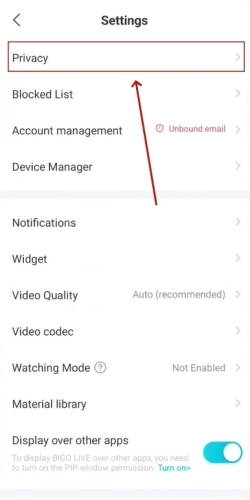
Step 3. To finish, enable the Hide Location switch.
Part 4. FAQs about Bigo Live Location
Does Bigo Live track my location in real-time?
Bigo Live may access your device's location while the app is active, but enabling Hide Location prevents it from showing publicly.
Can other users see my exact location on Bigo Live?
No, other users cannot see your exact GPS coordinates on Bigo Live. The app primarily uses your location to display nearby streamers and suggest content relevant to your area. When you enable the Nearby feature, it only shares a general location (like city or region), not your precise address.
Will my followers know if I hide my location?
Your followers won't receive any notification when you hide your location. However, your profile will no longer display geographic information, which might still catch their attention.
Part 5. Conclusion
Managing your location on Bigo Live gives you greater control over privacy, content discovery, and interaction. Whether exploring global streams or safeguarding personal data, location settings help tailor your experience. By understanding these features, you can enjoy the Bigo Live app with greater confidence, creativity, and security across both iOS and Android devices.

Edgar Davis
Editor in chief





