








Sometimes Alexa gets it wrong, giving weather for another city, setting reminders in the wrong time zone, or misidentifying your device's room. That's where changing your Alexa location comes in handy. Whether you've moved, changed Wi-Fi, or noticed incorrect info, this latest step-by-step guide has all the answers. Read on to learn how to change Alexa location easily and fix any related errors in minutes.
- Part 1. How to Change Weather Location on Alexa
- Part 2. How to Change Alexa Device Room Location
- Part 3. How to Change Alexa Routine Location Fast
- Part 4. Conclusion
Part 1. How to Change Weather Location on Alexa
Alexa's weather location is based on your device address, Amazon account settings, or app permissions. It's used to deliver accurate forecasts, time zones, and local updates. If you change the location to another town, Alexa will switch to the new forecast, but cached or routine-based responses may not immediately reflect the updated location. You can update the weather location in two main ways: through the Alexa app or by changing your address on the Amazon website.
Change Alexa Location on the Alexa App
Step 1. Open the Alexa app on your smartphone or tablet.
Step 2. Press Devices at the bottom of the screen.
Step 3. Select Echo & Alexa and choose the device you want to update.
Step 4. Tap Device Settings and scroll to Device Location.
Step 5. Enter your current address and select Save.
Change Alexa Location on the Alexa App
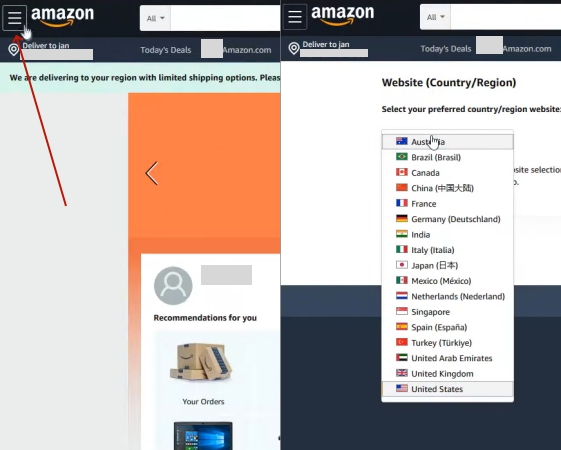
Step 1. Switch to the Amazon website and log in.
Step 2. Click Accounts & Lists.
Step 3. Select Account and choose Preferences on that page.
Step 4. Add or edit your address details.
Step 5. Find and select Country/Region Settings > Change.
Step 6. Set another location and tap Update to save your changes.
Sometimes Alexa still shows the wrong location even after you manually set it. In that case, you can try using MagFone Location Changer to reset your current GPS location and help Alexa display the correct place again. This tool can also be used on other apps on your iPhone and Android devices, such as Pokémon Go and the Find My app. It is simple to use and fixes persistent location errors quickly and reliably.


MagFone Location Changer
Easily change your GPS location on iOS and Android devices to anywhere with one click, while not requiring root or jailbreaking!
Part 2. How to Change Alexa Device Room Location
The Alexa room location feature helps organize your smart home by assigning devices to specific rooms, improving voice control and automation accuracy. For example, saying "turn on the lights" will affect only that room. This setting is not always automatic—you can manually assign or change it anytime. It ensures better device grouping and smoother smart home control. Here are the steps to change it.
Step 1. Open the Alexa app. Then tap Devices at the bottom.
Step 2. Select the device you want to move and tap the Settings icon.
Step 3. Choose Device Location or Room.
Step 4. Pick an existing room or create a new one and tap Save to confirm.
Part 3. How to Change Alexa Routine Location Fast
Alexa Routine location is used to trigger automations based on where you are, such as turning on lights when you arrive home or sending reminders when you leave. If your address is outdated, routines may activate at the wrong time or not work at all. Updating the location ensures your automations stay accurate and reliable, especially after moving or traveling.
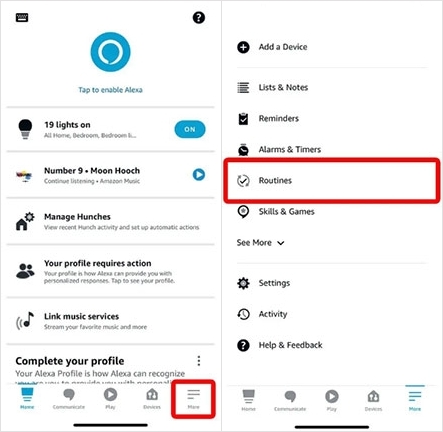
Step 1. Open the Alexa app and tap More at the bottom menu.
Step 2. Select Routines. Then choose the routine you want to edit.
Step 3. Tap When this happens > Location.
Step 4. Select Arrives or Leaves, then update the address or map pin.
Step 5. Tap Save to apply changes.
Part 4. Conclusion
Changing Alexa's location is easy and enhances your device's accuracy and functionality. Whether through the app, Amazon website, or using a tool like MagFone, correcting Alexa's location ensures better results for weather, time, and smart home features. Follow this guide to get the best out of Alexa, wherever you are.

Olivia Wood
Editor in chief





