








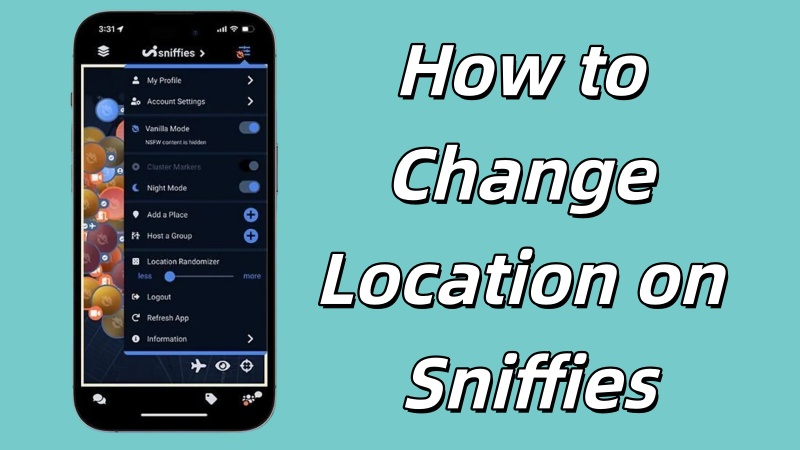
Sniffies is a widely used and recommended dating app. It heavily relies on your device's GPS location to determine your location and recommend potential dates and conversation partners nearby. However, in many cases, changing your location on Sniffies is necessary in order to meet different people, expand your social circle, or when you have travel plans. This guide will introduce some effective methods to help you change location on Sniffies, including one of the safest and most convenient tools to easily spoof your location.
- Part 1. How Do I Change My Location on Sniffies?
- Part 2. How to Change Location on Sniffies
- Part 3. Troubleshooting: Sniffies Wrong Location
- Part 4. FAQs about Changing Location on Sniffies
- Part 5. Conclusion
Part 1. How Do I Change My Location on Sniffies?
Changing your location on Sniffies is easy. Generally, Sniffies automatically uses your current location, so it will only show you users nearby. If you want to match with people in other cities, or explore cities before traveling, you will need to change location on Sniffies. There are several ways to do this, and check out the table below for a quick guide.
| Quick Guide | Platform | Change to Anywhere | Accuracy | Price |
|---|---|---|---|---|
| Sniffies Premium | iOS & Android | Yes | Medium | Start from $9.99 per week |
| MagFone Location Changer | iOS & Android | Yes | High | Start from $9.95 per month |
| VPN Services | iOS & Android | No | Low | Different VPN Services offer free plans and paid options |
Part 2. How to Change Location on Sniffies
Sniffies default settings use your device's GPS to determine your location, which hinders connecting with a wider variety of people in other areas. Therefore, users often need to change location on Sniffies so the app recognizes them as being in a different area. You can change your Sniffies location in several ways. Refer to these methods below.
Method 1. Change Sniffies Location via Sniffies Premium
Sniffies' paid premium membership service is called Sniffies Plus, and its unique Travel Mode is a core feature that allows users to change location on Sniffies and explore social scenes in other areas in advance, making it easier to plan social activities during their travels. The following are the specific steps.
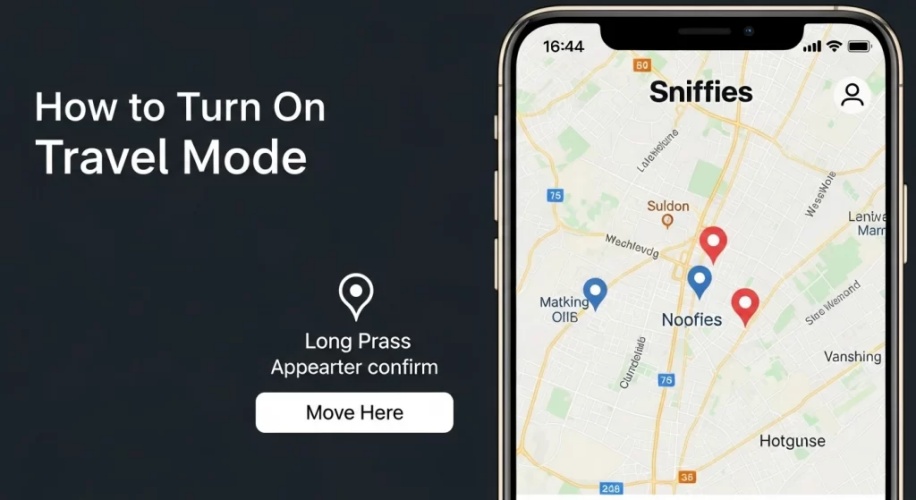
Step 1. Activate and log in to your Sniffies membership.
Step 2. Tap the Settings icon and find the Travel Mode feature.
Step 3. Set your target location.
Step 4. Start changing your location on Sniffies.
Method 2. Change BLK Location via Location Changer
If you're looking for a simple way to change location on Sniffies without subscribing to a premium membership, then MagFone Location Changer is one of the easiest and most reliable tools available. This location spoofing tool can spoof your location to any region with high accuracy. Whether you want to explore new areas, meet people in other cities, or experience different social scenes, MagFone Location Changer is a great helper, allowing you to easily change your Sniffies location with just one click. Here is a simple step-by-step guide.

MagFone Location Changer
Easily change your GPS location on Sniffies to anywhere with one click, while not requiring root or jailbreaking!
Step 1 Connect Your Device and Run MagFone Location Changer

Download and Install MagFone Location Changer on your computer, then enable it. Connect your phone to the computer through a USB cable or Wi-Fi network. After turning on Developer Mode on your device, select a location simulation mode in the MagFone program.
Step 2 Start to Change Sniffies Location

Select the place you want your device to change on the world map. Or enter the specific coordinates in the search bar. Then click the Start Modifying button to change your location in the Sniffies app to anywhere.
Method 3. Change Sniffies Location via VPN Services
Another common method for changing location on Sniffies is to use VPN Services to change your location to another region. However, you need note that VPN services change your device's IP address, which affects location-dependent functions. Therefore, it's not suitable for precisely changing your location.
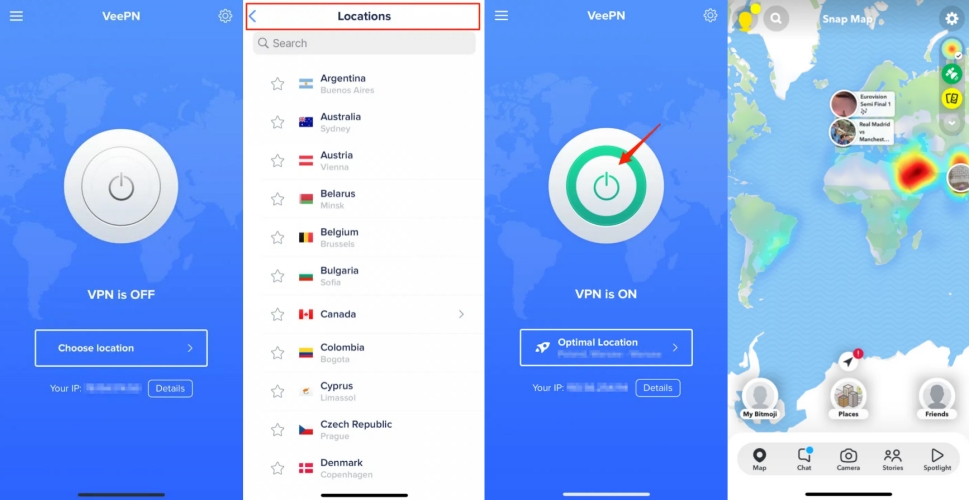
Step 1. In the App Store, select and download a VPN service.
Step 2. Run the app and allow the configuration permissions.
Step 3. Then select an available server location.
Step 4. Your IP address will be changed, after tapping the connect button.
Part 3.Troubleshooting: Sniffies Wrong Location
The core function of the Sniffies dating app is to use your phone's GPS to show nearby matches. If Sniffies' location services are malfunctioning, you might encounter some exceptions, such as the app showing you in a different city, matches appearing from the wrong area, or your location not updating. Regardless of the location issue you're experiencing, you can try the following solutions to resolve it.
Solution 1. Turn on Location Services for Sniffies
The Sniffies app cannot access GPS without location permissions, and therefore cannot obtain your exact location to provide its services. Enabling location access allows the app to read your location coordinates. Follow the steps below to turn on location permissions.
On iPhone

Step 1. Open Settings > Privacy & Security > Location Services.
Step 2. Turn on Location Services, then find Sniffies.
Step 3. Select Always under Allow Location Access.
On Android Phone
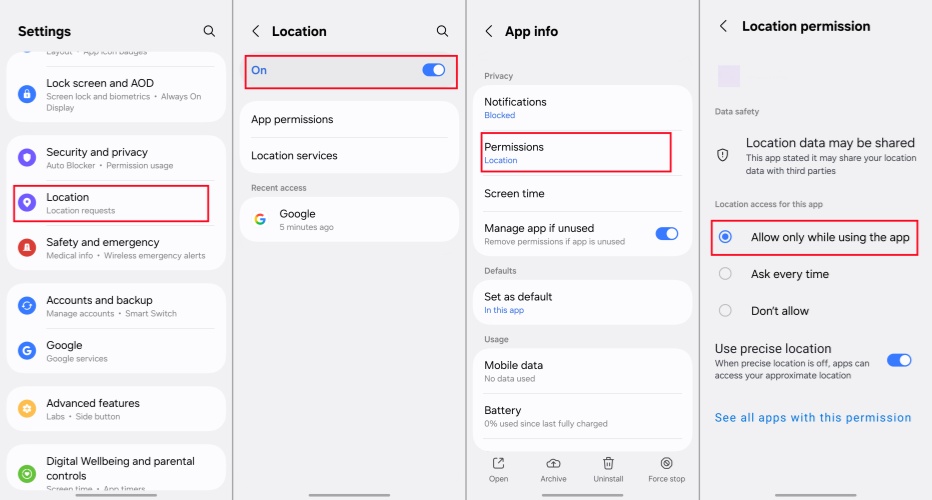
Step 1. Go to Settings, and find Location.
Step 2. Turn on Location, then go to Apps and tap Sniffies.
Step 3. Tap Permisssions > Location, and select Allow only while using the app.
Solution 2. Enable and Disable Airplane Mode
Enable and Disable Airplane Mode resets the device's Wi-Fi, cellular data, and GPS modules, which can resolve location signal transmission issues caused by these modules, allowing Sniffies to read location data correctly again.
Solution 3. Clear Out Cache or Offload Sniffies
Excessive cached data also cause the Sniffies to fail to update location information. Clearing out the cache will force the app to reload the latest location data. If you are an iPhone user, you can clear the cache by simply offloading Sniffies. For Android users, you can follow these steps below.
Clear Cache on Android Devices
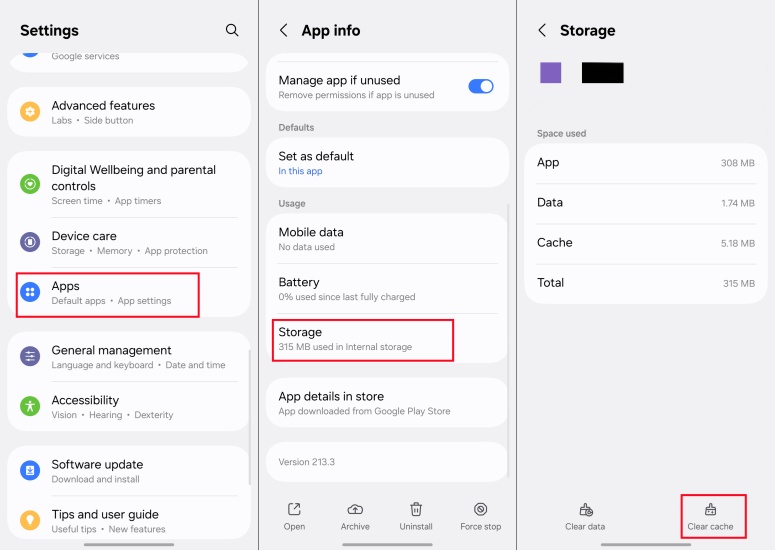
Step 1. Enter the Settings, tap Apps > Sniffies > Storage.
Step 2. Tap Clear cache.
Offload Sniffies on the iPhone
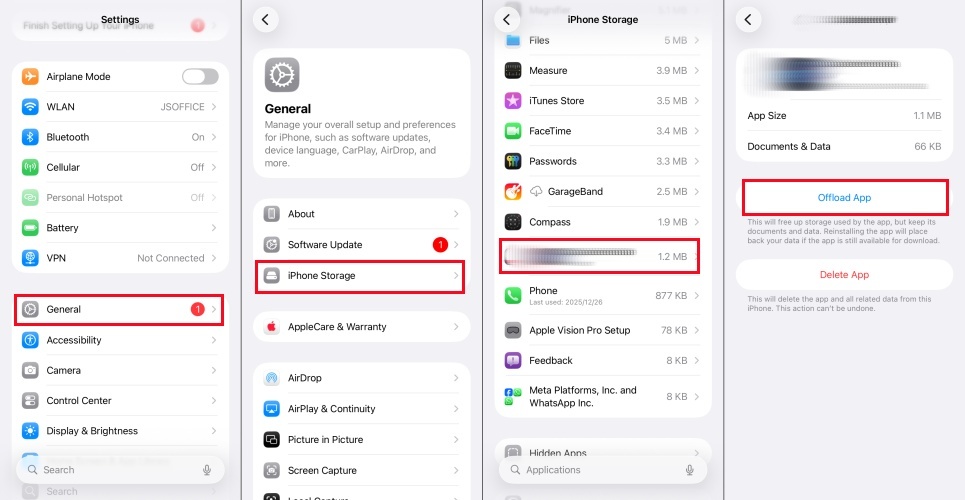
Step 1. Go to Settings, and find General.
Step 2. Tap iPhone Storage > Sniffies > Offload App.
Solution 4. Delete and Reinstall the Sniffies App
The latest version of the app can help you get the most up-to-date GPS location. Deleting and reinstalling the app ensures you are using the latest version. If you encounter problems with location services in the Sniffies, try deleting the app from your phone and then reinstalling it from the App Store or Google Play Store.
Solution 5. Update Sniffies to the Latest Version
Sometimes, an outdated version can cause location services to malfunction. Check that the Sniffies app on your device is updated to the latest version. Please follow these steps to update.
On iPhone
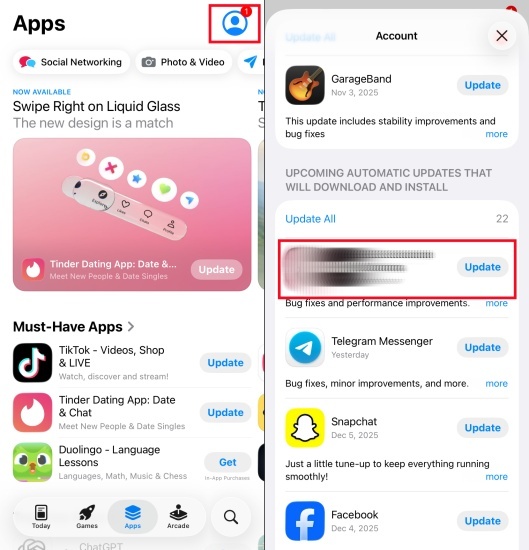
Step 1. Go to App Store and tap profile picture.
Step 2. Find the update for Sniffies.
On Android Phone
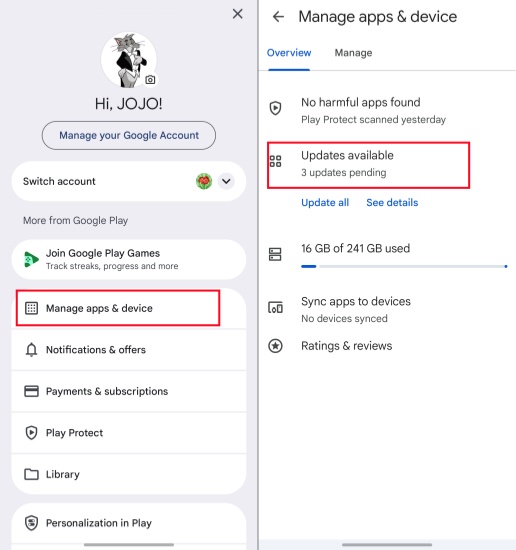
Step 1. Open Google Play Store and tap profile picture.
Step 2. Tap Manage apps & device > Updates available.
Step 3. Check the update for Sniffies.
Part 4. FAQs about Changing Location on Sniffies
How to turn off location on Sniffies?
Users can enable Ghost Mode, which is the primary way to turn off your exact location in the Sniffies app without completely turning off your phone's GPS location services.
Step 1. Open the Sniffies app.
Step 2. Go to your Profile or Settings.
Step 3. Enable Ghost Mode .
Can I hide location on Sniffies?
There are several ways to help you hide your real location and protect your privacy. However, the most convenient and secure method is using MagFone Location Changer. With this location faker, you can change location on Sniffies anytime, anywhere, to hide your real location.
How to make Sniffies location accurate?
To ensure accurate location tracking in Sniffies, please make sure your phone's GPS location services are enabled and set to high accuracy. At the same time, keep the app updated, clear its cache data, and avoid using VPNs and proxy servers.
Part 5. Conclusion
Changing your location on Sniffies can offer many opportunities to meet new people from different regions and experience different dating scenarios, helping to expand your social circle. Many people use MagFone Location Changer, a safe and reliable tool, to change location on Sniffies. This powerful application allows you to change your location on your Android or iPhone device with just one click. Try using MagFone Location Changer to change location on Sniffies now!

Edgar Davis
Editor in chief





