








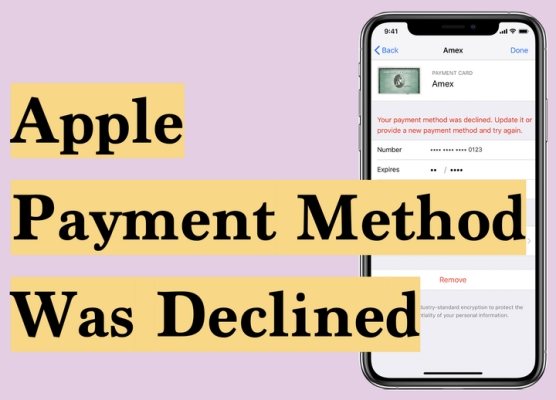
If you've ever tried to buy an app, subscribe to a service, or make an in‑app purchase on your iPhone only to see "Your payment method was declined," you know how frustrating it can be — especially when you're sure your card is valid, and there's money in your account. In this guide, we will walk you through why your payment method was declined, what you can do, and how to fix payment method declined on iPhone.
- Part 1. Why Is My Payment Method Declined?
- Part 2. What to Do If Payment Method Is Declined
- Part 3. How to Fix Payment Method Declined on iPhone
- Part 4. Bonus Tip: Remove Apple ID from iPhone without Password
- Part 5. Conclusion
Part 1. Why Is My Payment Method Declined?
There are many reasons your payment method might be declined on your iPhone, and it doesn't always mean something is wrong with your card. Sometimes the issue is as simple as an expired card, an old billing address, or a temporary hold from your bank. In other cases, an unpaid subscription, suspicious activity, or Apple's security checks can block a payment. Besides, a device bug or system glitch may also cause this error.
Part 2. What to Do If Payment Method Is Declined
When your payment method is declined, you'll usually see an on‑screen message telling you what to do next. You can follow these prompts to solve the error and complete your purchase. Some common messages include:
- Your payment method was declined. Update it or add a new payment method and try again.
- Your payment method was declined. Please enter valid payment method information.
- Your payment method was declined. Please enter another payment method.
- Your payment method was declined. Please click Billing Info and update our payment information.
You can follow the steps below to complete a purchase based on the different messages you see.
Option 1. Update Current Payment Information
If your payment is declined, start by checking that your card details are correct and up to date. Make sure the card is active and that the name, number, expiration date, CVV, and billing address match what your bank has on file. Save any changes, then try the purchase again.
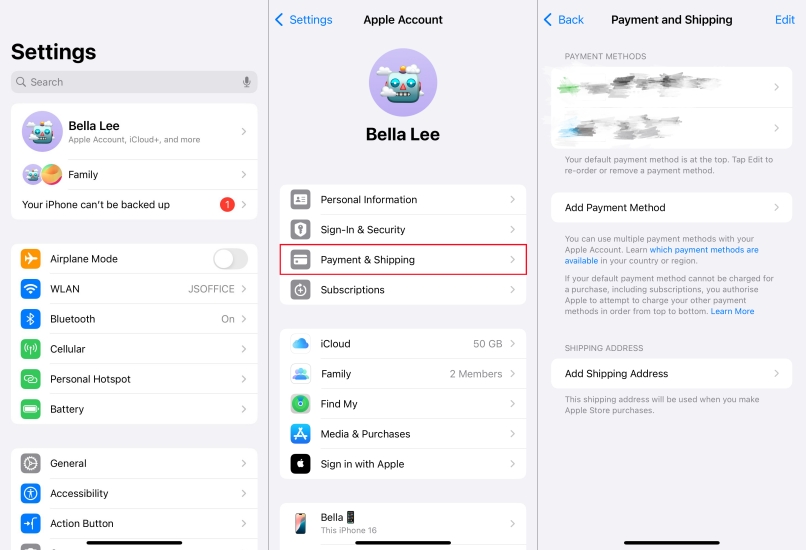
Step 1. Open iPhone Settings and tap your Apple ID.
Step 2. Tap Payment & Shipping, and access the declined payment method.
Step 3. Tap Edit to update the billing information. Then tap the upper-right icon.
Option 2. Add a New Payment Method
If you keep seeing messages asking you to add a new payment method, your current card may have expired, blocked, or not supported. In this case, simply add a different valid card or payment option to your Apple ID, set it as the primary method, and then try your purchase again to clear the error.
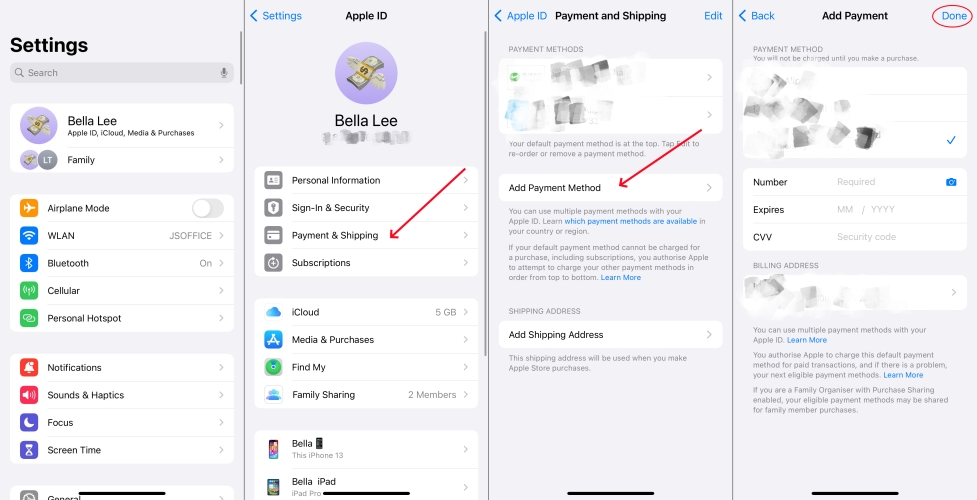
Step 1. Access iPhone Settings > Apple ID > Payment & Shipping.
Step 2. Tap Add Payment Method, fill in the required information, then tap Done.
Option 3. Check for Unpaid Order
Sometimes, a single unpaid order or failed charge in your purchase history can cause every new transaction to be declined until it's resolved. Check your purchase history and complete the unpaid order with the newly added payment method.
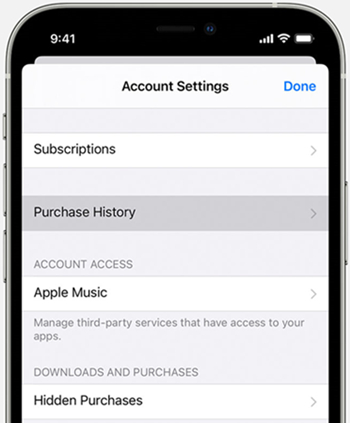
Step 1. Open the App Store and tap your account profile.
Step 2. Tap Purchase History to see if there is an unpaid purchase.
Step 3. Tap the unpaid order and complete the purchase.
Part 3. How to Fix Payment Method Declined on iPhone
If the suggested solutions by Apple don't work, the issue may be with your iPhone rather than payment details. You can adjust a few settings and perform simple checks on your device to clear glitches, refresh your Apple ID, and make sure everything is up to date before trying the payment again.
Method 1. Restart iPhone
Sometimes, the issue is simply a glitch in the system. A simple reboot can fix some mirror bugs and glitches on your iPhone. Try restarting your iPhone to fix the issue.
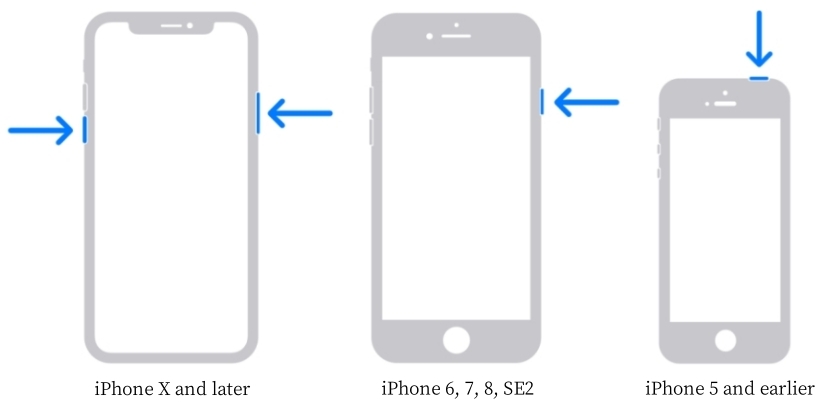
For iPhone X and later models:
Step 1. Hold the power button and the volume up button at the same time until the next screen.
Step 2. Drag the slider to shut down the device.
Step 3. Hold the power button to reboot the device.
For models before iPhone X:
Step 1. Hold the power button until the next screen.
Step 2. Drag the slider to shut down the device.
Step 3. Hold the power button to restart the device.
Method 2. Sign out and Back into Apple Account
Signing out of your Apple ID and then signing back in forces your iPhone to reconnect to Apple's servers and refresh your account information. Once you sign back in, try making the purchase again.
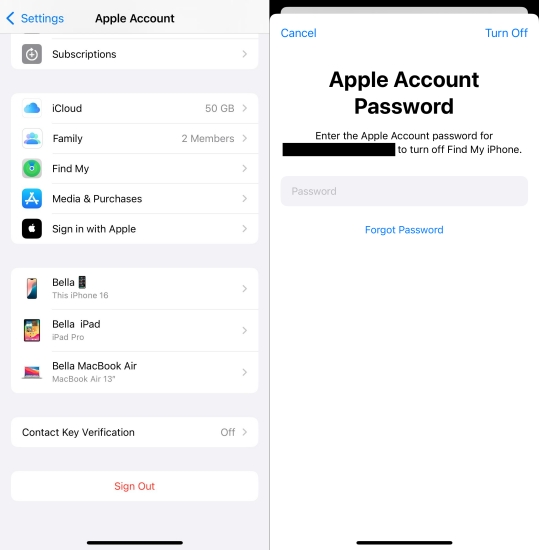
Step 1. Open iPhone Settings and tap Apple ID.
Step 2. Tap Sign Out at the bottom and enter your Apple ID password to sign out.
Step 3. Tap the profile box to sign back in to your Apple ID.
Method 3. Update iPhone Software
Outdated iOS versions can sometimes cause compatibility issues with Apple's payment services or with certain apps. Checking for and installing the latest iOS update can fix hidden bugs and improve security.

Step 1. Head for iPhone Settings > General.
Step 2. Tap Software Update to check for an update.
Step 3. Tap Install Now to update the iPhone software.
Method 4. Reset All Settings
If the problem seems related to your device's settings, such as network, region, or restrictions, resetting all settings can help. This returns system settings to their defaults without erasing your data. After the reset, sign in, reconnect to Wi‑Fi, and try your payment again.

Step 1. Enter iPhone Settings and tap General.
Step 2. Scroll to the bottom and tap Transfer or Reset iPhone.
Step 3. Tap Reset > Reset All Settings and enter the screen passcode to confirm.
Method 5. Factory Reset iPhone
As a last resort, you can erase all content and settings to rule out deeper software issues. A factory reset returns your iPhone to its original state, so you should back up your data first. Once the reset is complete, set up your iPhone again, sign in with your Apple ID, and then test the payment to see if the error is resolved.

Step 1. Go to iPhone Settings > General > Transfer or Reset iPhone.
Step 2. Tap Erase All Content and Settings > Continue > Erase iPhone.
Step 3. Enter the screen passcode and Apple ID password if required.
Part 4. Bonus Tip: Remove Apple ID from iPhone without Password
When you need to edit payment information but can't remember your Apple ID password, you may find yourself stuck on the same error screen over and over. In this case, removing the existing Apple ID from your iPhone and setting it up again with an account you control can be a practical solution.
As a versatile and effective unlocking tool, MagFone iPhone Unlocker can help you remove an Apple ID from your iPhone without a password. Besides Apple ID removal, it can also be used to unlock the lock screen passcode, remove Screen Time restrictions, and bypass MDM profiles. Here's how to remove Apple ID without a password using MagFone:

MagFone iPhone Unlocker
Unlock various locks on iOS devices, including screen locks, MDM, Apple ID, and Activation Lock without needing a password.
Step 1 Launch MagFone iPhone Unlocker

First, download and install MagFone iPhone Unlocker on your computer. Then connect your iPhone to the computer using a data cable. Launch MagFone after successful installation.
Step 2 Choose Unlock Apple ID
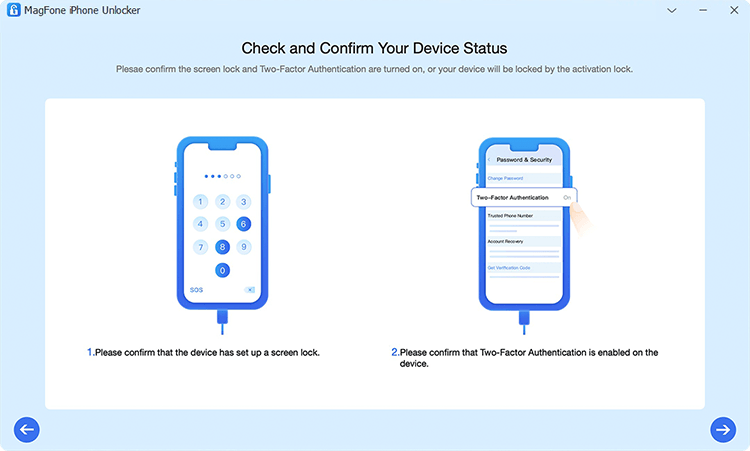
Choose Unlock Apple ID from the offered features. Then follow the on-screen instructions to check your device status. Make sure the screen lock and Two-Factor Authentication are turned on.
Step 3 Download Firmware Package

Once you have confirmed, click the next button to check device information. Then click Download to download a compatible firmware package.
Step 4 Remove Apple ID from iPhone without Password
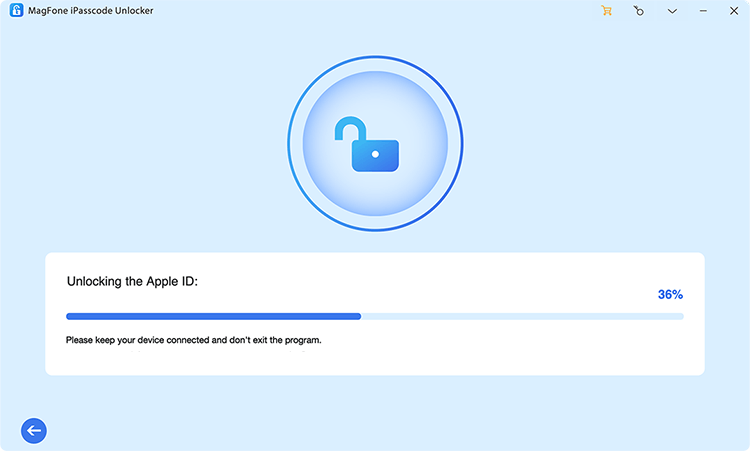
After downloading and verifying the firmware package, click Unlock to remove the Apple ID from iPhone without password. Then you can sign in to a new Apple account to manage the iPhone.
Part 5. Conclusion
The "Your payment method was declined." message can be annoying, but it's usually easy to fix once you follow the steps in this guide. Start by responding to Apple's on-screen prompts, then use the methods in Part 3 to clear any hidden glitches on your iPhone. If you're stuck because you can't access your Apple ID or its payment options, a tool like MagFone iPhone Unlocker can help you remove the Apple ID without a password, regain full control of your device, and set up your payment methods again.

Dylan Jones
Editor in chief





